
Orestree DA130PM130
Orestree 100W USB-C Charger Instruction Manual
Model: DA130PM130
1. Introduction
This manual provides essential information for the safe and effective use of your Orestree 100W USB-C Charger. Please read these instructions carefully before using the product and retain them for future reference.
This charger is designed to provide power to compatible laptops and devices, specifically Dell Latitude 7450 P174G001, P174G002, P175G002, and P176G002 models, as well as other devices requiring 20V 5A (100W max) via a USB-C connection.
2. Product Overview
2.1 Package Contents
- 1 x Orestree 100W USB-C Charger
- 1 x 3-Prong AC Power Cord

Figure 2.1: The Orestree 100W USB-C Charger unit and its accompanying 3-prong AC power cord.
2.2 Key Features
- High Power Output: Delivers up to 100W (20V/5A) for efficient charging.
- Universal Compatibility: Compatible with Dell Latitude 7450 series and other USB-C powered laptops and devices requiring 90W, 65W, or 45W.
- USB-C Connector: Reversible and durable connector for easy connection.
- Advanced Safety Protections: Built-in safeguards against over-current, over-voltage, short circuit, over-temperature, and over-charge.

Figure 2.2: Illustration of the USB-C connector's flexibility, showing 90 and 180-degree bends, and an internal view of the pure copper wire construction, indicating a lifespan of over 50,000 bends.

Figure 2.3: A visual representation of the charger's multi-protection system, including short-circuit, over-temperature, over-voltage, over-charge, and over-current protection, highlighting the integrated Power Delivery chip.
3. Setup Instructions
- Connect AC Power Cord: Insert the 3-prong AC power cord into the charger's AC input port. Ensure it is firmly seated.
- Plug into Wall Outlet: Plug the other end of the 3-prong AC power cord into a standard wall electrical outlet (100-240V AC).
- Connect to Device: Insert the USB-C connector of the charger into the USB-C charging port of your compatible laptop or device.
- Verify Charging: Confirm that your device indicates it is receiving power or charging.

Figure 3.1: The Orestree 100W USB-C charger properly connected to a wall outlet and a laptop, illustrating the secure connection and indicating active charging with safety features.
4. Operating Instructions
Once connected as described in the Setup Instructions, the charger will automatically begin supplying power to your device. The charger is designed for continuous use during device operation or for charging the device's internal battery.
- Automatic Power Delivery: The charger automatically detects the power requirements of the connected device and delivers the appropriate wattage up to 100W.
- Safe Disconnection: To disconnect, first unplug the USB-C connector from your device, then unplug the AC power cord from the wall outlet.
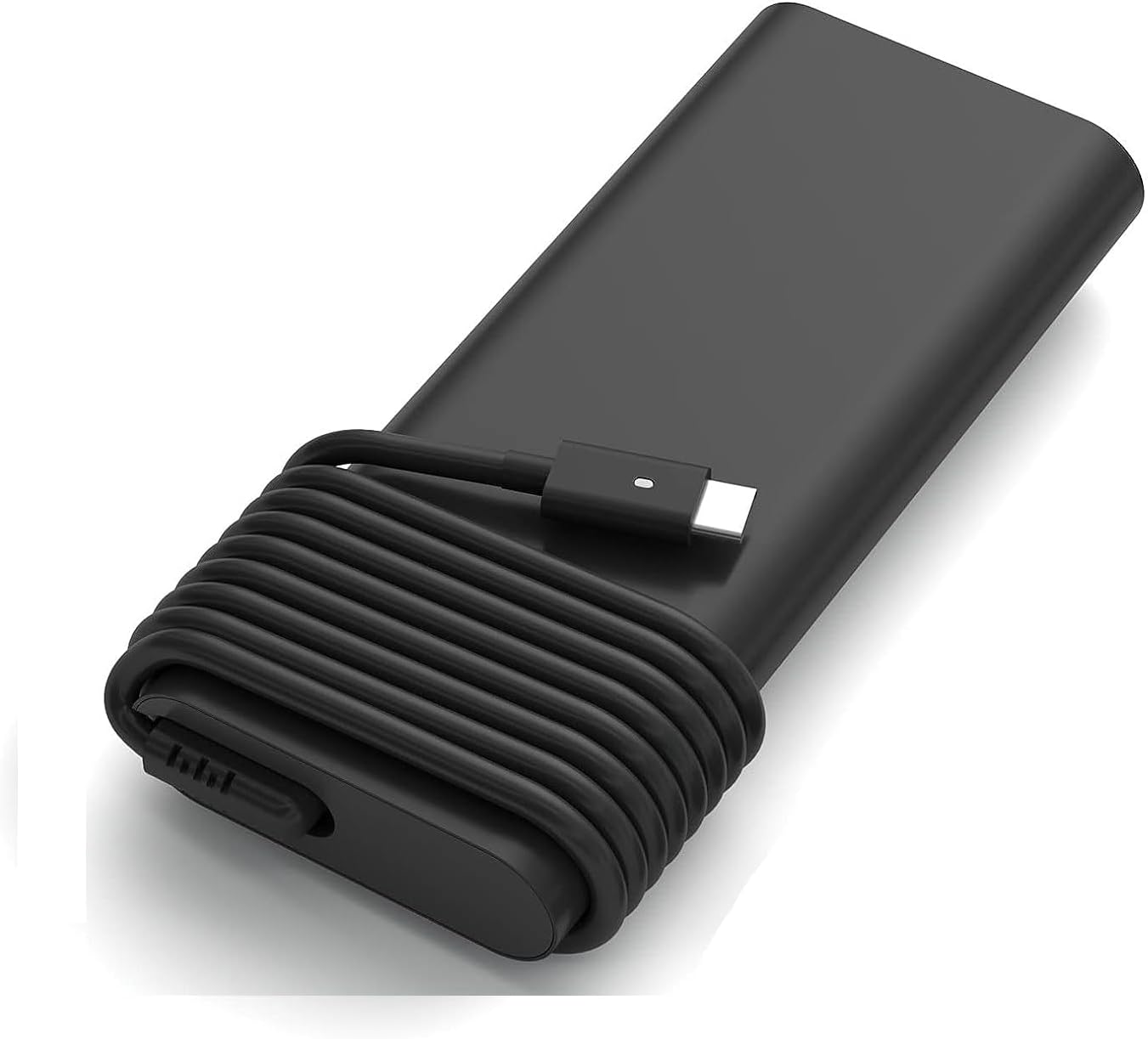
Figure 4.1: The Orestree 100W USB-C charger with its cable neatly coiled around the unit, demonstrating a compact storage method when not in use or for transport.
5. Safety Information
To ensure safe operation and prevent damage, please observe the following safety guidelines:
- Do not expose the charger to water, moisture, or extreme temperatures.
- Avoid dropping or subjecting the charger to severe impacts.
- Do not attempt to disassemble or modify the charger.
- Use only with compatible devices and within specified voltage/current ranges.
- Ensure proper ventilation around the charger during use to prevent overheating.
- Keep out of reach of children.
Figure 5.1: The charger in use, accompanied by icons representing its comprehensive safety features: over-current protection, over-voltage protection, short circuit protection, resistance to burning, and over-temperature protection.
6. Maintenance
- Cleaning: Disconnect the charger from all power sources and devices before cleaning. Use a soft, dry cloth to wipe the surface. Do not use liquid cleaners or aerosols.
- Storage: When not in use, store the charger in a cool, dry place, away from direct sunlight and extreme temperatures. Neatly coil the cable to prevent kinks or damage.
- Inspection: Periodically inspect the charger and cables for any signs of damage, such as frayed wires, cracked casing, or bent pins. If damage is found, discontinue use immediately.
7. Troubleshooting
| Problem | Possible Cause | Solution |
|---|---|---|
| Device not charging. |
|
|
| Charger feels hot during use. |
|
|
| Slow charging. |
|
|
8. Specifications
| Model Number | DA130PM130 |
| Input | 100-240V ~ 50-60Hz, 4.3A |
| Output | 20V 5A, 100W (Max) |
| Connector Type | USB Type-C |
| Compatible Devices | Laptops (e.g., Dell Latitude 7450 P174G001, P174G002, P175G002, P176G002) |
| Dimensions (Package) | 5.91 x 3.94 x 0.59 inches |
| Item Weight | 10.6 ounces |
| Color | Black |
| Special Feature | Automatic Off |
9. Warranty and Support
This Orestree product comes with a 1-year warranty from the date of purchase. Additionally, a 30-day money-back guarantee is offered.
For any questions, technical assistance, or warranty claims, please contact Orestree customer support. You can typically find contact options by clicking the "Ask a question" link on our storefront or by selecting "contact seller" within your order details on the purchase platform.
Ask a question about this manual
Ask about setup, troubleshooting, compatibility, parts, safety, or missing instructions. Manuals+ will review the question and use this page’s manual context to help answer it.