
1. Product Overview
The MINISFORUM Venus Series NPB6 Mini PC is a compact and powerful computing solution designed for various applications, including multimedia, everyday use, business, digital signage, and video conferencing. It features a 13th Gen Intel Core i7-13620H processor, Intel UHD Graphics, and robust connectivity options.

Figure 1.1: Overview of MINISFORUM NPB6 Mini PC key features, including Intel Core i7-13620H, Intel UHD Graphics, efficient heat dissipation, DDR5-4800, PCIe4.0 SSD, Windows 11 Home, and rich interfaces.
Key Features:
- Powerful Processor: Equipped with the 13th Gen Intel Core i7-13620H processor (10 cores/16 threads, up to 4.9 GHz).
- Advanced Graphics: Features Intel UHD Graphics with a frequency of 1.5 GHz for enhanced visual performance.
- Efficient Thermal Design: Incorporates an active SSD heatsink, side cooling holes, 2 heat pipes, and 2 air outlets for effective heat dissipation.
- Quadruple Video Outputs: Supports two HDMI (4K@60Hz) and two USB4 (8K@60Hz) ports for multi-monitor setups.
- Stable Network: Includes two 2.5G RJ45 Ethernet ports for reliable and high-speed network transmission.
2. Setup Guide
2.1 Unboxing and Package Contents
Carefully unpack your MINISFORUM NPB6 Mini PC. Verify that all components are present:
- 1x NPB6 Mini PC unit
- 1x HDMI cable
- 1x US Power Supply
- 1x VESA Mount Support
- 1x User Manual (this document)
2.2 Connecting Peripherals
Before powering on your Mini PC, connect the necessary peripherals:
- Connect Display: Use the provided HDMI cable to connect your monitor to one of the HDMI ports on the back of the Mini PC. Alternatively, use a USB4 port for 8K resolution displays.
- Connect Keyboard and Mouse: Plug your USB keyboard and mouse into any of the available USB 3.2 Type-A ports.
- Connect Network (Optional): For a wired internet connection, connect an Ethernet cable from your router or modem to one of the 2.5G RJ45 ports.
- Connect Power: Plug the power supply into the DC 19V port on the back of the Mini PC, then connect the power supply to a wall outlet.
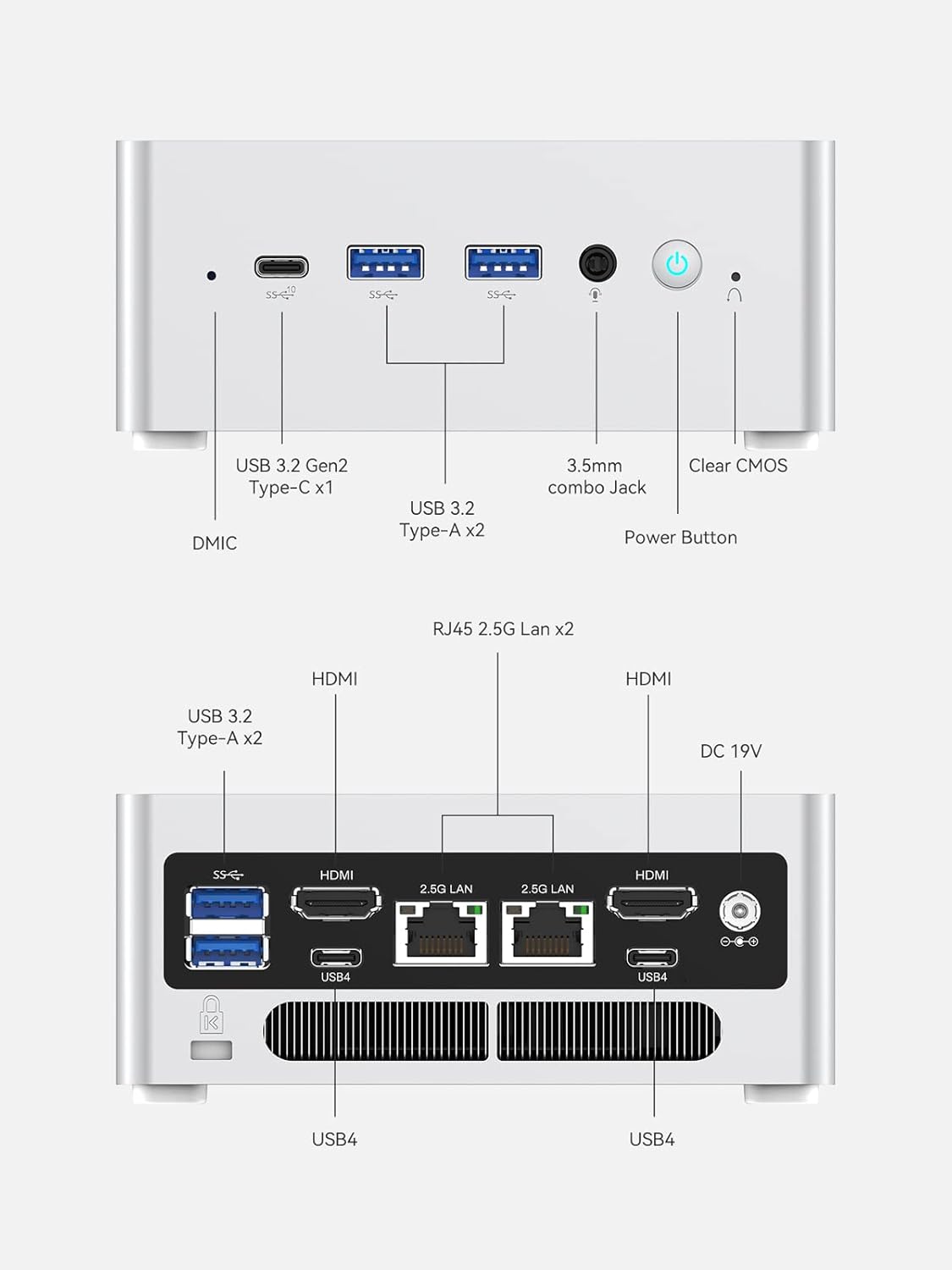
Figure 2.1: Detailed diagram of the front and rear ports on the MINISFORUM NPB6 Mini PC, including USB 3.2 Gen2 Type-C, USB 3.2 Type-A, 3.5mm combo jack, Power Button, Clear CMOS, RJ45 2.5G LAN, HDMI, USB4, and DC 19V input.
3. Operating Instructions
3.1 Powering On/Off
- To Power On: Press the power button located on the front of the Mini PC. The power indicator light will illuminate.
- To Power Off: From the operating system, click the Start menu, then select Power > Shut down. Alternatively, press and hold the power button for 5-7 seconds to force a shutdown (not recommended for regular use).
3.2 Initial Setup and Operating System
The MINISFORUM NPB6 Mini PC comes pre-installed with Windows 11 Home. Upon first boot, you will be guided through the Windows setup process, including language selection, network connection (if not already wired), account creation, and privacy settings. Follow the on-screen prompts to complete the setup.
3.3 Display Configuration
The NPB6 supports up to four displays simultaneously using its two HDMI and two USB4 ports. This allows for extended desktop environments, ideal for productivity and multitasking.

Figure 3.1: The MINISFORUM NPB6 Mini PC demonstrating its capability for quad-screen output, connecting to multiple monitors via HDMI and USB4 ports for enhanced productivity.
To configure multiple displays in Windows 11:
- Right-click on an empty area of the desktop and select "Display settings."
- Under the "Multiple displays" section, you can detect, identify, and arrange your monitors.
- Choose how you want the displays to behave (e.g., Extend these displays, Duplicate these displays).
4. Maintenance
4.1 Thermal Management
The NPB6 Mini PC features an advanced thermal design with an active SSD heatsink, side cooling holes, two heat pipes, and two air outlets to ensure optimal performance and prevent overheating. To maintain efficient cooling:
- Ensure the Mini PC is placed in a well-ventilated area.
- Do not block the ventilation holes on the sides and top of the device.
- Regularly clean dust from the exterior vents using compressed air or a soft brush.

Figure 4.1: Illustration of the MINISFORUM NPB6 Mini PC's efficient thermal design, highlighting the double heat pipe, double outlet, SSD heatsink, and side cooling for optimal heat dissipation.
4.2 Cleaning
To keep your Mini PC in good condition:
- Wipe the exterior with a soft, dry, lint-free cloth.
- Avoid using liquid cleaners or aerosols directly on the device.
- For stubborn marks, lightly dampen the cloth with water or a mild, non-abrasive cleaner.
5. Troubleshooting
This section addresses common issues you might encounter with your MINISFORUM NPB6 Mini PC.
5.1 No Power
- Ensure the power adapter is securely connected to both the Mini PC and a working power outlet.
- Verify the power outlet is functional by plugging in another device.
- Check the power adapter for any visible damage.
5.2 No Display Output
- Confirm that the HDMI or USB4 cable is securely connected to both the Mini PC and the monitor.
- Ensure the monitor is powered on and set to the correct input source (e.g., HDMI 1, USB-C).
- Try a different display cable or monitor if available.
- If the issue persists, locate the "Clear CMOS" button (a small pinhole) on the front of the Mini PC (refer to Figure 2.1). With the PC powered off, use a paperclip to press and hold this button for 5-10 seconds to reset BIOS settings.
5.3 Network Connectivity Issues
- Wired Connection: Ensure the Ethernet cable is properly connected to both the Mini PC's RJ45 port and your router/modem. Check the status lights on the RJ45 port; they should be active.
- Wireless Connection: Verify that Wi-Fi is enabled in Windows settings. Check if your Wi-Fi network is visible and enter the correct password. Restart your router/modem.
- Update network drivers if necessary.
6. Specifications
Detailed technical specifications for the MINISFORUM Venus Series NPB6 Mini PC:
| Feature | Specification |
|---|---|
| Processor | Intel Core i7-13620H (10 Cores, 16 Threads, up to 4.9 GHz) |
| Graphics | Intel UHD Graphics (Graphics Frequency 1.5GHz) |
| RAM | 32 GB DDR5 |
| Storage | 512 GB PCIe4.0 SSD |
| Operating System | Windows 11 Home |
| Video Output | 2x HDMI (4K@60Hz), 2x USB4 (8K@60Hz) |
| Network | 2x 2.5G RJ45 Ethernet, 802.11ax Wireless Type |
| USB Ports | 4x USB 3.2 Type-A, 1x USB 3.2 Gen2 Type-C (Data Only) |
| Audio | 3.5mm Combo Jack |
| Dimensions | 7.13 x 6.26 x 4.41 inches |
| Item Weight | 3.58 pounds |
| Color | Silver |
7. Warranty and Support
7.1 Warranty Information
This MINISFORUM product is covered by a standard manufacturer's warranty. Please refer to the warranty card included in your package or visit the official MINISFORUM website for detailed terms and conditions regarding warranty coverage, duration, and service procedures.
7.2 Technical Support
For technical assistance, troubleshooting beyond this manual, or warranty claims, please contact MINISFORUM customer support. Contact information can typically be found on the official MINISFORUM website or on the product packaging.
When contacting support, please have your product model (NPB6) and serial number ready. Providing a clear description of the issue will help expedite the support process.