
DGHJO HQ3 3-Axis Gimbal Stabilizer
User Manual for DGHJO HQ3 3-Axis Handheld Gimbal Stabilizer
Model: HQ3
Introduction
This manual provides comprehensive instructions for the DGHJO HQ3 3-Axis Handheld Gimbal Stabilizer. Please read this manual carefully before using the product to ensure proper operation and to maximize its performance and lifespan. This device is designed to provide stable and smooth video recording for smartphones, suitable for various applications such as vlogging, live streaming, and travel videography.
Product Features
- 3-Axis Anti-Shake Stabilization: Provides high-precision stabilization for smooth video capture, ideal for short videos, live streams, and travel vlogs.
- Wireless 5.0 Remote Control: Enables convenient control and seamless switching between horizontal and vertical shooting modes.
- Long Battery Life: Equipped with a built-in 2200mAh high-capacity rechargeable lithium battery, offering up to 8 hours of continuous operation.
- User-Friendly Controls: Features an intuitive panel layout with shortcut keys for easy operation, reducing complex function searches.
- Ergonomic Design: Crafted from ABS material with an exquisitely polished finish for a comfortable grip.
- Portable and Foldable: Compact and easy to carry, making it suitable for on-the-go use.
Package Contents
Please verify that all items are present in the package:
- 1 x DGHJO HQ3 Handheld Gimbal Stabilizer
- 1 x USB Charging Cable
- 1 x User Manual (this document)
Setup Guide
1. Charging the Gimbal
Before first use, fully charge the gimbal. Connect the provided USB charging cable to the charging port on the gimbal and to a 5V 1A power adapter (not included). The indicator lights will show charging status and turn off when fully charged. A full charge provides approximately 8 hours of working time.
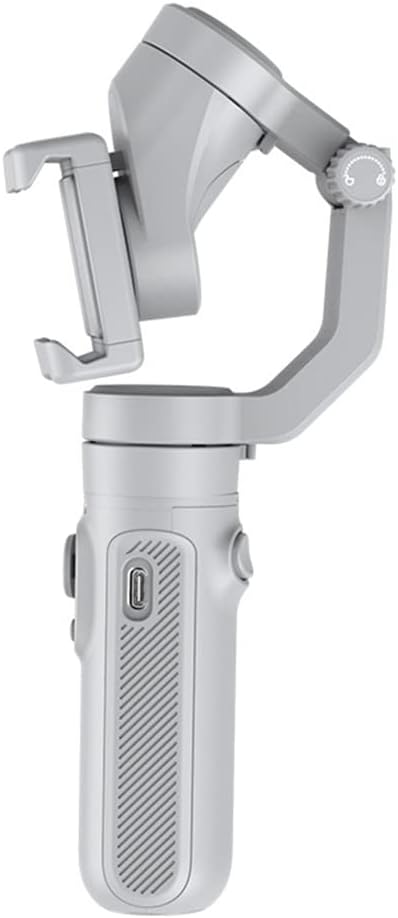
Figure 1: Side view of the DGHJO HQ3 gimbal, highlighting the USB charging port.
2. Mounting Your Smartphone
Gently extend the phone clamp and securely place your smartphone in the center. Ensure the phone is firmly seated and balanced. The gimbal supports most smartphones.

Figure 2: Smartphone securely mounted on the gimbal, demonstrating proper placement for shooting.
3. Balancing the Gimbal
After mounting your phone, manually adjust its position within the clamp until the phone remains level when the gimbal is powered off. This ensures optimal performance and battery efficiency. The 3-axis stabilization system will then fine-tune the balance once powered on.
Operating Instructions
1. Powering On/Off
Press and hold the power button (usually the 'M' button) for a few seconds to power on the gimbal. The indicator lights will illuminate. To power off, press and hold the same button until the lights turn off.
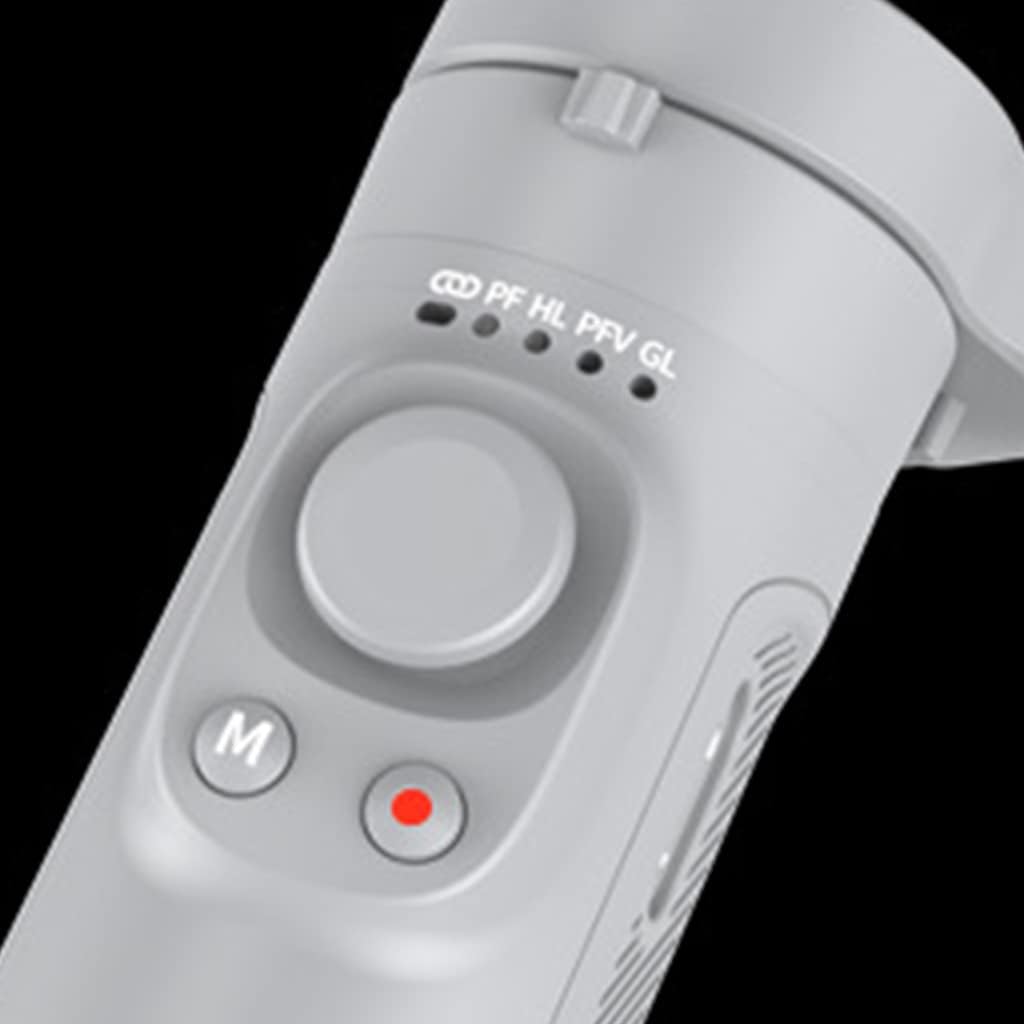
Figure 3: Detailed view of the gimbal's control panel, showing the power/mode button and status indicators.
2. Bluetooth Connection
Once powered on, the gimbal will automatically enter pairing mode. On your smartphone, enable Bluetooth and search for "HQ3 Gimbal" (or similar name). Select it to connect. A successful connection will be indicated by a solid blue light on the gimbal.
3. Switching Between Horizontal and Vertical Modes
The gimbal supports quick switching between horizontal (landscape) and vertical (portrait) shooting modes. Press the dedicated mode switch button (refer to Figure 3 for button layout) to toggle between orientations. This feature is useful for different social media platforms and video styles.

Figure 4: Visual representation of the gimbal's ability to switch between horizontal and vertical phone orientations.
4. Using Control Buttons
The gimbal features a user-friendly control panel. The main joystick allows for precise pan and tilt movements. Other buttons provide functions such as photo/video capture, mode switching, and zoom control (functionality may vary based on smartphone app compatibility). Refer to the specific button icons on your device for their respective functions.

Figure 5: Depiction of the gimbal's pan and tilt axes of motion, ensuring smooth camera movements.
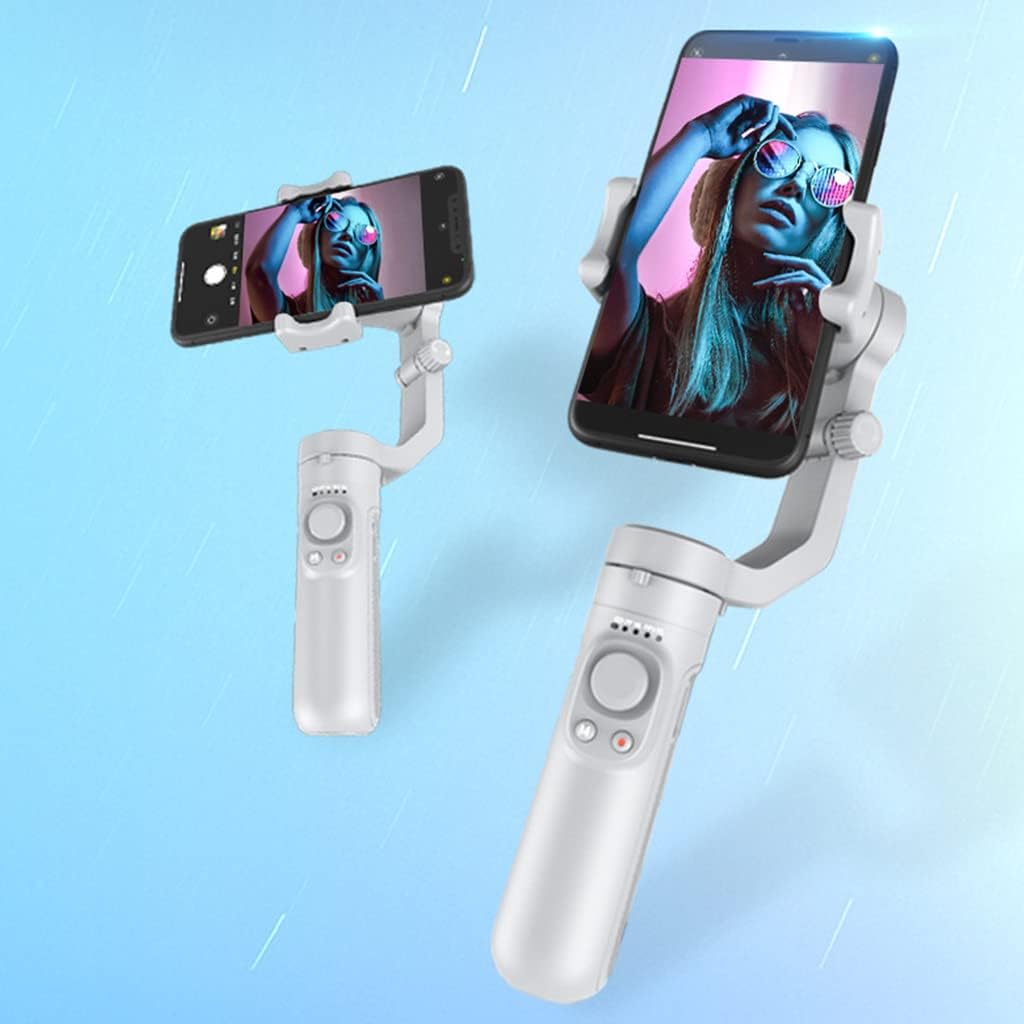
Figure 6: The gimbal in action, showcasing its stabilization capabilities in both horizontal and vertical orientations.
Maintenance
- Cleaning: Use a soft, dry cloth to clean the gimbal. Do not use liquid cleaners or solvents.
- Storage: Store the gimbal in a cool, dry place, away from direct sunlight and extreme temperatures. When not in use for extended periods, ensure it is partially charged (around 50%) to preserve battery health.
- Handling: Avoid dropping or subjecting the gimbal to strong impacts, as this can damage the internal components and motors.
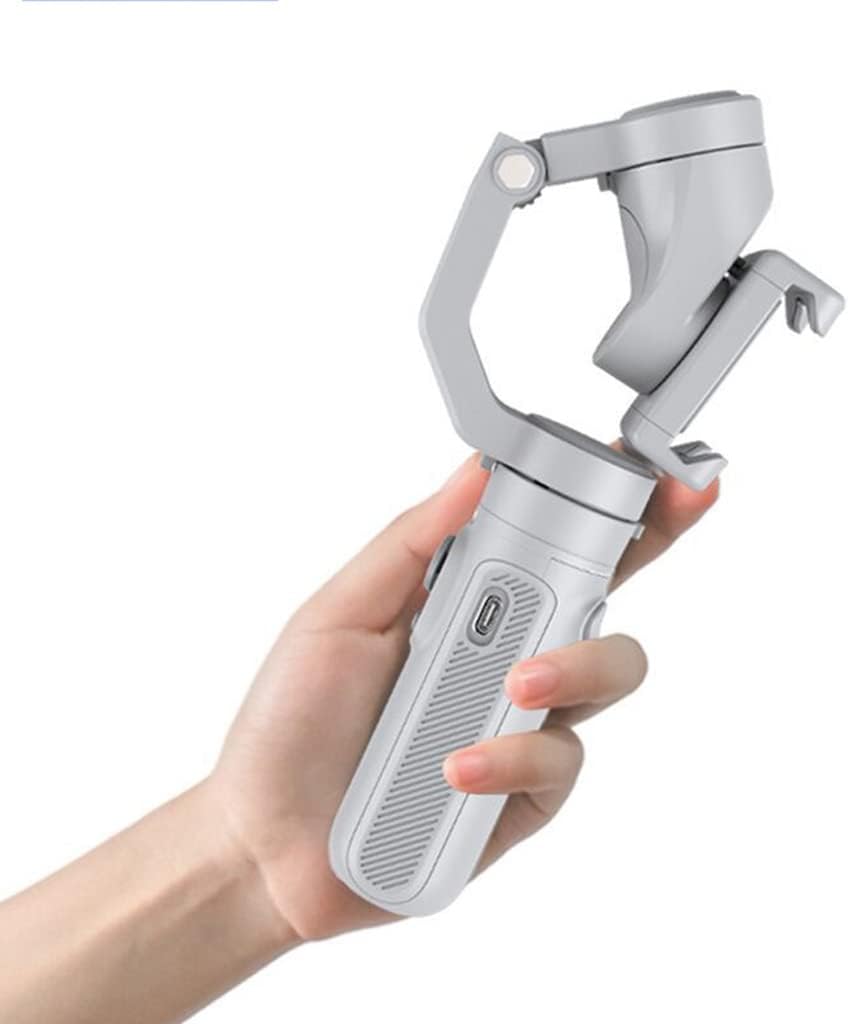
Figure 7: The compact, foldable design of the gimbal, emphasizing its portability and ease of storage.
Troubleshooting
| Problem | Possible Cause | Solution |
|---|---|---|
| Gimbal does not power on. | Low battery; Power button not held long enough. | Charge the gimbal fully; Press and hold the power button for 3-5 seconds. |
| Unstable footage / Gimbal shakes. | Phone not balanced; Obstruction to gimbal movement. | Ensure phone is centered and balanced before powering on; Check for any physical obstructions. |
| Cannot connect via Bluetooth. | Bluetooth off on phone; Gimbal not in pairing mode; Interference. | Enable Bluetooth on your phone; Restart gimbal to enter pairing mode; Move away from other wireless devices. |
| Controls unresponsive. | Bluetooth disconnected; App not compatible. | Reconnect Bluetooth; Ensure you are using a compatible app if required for advanced features. |
Specifications
| Product Name | HQ3 3-Axis Gimbal Stabilizer |
| Material | ABS + Aluminum |
| Dimensions (Folded) | Approx. 190 x 70 x 40 mm (7.48 x 2.75 x 1.57 inches) |
| Color | Gray |
| Working Time | Up to 8 hours |
| Product Weight | 230g |
| Battery Capacity | 2200 mAh |
| Charging Type | 5V 1A (USB) |
| Bluetooth Version | 5.0 |
| Stabilization Axes | 3-Axis (Pan/Tilt/Roll) |
| Vertical Rotation Range | -160° to 160° |
| Applicable Models | Smartphones |
Ask a question about this manual
Ask about setup, troubleshooting, compatibility, parts, safety, or missing instructions. Manuals+ will review the question and use this page’s manual context to help answer it.