
High-Tech Place G28
High-Tech Place G28 2.4 GHz Wireless WiFi Display Dongle Receiver User Manual
Model: G28
Product Overview
The High-Tech Place G28 Wireless WiFi Display Dongle is a compact and convenient device designed to mirror or extend your screen to a larger display, such as an HDTV. It supports high-definition 4K display, offering delicate and rich images. With multi-platform compatibility, it is suitable for various scenarios including education, conference offices, family entertainment, and car screen mirroring.
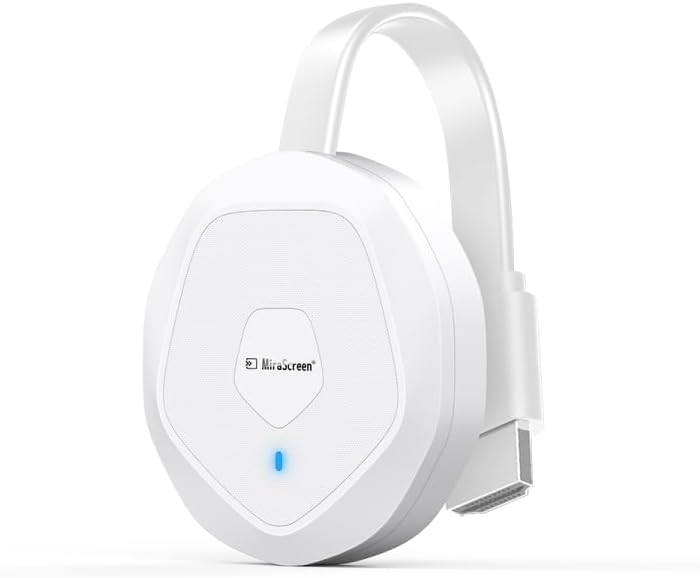
Image: The High-Tech Place G28 Wireless WiFi Display Dongle, a compact white device with an integrated HDMI connector and a blue indicator light.
Setup Guide
Connect to Display: Plug the HDMI connector of the G28 dongle into an available HDMI port on your HDTV, monitor, or projector.
Power On: Connect the USB power cable (usually included or using a standard USB charger) to the dongle and then to a power source (e.g., a USB port on your TV or a USB wall adapter). The dongle will power on and display its initial screen on your display.
Select Input: On your display device, select the corresponding HDMI input source to view the dongle's interface.
Connect to WiFi: Follow the on-screen instructions to connect the dongle to your home or office WiFi network. This step is crucial for accessing online content and for your devices to discover the dongle.
Operating Instructions
The G28 dongle offers versatile screen sharing capabilities for various applications.
Screen Mirroring and Streaming
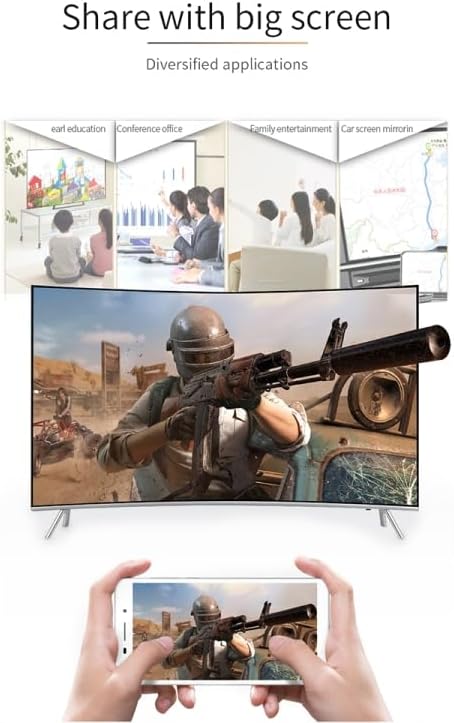
Image: Illustration showing various applications of screen sharing, including educational presentations, conference office use, family entertainment, and car screen mirroring, demonstrating the dongle's versatility.
Once connected, you can use your smartphone, tablet, or laptop to mirror its screen or cast content to the large display. The dongle supports high-definition transmission, ensuring clear and vibrant visuals.
HD Experience

Image: A smartphone displaying a city skyline is shown connected to a large curved screen via the G28 dongle, illustrating 1080P resolution transmission for an exquisite and super clear picture quality.
The G28 supports 1080P resolution transmission, providing an exquisite and super clear picture quality for an enhanced viewing experience.
Landscape and Portrait Switching
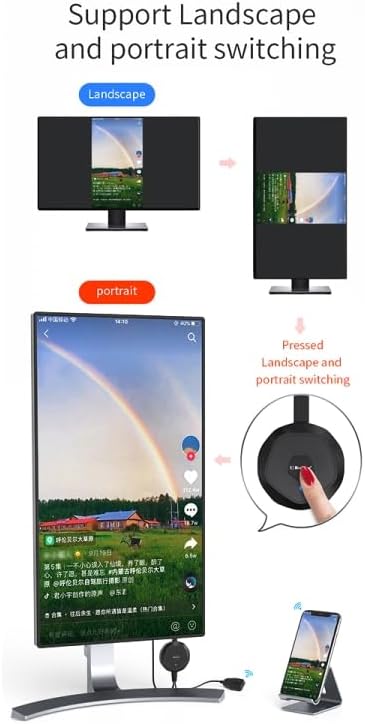
Image: Diagrams illustrating how the G28 dongle supports seamless switching between landscape and portrait display modes on a monitor, activated by pressing a button on the dongle.
The dongle allows for easy switching between landscape and portrait display modes, adapting to your content and viewing preferences.
Dual Mode Operation
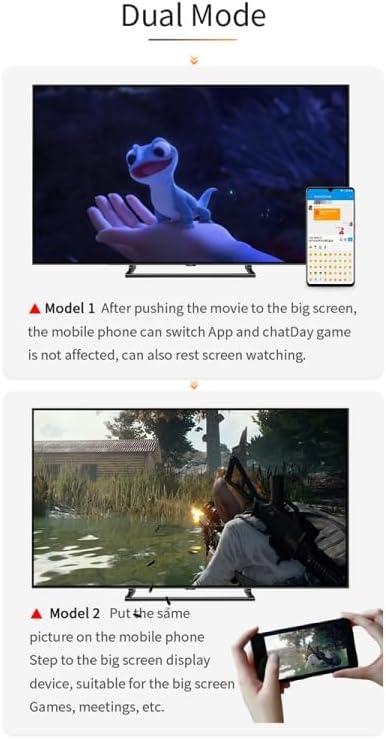
Image: Two examples of dual mode operation. Model 1 shows a movie pushed to the big screen while the phone can switch apps. Model 2 shows mirroring the phone's screen for games or meetings.
The G28 supports two primary operating modes:
- Model 1 (Push Mode): After pushing content (e.g., a movie) to the big screen, your mobile phone can switch applications and continue to be used for other tasks without interrupting the display on the large screen.
- Model 2 (Mirror Mode): This mode puts the exact same picture from your mobile phone onto the big screen display device. It is suitable for activities like playing games, conducting meetings, or browsing photos on a larger display.
Maintenance
- Cleaning: Use a soft, dry cloth to clean the dongle. Do not use liquid cleaners or aerosols.
- Storage: Store the device in a cool, dry place away from direct sunlight and extreme temperatures.
- Handling: Handle the dongle with care. Avoid dropping it or subjecting it to strong impacts.
- Connectivity: Ensure the HDMI and USB connections are secure but do not force them.
Troubleshooting
- No Signal on Display:
- - Ensure the dongle is properly connected to the HDMI port and receiving power.
- - Verify that your display device is set to the correct HDMI input source.
- - Try connecting the dongle to a different HDMI port or display device.
- Connection Issues (WiFi/Mirroring):
- - Make sure the dongle is connected to your WiFi network as per the setup instructions.
- - Ensure your transmitting device (smartphone, tablet, laptop) is on the same WiFi network as the dongle.
- - Restart both the dongle (by unplugging and replugging power) and your transmitting device.
- Poor Picture Quality:
- - Ensure your display device supports the resolution being transmitted (e.g., 1080P).
- - Check for any interference from other wireless devices.
- - Ensure a stable WiFi connection.
Specifications
| Feature | Detail |
|---|---|
| Interface | HDMI |
| Display Support | 4K high-definition large screen display |
| Output Resolution | 1920x1080 (1080P) |
| Memory Card Support | CF, SD card, MINISD, SDHC, DISK U, TF, MMC, XD CARD |
| Audio Playback Formats | MP3, WMA, WAV, OGG, FLAC, DTS, AAC, AC3, APE |
| Video Formats Supported | ASF, AVI, VOB, MPEG, DAT, RM, RMVB, WMV, FLV, MP4, SWF, TP, ISO, TRP, MKV |
| Package Weight | 0.012 kg |
| Dimensions | 5.8 x 1.2 cm (dongle), 35 cm (cord length) |
| Brand | High-Tech Place |
| Color | White |
| ASIN | B0D9KZNCDP |
| First Available Date | July 2, 2024 |

Image: The product packaging, showing the "Wireless Display Adapter" box with product details and parameters, including supported platforms and model information.
Warranty and Support
This product comes with a 2-year commercial warranty provided by High-Tech Place in collaboration with its suppliers.
For technical support or warranty claims, please contact your retailer or refer to the contact information provided with your purchase documentation.
Ask a question about this manual
Ask about setup, troubleshooting, compatibility, parts, safety, or missing instructions. Manuals+ will review the question and use this page’s manual context to help answer it.