
Dual Electronics XDVD179BT
Dual Electronics XDVD179BT User Manual
7-inch Motorized Flip Out LED Media Touch Screen Single DIN Car Stereo Radio
Introduction
This manual provides detailed instructions for the installation, operation, and maintenance of your Dual Electronics XDVD179BT car stereo receiver. Please read this manual thoroughly before using the product to ensure proper functionality and safety.
The Dual Electronics XDVD179BT features a 7-inch motorized touch screen, Bluetooth wireless technology for hands-free calling and audio streaming, CD/DVD playback, USB connectivity, and a dedicated button for voice assistant integration (Siri/Google).
Safety Information
Always observe the following safety precautions when operating this unit:
- Do not operate the unit in a manner that distracts you from driving.
- Ensure all wiring is correctly connected to prevent short circuits or damage.
- Avoid exposing the unit to extreme temperatures or moisture.
- Consult a professional for installation if you are unsure about any steps.
What's in the Box
Upon opening the package, verify that all components are present:
- XDVD179BT Car Stereo Radio Unit
- Wiring Harness
- Quick Start Guide
- Mounting Keys
- Mounting Strap
- Installation Screws
- Screw Cap

Setup and Installation
Proper installation is crucial for optimal performance. It is recommended to have this unit installed by a qualified professional.
Wiring Connections
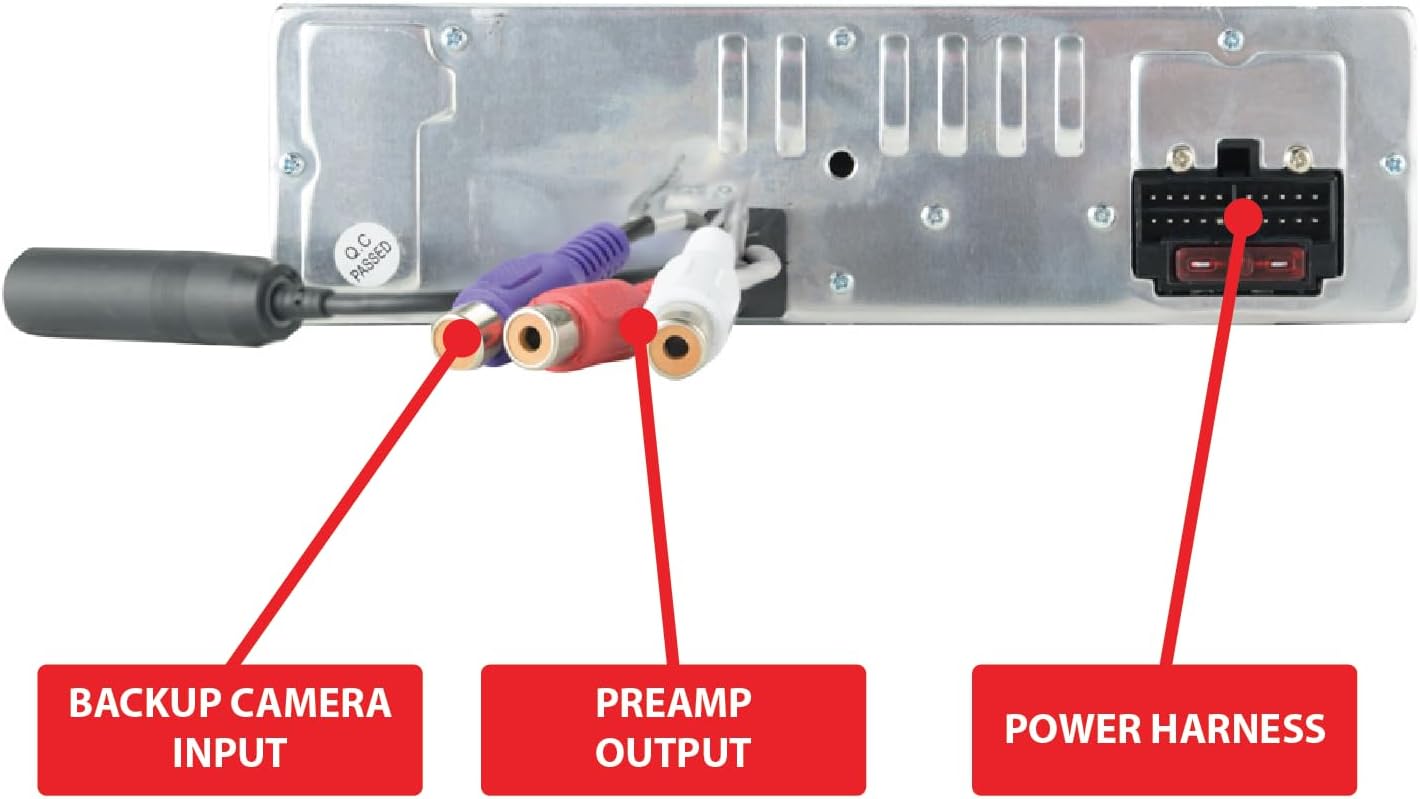
Refer to the wiring diagram provided in the quick start guide and on the unit itself. Key connections include:
- Power Harness: Connects to your vehicle's power, ground, and accessory wires.
- Backup Camera Input: For connecting an optional rearview camera.
- Preamp Output: For connecting external amplifiers.
Mounting the Unit
The XDVD179BT is a single DIN unit. Use the provided mounting strap and keys to secure the unit in your vehicle's dashboard opening.

Operating Instructions
Basic Controls and Interface
The unit features a 7-inch LED/LCD motorized touch screen. The main interface provides access to various functions such as Radio, Disc, USB, Phone, Audio, and Auxiliary Input.

Bluetooth Connectivity
To pair your device:
- Ensure Bluetooth is enabled on your mobile device.
- On the XDVD179BT, navigate to the "Phone" or "Bluetooth" menu.
- Search for available devices on your phone and select "XDVD179BT".
- Confirm the pairing code if prompted.
Once paired, you can make hands-free calls and stream audio wirelessly.
Media Playback (CD/DVD, USB)
Insert a CD or DVD into the disc slot for playback. Connect a USB drive to the front USB port for audio and video file playback. The unit supports various formats and allows control of Pandora, iHeartRadio, and Spotify apps from the home screen.

Voice Assistant Integration
Press the dedicated voice assist button to activate Siri or Google Assistant on your connected smartphone. This allows for voice commands for navigation, music playback, and more.

Audio Settings
The unit provides 50 Watts of peak power per channel. You can customize your audio experience using the built-in equalizer with preset options (Pop, Rock, Jazz, Classic, Beat, Flat) or create a custom setting. The preamp outputs allow for connection to external amplifiers for enhanced sound.
Maintenance
To ensure the longevity and optimal performance of your XDVD179BT:
- Cleaning: Use a soft, dry cloth to clean the screen and unit. Avoid abrasive cleaners or solvents.
- Disc Care: Handle CDs and DVDs by their edges. Keep them clean and free of scratches.
- Temperature: Avoid prolonged exposure to direct sunlight or extreme temperatures inside the vehicle.
Troubleshooting
If you encounter issues with your XDVD179BT, refer to the following common problems and solutions:
| Problem | Possible Cause | Solution |
|---|---|---|
| No Power | Incorrect wiring; Blown fuse | Check power and ground connections. Inspect and replace fuse if necessary. |
| No Sound | Volume too low; Mute activated; Speaker wiring issue | Increase volume. Deactivate mute. Check speaker connections. |
| Bluetooth Not Connecting | Device not in pairing mode; Interference; Already paired to another device | Ensure device is discoverable. Move closer to unit. Disconnect from other devices. |
| Screen Not Responding | Temporary software glitch; Physical damage | Perform a soft reset (refer to quick start guide for reset button location). If issue persists, contact support. |
| Disc Playback Issues | Dirty or scratched disc; Incorrect disc format | Clean disc. Try a different disc. Ensure disc format is supported. |
For further assistance, please contact Dual Electronics customer support.
Specifications
| Feature | Detail |
|---|---|
| Model Number | XDVD179BT |
| Screen Size | 7 Inches (18 cm visible diagonal) |
| Display Type | LED/LCD Motorized Touch Screen |
| Peak Power Output | 50 Watts x 4 channels |
| Media Type Support | CD, DVD, USB |
| Bluetooth | Hands-free calling, Audio Streaming |
| Voice Assistant | Siri/Google Voice Assist Button |
| Inputs | USB, Auxiliary (AUX), Backup Camera Input |
| Outputs | Preamp Output |
| Item Weight | 4.91 pounds |
| Package Dimensions | 10.79 x 9.13 x 4.8 inches |
Warranty and Support
The Dual Electronics XDVD179BT comes with a standard 1-year warranty. This warranty can be extended to 2 years upon online registration at Dualav.com.

For technical support, warranty claims, or additional information, please visit the official Dual Electronics website or contact their customer service department.
Related documentsXDVD179BT


Ask a question about this manual
Ask about setup, troubleshooting, compatibility, parts, safety, or missing instructions. Manuals+ will review the question and use this page’s manual context to help answer it.