
SJCAM M60 2CH
SJCAM M60 4K Dash Cam User Manual
Model: M60 2CH
Brand: SJCAM
1. Introduction
This manual provides detailed instructions for the installation, operation, and maintenance of your SJCAM M60 4K Dash Cam. The M60 2CH model features dual-channel recording, advanced night vision with STARVIS 2 HDR, built-in GPS, WiFi connectivity, and 24/7 parking surveillance capabilities. Please read this manual thoroughly before using the device to ensure proper functionality and safety.

Image: The SJCAM M60 4K Dash Cam, showcasing its compact design, the accompanying rear camera, and a smartphone displaying the dash cam's app interface with video playback and GPS tracking.
2. Package Contents
Verify that all items listed below are included in your package. If any items are missing or damaged, please contact customer support.
- Front Camera (Main Unit)
- Rear Camera
- Car Charger
- Type-C Cable
- 0.6m Interior Camera Cable
- 6m Rear Camera Cable
- Cable Clip (x6)
- Card Reader
- Pry Bar
- SJCAM LOGO Label
- Cleaning Cloth
- Static Sticker (x2)
- Front Host Bracket Adhesive (x2)
- User Manual
Note: A microSD card is not included and must be purchased separately.
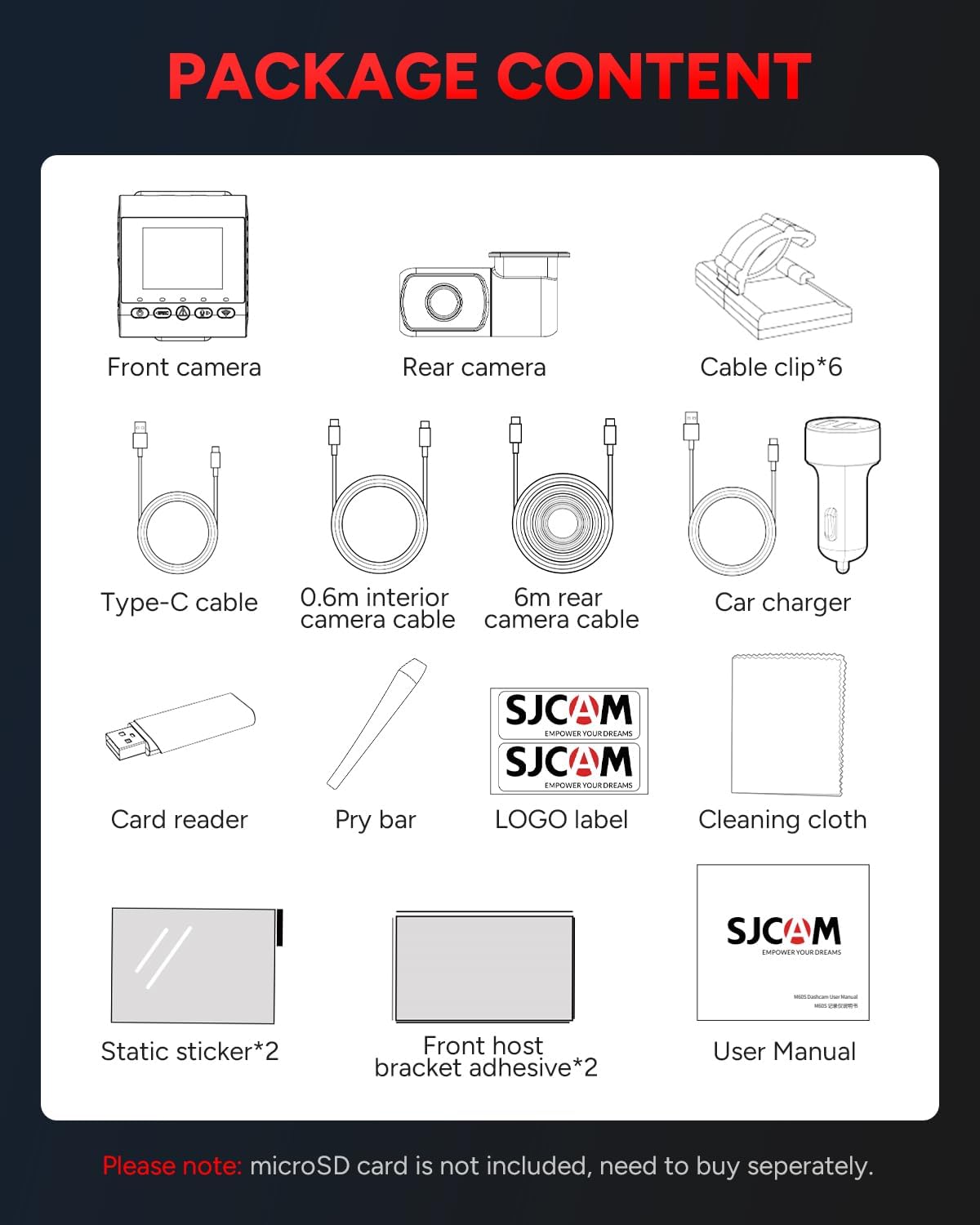
Image: A visual representation of all items included in the SJCAM M60 dash cam package, such as the front camera, rear camera, various cables, car charger, and mounting accessories.
3. Product Overview
The SJCAM M60 4K Dash Cam is designed to provide comprehensive vehicle surveillance with high-resolution recording and advanced features. It utilizes a dual STARVIS 2 sensor system for superior image quality, especially in low-light conditions.
Key Features:
- Ultra-Crisp 4K + Full HD Dual-Channel Recording: HDR front (4K/30FPS) and Full HD rear recording with wide-angle lenses and advanced dynamic image sensors.
- Stunning Night Vision & HDR Mode: Leverages STARVIS 2 technology for exceptional low-light clarity and noise reduction, capturing details like license plates in challenging conditions.
- Tri-Mode 24/7 Parking Surveillance: Offers three specialized parking modes with 15-second pre-incident buffering, G-sensor activated collision detection, and low-bitrate storage optimization.
- Enhanced Location Accuracy with Integrated GPS Module: Advanced quad-constellation GPS receiver provides precise geospatial data (coordinates, speed, timestamps) integrated with video playback via the SJCAM App.
- WIFI Simple Connection: High-throughput Wi-Fi allows wireless preview, selection, and download of clips directly to your mobile device using the dedicated SJCAM App (iOS/Android).

Image: The SJCAM M60 dash cam installed on a windshield, highlighting its 4K UHD recording capability and key technologies like STARVIS 2 and 5GHz WiFi.

Image: Illustrates the breathtaking clarity of the dash cam's recording, showing simultaneous views from the front, cabin, and rear cameras in 4K HDR.
4. Setup and Installation
4.1 Preparing for Installation
- Ensure your vehicle's ignition is off.
- Clean the windshield area where the dash cam will be mounted.
- Insert a compatible microSD card (Class 10 or higher, up to 256GB recommended) into the main unit's card slot.
4.2 Front Camera Installation
- Attach the front host bracket adhesive to the main unit.
- Apply a static sticker to the desired mounting location on your windshield, typically behind the rearview mirror, ensuring it does not obstruct your view.
- Mount the main unit onto the static sticker, pressing firmly to secure it.
- Connect the Type-C power cable to the main unit and route it along the windshield edge and down to your vehicle's 12V power outlet (cigarette lighter socket). Use the provided cable clips to secure the cable.
4.3 Rear Camera Installation
- Connect the 6m rear camera cable to the rear camera and the main unit.
- Route the rear camera cable along the vehicle's headliner, down the side pillars, and to the rear of the vehicle. Use the pry bar to tuck the cable neatly under trim panels.
- Mount the rear camera on the rear windshield, ensuring a clear view. Clean the area before applying the adhesive.
4.4 Power Connection
- Plug the car charger into your vehicle's 12V power outlet.
- Connect the Type-C cable from the main unit to the car charger.
- The dash cam will power on automatically when the vehicle's ignition is turned on.

Image: A detailed diagram illustrating the dash cam's 2.0-inch TFT screen, the wiring connections for the front, interior (if applicable), and rear cameras, and the precise product dimensions for installation planning.
5. Operating Instructions
5.1 Basic Operation
- Power On/Off: The dash cam powers on automatically with vehicle ignition and powers off shortly after the ignition is turned off.
- Recording: Loop recording begins automatically upon power-on. Video segments are saved to the microSD card.
- Emergency Lock: The built-in G-sensor detects sudden impacts or collisions and automatically locks the current video segment to prevent it from being overwritten. You can also manually lock a video by pressing the designated button on the dash cam.

Image: Demonstrates the two methods for locking video footage: automatic locking triggered by impact detection and manual locking via a dedicated button on the dash cam unit.

Image: A collage of various driving scenarios, illustrating how the dash cam's emergency lock feature ensures critical events are captured and protected from being overwritten.
5.2 Parking Surveillance Modes
The M60 offers three parking surveillance modes for 24/7 protection. An optional SJCAM step-down cable is required for these modes to function continuously when the vehicle is off.
- G-sensor Activated: Records automatically when impact is detected.
- Motion Detection: Records when motion is detected around the vehicle.
- Time-Lapse Recording: Continuously records at a low frame rate to save storage space while providing full coverage.

Image: An illustration of the dash cam's 24/7 parking surveillance, showing its wide coverage angles (170° front, 150° rear) and how it detects and records incidents like impacts or suspicious activity around the vehicle.
5.3 GPS Tracking
The integrated GPS module records your vehicle's location, speed, and time data, which can be viewed during video playback.
- Data Logging: GPS data is automatically embedded into the video files.
- Playback: Use the SJCAM App to view your driving route on a map alongside the video footage.

Image: Depicts the dash cam's pinpoint tracking capability, showing a vehicle's route on a map with overlaid speed and location data, accessible via the mobile app.
5.4 Wi-Fi Connectivity and SJCAM App
Connect your smartphone to the dash cam via Wi-Fi for easy access to recordings and settings.
- Download the "SJCAM App" from the App Store (iOS) or Google Play Store (Android).
- Turn on Wi-Fi on your dash cam (refer to the device's on-screen menu for Wi-Fi activation).
- On your smartphone, connect to the dash cam's Wi-Fi network (SSID and password usually displayed on the dash cam screen).
- Open the SJCAM App to preview live footage, browse recorded videos, download clips to your phone, and adjust settings.
6. Maintenance
6.1 MicroSD Card Management
- Formatting: It is recommended to format the microSD card regularly (e.g., once a month) using the dash cam's menu to ensure optimal performance and prevent data corruption.
- Card Lifespan: MicroSD cards have a limited lifespan due to continuous overwriting. Replace the card if you experience frequent recording errors or data loss.
6.2 Cleaning
- Use a soft, dry cloth to clean the dash cam's lens and screen.
- Do not use abrasive cleaners or solvents, as they may damage the device.
6.3 Firmware Updates
- Check the official SJCAM website or the SJCAM App periodically for firmware updates.
- Firmware updates can improve performance, add new features, and fix bugs. Follow the instructions provided with the firmware update carefully.
7. Troubleshooting
| Problem | Possible Cause | Solution |
|---|---|---|
| Dash cam does not power on. | No power supply; faulty car charger; loose connection. | Check car charger connection and vehicle's 12V outlet. Ensure vehicle ignition is on. Try a different power source if available. |
| Recording stops or freezes. | MicroSD card full or corrupted; slow microSD card; firmware issue. | Format the microSD card. Use a high-speed (Class 10, U3) microSD card. Update firmware. Replace microSD card if issues persist. |
| Poor video quality at night. | Dirty lens; incorrect settings. | Clean the lens. Ensure HDR mode is enabled in settings. |
| GPS signal not found. | Obstructed view of sky; GPS module not connected properly. | Ensure the dash cam has a clear view of the sky. Check GPS module connection. Move vehicle to an open area. |
| Wi-Fi connection issues. | Incorrect password; too far from device; app issues. | Verify Wi-Fi password. Ensure smartphone is close to the dash cam. Restart both devices. Reinstall the SJCAM App. |
8. Specifications
| Feature | Detail |
|---|---|
| Model Name | M60 |
| Video Capture Resolution | 3840p (4K) |
| Field Of View | 170 Degrees |
| Special Features | 170° FOV, F1.8, IMX 678 (STARVIS 2 HDR) |
| Connectivity Technology | Wi-Fi |
| Mounting Type | Windshield Mount |
| Product Dimensions | 4 x 6 x 9 inches |
| Item Weight | 2.5 pounds |
| Color | Black |
| Manufacturer | SJCAM |
| Date First Available | July 16, 2024 |
9. Warranty and Support
For warranty information and technical support, please refer to the official SJCAM website or contact their customer service directly. Details regarding warranty periods and service procedures are typically provided with your purchase documentation or on the manufacturer's website.
SJCAM Official Store US: Seller Profile on Amazon
SJCAM Brand Store: Visit the SJCAM Store on Amazon
Related Documents - M60 2CH
 |
SJCAM M60 4K Dashcam Käyttöopas: Asennus, Ominaisuudet ja Asetukset Tämä on SJCAM M60 4K kojelautakameran kattava käyttöopas. Opi asentamaan, käyttämään ja säätämään kameraasi, mukaan lukien ominaisuudet kuten 4K-tallennus, GPS, Wi-Fi, silmukkatallennus ja pysäköinnin valvonta. |
 |
SJCAM SJ6 PRO User Manual Comprehensive user manual for the SJCAM SJ6 PRO action camera, covering safety guidelines, specifications, button functions, app connection, and operating instructions for video recording, photography, and car mode. |
 |
SJCAM SJ4000 Action Camera User Manual - Features, Setup, and Accessories Comprehensive user manual for the SJCAM SJ4000 HD DV action camera. Learn about its features, setup menu options, how to use it as a webcam, transfer data, and included accessories. Includes firmware update information and caution points. |
 |
SJCAM M20 Action Camera User Manual for Livestreaming and Dashcam Applications Comprehensive user manual for the SJCAM M20 action camera, covering setup for live streaming with Android phones, detailed features, specifications, package contents, and wiring diagrams for dashcam applications. Learn how to use the M20 for various extreme sports and surveillance needs. |
 |
SJCAM SJDASH+ GPS Autós Menetrögzítő Kamera Használati Útmutató Részletes használati útmutató az SJCAM SJDASH+ GPS autós menetrögzítő kamerához. Fedezze fel a telepítést, funkciókat, műszaki specifikációkat, alkalmazás-csatlakozást, GPS használatot és szoftvert. |
 |
SJCAM SJ4000 Series User Manual User manual for the SJCAM SJ4000 and SJ4000 WiFi action cameras, covering safety precautions, maintenance, product features, technical specifications, device operation, recording methods, WiFi connectivity, app usage, and settings configuration. |