1. Introduction
Thank you for choosing GAXABI Smart Glasses. These smart glasses integrate polarized sunglasses with open-ear audio technology, allowing you to listen to music, make calls, and access voice assistants while remaining aware of your surroundings. This manual provides detailed instructions for setup, operation, maintenance, and troubleshooting to ensure optimal performance.

Image 1.1: GAXABI Smart Glasses, front view.
2. Package Contents
Verify that all items are present in the package:
- 1 x Smart Glasses
- 1 x USB Charging Cable
- 1 x Cleaning Cloth
- 1 x User Manual
3. Product Features
- Built-in Microphone & Speakers: Enhanced 360° stereo sound and clear hands-free communication.
- Polarized UV400 Lenses: Protects eyes from UV rays, offering excellent color, clarity, and contrast.
- Voice Control & Multi-function Button: Access Siri/Google Assistant, manage music playback, and handle calls.
- Long Battery Life: Up to 8 hours of continuous playback on a 2-hour charge.
- Durable Design: Constructed with TR90 material for increased durability.

Image 3.1: Overview of key features including directional sound, voice assistant, Bluetooth 5.3, stereo audio, clear calls, comfortable wear, long battery life, and UV protection polarized lenses.
4. Component Identification
Familiarize yourself with the various parts of your GAXABI Smart Glasses:

Image 4.1: Diagram illustrating the Multi-function Key, Built-in Mic, Charging Indicator Light, Charging Port, TR90 Frame, Built-in Speaker, and Polarized Sunglass Lenses.
- Multi-function Key: Controls power, pairing, music, calls, and voice assistant.
- Built-in Mic: For hands-free calls and voice assistant commands.
- Charging Indicator Light: Shows charging status.
- Charging Port: Connects to the USB charging cable.
- TR90 Frame: Lightweight and durable frame material.
- Built-in Speaker: Delivers open-ear audio.
- Polarized Sunglass Lenses: Provides UV protection and glare reduction.
5. Specifications
| Feature | Detail |
|---|---|
| Model Number | ABI001 |
| Connectivity Technology | Bluetooth |
| Wireless Communication Standard | Bluetooth |
| Battery Type | Lithium Ion |
| Battery Capacity | 130 mAh (approx.) |
| Charging Time | Approximately 2 hours |
| Play Time | Up to 8 hours |
| Operating System Compatibility | iOS, Android |
| Special Features | Music Player, Phone Call, Voice Assistant |
| Item Weight | 3.84 ounces (0.11 Kilograms) |
| Lens Type | Polarized, UV400 Protection |

Image 5.1: Diagram showing the dimensions of the smart glasses, including lens height (1.77"/45mm), arm length (5.9"/150mm), frame width (5.9"/150mm), lens width (2.36"/60mm), and nose bridge (0.8"/20mm).
6. Getting Started
6.1 Charging the Device
Before first use, fully charge your GAXABI Smart Glasses.
- Connect the provided USB charging cable to the charging port on the glasses.
- Connect the other end of the USB cable to a standard USB power adapter (not included) or a computer's USB port.
- The charging indicator light will illuminate during charging.
- Charging typically takes approximately 2 hours for a full charge. The indicator light will change or turn off once charging is complete.
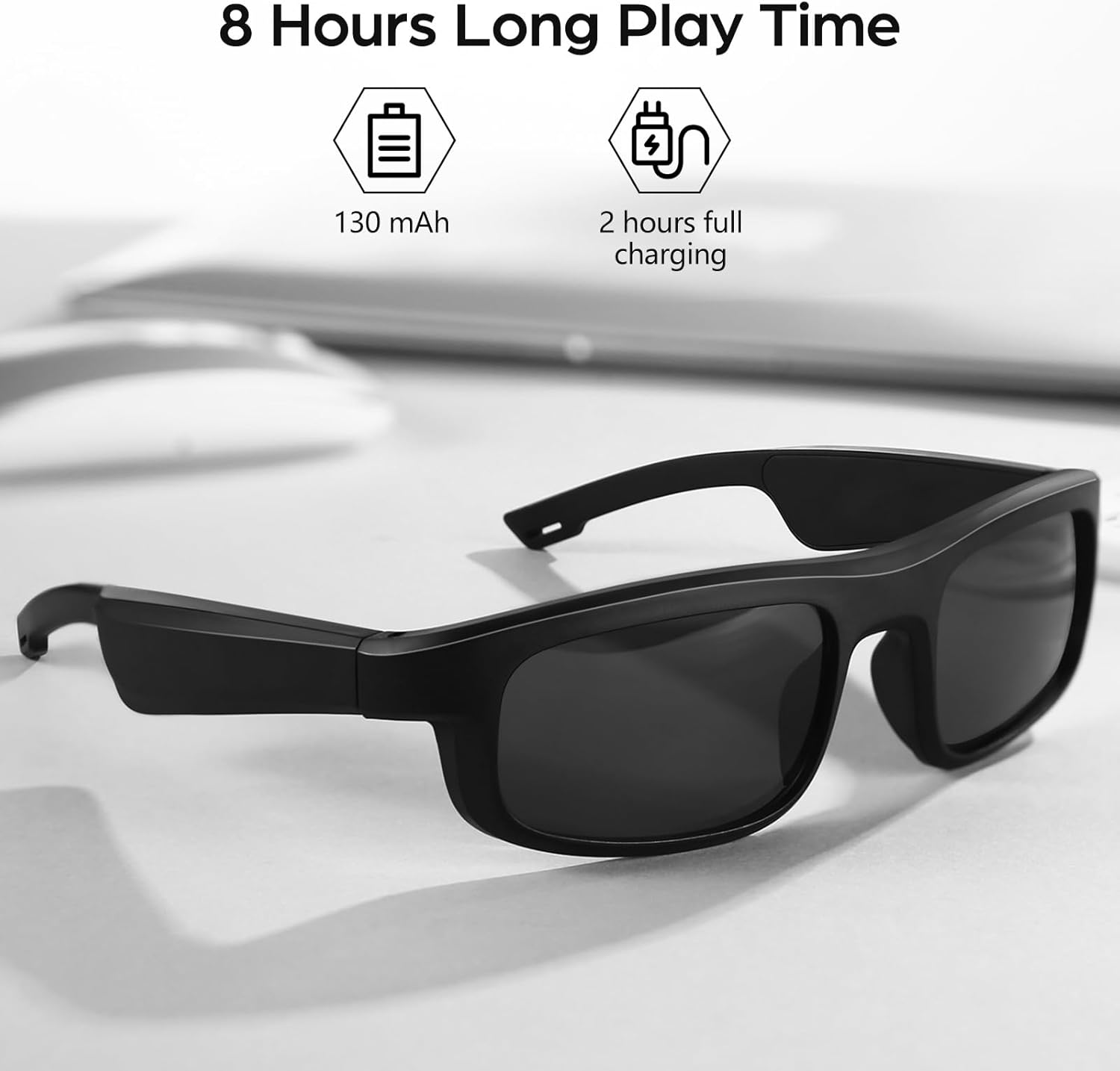
Image 6.1: Illustration of the smart glasses on a table, indicating 130 mAh battery and 2 hours for full charging, providing 8 hours of play time.
6.2 Bluetooth Pairing
To connect your smart glasses to a smartphone or other Bluetooth-enabled device:
- Ensure the smart glasses are charged and powered off.
- Press and hold the Multi-function Key until the indicator light flashes rapidly (usually blue and red), indicating pairing mode.
- On your smartphone, navigate to the Bluetooth settings and turn Bluetooth on.
- Search for available devices. The smart glasses should appear as "GAXABI Smart Glasses" or a similar name.
- Select the device name to connect. Once paired, the indicator light will typically show a slow blue flash or turn off.
- If prompted for a passcode, enter "0000" (four zeros).
7. Operation
7.1 Power On/Off
- Power On: Press and hold the Multi-function Key for approximately 3 seconds until you hear a power-on prompt and the indicator light illuminates.
- Power Off: Press and hold the Multi-function Key for approximately 5 seconds until you hear a power-off prompt and the indicator light turns off.
7.2 Music Playback

Image 7.1: A man wearing the smart glasses, with an overlay indicating built-in mic and speakers for listening to music and making calls while maintaining situational awareness.
- Play/Pause: Short press the Multi-function Key once.
- Next Track: Double-press the Multi-function Key.
- Previous Track: Triple-press the Multi-function Key.
7.3 Call Management
- Answer/End Call: Short press the Multi-function Key once during an incoming call or to end an active call.
- Reject Call: Press and hold the Multi-function Key for approximately 2 seconds during an incoming call.
7.4 Voice Assistant

Image 7.2: A woman walking her dog while wearing the smart glasses, demonstrating hands-free use of the smart voice assistant for music, calls, and navigation.
- Activate Voice Assistant: Press and hold the Multi-function Key for approximately 2 seconds (when not on a call or playing music) to activate your device's voice assistant (Siri, Google Assistant, etc.).
8. Care and Maintenance
8.1 Cleaning
- Use the provided cleaning cloth to gently wipe the lenses and frame.
- For stubborn smudges, use a lens cleaning spray specifically designed for eyewear. Do not use harsh chemicals or abrasive materials.
- Avoid getting water directly into the speaker or charging port areas.

Image 8.1: Comparison showing the effect of GAXABI polarized lenses with 100% UV protection, highlighting true color, enhanced polarization, effective glare blocking, comfortable vision, clear vision, strong impact resistance, easy to clean, and UV protection.
8.2 Storage
- When not in use, store the smart glasses in their protective case to prevent scratches and damage.
- Avoid exposing the glasses to extreme temperatures (hot or cold) or direct sunlight for extended periods.
8.3 Battery Care
- To prolong battery life, avoid fully discharging the battery frequently.
- Charge the glasses regularly, even if not used for a long time.
9. Troubleshooting
| Problem | Possible Cause | Solution |
|---|---|---|
| Cannot power on | Low battery | Charge the glasses fully. |
| Cannot pair with device | Glasses not in pairing mode; Bluetooth off on device; too far apart | Ensure glasses are in pairing mode (flashing indicator); turn on Bluetooth on your device; keep devices within 1 meter during pairing. |
| No sound or low volume | Volume too low on glasses or connected device; glasses not connected | Adjust volume on both glasses and connected device; ensure glasses are properly paired. |
| Call quality is poor | Weak signal; microphone obstruction | Move to an area with better signal; ensure microphone is not covered. |
| Glasses not charging | Cable or adapter issue; charging port dirty | Try a different USB cable or power adapter; gently clean the charging port. |
10. Warranty and Support
GAXABI provides a warranty for its products. For specific warranty terms and conditions, please refer to the documentation included with your purchase or contact GAXABI customer support.
If you encounter any issues or have questions not covered in this manual, please contact GAXABI customer service. We aim to provide high-quality products and support. We will reply to you within 8 hours.
Manufacturer: GAXABI