
Introduction
This manual provides detailed instructions for the proper use and maintenance of your KSUN ZL50 4G Car Network Radio. Please read this manual thoroughly before operating the device to ensure optimal performance and safety.
Product Overview
Components
The KSUN ZL50 4G Car Network Radio includes the main unit, a handheld microphone with PTT button, and necessary accessories for installation and power.

Image: The KSUN ZL50 4G Car Network Radio main unit connected to its handheld microphone, displaying "4G LTE" on its screen.
Controls and Interfaces
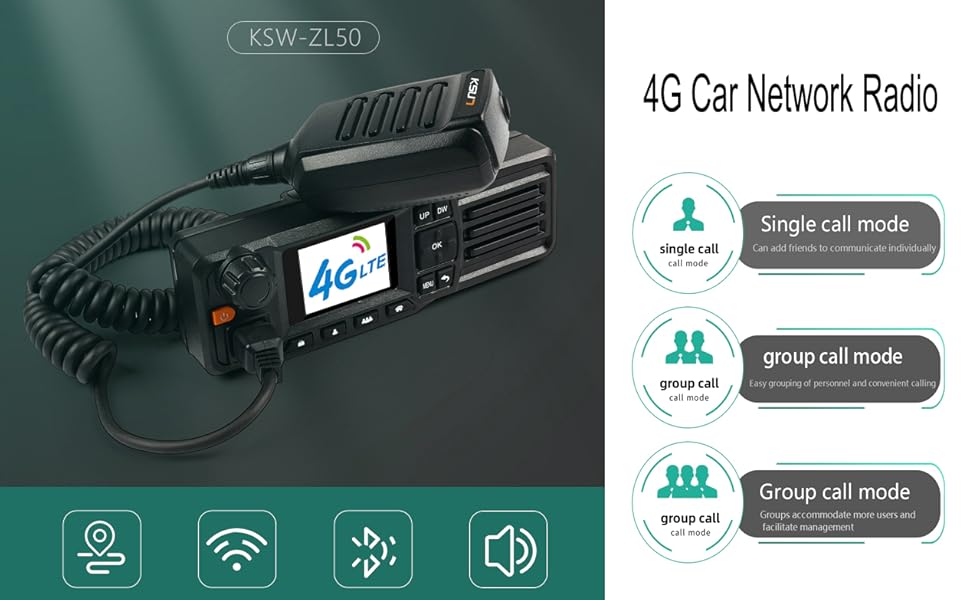
Image: Diagram illustrating the various controls and interfaces of the KSUN ZL50 radio and its handheld microphone. Key labels include PTT, Signal, Knob switch, Power key, Lock screen key, Single call key, Group call key, Home key, Menu key, Return key, OK key, Up key, Down key, Status indicator, Liquid crystal display, Attachment extension interface, and Speaker.
- PTT Button: Push-to-Talk button on the handheld microphone for transmitting voice.
- Knob Switch: Used for power on/off and volume control.
- Power Key: Dedicated button for power functions.
- Lock Screen Key: Locks the device screen to prevent accidental input.
- Single Call Key: Initiates a private call to a specific contact.
- Group Call Key: Initiates a call to a pre-defined group.
- Home Key: Returns to the main screen.
- Menu Key: Accesses the device menu.
- Return Key: Navigates back to the previous screen.
- OK Key: Confirms selections.
- UP/DW Keys: Navigates through menus and options.
- Liquid Crystal Display (LCD): Shows device status, menus, and call information.
- Status Indicator: LED light indicating device status (e.g., power, signal).
- Attachment Extension Interface: Port for connecting accessories.
- Speaker: Outputs audio.
Setup
SIM Card Installation
The KSUN ZL50 requires a 3G/4G SIM card for network connectivity. Locate the SIM card slot, typically on the side or back of the main unit. Insert the SIM card carefully, ensuring correct orientation as indicated by a diagram near the slot. The SIM card is not included with the device.
Power Connection
Connect the radio to a power source using the provided car charger or a compatible power adapter. The device operates on 7.4 Volts (DC).

Image: Two charging methods for the KSUN ZL50 radio: via a car's USB/cigarette lighter port and via a portable battery pack in an outdoor setting.
Initial Power On
Press and hold the Power Key or rotate the Knob Switch to power on the device. The LCD will illuminate, and the device will begin its startup sequence.
Operating Instructions
Push-to-Talk (PTT) App Usage
The KSUN ZL50 is an Android-based walkie-talkie designed to work with Push-to-Talk (PTT) applications like Zello.
- App Installation: Ensure the PTT application (e.g., Zello) is installed and configured on the device.
- Login: Log in to your PTT application account. Note that the small screen may require careful navigation using the UP/DW and OK/Menu/Return keys. Use the Single Call and Group Call buttons for left/right navigation in some login fields.
- Communication: To transmit, press and hold the PTT button on the handheld microphone. Release the button to listen.
Group Calls
To initiate a group call, select the desired group within your PTT application and press the Group Call key or the PTT button. All members in the selected group will be able to hear and respond.
Private Calls
To make a private call to an individual, select the contact within your PTT application and press the Single Call key or the PTT button.

Image: Illustration showing the KSUN ZL50 radio with icons representing single call mode and group call mode, highlighting its communication capabilities.
WiFi Hotspot Functionality
The device supports WiFi hotspot functionality, allowing it to connect to mobile phone or router WiFi networks. This enables communication when a cellular network is unavailable or preferred.

Image: A diagram showing the KSUN ZL50 radio connected to a mobile phone's personal hotspot, illustrating its WiFi connectivity feature.
Maintenance
Keep the device clean and free from dust and moisture. Use a soft, dry cloth for cleaning. Avoid using harsh chemicals or abrasive materials.
Ensure all connections, especially for the handheld microphone and power, are secure.
The device is water-resistant, but it is not fully waterproof. Avoid submerging it in water.
Troubleshooting
- Cannot log into PTT app: Ensure only one unit is logged into the app at a time if using multiple devices with the same account. Log out from other units if necessary.
- Screen text cut off / Difficult navigation: The screen is small. Use the UP/DW buttons for vertical navigation and the Single Call/Group Call buttons for horizontal navigation in login fields. The OK button confirms selections, and the Return button goes back.
- No network connection: Verify that a 3G/4G SIM card is properly inserted and active. Check for network coverage in your area. Ensure WiFi is connected if using a hotspot.
- No audio / Poor audio quality: Check volume settings. Ensure the microphone is securely connected. Verify network signal strength.
Specifications
| Feature | Detail |
|---|---|
| Model Number | KSW-ZL50 |
| Dimensions | 6.7 x 1.5 x 2.1 inches (170mm x 38mm x 53mm approx.) |
| Weight | 1.85 pounds |
| Display Type | LCD |
| Frequency Range | 4G / WiFi |
| Talking Range Maximum | 1000 Miles (network dependent) |
| Voltage | 7.4 Volts (DC) |
| Water Resistance Level | Water Resistant |
| Included Components | Handheld Microphone |
Warranty and Support
For customer service and support regarding your KSUN ZL50 radio, please contact the manufacturer via email. They are dedicated to providing assistance and ensuring customer satisfaction. Specific warranty details may vary; refer to your purchase documentation for more information.