
1. Product Overview
The Generic R36S Retro Handheld Game Console is an open-source portable gaming device designed for playing a wide variety of classic video games. It features a 3.5-inch IPS display, a powerful quad-core processor, and a high-capacity battery, providing an immersive gaming experience on the go.

Figure 1: Front and back view of the R36S Retro Handheld Game Console, showcasing its compact design and button layout.
2. Key Functions and Components
Familiarize yourself with the various buttons, ports, and indicators on your R36S console.

Figure 2: Detailed diagram illustrating the location and function of all buttons, joysticks, and ports on the R36S console, including power, reset, volume keys, audio hole, TF card slots (TF1 OS, TF2 Game), select, start, FN, A/B/X/Y buttons, D-pad, left/right analog sticks, and shoulder buttons (R1, R2, L1, L2).
- Power Button: Located on the top left, used to turn the device on/off.
- Reset Button: Small button next to the power button for system reset.
- Volume Keys: Located on the top right, used to adjust audio output.
- Audio Hole (3.5mm Jack): For connecting headphones.
- TF1 (OS) Slot: MicroSD card slot for the operating system.
- TF2 (Game) Slot: MicroSD card slot for game ROMs.
- D-Pad: Directional pad for movement and menu navigation.
- A/B/X/Y Buttons: Action buttons for in-game commands.
- Select/Start Buttons: Standard game control buttons.
- FN Button: Function button, typically used in combination with other buttons for shortcuts.
- Left/Right Analog Sticks: For analog control in compatible games.
- L1/L2/R1/R2 Shoulder Buttons: Additional action buttons located on the back of the console.
3. Setup Guide
3.1 Initial Charging
Before first use, fully charge the console. Connect the provided USB-C charging cable to the console's charging port and the other end to a compatible USB power adapter (not included). The charging indicator light will typically show charging status and turn off or change color when fully charged.

Figure 3: Illustration highlighting the 3500 mAh high-capacity battery and the 3.5-inch IPS HD screen with 640x480 resolution and adjustable brightness, key features for extended gameplay and clear visuals.
3.2 Inserting MicroSD Cards
The R36S console uses two MicroSD card slots:
- TF1 (OS): This slot is for the operating system card. Ensure the OS card is properly inserted before powering on.
- TF2 (Game): This slot is for your game ROMs. Insert your game card into this slot.
Gently push the MicroSD card into the slot until it clicks into place. To remove, push the card again until it springs out.
3.3 Powering On/Off
- To Power On: Press and hold the Power button for a few seconds until the screen illuminates.
- To Power Off: Navigate to the system shutdown option in the menu or press and hold the Power button until the device shuts down. Avoid simply holding the power button for extended periods to prevent data corruption.
4. Operating Instructions
4.1 Navigating the Interface
Use the D-pad and A/B/X/Y buttons to navigate through the console's menu system. The A button typically confirms selections, while the B button usually goes back.
4.2 Loading Games
Once powered on, the system will boot into its operating system. Navigate to the game section, which typically categorizes games by console. Select the desired game from the list to launch it.
4.3 In-Game Functions
Specific in-game functions (e.g., saving, loading states, exiting games) are usually accessed through a combination of the FN button and other buttons, or via a dedicated in-game menu accessible through a hotkey combination (refer to the specific OS documentation for details).
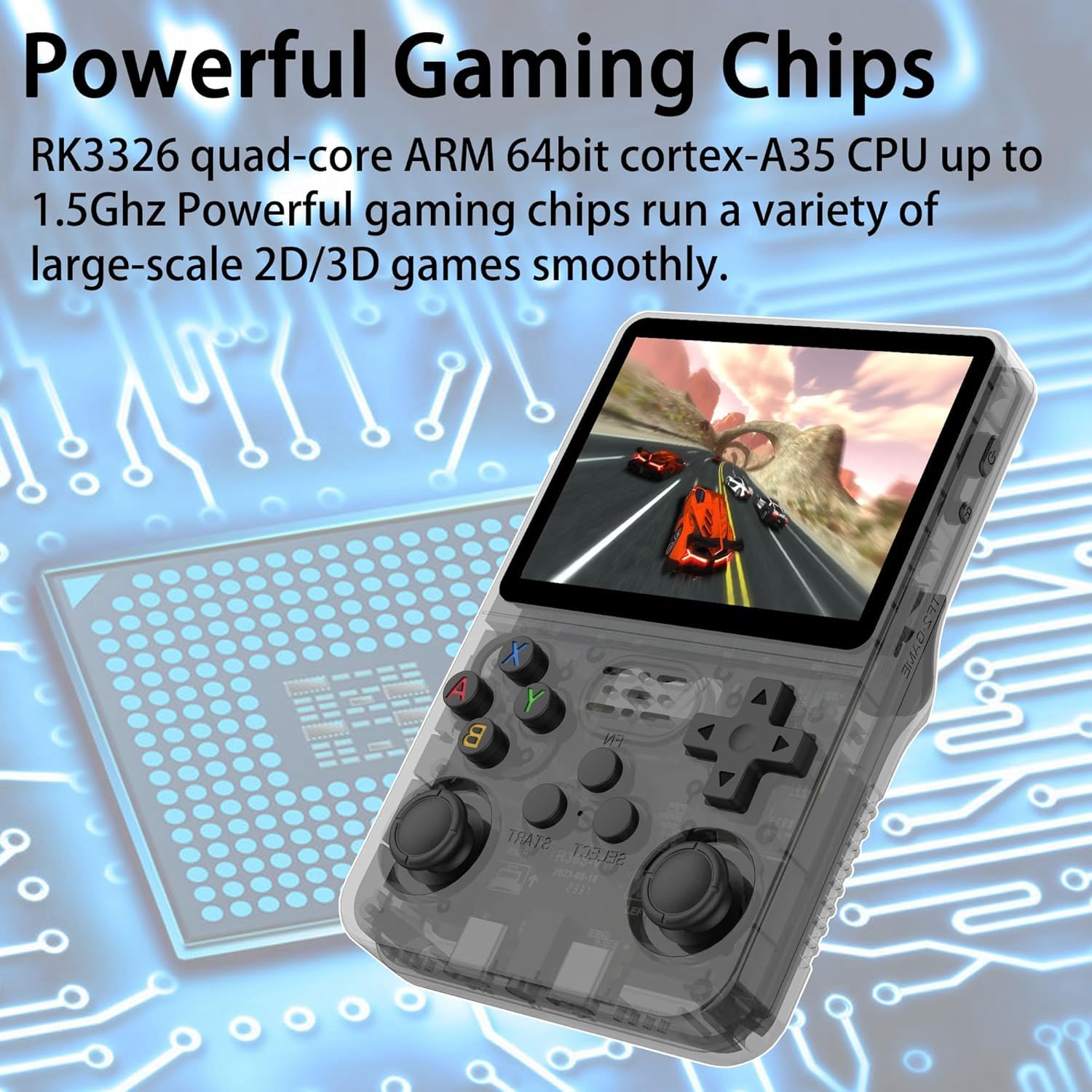
Figure 4: Visual representation emphasizing the RK3326 quad-core ARM 64bit cortex-A35 CPU, capable of running at up to 1.5GHz, which enables smooth performance for a variety of 2D and 3D games.
4.4 External Connectivity (OTP Port)
The console features an OTP (On-The-Go) port, typically a USB-C port, which allows for connection of external peripherals such as USB gamepads or USB drives via an adapter. This expands the console's versatility for multiplayer gaming or file transfer.

Figure 5: Close-up of the OTP port on the R36S console, demonstrating its capability to connect to external devices such as a USB adapter for a game controller, enhancing the gaming experience.
5. Maintenance
- Cleaning: Use a soft, dry cloth to clean the console's exterior. For the screen, use a microfiber cloth specifically designed for electronics. Avoid abrasive cleaners or solvents.
- Storage: Store the console in a cool, dry place away from direct sunlight and extreme temperatures.
- Battery Care: To prolong battery life, avoid fully discharging the battery frequently. If storing for an extended period, charge the battery to about 50% before storage.
6. Troubleshooting
| Problem | Possible Cause | Solution |
|---|---|---|
| Console does not power on. | Low battery; OS MicroSD card not inserted or corrupted. | Charge the console for at least 30 minutes. Ensure the OS MicroSD card is correctly inserted into the TF1 slot. Try re-flashing the OS if corrupted. |
| Games are not loading or appearing. | Game MicroSD card not inserted; incorrect ROM format; corrupted game files. | Ensure the game MicroSD card is correctly inserted into the TF2 slot. Verify that game ROMs are in compatible formats. Check for corrupted files on the game card. |
| Screen is blank or flickering. | Software glitch; loose display connection (rare). | Perform a soft reset using the Reset button. If the issue persists, try re-flashing the OS. |
| Charging issues (only charges with specific cable). | Cable incompatibility; faulty charging port. | Use the original charging cable provided. Ensure the USB power adapter meets the console's power requirements. If the issue persists, contact customer support. |
7. Specifications
| Feature | Detail |
|---|---|
| Model Number | R36S |
| Processor | RK3326 Quad-core ARM 64bit Cortex-A35 CPU up to 1.5GHz |
| Display | 3.5-inch IPS HD Screen, 640x480 Resolution |
| Memory Storage Capacity | Up to 256 GB (via MicroSD cards) |
| Battery | 3500 mAh Lithium-ion |
| Dimensions | 6.49 x 4.72 x 1.97 inches |
| Manufacturer | Generic |
| Date First Available | May 12, 2025 |
8. Warranty and Support
For warranty information and technical support, please refer to the documentation provided with your purchase or contact the retailer where the product was acquired. Keep your proof of purchase for warranty claims.
For common questions and community support, you may also find resources online related to open-source handheld gaming consoles and the specific operating system used by the R36S.