
1. Introduction
The ABIWAZY 8-in-1 USB-C Dual Monitor Docking Station is designed to expand the connectivity of your USB-C enabled laptop. This hub converts a single USB-C port into multiple ports, including dual 4K HDMI, DisplayPort, VGA, three USB 2.0 ports, and a USB-C Power Delivery (PD) charging port. It is compatible with Windows laptops that support video output or DisplayPort Alternate Mode (DP Alt Mode), such as HP EliteBook, Dell Latitude, Lenovo ThinkPad, and Microsoft Surface models.
This docking station operates without the need for additional drivers or software, offering a plug-and-play experience. It supports both Single Stream Transport (SST) and Multi-Stream Transport (MST) modes for Windows laptops, enabling versatile display configurations.

Image 1.1: ABIWAZY 8-in-1 USB-C Dual Monitor Docking Station. This image shows the compact black docking station with its various ports and connected cables, including HDMI, DisplayPort, and VGA connectors.
2. Setup Instructions
Before connecting the docking station, ensure your laptop's USB-C port supports video output (DisplayPort Alt Mode) or is a Thunderbolt 3/4 port. This is crucial for the HDMI, DisplayPort, and VGA outputs to function correctly.
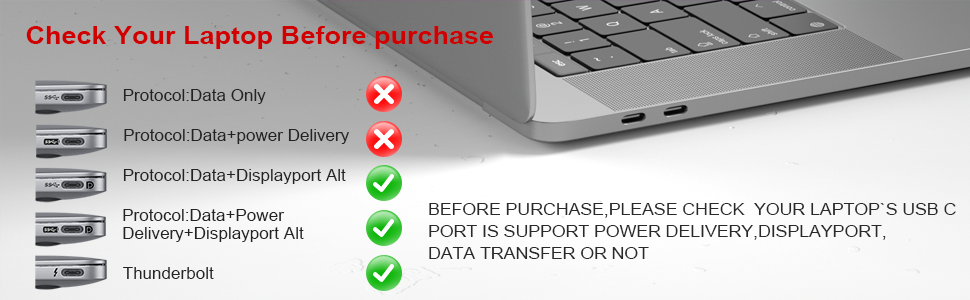
Image 2.1: Laptop USB-C Port Compatibility Check. This diagram illustrates different USB-C port protocols and indicates which ones support video output (DisplayPort Alt Mode) or Thunderbolt, which are required for the docking station's display functions.
2.1 Connecting the Docking Station
- Connect the integrated USB-C cable from the docking station to a compatible USB-C port on your laptop.
- Connect your external monitors to the docking station's HDMI, DisplayPort, or VGA ports using appropriate cables.
- For power delivery, connect a USB-C power adapter (minimum 65W, not included) to the docking station's USB-C PD input port. Then, connect the docking station's USB-C cable to your laptop.
- Connect any USB peripherals (keyboard, mouse, external drives) to the USB 2.0 ports on the docking station.

Image 2.2: 8-in-1 USB-C Hub Port Diagram. This image provides a detailed view of the docking station, highlighting each port: 3x USB 2.0, 2x HDMI, 1x DisplayPort, 1x VGA, and 1x USB-C PD input, along with their respective functions and speeds.
3. Operating Instructions
3.1 Display Configurations (Windows Laptops)
The docking station supports various display modes for Windows laptops, including dual, triple, and quad monitor setups. For optimal performance, ensure your laptop's graphics drivers are up to date.
- Dual Display: Connect two monitors to any combination of HDMI1, HDMI2, DisplayPort, or VGA.
- Triple Display: Connect three monitors using HDMI1, HDMI2, and DisplayPort, or HDMI1, HDMI2, and VGA.
- Quad Display: Connect four monitors using HDMI1, HDMI2, DisplayPort, and VGA.
Important Note for Multiple HDMI/DP Connections:
When connecting multiple displays, especially HDMI and DisplayPort, follow this sequence to ensure proper detection:
- Plug in HDMI1.
- Plug in DisplayPort (wait for the screen to display successfully).
- Plug in HDMI2.

Image 3.1: Multi-Monitor Display Adapter for Windows. This graphic illustrates various display configurations for Windows laptops, including dual, triple, and quad monitor setups, showing how the laptop screen and external monitors can be arranged.
3.2 Resolution Capabilities
- Single Display: HDMI1 or DisplayPort supports up to 4K@60Hz. HDMI2 supports up to 4K@30Hz (when source is DP1.4).
- Dual Displays: HDMI1 or DisplayPort will be 4K@60Hz, and HDMI2 up to 4K@59Hz (with DP1.4 source).
- Triple Displays (2 HDMI + DP): HDMI1 up to 4K@59Hz, DisplayPort up to 4K@29Hz, and HDMI2 up to 2K@60Hz (with DP1.4 source).
- VGA Output: When using multiple monitors with VGA, the display output will be 1080P.

Image 3.2: Ultra High Dual 4K Resolution Display. This image shows a laptop connected to two external monitors, both displaying content in 4K resolution, demonstrating the high-resolution output capability of the docking station.
3.3 Power Delivery
The USB-C PD charging port allows you to power your laptop while using the docking station. It supports up to 87W power delivery. Ensure your laptop's USB-C port supports charging and use a power adapter of at least 65W (not included) for optimal charging performance. Using a lower wattage power charger may result in a system warning.

Image 3.3: USB C 3.0 Power Delivery Connection. This image illustrates the docking station connected to a laptop and a power outlet, showing the input (100W) and output (87W) power delivery for fast charging.
3.4 USB Data Transfer
The docking station includes three USB 2.0 ports, providing data transfer speeds of up to 480Mbps. These ports are suitable for connecting peripherals such as hard drives, USB flash drives, keyboards, mice, and printers.

Image 3.4: 3 USB Ports Data Transfer. This image shows the docking station with various USB devices connected, including a hard disk, U disk, keyboard, mouse, and printer, demonstrating the utility of the USB 2.0 ports.
4. Maintenance
To ensure the longevity and optimal performance of your ABIWAZY docking station, follow these maintenance guidelines:
- Keep the device clean by wiping it with a soft, dry cloth. Avoid using liquid cleaners or abrasive materials.
- Store the docking station in a cool, dry place away from direct sunlight and extreme temperatures.
- Avoid placing heavy objects on the docking station or subjecting it to physical impact.
- Ensure proper ventilation around the device to prevent overheating, especially during extended use.
5. Troubleshooting
If you encounter issues with your docking station, refer to the following common troubleshooting steps:
- No Display Output:
- Verify that your laptop's USB-C port supports DisplayPort Alt Mode or is a Thunderbolt 3/4 port.
- Ensure all display cables (HDMI, DisplayPort, VGA) are securely connected to both the docking station and your monitors.
- If using multiple HDMI/DP connections, ensure you followed the correct connection sequence (HDMI1 → DP → HDMI2).
- Try connecting one monitor at a time to isolate the issue.
- Update your laptop's graphics drivers to the latest version.
- Charging Issues:
- Confirm that your laptop's USB-C port supports power input.
- Ensure you are using a USB-C power adapter of at least 65W (not included). A lower wattage adapter may cause charging warnings or insufficient power.
- Check that the power adapter is properly connected to both the docking station and a power outlet.
- USB Peripherals Not Working:
- Ensure the USB devices are properly plugged into the docking station's USB 2.0 ports.
- Test the USB devices by connecting them directly to your laptop to confirm they are functional.
- Restart your laptop and reconnect the docking station.
- Intermittent Connectivity:
- Ensure all connections are firm and not loose.
- Avoid placing the docking station near sources of strong electromagnetic interference.
6. Specifications
| Feature | Detail |
|---|---|
| Model | 8 IN 1 |
| Brand | ABIWAZY |
| Color | Black |
| Hardware Interface | DisplayPort, HDMI, USB 2.0 Type A, USB 3.0 Type C (PD), VGA |
| Special Features | Fast Charging, Fast Data Transfer, Lightweight, Plug and Play, Portable |
| Compatible Devices | Laptops with USB Type C port (Thunderbolt 3/4 or supports video output DP Alt Mode) |
| Package Dimensions | 5.2 x 3.15 x 0.75 inches |
| Item Weight | 0 ounces |
7. Warranty and Support
ABIWAZY is committed to providing quality products and customer service. If you have any concerns or require assistance with your docking station, please contact ABIWAZY customer service. We aim to provide 24-hour customer support to address your inquiries.
For further assistance, please refer to the contact information provided with your product packaging or visit the official ABIWAZY website.


