
Introduction
This manual provides essential instructions for the installation, operation, and maintenance of your FRONTECH Flint FT-4277 Computer Cabinet. Please read this document thoroughly before beginning any installation or operation procedures to ensure proper use and longevity of your product.

Figure 1: Front view of the FRONTECH Flint FT-4277 Computer Cabinet.
Setup and Installation
Follow these steps to set up and install components within your FRONTECH Flint FT-4277 Computer Cabinet.
- Unpacking: Carefully remove the computer cabinet from its packaging. Inspect for any visible damage.
- Accessing the Interior: Remove the side panel(s) of the cabinet. Typically, this involves unscrewing thumbscrews at the rear and sliding the panel backward.
- Motherboard Installation: Install your ATX or Micro-ATX motherboard onto the designated standoffs inside the cabinet. Secure it with screws.
- Power Supply Unit (PSU) Installation: Mount your power supply unit into the SMPS slot, usually located at the rear bottom of the cabinet. Secure it with screws.
- Storage Drive Installation: Install 3.5-inch hard disk drives (HDDs) and solid-state drives (SSDs) into their respective slots. The cabinet supports tool-free installation for ease of use.
- Expansion Card Installation: Install any necessary expansion cards (e.g., graphics card) into the motherboard's PCIe slots and secure them with the cabinet's retention mechanisms.
- Connecting Front Panel Cables: Connect the front panel USB, audio, power, and reset cables to the corresponding headers on your motherboard. Refer to your motherboard manual for specific header locations.
- Cable Management: Route cables neatly to ensure optimal airflow and a clean interior.
- Closing the Cabinet: Reattach the side panel(s) and secure them with the thumbscrews.

Figure 2: Internal layout indicating motherboard, SSD, and HDD slots.
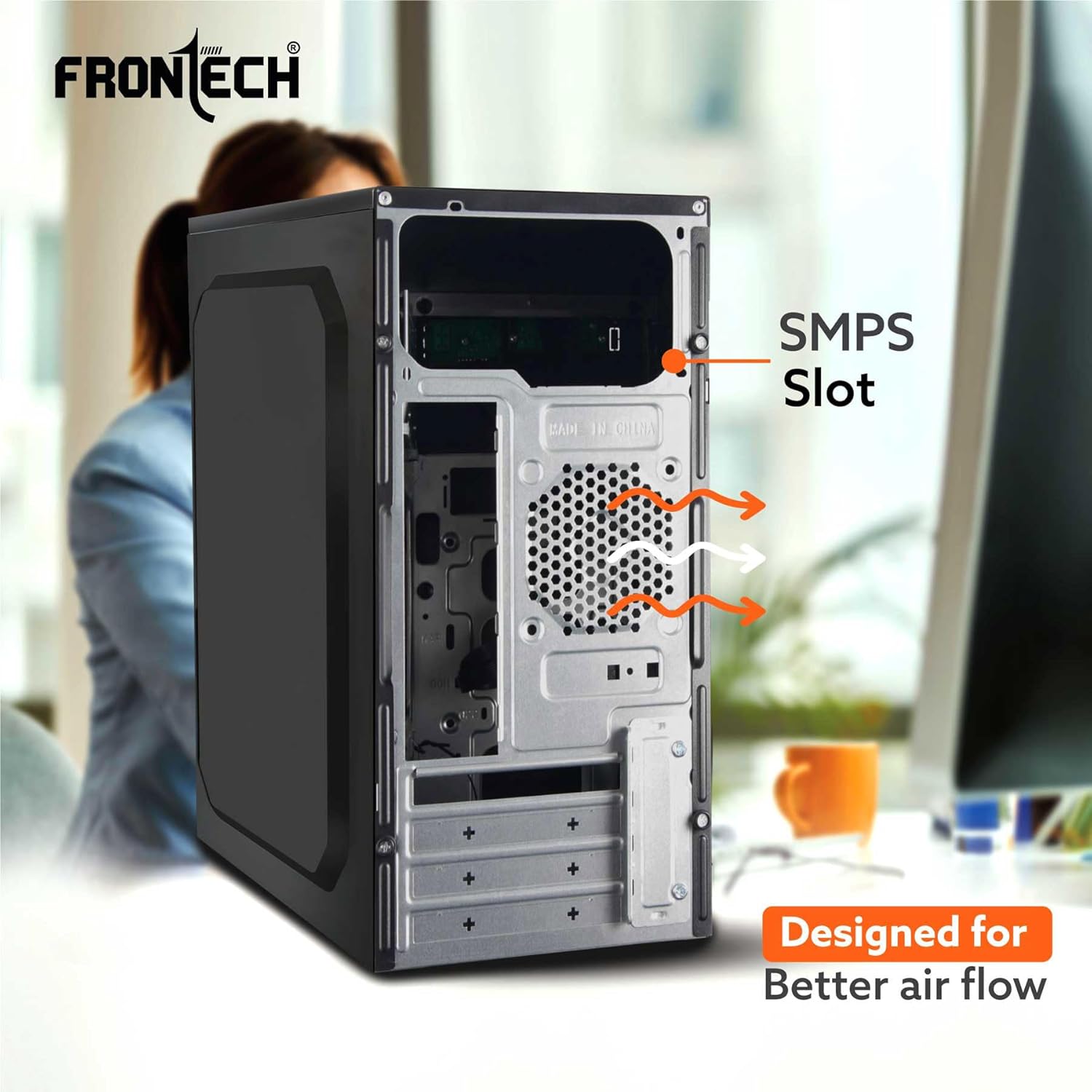
Figure 3: Rear view highlighting the SMPS slot and ventilation.
Operating Instructions
The FRONTECH Flint FT-4277 Computer Cabinet is designed for straightforward operation.
- Power On/Off: Press the power button located on the front panel to turn your computer on or off. A brief press typically initiates power-on, while a longer press (usually 4-5 seconds) can force a shutdown.
- Restart: Use the restart button on the front panel to reboot your system. This is useful for resolving minor software issues.
- USB Ports: The two front USB 1.1 ports allow for convenient connection of peripherals such as keyboards, mice, USB drives, and other compatible devices.
- Audio Ports: The front audio ports (headphone and microphone jacks) provide easy access for connecting headsets or external speakers.
- Efficient Cooling: The cabinet features an efficient airflow design to help keep internal components cool during operation. Ensure no obstructions block the ventilation areas.

Figure 4: Front panel ports and buttons.

Figure 5: Side panel with ventilation for improved airflow.
Maintenance
Regular maintenance helps ensure optimal performance and extends the lifespan of your computer cabinet and its components.
- Dust Cleaning: Periodically clean the interior of the cabinet to remove dust buildup, which can impede airflow and cause overheating. Use compressed air or a soft brush. Ensure the system is powered off and unplugged before cleaning.
- Exterior Cleaning: Wipe the exterior surfaces with a soft, damp cloth. Avoid abrasive cleaners or solvents that could damage the finish.
- Ventilation Check: Ensure that all ventilation openings are clear of obstructions to maintain efficient cooling.
Troubleshooting
This section addresses common issues you might encounter with your computer cabinet.
| Problem | Possible Cause | Solution |
|---|---|---|
| Computer does not power on. | Front panel power button not connected correctly. | Check the power button cable connection to the motherboard. Ensure the PSU is properly connected and switched on. |
| Front USB ports are not working. | Front panel USB cable not connected to motherboard. | Verify the USB header connection on the motherboard. Ensure drivers are installed for your motherboard's USB controller. |
| Front audio ports are not working. | Front panel audio cable not connected to motherboard. | Check the audio header connection on the motherboard. Ensure audio drivers are correctly installed. |
| System overheating. | Poor airflow or dust buildup. | Ensure all ventilation openings are clear. Clean dust from inside the cabinet and components. Consider adding additional case fans if supported. |
Specifications
Detailed technical specifications for the FRONTECH Flint FT-4277 Computer Cabinet.
- Brand: FRONTECH
- Model: FT-4277
- Model Name: PRIMA
- Product Dimensions (LxWxH): 30 x 17 x 35 cm
- Item Weight: 2.1 kg
- Material: Metal
- Compatible Motherboards: ATX, Micro-ATX
- Front Ports: 2 x USB 1.1, Front Audio (Headphone, Microphone)
- Special Features: Tool-Free Installation, Durable Build, Efficient Cooling, Spacious Interior
- Case Type: Tower
- Color: Black
Warranty Information
For detailed warranty terms and conditions, please refer to the product packaging or visit the official FRONTECH website. Keep your purchase receipt as proof of purchase for any warranty claims.
Customer Support
If you require technical assistance or have questions regarding your FRONTECH Flint FT-4277 Computer Cabinet, please visit the official FRONTECH website for support resources, FAQs, and contact information. You can also reach out to FRONTECH customer service directly.
Official FRONTECH Store: Visit FRONTECH Store on Amazon.in