Introduction
This manual provides comprehensive instructions for setting up, operating, and maintaining your Suicoey Android 14 Tablet. Please read this manual thoroughly before using your device to ensure optimal performance and longevity.

Image: The Suicoey Android 14 Tablet shown with its accompanying keyboard, mouse, stylus, and protective case, highlighting the complete package.
What's in the Box
Verify that all items are present in your product package:
- 1 x 10 inch tablet
- 1 x Protective case
- 1 x Keyboard
- 1 x Mouse
- 1 x Stylus
- 1 x Screen protector
- 1 x User Manual
- 1 x USB charger
- 1 x Type-C cable
Key Features
The Suicoey Android 14 Tablet offers a range of advanced features designed for enhanced user experience:
- Advanced Android 14 OS: Offers enhanced customization, privacy protection, and accessibility features including split screen and face unlock.
- Powerful Octa-Core Processor: Ensures faster running speed and superior performance for smooth multitasking and complex applications.
- Ample Memory & Storage: Equipped with 16GB (8+8 virtual) RAM and 128GB ROM, expandable up to 1TB via TF card.
- 10-inch IPS Display with Widevine L1 Support: Provides clear and vivid visuals, ideal for reading, gaming, and streaming movies.
- Long-lasting 8000mAh Battery: Offers extended usage time for commuting or travel.
- Bluetooth V5.0: Allows for seamless pairing with various devices.
- Dual-band Wi-Fi (2.4G/5G): Ensures faster and more stable network connections.
- GMS Certified: Provides access to a wide range of popular apps from the Google Play Store.
- 2-in-1 Functionality: Includes a keyboard, mouse, stylus, and protective case for versatile use.

Image: The tablet in its case with the keyboard, illustrating key specifications such as Android 14 OS, 128GB ROM, 16GB RAM, 8000mAh Battery, 1280x800 Resolution, 5MP+8MP Camera, Stereo Speaker, and 2.4G/5G WiFi.
Setup
Initial Power On and Screen Preparation
Upon first use, ensure the tablet is charged. Press and hold the power button to turn on the device. The initial setup screen will prompt you to select your language and region.
Image: The tablet screen displaying the initial setup prompt "Hi there" and a "Start" button, indicating readiness for configuration.
Before use, gently peel off the protective film from the tablet screen. This film is for shipping protection and should be removed for optimal display clarity.
Connecting Accessories
The Suicoey tablet comes with a keyboard, mouse, and stylus for enhanced productivity.
- Keyboard & Mouse: These accessories typically connect via Bluetooth. Go to Settings > Connected devices > Bluetooth on your tablet, turn on Bluetooth, and pair with the keyboard and mouse. Refer to the individual accessory manuals for specific pairing instructions.
- Stylus: The stylus is generally a passive device and does not require pairing. Simply use it directly on the touch screen.
Network Connection (Wi-Fi & Bluetooth)
To connect to the internet or other devices:
- Wi-Fi: Navigate to Settings > Network & internet > Wi-Fi. Turn on Wi-Fi, select your desired network from the list, and enter the password if prompted. The tablet supports both 2.4G and 5G Wi-Fi for stable connections.
- Bluetooth: Go to Settings > Connected devices > Bluetooth. Ensure Bluetooth is enabled, and your desired device is in pairing mode. Select the device from the "Available devices" list to connect.
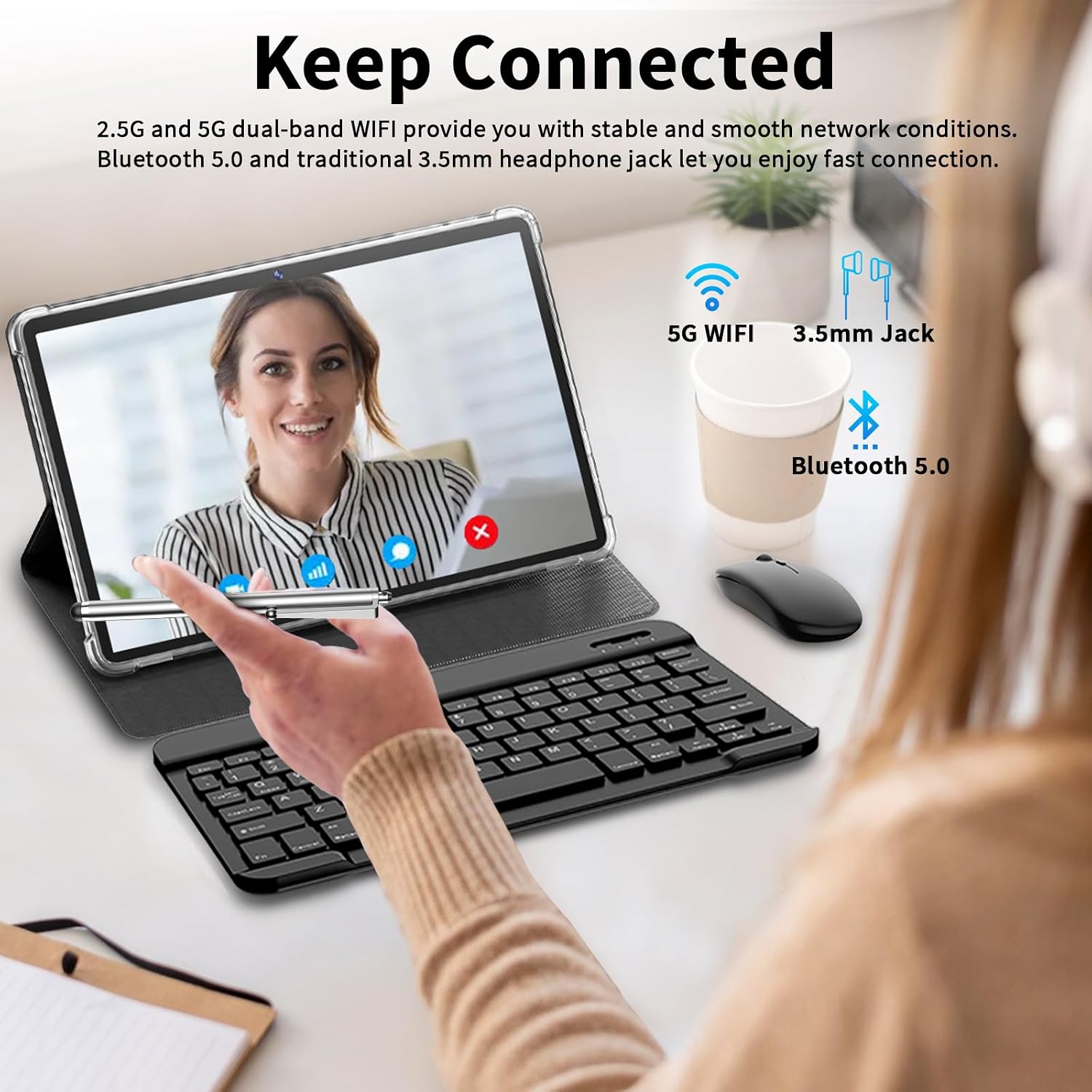
Image: A user interacting with the tablet, keyboard, and mouse, with icons representing 5G WiFi, 3.5mm Jack, and Bluetooth 5.0, emphasizing connectivity options.
Operating Instructions
Android 14 Operating System
Your tablet runs on the latest Android 14 OS, offering an intuitive and secure user experience. Key features include:
- Customization: Personalize your home screen with widgets and themes.
- Privacy Protection: Enhanced controls over app permissions and data access.
- Split Screen: Multitask efficiently by running two apps side-by-side. To activate, open an app, swipe up from the bottom of the screen to view recent apps, tap the app icon at the top of its window, and select "Split screen".
- Face Unlock: Securely unlock your tablet using facial recognition. Set this up in Settings > Security & privacy > Device unlock.

Image: Various tablet displays showcasing the benefits of Android 14 OS, including enhanced privacy protection, smooth operation, and a user-friendly interface.
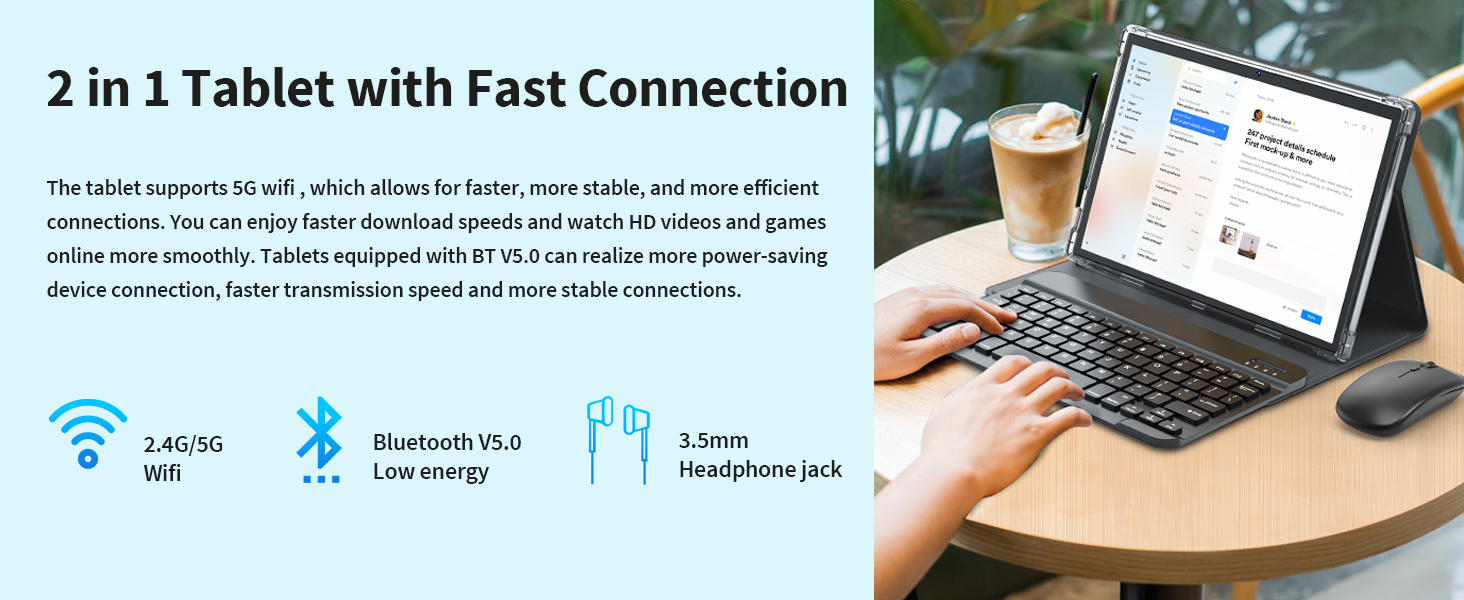
Image: A tablet displaying two applications simultaneously in split-screen mode, demonstrating the multitasking capability.
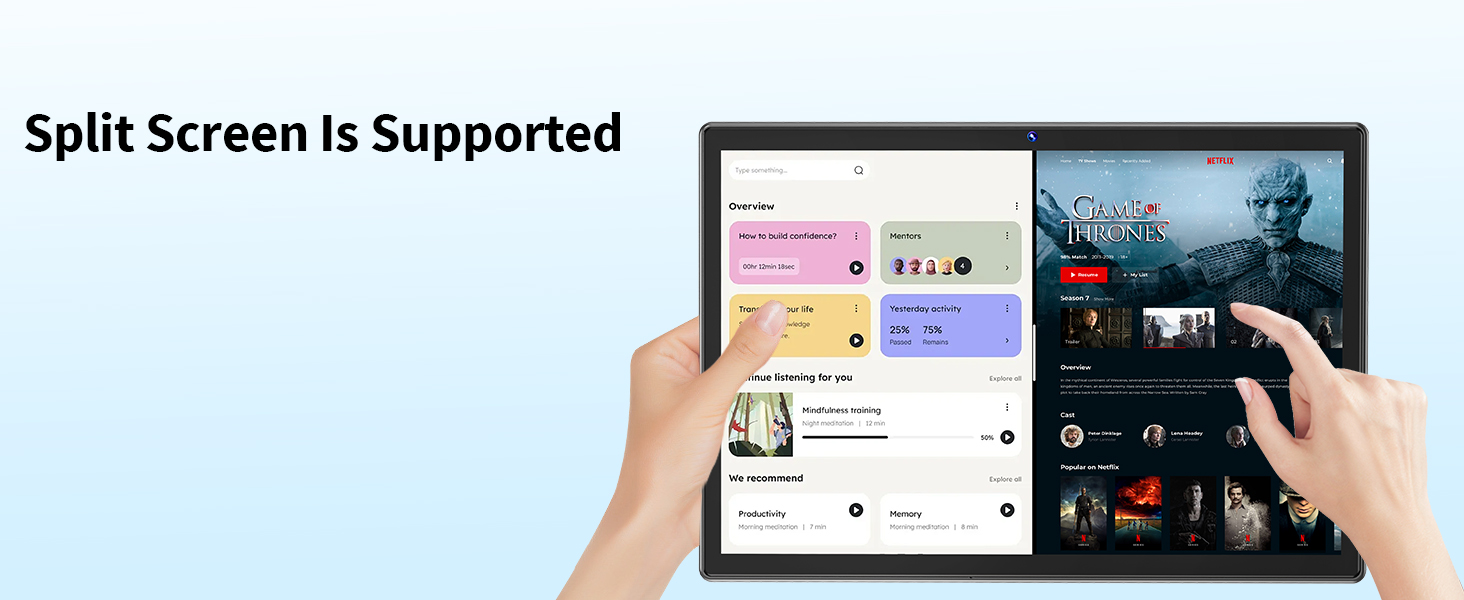
Image: A woman using the face unlock feature on her tablet, illustrating the convenience and security of facial recognition.
Storage and Performance
The tablet features 16GB of RAM (8GB physical + 8GB virtual) and 128GB of internal storage. For additional space, you can expand storage up to 1TB using a TF (microSD) card. The Octa-Core processor ensures smooth performance even with multiple applications running.

Image: A visual representation of the tablet's storage (16GB RAM, 128GB ROM, 1TB Expandable) and the Octa-Core processor, emphasizing its capacity and speed.
Battery Management
The 8000mAh battery provides extended usage. To maximize battery life:
- Reduce screen brightness.
- Close unused applications.
- Turn off Wi-Fi and Bluetooth when not in use.
- Charge the tablet using the provided USB charger and Type-C cable.

Image: The tablet screen showing a high battery percentage and icons indicating long battery life for videos (16 hours), games (14 hours), and standby (720 hours).
Camera Usage
The tablet is equipped with a 5MP front camera and an 8MP rear camera for capturing photos and videos. Access the camera application from the home screen or app drawer.
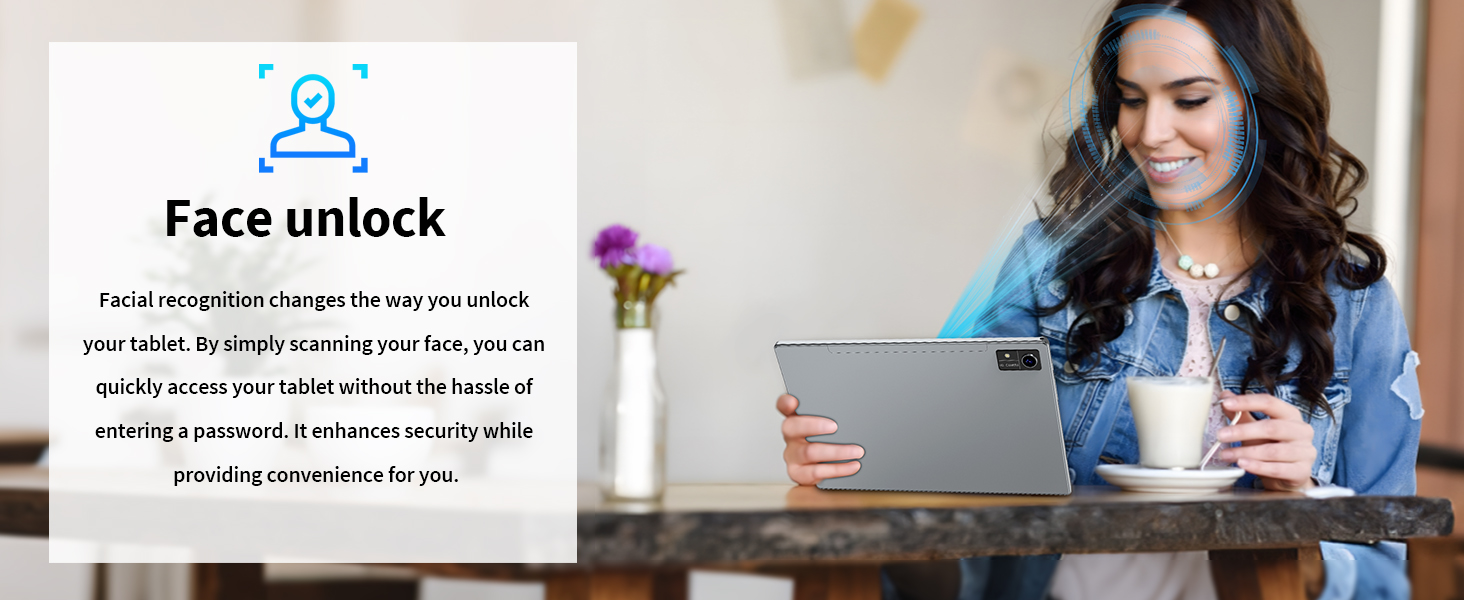
Image: A detailed view of the tablet's dual HD camera setup (8MP rear, 5MP front) alongside example photos, demonstrating its photographic capabilities.
Google Mobile Services (GMS) Certification
Being GMS certified, your tablet has full access to the Google Play Store and Google's suite of applications, allowing you to download and enjoy a vast array of apps.

Image: Multiple tablet screens displaying various popular applications available through the GMS Certified Google Play Store, including YouTube and Netflix.
Maintenance
- Cleaning: Use a soft, lint-free cloth to clean the screen and body of the tablet. Avoid using harsh chemicals or abrasive materials.
- Software Updates: Regularly check for and install system updates to ensure optimal performance, security, and access to new features. Go to Settings > System > System update.
- Storage Management: Periodically clear unnecessary files and uninstall unused apps to free up storage space and maintain performance.
- Environmental Conditions: Avoid exposing the tablet to extreme temperatures, direct sunlight, or excessive moisture.
Troubleshooting
| Issue | Possible Cause | Solution |
|---|---|---|
| Tablet won't turn on. | Low battery, system crash. | Charge the tablet for at least 30 minutes. Press and hold the power button for 10-15 seconds to force a restart. |
| Slow performance. | Too many apps running, low storage. | Close unused apps. Clear cache. Uninstall unnecessary apps. Restart the tablet. |
| Wi-Fi/Bluetooth connectivity issues. | Incorrect settings, interference, device not in pairing mode. | Toggle Wi-Fi/Bluetooth off and on. Restart router/device. Ensure correct password. Move closer to the Wi-Fi source. |
| Apps crashing or freezing. | App incompatibility, insufficient RAM, software bug. | Update the app. Clear app cache/data (Settings > Apps). Restart the tablet. If persistent, uninstall and reinstall the app. |
Specifications
| Feature | Detail |
|---|---|
| Brand | Suicoey |
| Model Name | T618 |
| Operating System | Android 14 |
| Screen Size | 10 Inches |
| Screen Resolution | 1280 x 800 pixels |
| RAM | 16 GB (8GB physical + 8GB virtual) |
| Flash Memory Size | 128 GB |
| Expandable Storage | Up to 1TB via TF card |
| Processor Brand | Unisoc (Octa-Core) |
| Wireless Type | 802.11ax (2.4G/5G WiFi) |
| Bluetooth | V5.0 |
| Battery Capacity | 8000mAh |
| Average Battery Life | 16.5 Hours |
| Rear Webcam Resolution | 8 MP |
| Front Webcam Resolution | 5 MP |
| Item Weight | 3.14 pounds |
| Product Dimensions (LxWxH) | 10.7 x 7.5 x 2.6 inches |
| Color | Black |
Warranty and Support
For warranty information, technical support, or any product-related inquiries, please refer to the contact details provided on the product packaging or visit the official Suicoey website. Keep your purchase receipt as proof of purchase for warranty claims.


