1. Introduction
Thank you for choosing the Generic Ultra Slim Wireless Bluetooth Keyboard with Touchpad. This device is designed to enhance your productivity and convenience across various operating systems and devices. This manual provides essential information for proper setup, operation, and maintenance.

Image 1.1: The Ultra Slim Wireless Bluetooth Keyboard with Touchpad.
2. Product Overview
The keyboard features a QWERTY layout, an integrated touchpad, and Bluetooth 3.0 connectivity. It is designed for portability and ease of use with tablets, smartphones, and other compatible devices.
Key Features:
- Integrated Touchpad: Allows for navigation and control without an external mouse.
- Rechargeable Battery: Built-in 420mAh lithium battery for extended use.
- Ultra-Slim and Portable: Lightweight design for easy transport.
- Magnetic Detachable: Can be attached to compatible protective cases (not included).
- Wide Compatibility: Supports iOS, Android, and Windows operating systems.

Image 2.1: Demonstrates the touchpad functionality. For iOS devices, ensure Assistive Touch is enabled for full touchpad use.
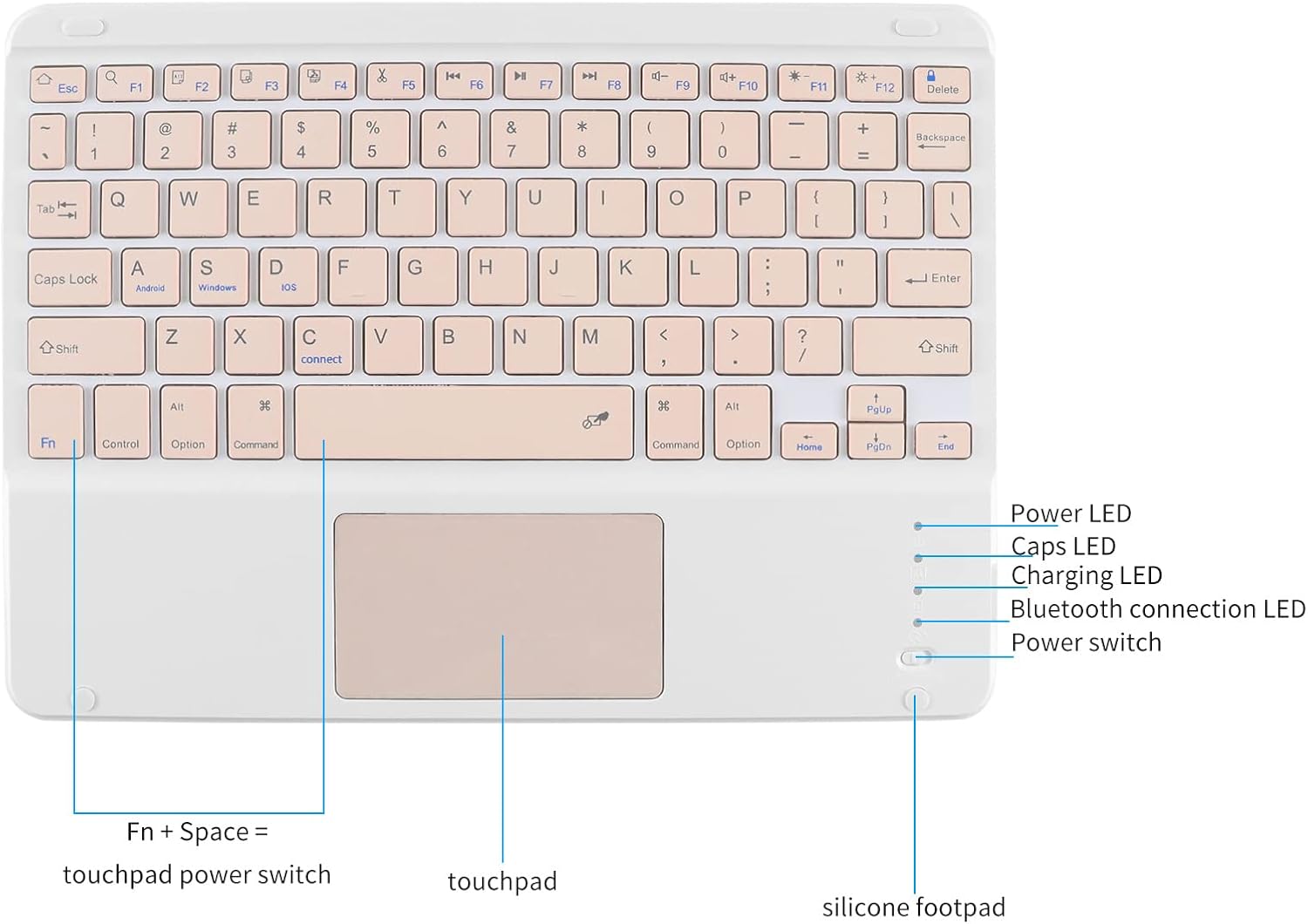
Image 2.2: Detailed view of the keyboard layout, including indicator lights for power, Caps Lock, charging, and Bluetooth connection, along with the touchpad power switch (Fn + Space).
3. Setup
3.1 Charging the Keyboard
- Locate the Type-C charging port on the keyboard.
- Connect the provided Type-C charging cable to the keyboard and a suitable USB power source.
- The charging indicator light will illuminate during charging. A full charge typically takes 2-3 hours.
- Once fully charged, the charging indicator light will turn off or change color.

Image 3.1: The keyboard's Type-C charging port and included cable.
3.2 Bluetooth Pairing
- Ensure the keyboard is fully charged.
- Slide the ON/OFF switch to the "ON" position. The power indicator light will illuminate for 3 seconds.
- Press the Fn + C keys simultaneously. The Bluetooth indicator light will flash, indicating the keyboard is in pairing mode.
- On your device (tablet, smartphone, etc.), enable Bluetooth and search for available devices.
- Select "Bluetooth Keyboard" from the list of found devices.
- Follow any on-screen prompts to complete the pairing process. Once connected, the Bluetooth indicator light will stop flashing.
4. Operating Instructions
4.1 System Switching
The keyboard supports multiple operating systems. Use the following key combinations to switch between modes:
- Fn + Q: For Android devices.
- Fn + W: For Windows devices.
- Fn + E: For iOS devices.

Image 4.1: The keyboard is compatible with Windows, Mac OS, iOS, and Android systems.
4.2 Touchpad Functionality
The integrated touchpad allows for mouse-like navigation. Basic gestures include:
- Single Finger Tap: Left-click.
- Two Finger Tap: Right-click (context menu).
- Two Finger Scroll: Scroll up/down or left/right.
- Pinch to Zoom: Zoom in/out.
Important for iOS users: To utilize the touchpad function on iOS devices, you must enable the "Assistive Touch" feature in your device's accessibility settings.
4.3 Multimedia and Shortcut Keys
The keyboard includes various function keys for quick access to common commands. These typically require pressing the Fn key in combination with the desired function key (F1-F12, etc.). Examples include:
- Home page
- Search
- Volume control
- Music playback control
Note: This keyboard is primarily designed for office typing and general entertainment. It does not support gaming, desktop computers, or smart TVs.
4.4 Automatic Sleep Mode
To conserve battery life, the keyboard will automatically enter a sleep state if it is not used for more than a few minutes. To wake it up, simply press any key.
5. Maintenance
5.1 Cleaning
To clean the keyboard, gently wipe the surface with a soft, damp cloth. Avoid using harsh chemicals or abrasive materials that could damage the finish or internal components. Ensure the keyboard is powered off before cleaning.

Image 5.1: The keyboard features a metal wire drawing surface, which is anti-fingerprint and smooth to the touch.
5.2 Storage
When not in use for extended periods, store the keyboard in a cool, dry place away from direct sunlight and extreme temperatures. Ensure the keyboard is powered off to prevent battery drain.
6. Troubleshooting
6.1 Keyboard Not Connecting via Bluetooth
- Ensure the keyboard is charged and powered on.
- Verify that Bluetooth is enabled on your device.
- Make sure the keyboard is in pairing mode (Bluetooth indicator flashing after pressing Fn + C).
- Delete any previous "Bluetooth Keyboard" connections from your device's Bluetooth settings and attempt to re-pair.
- Ensure the keyboard is within the operating distance of 10 meters from your device.
6.2 Touchpad Not Responding
- Ensure the touchpad is enabled (press Fn + Space to toggle).
- For iOS devices, confirm that "Assistive Touch" is enabled in your device's accessibility settings.
- Restart both the keyboard and your connected device.
6.3 Keys Not Functioning Correctly
- Verify that the keyboard is set to the correct operating system mode (Fn + Q/W/E).
- Ensure the keyboard is fully charged.
- If specific keys are not working, try cleaning around them to remove any debris.
7. Specifications
| Product Dimensions | 9.64"L x 7.08"W x 0.2"H (24.48 x 17.98 x 0.5 cm) |
| Item Weight | 8.5 ounces (241 grams) |
| Bluetooth Version | Bluetooth 3.0 |
| Operating Distance | Up to 10 meters (33 feet) |
| Battery Capacity | 420mAh Lithium Battery |
| Charging Port | Type-C |
| Charging Time | 2-3 hours |
| Standby Time | Up to 90 days |
| Sustainable Working Time | More than 20 days |
| Number of Keyboard Keys | 78 keys |
| Compatible Devices | Tablet, Smartphone, Laptop, PC (with Bluetooth) |
| Compatible OS | iOS, Android, Windows, Mac OS |

Image 7.1: Physical dimensions and weight of the keyboard.
8. Package Contents
The package includes the following items:
- 1 x Ultra Slim Wireless Bluetooth Keyboard with Touchpad
- 1 x Type-C Charging Cable
- 1 x User Manual (this document)
9. Warranty and Support
This product comes with a standard manufacturer's warranty. For specific warranty details, please refer to the product packaging or contact the retailer where you purchased the item. If you encounter any issues or require technical assistance, please contact customer support through your purchase platform or the manufacturer's official website.