
Introduction
This manual provides detailed instructions for the setup, operation, and maintenance of your Decruil Smart Fingerprint Key Lock Box. Please read this manual thoroughly before using the product to ensure proper functionality and safety.
Package Contents
Verify that all items listed below are present in your package:
- 1 x Smart Fingerprint Key Lock Box
- 1 x Gateway
- 1 x Emergency Power Cord (USB-C)
- 1 x User Manual
- 1 x Drill Template
- 4 x Screws Set

An illustration detailing the components included in the product package: 4 screws, 1 user manual, 1 drill template, 1 emergency power cord, 1 gateway, and 1 key box.
Product Overview
The Decruil Smart Fingerprint Key Lock Box offers secure key storage with multiple access options. Key features include:
- Fingerprint Recognition: Quick and secure access using registered fingerprints.
- Bluetooth App Control: Unlock the box via a smartphone application when in Bluetooth range.
- Remote Access (with Gateway): Control the lock box from anywhere using the included gateway and a Wi-Fi connection.
- Operation Log: Track unlock events and access history through the mobile application.
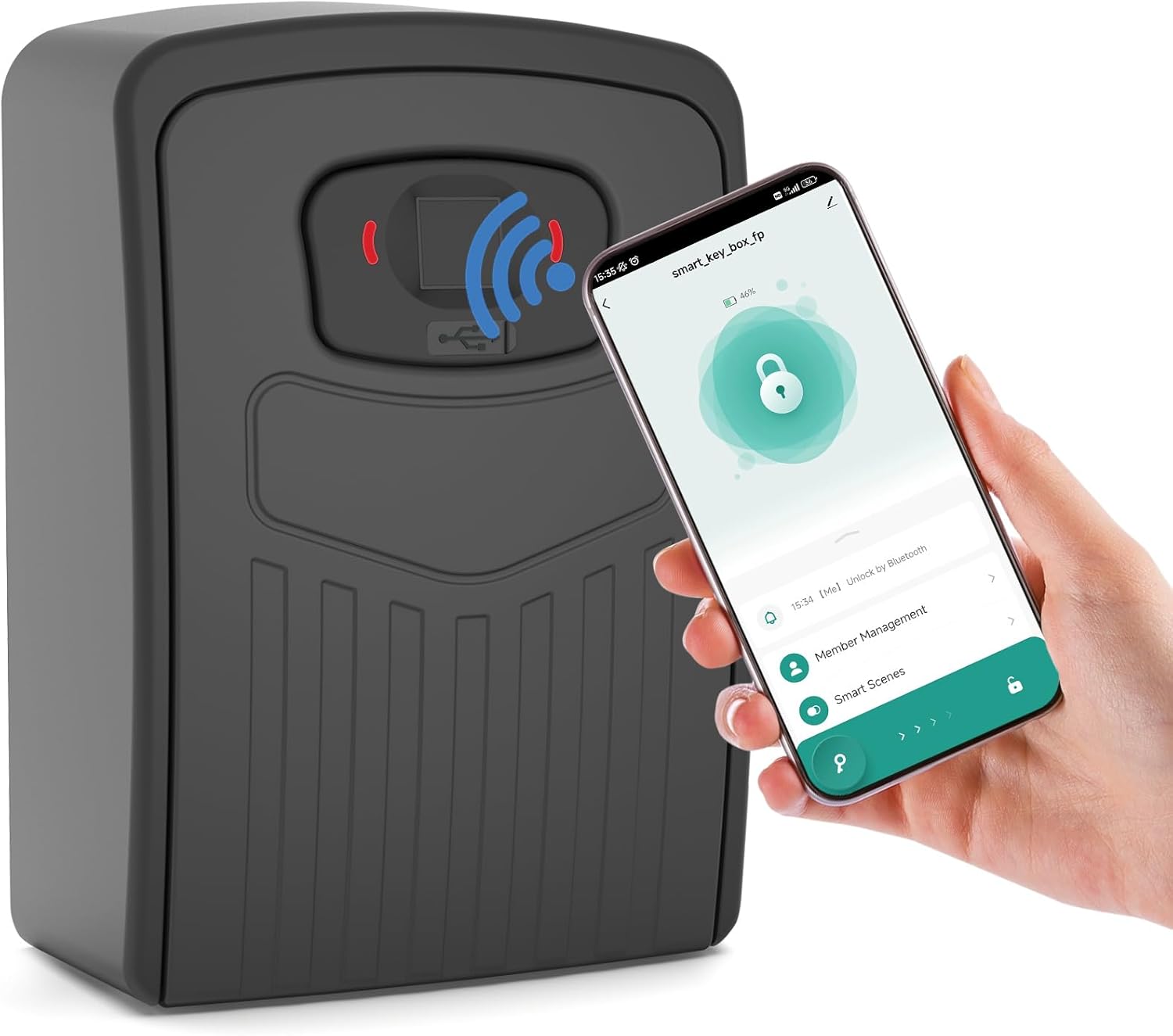
The Decruil Smart Fingerprint Key Lock Box shown alongside a smartphone, illustrating its app-controlled functionality.
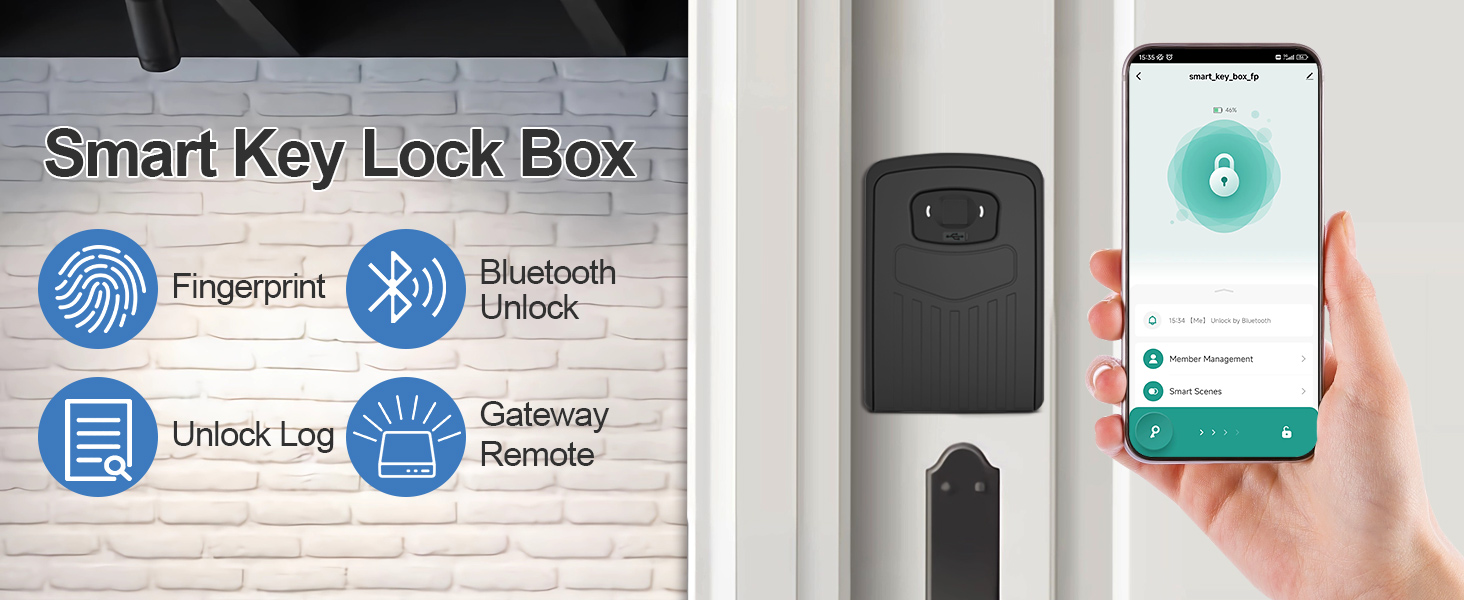
An overview graphic highlighting the main features of the Smart Key Lock Box: fingerprint recognition, Bluetooth unlocking, access to an unlock log, and remote control via a gateway.
Setup
1. Initial Power and Battery Installation
For first-time use, connect the lock box to a temporary power source using the provided USB-C cable. This will allow you to open the lock box to install the 4 AAA batteries (not included). Before connecting to the app, any fingerprint can open the lock box.
Video demonstrating how to initially power the lock box using the temporary power cable, open it, and install 4 AAA batteries. It also shows that before app connection, any fingerprint can open the lock box.
2. App Installation and Connection
Download the 'Smart Life' application from your device's app store (e.g., Apple App Store or Google Play Store). Ensure your phone's Bluetooth is enabled. Open the app, click 'Add Device', and select the lock box from the discovered devices to connect.
Video demonstrating how to download the 'Smart Life' app and connect the lock box to your smartphone via Bluetooth.
Video demonstrating the process of connecting the lock box to the 'Smart Life' app on a smartphone. Once connected, unregistered fingerprints will no longer open the lock box.
3. Fingerprint Enrollment
Within the 'Smart Life' app, navigate to 'Member Management'. Select 'Admin' and then 'Add' to begin the fingerprint enrollment process. You will be prompted to press the same finger on the lock box's scanner at different angles, 6 times in sequence, to ensure accurate registration.
Video demonstrating how to enroll a fingerprint through the 'Smart Life' app, pressing the finger multiple times at different angles on the lock box scanner.
Operating Instructions
1. Unlocking Methods
Fingerprint Unlock
Place a registered finger on the fingerprint scanner. The lock box will unlock if the fingerprint is recognized.
Bluetooth App Unlock
Open the 'Smart Life' app on your smartphone. Ensure Bluetooth is active and you are within range of the lock box. Tap the unlock icon in the app to open the lock box.
2. Remote Access
To enable remote control, first connect the included gateway to a power source. Then, within the 'Smart Life' app, add the gateway and associate it with your lock box. Ensure your home Wi-Fi signal is consistently on for remote operations.
Video demonstrating how to connect the gateway to power, add it to the 'Smart Life' app, associate it with the lock box, and then remotely control the lock box by turning off Bluetooth to simulate remote access. The operation log is also shown.

A diagram illustrating the connectivity of the Smart Key Lock Box system. It shows the lock box connecting locally via Bluetooth to a smartphone, and remotely via a Gateway connected to home WiFi, which then communicates with the smartphone over 5G-4G Wi-Fi.
3. Operation Log
The 'Smart Life' app maintains a detailed operation log, allowing you to view a history of all unlock events, including the method used (fingerprint or app) and the timestamp. This feature helps monitor access to the key box.

A smartphone screen displaying the 'Smart Life' application's operation log, which records various unlock events, including those performed via the app and registered fingerprints, along with timestamps.
Maintenance
1. Battery Replacement
The lock box requires 4 AAA batteries for operation. When the battery level is low, the device may indicate this through the app or a visual cue. To replace, open the lock box, remove the battery cover, and insert new batteries, ensuring correct polarity.
2. Cleaning
Clean the exterior of the lock box and the fingerprint scanner with a soft, dry cloth. Avoid using abrasive cleaners or solvents that could damage the finish or electronic components.
Troubleshooting
1. Common Issues
- Lock box not opening: Ensure batteries are installed correctly and charged. If using fingerprint, ensure it's a registered fingerprint. If using the app, check Bluetooth connection or remote access setup.
- Difficulty with fingerprint recognition: Ensure your finger is clean and dry. Try pressing at different angles as during enrollment.
- App connectivity issues: Verify Bluetooth is on for local control. For remote control, ensure the gateway is powered, connected to Wi-Fi, and properly associated with the lock box.
- Initial opening without batteries: Use the emergency USB-C power cord to temporarily power the device and open it for battery installation.
2. Factory Reset
To remove the device from your app and restore factory settings, navigate to the device settings within the 'Smart Life' app. Click on the pen-shaped icon in the upper right corner, then select 'Remove Device' and confirm 'Clear data'. After restoring factory settings, any fingerprint can open the lock box until new fingerprints are registered via the app.
Video demonstrating how to remove the device from the 'Smart Life' app and restore it to factory settings, allowing any fingerprint to open the lock box again.
Specifications
| Feature | Detail |
|---|---|
| Brand | Decruil |
| Model Name | 93c2d893-e445-4df2-868c-fdac90fd342b |
| Special Feature | Fingerprint |
| Lock Type | Biometric |
| Material | Metal |
| Color | Black |
| Finish Type | Polished |
| Item Dimensions (L x W x H) | 4 x 3 x 2 inches |
| Item Weight | 1.68 pounds (0.77 Kilograms) |
| Recommended Uses | Outdoor, remote access, realtor use |
| Controller Type | Android, Hand Control, SmartThings |
| Control Method | App |
| Connectivity Protocol | Bluetooth |
| Batteries Required | Yes (4 x AAA, not included) |
Warranty and Support
For warranty information or technical support, please refer to the product packaging or contact Decruil customer service directly. Keep your purchase receipt for warranty claims.