
Product Overview
The TILTA Khronos Mini Daylight LED Panel is a versatile lighting accessory designed to integrate seamlessly with the Khronos iPhone 15 Pro and iPhone 15 Pro Max cases. It provides flexible and customizable illumination for various mobile videography and photography scenarios.
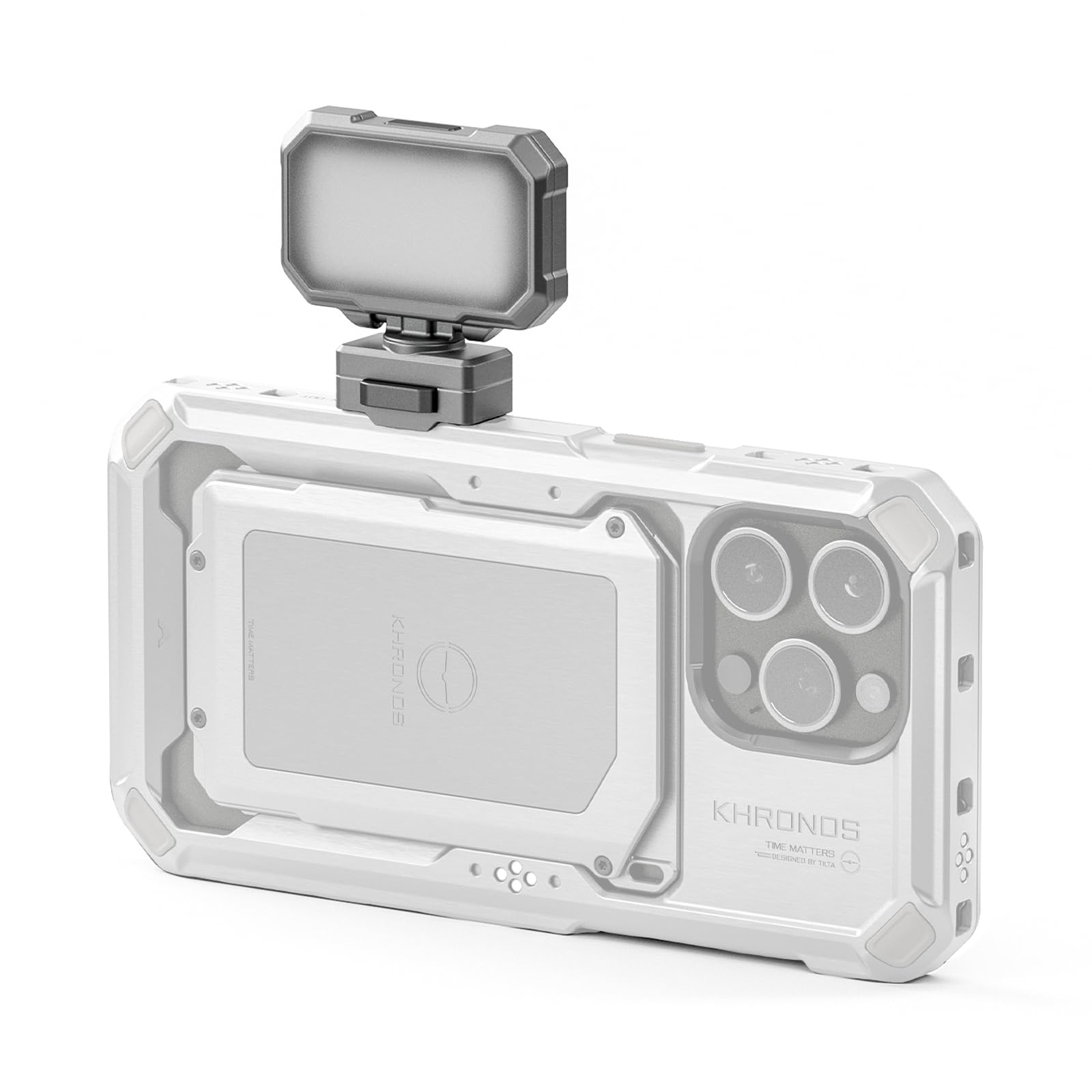
Image: The Khronos Mini Daylight LED Panel securely attached to the rear of an iPhone case, providing additional lighting.

Image: The TILTA Khronos case for iPhone 15 Pro/Pro Max, designed for accessory integration.
Setup Guide: Khronos Ecosystem
This video provides a comprehensive setup guide and overview of the Khronos ecosystem, demonstrating how to attach various accessories, including the LED panel, to your iPhone 15 Pro/Pro Max case.
Video: A detailed guide on setting up and using the TILTA Khronos ecosystem for iPhone, covering case attachment, various handles, power solutions, and lighting accessories.
Case Attachment
- Secure the Khronos case around your iPhone using the four screws in each corner.
- The case features seven pairs of mounting points around its sides. The bottom two points form one set, and the top two form a second set. Accessories can be attached to these pairs.
- Most mounting points on the case have electronic contact points to pass power to accessories that require it.
- The case includes a MagSafe card holder that can hold one card and magnetically snaps onto the back.
Handle Options
- Small Wooden Handle: Features small metal tabs for connection. Press the button to retract the tabs, align with any mounting point on the case, and press in. The case has a lip, so ensure correct orientation. A lever on the handle secures it further.
- Wooden Handle with NATO Bracket: Similar to the small wooden handle, but with an attached NATO bracket for additional accessories like the Nano2. Connects in the same manner. This handle also offers an adjustable angle for comfortable operation.
- Universal Handle: Can be used as a side or top handle. Press it into a mounting point, engage the lever. A small button on the side allows for rotation adjustment and center of gravity adjustment, helping to balance the iPhone.
Focus PD Handle
- Connect the USB-C cable from the focus handle to the iPhone's USB-C port to provide power to both the case and the phone.
- Attach the focus handle to a side mounting point on the case, ensuring both prongs connect, then secure the lever.
- Power on the handle by holding down the record button. A battery indicator light will show the charge level.
- The handle's mode setting display will show a red light for Blackmagic control. Double-tap the function button to switch to a green light for native iPhone camera app control.
- The handle has a USB-C port for charging the handle and phone, and a 3.5mm jack for external audio.
USB-C Hub
- The USB-C hub can be mounted to a tripod via its Arca plate on the bottom, or a 1/4-20 thread with locating points for other systems.
- Connect the hub to the case by aligning the two bottom mounting points, pressing the button, and sliding the hub into the groove. Secure it by sliding the lever.
- Connect a USB-C cable from the hub's iPhone USB-C port to the iPhone's USB-C port.
- The hub provides a PD USB-C port for external power to the iPhone, two additional USB-C ports for charging accessories or sending data to an external hard drive, a mini HDMI port for video output to an external monitor, and a 3.5mm microphone jack for external audio.
- If using the focus handle with the USB-C hub, disconnect the iPhone from the hub, rotate the hub, re-attach the iPhone to the hub, and then connect the focus handle's USB-C cable to the hub's iPhone port. This provides power from the handle to the hub, which then powers the iPhone, offering better cable clearance.
Cooling Module
- The cooling module connects to the iPhone via MagSafe.
- It can draw power from the case through contact points on the bottom. Simply drop it into place, and it will align magnetically.
- If the case is powered (e.g., by the focus handle), the cooling module can charge the iPhone via MagSafe and activate its fans for cooling.
- If the case is not powered, the cooling module has a USB-C port on the bottom for external power.
Mini LED Panel
- The Mini LED Panel (daylight balanced) connects to any mounting point with electronic contacts on the case using the same process as other accessories.
- Note that the LED light has a specific orientation due to a lip, so ensure it's mounted correctly.
- Once connected, hold the power button at the top to turn the light on. Single-tap to select intensity levels.
- This accessory does not have an internal battery and requires a power source, such as the focus handle or a powered case.
Adapters and Mounts
- SSD Holder: Connects like other accessories and allows mounting various SSDs for external recording.
- Cold Shoe Receiver: Connects like other accessories. Ideal for mounting small external monitors, larger LED lights, or traditional video camera microphones.
- NATO Rail: A universal accessory with a 1/4-20 thread and locating pins in the middle. Useful for rigging the phone via an articulating arm on a custom mount or for mounting various other accessories.
- Filter Tray Holder: Snaps into place over the lenses and is secured by a tab in the middle bottom. Great for mounting various filters, such as ND filters, to shoot in bright outdoor environments without adjusting shutter speed. Filters can be easily removed.
- Lens Adapters: Includes Moment M-mount, T-series by Photo Gear, and 17mm threaded lenses. These snap into place the same way as filter holders, allowing you to mount lenses by popping them in and twisting. This provides access to different focal lengths beyond those included with the iPhone.
Operating Instructions
Mini LED Panel
- Power On/Off: Long press the power button located at the top of the LED panel.
- Adjust Brightness: Short press the power button to cycle through the 3 available brightness levels.
- Power Source: The LED panel requires external power. Connect it to a Khronos case that is receiving power from an accessory like the Focus PD Handle, or directly power the cooling module via its USB-C port if not using the Focus PD Handle.
- Rotation: The panel can tilt ±30° and rotate 350° horizontally for flexible light direction.
Focus PD Handle
- Power On: Hold down the record button on the handle. The power indicator light will illuminate.
- App Control Mode: The handle defaults to Blackmagic control (red light). Double-tap the function button to switch to native iPhone camera app control (green light).
- Focus/Zoom Control (Blackmagic App): Once paired and in Blackmagic control mode, use the handle for focus and zoom adjustments within the Blackmagic app.
- Shutter/Record (Native Camera App): In native iPhone camera app control mode, the record button acts as a shutter for photos and a record button for videos.
- Power Sharing: Long press the function button to manage power sharing via the USB-C cable. This is useful if you only want to power accessories or control the app without charging the iPhone, or if you need to charge the iPhone.
- Pairing: Ensure Bluetooth is enabled on your iPhone. Go to Settings > Accessories > Bluetooth Accessories and select the Nucleus series handle.
Cooling Module
- Activation: When attached to a powered Khronos case, the cooling module will automatically activate its fans and can charge the iPhone via MagSafe.
- External Power: If the case is not powered, connect a USB-C cable to the port on the bottom of the cooling module to provide power.
Maintenance
To ensure optimal performance and longevity of your TILTA Khronos Mini Daylight LED Panel and accessories, follow these general maintenance guidelines:
- Cleaning: Use a soft, dry cloth to clean the LED panel and case. Avoid abrasive materials or harsh chemicals that could damage the surfaces. For lenses and filters, use a specialized lens cleaning cloth and solution.
- Storage: Store the LED panel and accessories in a cool, dry place away from direct sunlight and extreme temperatures. Use protective cases or pouches when transporting to prevent scratches and impacts.
- Battery Care: If accessories have internal batteries (e.g., Focus PD Handle), ensure they are charged regularly, even when not in use, to maintain battery health. Avoid fully discharging batteries for extended periods.
- Connection Points: Periodically inspect all mounting points and electronic contacts for any debris or damage. Clean gently if necessary to ensure secure and reliable connections.
- Cable Management: Ensure USB-C cables are not bent sharply or under excessive tension to prevent damage to the cables and ports.
Troubleshooting
If you encounter issues with your TILTA Khronos Mini Daylight LED Panel or accessories, refer to the following common troubleshooting steps:
- LED Panel Not Lighting Up:
- Ensure the LED panel is securely attached to a mounting point with electronic contacts.
- Verify that the Khronos case is receiving power from an external source (e.g., Focus PD Handle, USB-C Hub). The LED panel does not have an internal battery.
- Check the power source itself to ensure it is charged and functioning correctly.
- Accessories Not Powering On/Connecting:
- Confirm that the accessory is correctly attached to a mounting point on the Khronos case.
- Ensure the electronic contact points on both the case and the accessory are clean and free of obstruction.
- If using a Focus PD Handle, ensure it is powered on and correctly paired via Bluetooth (for app control) or connected via USB-C (for power sharing).
- For Bluetooth accessories, ensure Bluetooth is enabled on your iPhone and the accessory is paired in the camera app settings.
- iPhone Not Charging via Case/Hub:
- Verify all USB-C cable connections are secure between the iPhone, hub, and power source.
- Ensure the external power source connected to the hub or handle is active and providing sufficient power.
- If using the Focus PD Handle, check its power sharing setting (long press function button).
- Difficulty Attaching/Removing Accessories:
- Ensure the release button/lever on the accessory is fully pressed or disengaged before attempting to attach or remove.
- Check for any obstructions or misalignment. Some accessories have a specific orientation due to a lip.
Specifications
| Product Name | Khronos Mini LED Panel |
| Model Number | TK-MLP-DL-TW |
| Brand | TILTAING |
| Color | Titanium White |
| Compatible Devices | iPhone 15 Pro, iPhone 15 Pro Max (with Khronos Case) |
| Dimensions | 2.6 x 4.37 x 0.98 inches |
| Weight | 0.5 lbs |
| Materials | Aluminum alloy, Plastic |
| Power Input | 9-12V, 1A |
| Power Consumption | 5W |
| Color Rendering Index (CRI) | >95Ra |
| Brightness Levels | 3 levels |
| Tilt Adjustment | ±30° |
| Horizontal Rotation | 350° |
| Included Components | Khronos Mini LED Panel *1 |
| Country of Origin | China |
Warranty and Support
Warranty: This product comes with a 1-year warranty from the date of purchase. Please retain your proof of purchase for warranty claims.
Support: For technical assistance, troubleshooting, or warranty inquiries, please visit the official TILTAING store on Amazon or contact TILTAING customer service directly. Contact information can typically be found on the product packaging or the TILTAING brand store page.