
1. Introduction
Thank you for choosing the Xtrike Me GW-113 Dual Mode Wireless Mouse. This mouse offers versatile connectivity options, a comfortable design, adjustable sensitivity, and silent clicks for an enhanced user experience. Please read this manual carefully to ensure proper setup and operation.
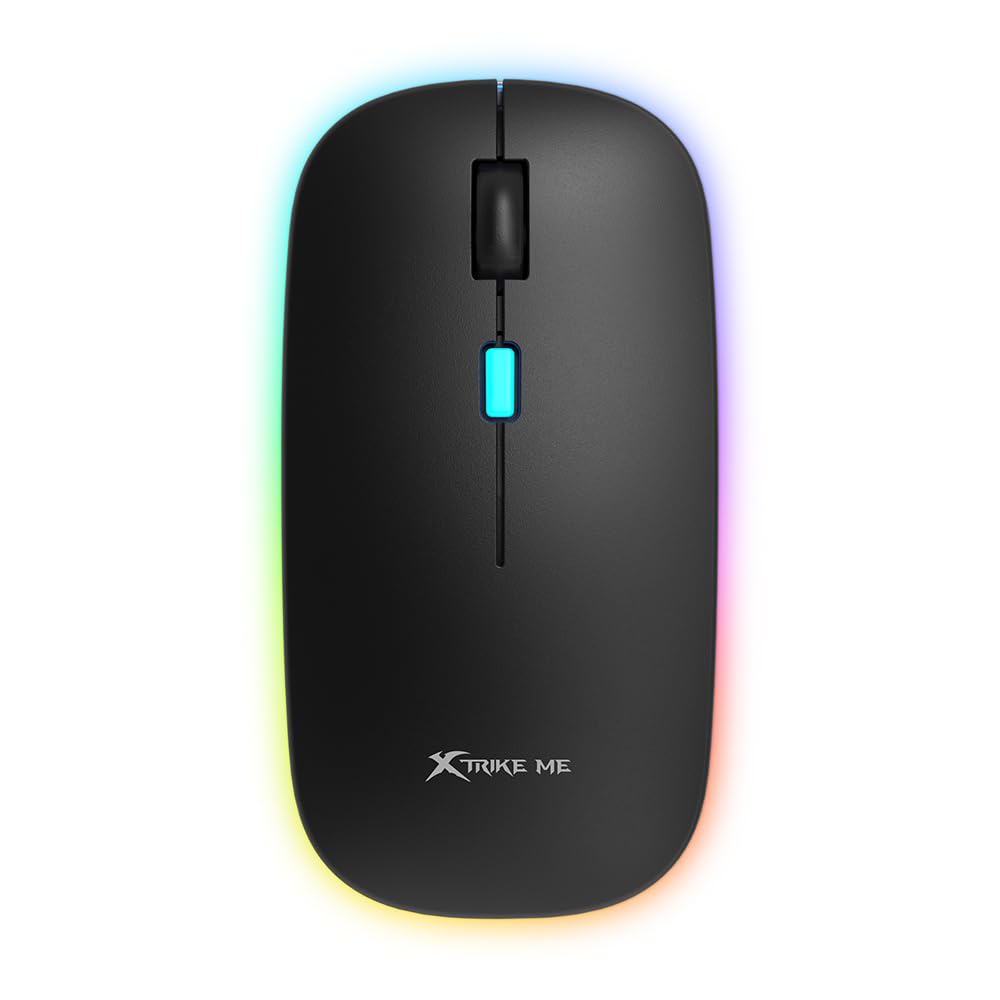
Image: Top view of the Xtrike Me GW-113 Dual Mode Wireless Mouse, showcasing its ergonomic shape and RGB lighting strip.
2. Package Contents
Please check the package contents upon unboxing to ensure all items are present:
- Xtrike Me GW-113 Dual Mode Wireless Mouse
- USB 2.4G Receiver
- USB Charging Cable (Micro USB)
- User Manual

Image: The product packaging for the Xtrike Me GW-113 mouse, illustrating the mouse, USB receiver, and charging cable.
3. Setup Instructions
The GW-113 mouse supports two connection modes: 2.4G Wireless and Bluetooth. You can switch between modes using the switch on the bottom of the mouse.
3.1. 2.4G Wireless Connection
- Locate the USB 2.4G receiver, usually stored in a compartment on the bottom of the mouse.
- Plug the USB receiver into an available USB port on your computer or device.
- Turn on the mouse using the power switch on the bottom. Ensure the mode switch is set to 2.4G.
- The mouse should automatically connect to your device. If not, try moving the mouse closer to the receiver or re-inserting the receiver.
3.2. Bluetooth Connection
- Turn on the mouse using the power switch on the bottom. Set the mode switch to Bluetooth.
- On your device (laptop, tablet, etc.), go to Bluetooth settings.
- Search for new Bluetooth devices. The mouse should appear as "Xtrike Me GW-113" or similar.
- Select the mouse to pair. Once paired, the mouse is ready for use.
The mouse is compatible with Windows, Mac, Android, and Linux operating systems.
4. Operating Instructions
4.1. DPI Adjustment
The GW-113 mouse features adjustable DPI (Dots Per Inch) settings, allowing you to change the cursor sensitivity. This is useful for different tasks, such as precise editing or fast-paced gaming.
- To change the DPI, press the DPI button located on the top of the mouse, usually behind the scroll wheel.
- Each press will cycle through available DPI settings (e.g., 800, 1200, 1600 DPI).
- The LED indicator may change color or flash to indicate the current DPI setting.

Image: Close-up view of the Xtrike Me GW-113 mouse, highlighting the DPI button and scroll wheel.
4.2. Silent Clicks
The mouse is designed with silent click technology, significantly reducing click noise. This feature is ideal for quiet environments like libraries, offices, or late-night use, ensuring you do not disturb others.
4.3. Recharging the Battery
The GW-113 mouse has a built-in rechargeable battery. When the battery is low, the LED indicator will signal this. To recharge:
- Connect the supplied USB charging cable to the Micro USB port on the front of the mouse.
- Plug the other end of the USB cable into a USB power source (e.g., computer USB port, USB wall adapter).
- The LED indicator will show charging status and turn off or change color when fully charged.
The mouse can be used while charging.
5. Maintenance
To ensure the longevity and optimal performance of your Xtrike Me GW-113 mouse, follow these simple maintenance guidelines:
- Cleaning: Use a soft, dry cloth to wipe the surface of the mouse. For stubborn dirt, slightly dampen the cloth with water or a mild cleaning solution. Avoid harsh chemicals.
- Storage: When not in use for extended periods, store the mouse in a dry, cool place away from direct sunlight.
- Avoid Liquids: Do not expose the mouse to liquids. If liquid spills on the mouse, immediately disconnect it and allow it to dry completely before reuse.
- Handle with Care: Avoid dropping the mouse or subjecting it to strong impacts, as this can damage internal components.
6. Troubleshooting
If you encounter issues with your GW-113 mouse, please refer to the following common problems and solutions:
6.1. Mouse Not Responding
- Check Power: Ensure the mouse is turned on and has sufficient battery charge. Recharge if necessary.
- Check Connection Mode: Verify that the mode switch on the bottom of the mouse is set correctly (2.4G or Bluetooth) for your intended connection.
- 2.4G Receiver: For 2.4G mode, ensure the USB receiver is securely plugged into a working USB port. Try a different USB port.
- Bluetooth Pairing: For Bluetooth mode, ensure the mouse is properly paired with your device. Go to your device's Bluetooth settings and re-pair if needed.
- Restart Device: Sometimes, restarting your computer or device can resolve connectivity issues.
6.2. Erratic Cursor Movement
- Surface: Ensure you are using the mouse on a clean, non-reflective, and uniform surface. A mouse pad is recommended.
- Optical Sensor: Check if the optical sensor on the bottom of the mouse is clean and free from obstructions.
- Interference: Move the mouse closer to the receiver (for 2.4G) or your Bluetooth device. Avoid using it near other wireless devices that might cause interference.
- DPI Setting: Adjust the DPI setting to see if a different sensitivity improves performance.
6.3. Battery Not Charging
- Cable: Ensure the USB charging cable is securely connected to both the mouse and the power source.
- Power Source: Try a different USB port or power adapter.
- Cable Damage: Inspect the charging cable for any visible damage. If damaged, replace it.
7. Specifications
| Manufacturer | Xtrike Me |
| Model Number | GW-113 |
| Connectivity Technology | Bluetooth, 2.4G Wireless |
| Special Feature | Wireless, Rechargeable, Silent Clicks, Adjustable DPI |
| Movement Detection Technology | Optical |
| Number of Buttons | 7 |
| Hand Orientation | Right |
| Recommended Uses | Gaming, Office, General Use |
| Compatible Devices | Personal Computer, Tablet, Laptop |
| Operating Systems | Linux, Windows 7, Windows XP (and newer Windows versions), Mac, Android |

Image: The product packaging displaying detailed specifications and features of the Xtrike Me GW-113 mouse in multiple languages.
8. Warranty & Support
Xtrike Me products are designed and manufactured to the highest quality standards. This product is covered by a limited warranty from the date of purchase. Please refer to the warranty card included in your package for specific terms and conditions.
For technical support, warranty claims, or further assistance, please visit the official Xtrike Me website or contact their customer service:
- Official Website: www.xtrike-me.com
- Customer Service: Refer to the website for contact information.