
1. Introduction
Thank you for choosing the ANSION G51 Smart Pet GPS Tracker Collar. This device is designed to help you monitor your pet's location and activity in real-time, providing peace of mind. It features 4G connectivity, real-time position tracking, electronic fence capabilities, a sound alarm, and is waterproof. This manual provides detailed instructions for setup, operation, and maintenance.
Key Features:
- Real-Time Position Tracking: Accurately track your pet's location without geographical limits, as long as there is GMS coverage.
- Electronic Fence: Define safe zones and receive alerts if your pet exits these designated areas.
- Sound Alarm: Activate an audible alarm on the tracker to help locate your pet quickly.
- Activity Monitor: Track your pet's movement and activity trajectory.
- Waterproof Design: IP67 rating ensures durability in various conditions.
- Wide Compatibility: Compatible with Android and iOS devices for seamless tracking via a dedicated application.
- 4G/2G Network Support: Requires a 4G LTE or 2G GSM SIM card for network connectivity.
2. Setup
2.1 Package Contents
Ensure all items are present in the package:
- ANSION G51 GPS Tracker
- Pet Collar
- Charging Cable
- User Manual (this document)
2.2 SIM Card Requirements and Installation
The ANSION G51 tracker requires a 4G LTE FDD-B1/B3/B5/B7/B8/B20; TDD-B34/B38/B39/B40/B41 or 2G GSM B3/B5/B8 compatible SIM card (Nano-SIM size). A SIM card is not included with the device and must be purchased separately from a network operator. Ensure the SIM card supports data services.
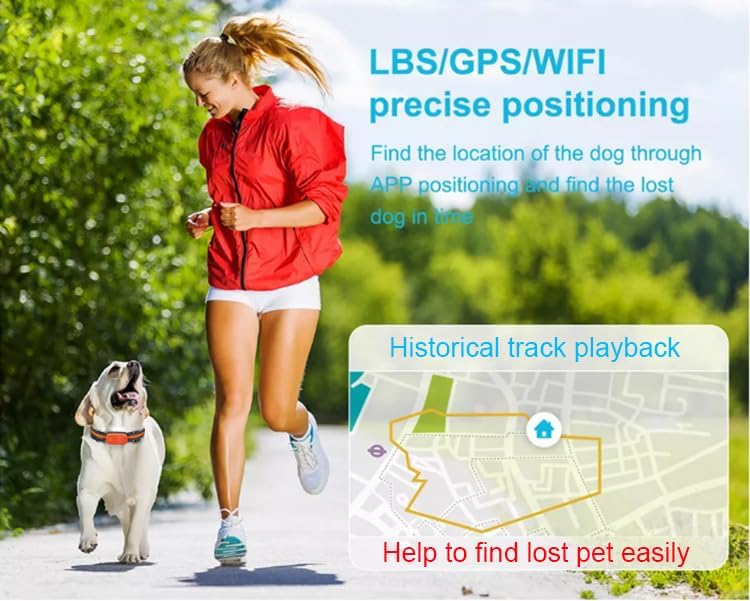
Figure 2.2.1: The tracker requires a separate 4G LTE compatible SIM card.
Installation Steps:
- Open the Tracker: Locate the opening position on the tracker. Gently open the top cover by prying it outwards.
- Insert SIM Card: With the tracker open, locate the SIM card slot. Ensure the SIM card is oriented correctly (refer to the diagram below) and slide it into the slot until it clicks into place.
- Lock SIM Card: Push the SIM card lock to the left to secure the SIM card.
- Power On: Locate the power switch inside the device and turn it on.
- Close Cover: Carefully close the top cover of the tracker until it is securely fastened.

Figure 2.2.2: Step-by-step guide for SIM card installation and initial power-on.
2.3 App Download and Device Binding
To use the tracker's features, you need to download the companion mobile application.
- Scan QR Code: Use your smartphone's camera or a QR code scanner app to scan the QR code provided on the device or in the manual to download the application. Alternatively, you can visit the following links: 365GPS App Link 1 or 365GPS App Link 2.
- Install App: Follow the on-screen instructions to install the application on your Android or iOS device.
- Register/Login: Open the app and create a new account or log in if you already have one.
- Add Device: In the app, select the option to add a new device. You will typically need to enter the device's unique ID (often found on the tracker itself or its packaging) or scan a QR code associated with the device.
2.4 Attaching to Pet Collar
The tracker is designed to attach to the provided pet collar or any collar/harness up to 0.6 inches wide. Ensure the tracker is securely fastened to prevent it from falling off during your pet's activities.

Figure 2.4.1: The ANSION G51 tracker attached to a pet collar.
3. Operating Instructions
3.1 Power On/Off
- Power On: After SIM card installation, the device can be powered on using the internal power switch. Alternatively, connecting the magnetic charging cable will automatically power on the device if it was off.
- Power Off: The device can be powered off via the app or by using the internal power switch. The device also enters a power-saving idle mode if stationary for a period and reactivates upon movement.
3.2 Real-Time Tracking
Once the tracker is powered on and connected to the network, you can view your pet's real-time location through the mobile application.
- Open the 365GPS application on your smartphone.
- Select the 'Track' option to view your pet's current location on the map.
- The app displays location information, including GPS coordinates, time, and address.

Figure 3.2.1: Real-time tracking interface on the mobile application.
3.3 Electronic Fence (Geo-Fence)
Set up virtual boundaries to receive alerts if your pet enters or leaves a specified area.
- In the 365GPS app, navigate to the 'Security scope' or 'GEO Fence' section.
- Define a safe area on the map by drawing a polygon or circle.
- Configure alert settings (e.g., notification type) for when your pet crosses the boundary.

Figure 3.3.1: Setting up an electronic fence in the app.
3.4 Historical Track Playback
Review your pet's past movements and routes.
- Access the 'Playback' feature in the 365GPS application.
- Select a date and time range to view the historical route on the map.
- The app will display the path your pet has taken during the selected period.

Figure 3.4.1: Viewing historical track playback.
3.5 Sound Alarm
If your pet is nearby but out of sight, you can activate a sound alarm on the tracker to help locate them.
- In the 365GPS app, find the 'Find device' or 'Sound Alarm' option.
- Tap to activate the alarm. The tracker will emit an audible sound.
3.6 App Interface Overview
The 365GPS application provides various functions for managing your tracker and monitoring your pet.

Figure 3.6.1: Overview of the 365GPS mobile application interface.
- Track: View your pet's current location.
- Playback: Review historical movement data.
- Security scope: Set up and manage electronic fences.
- Information: View device status and interaction history.
- Find device: Activate the sound alarm on the tracker.
- Setting: Adjust various tracker parameters, including upload interval settings (Accuracy Mode, Power Saving Mode, Sleep Mode).
4. Maintenance
4.1 Charging the Device
The tracker is equipped with a 700mAh rechargeable battery. Use the provided magnetic charging cable to charge the device. A full charge typically provides 5 to 30 days of battery endurance, depending on usage and tracking mode (e.g., real-time vs. power-saving).

Figure 4.1.1: Battery and charging information.
4.2 Waterproofing
The ANSION G51 tracker has an IP67 waterproof rating, meaning it is protected from dust and can withstand immersion in water up to 1 meter for 30 minutes. This allows your pet to play in wet conditions without concern. However, avoid prolonged submersion or high-pressure water exposure.
4.3 Cleaning
Wipe the tracker and collar with a soft, damp cloth as needed. Avoid using harsh chemicals or abrasive materials that could damage the device or collar.
5. Troubleshooting
- Device not powering on: Ensure the battery is charged. Check the internal power switch is in the 'on' position.
- No data connection/Offline in app:
- Verify the SIM card is correctly inserted and locked.
- Confirm the SIM card has an active data plan and sufficient balance.
- Ensure the SIM card supports 4G LTE or 2G GSM networks compatible with the tracker.
- Check for network coverage in your area.
- Restart the tracker and the mobile application.
- Inaccurate GPS location:
- GPS accuracy can be affected by environmental factors such as dense buildings, heavy tree cover, or indoor use. Move to an open outdoor area.
- Initial GPS lock may take longer, especially after moving the device a significant distance. Allow time for the device to acquire a signal.
- Ensure the tracker is worn correctly on the pet and not obstructed.
- App not connecting to device:
- Confirm the device ID or QR code was entered correctly during binding.
- Check your smartphone's internet connection.
- Update the app to the latest version.
- Short battery life:
- Frequent real-time tracking updates consume more battery. Adjust the upload interval settings in the app to a power-saving mode if extended battery life is desired.
- Ensure the device is fully charged before use.
6. Specifications

Figure 6.1.1: ANSION G51 Tracker Dimensions and Weight.
| Feature | Specification |
|---|---|
| Model Number | G51 |
| Brand | ANSION |
| Dimensions (LxWxH) | 2.35 x 1.3 x 0.7 inches (60.3 x 33 x 18.8 mm) |
| Weight | Approximately 42g (1.48 ounces) |
| Battery | 700mAh (1 P76 battery included) |
| Battery Endurance | 5 to 30 days (depending on usage mode) |
| Network Support | 4G LTE FDD-B1/B3/B5/B7/B8/B20; TDD-B34/B38/B39/B40/B41; 2G GSM B3/B5/B8 |
| Waterproof Rating | IP67 |
| Material | Plastic |
| Included Components | GPS Tracker, Pet Collar, Charging Cable, User Manual |
7. Warranty Information
The ANSION G51 Smart Pet GPS Tracker Collar comes with a 1-Year Manufacturer Warranty. This warranty covers defects in materials and workmanship under normal use. It does not cover damage caused by misuse, accidents, unauthorized modifications, or normal wear and tear. Please retain your proof of purchase for warranty claims.
8. Support
For further assistance, technical support, or warranty inquiries, please contact ANSION customer service through the platform where you purchased the product. You may also refer to the official ANSION website for additional resources or updated information.