
Introduction
This manual provides essential information for the setup, operation, and maintenance of your omiXimo Gaming PC, model XEON016. This high-performance system is equipped with an Intel Xeon processor, an NVIDIA RTX 4060 graphics card, 16GB DDR4 RAM, and a 1000GB SSD, designed for demanding computing tasks including gaming and content creation.
Please read this manual thoroughly before using your new PC to ensure proper installation and optimal performance.
Product Features
- INTEL XEON Processor: Offers robust performance for multitasking and gaming applications.
- NVIDIA RTX 4060 Graphics Card: Delivers high-fidelity visuals and smooth frame rates for an immersive gaming experience.
- 16 GB DDR4 RAM: Provides ample memory for running multiple applications and demanding games simultaneously without performance degradation.
- 1000 GB SSD Storage: Ensures rapid system boot-up, quick application loading, and fast file transfers.
- Pre-installed Windows 11 Pro: The operating system is pre-installed, allowing for immediate use upon setup.
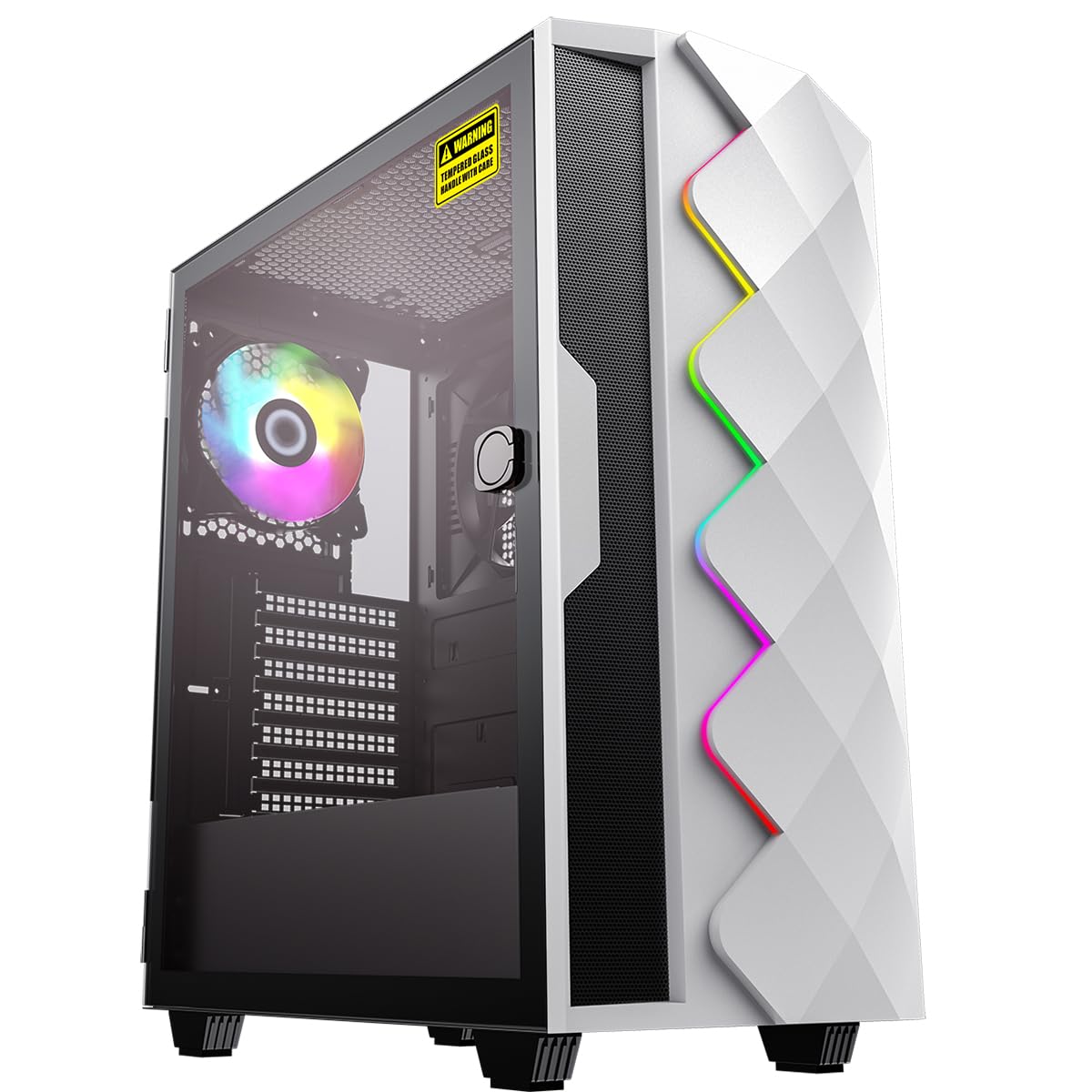
Figure 1: Front view of the omiXimo Gaming PC XEON016.
Setup Guide
- Unpacking: Carefully remove the PC and all accessories from the packaging. Retain packaging for future transport or warranty claims.
- Connecting Peripherals:
- Connect your monitor(s) to the graphics card ports (HDMI, DisplayPort) located at the rear of the PC.
- Connect your keyboard and mouse to the available USB ports.
- If using a wired network, connect an Ethernet cable to the LAN port.
- Connect speakers or headphones to the audio jacks.
- Power Connection: Connect the power cable to the PC's power supply unit (PSU) and then to a wall outlet.
- First Boot: Press the power button on the front of the PC. The system will initiate the Windows 11 Pro setup process. Follow the on-screen instructions to complete the initial setup, including language, region, and user account creation.

Figure 2: Rear view of the PC showing various connection ports.
Operating Instructions
Power On/Off
- To Power On: Press the power button located on the front panel.
- To Shut Down: Click the Start button in Windows, then select Power > Shut down. Avoid direct power-off unless necessary to prevent data loss.
- To Restart: Click the Start button in Windows, then select Power > Restart.
Connecting to a Network
- Wired Connection: Ensure an Ethernet cable is connected from your router to the PC's LAN port. The connection should be automatically detected.
- Wireless Connection: If your PC includes a Wi-Fi adapter, click the network icon in the system tray, select your Wi-Fi network, enter the password, and connect.
Installing Software
Software can be installed from various sources:
- Microsoft Store: Access the Microsoft Store app to download and install applications.
- Web Downloads: Download installation files (.exe, .msi) from official websites and run them to install software.
Maintenance
Cleaning
- Exterior: Use a soft, damp cloth to clean the exterior surfaces. Avoid abrasive cleaners.
- Dust Filters: Regularly check and clean the dust filters (if present) on the case to maintain optimal airflow.
- Internal Components: For internal cleaning, it is recommended to consult a professional or refer to advanced guides. Ensure the PC is powered off and unplugged before opening the case.
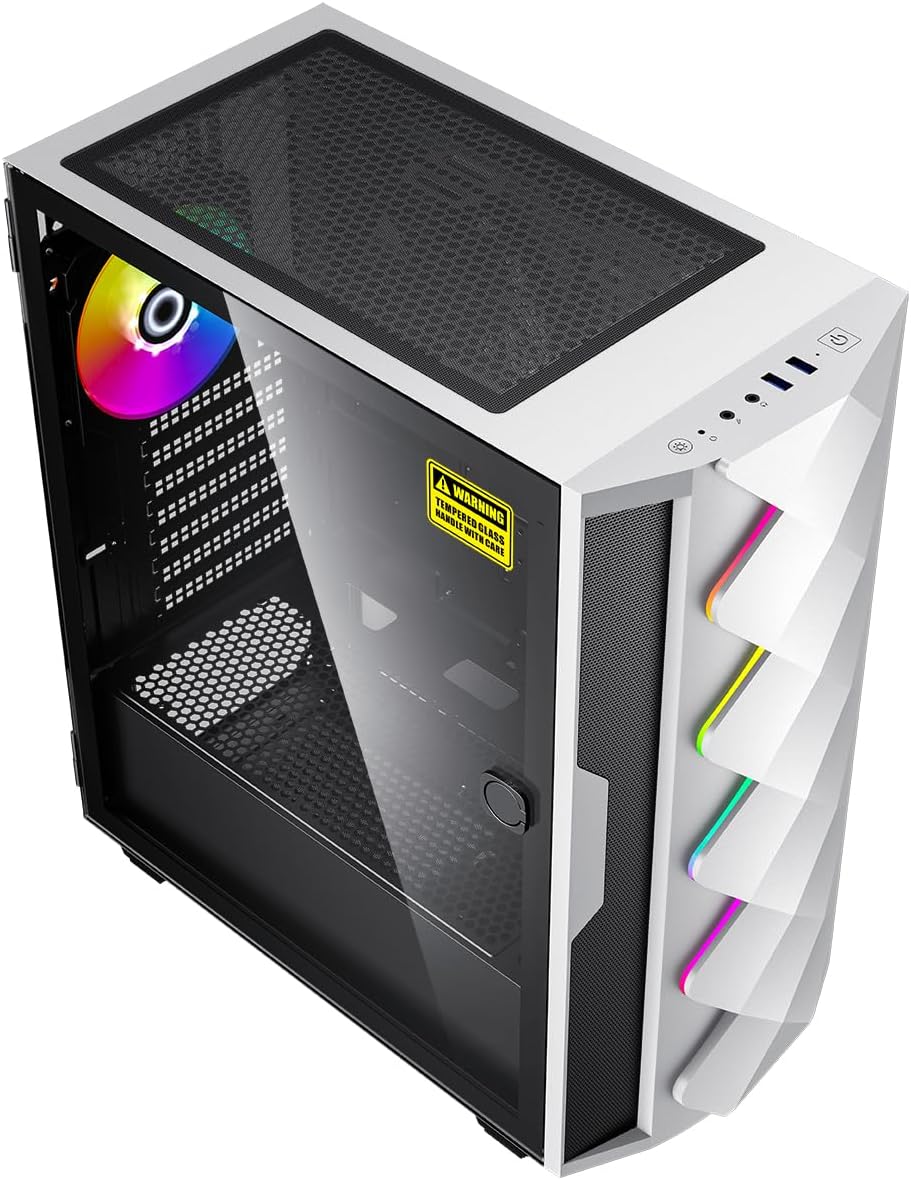
Figure 3: Internal view of the PC, showing components and potential dust filter locations.
Software Updates
Regularly update your operating system, drivers, and applications to ensure security, stability, and performance. Windows Update can be accessed via Settings > Windows Update.
Ventilation
Ensure the PC is placed in a well-ventilated area, away from direct sunlight or heat sources. Do not block the air vents on the case.
Troubleshooting
| Problem | Possible Cause | Solution |
|---|---|---|
| PC does not power on. | Power cable loose, power outlet faulty, PSU issue. | Check power cable connections. Try a different power outlet. Ensure PSU switch is ON. |
| No display on monitor. | Monitor cable loose, monitor off, incorrect input selected, graphics card issue. | Ensure monitor is powered on and connected to the graphics card. Check monitor input settings. |
| System is slow or unresponsive. | Too many applications running, insufficient RAM, malware, outdated drivers. | Close unnecessary programs. Check Task Manager for resource usage. Run antivirus scan. Update drivers. |
| PC is overheating. | Blocked vents, dust buildup, fan malfunction. | Ensure proper ventilation. Clean dust filters. Check fan operation. |
Specifications
| Component | Detail |
|---|---|
| Brand | omiXimo |
| Model Number | XEON016 |
| Processor | Intel Xeon (3.5 GHz) |
| Graphics Card | NVIDIA GeForce RTX 4060 (8GB GDDR6) |
| RAM | 16 GB DDR4 (Max. 64 GB supported) |
| Storage | 1000 GB SSD (Note: Some specifications mention 512GB, but product description indicates 1000GB total capacity) |
| Operating System | Windows 11 Pro |
| USB 2.0 Ports | 2 |
| USB 3.0 Ports | 4 |
| HDMI Ports | 1 |
| Optical Drive | None |
| Hardware Platform | PC |
| Color | Black |
Warranty and Support
For warranty information and technical support, please refer to the documentation included with your purchase or visit the official omiXimo website. Keep your proof of purchase for warranty claims.
If you encounter issues not covered in this manual, please contact omiXimo customer support for assistance.