
1. Product Overview
This manual provides essential information for the setup, operation, and maintenance of your new 155 cm (59 inches) 4K Ultra HD LED TV, Model 55D4K. Please read this manual thoroughly before using the product to ensure proper functionality and safety.

Figure 1.1: Front view of the 59-inch 4K Ultra HD LED TV. This image displays the television screen with a vibrant background, highlighting its 4K HDR capabilities, Dynamic Color Enhancement, Dolby Audio, and T-Screen technology.

Figure 1.2: Key features and energy efficiency rating. This image shows the TV's 4-star energy rating and highlights features such as Dynamic Color Enhancement, AI PQ Processor, T-Screen, Multiple Eye Care, Dolby Audio, HDMI connectivity, 16GB memory, and a metallic bezel-less design.
2. What's in the Box
Carefully unpack the box and ensure all items are present and undamaged. If any items are missing or damaged, please contact customer support.
- 1N LED TV (Main Unit)
- 1N Audio Cable
- 1N Stand (for table-top mounting)
- 1N User Manual (this document)
- 1N Warranty Card
- 1N Remote Control
- 2N Batteries (for remote control)
3. Setup
3.1 Physical Installation
Your TV can be installed on a tabletop using the provided stand or mounted on a wall (wall mount kit sold separately).

Figure 3.1: Product dimensions for installation planning. This diagram illustrates the TV's dimensions in centimeters and inches, including height with and without the stand, width, and depth, along with its weight specifications.
3.1.1 Table-Top Installation
- Carefully place the TV screen-down on a soft, flat surface to prevent damage.
- Attach the provided stand to the designated slots on the bottom of the TV using the screws included with the stand.
- Ensure the stand is securely fastened before carefully lifting the TV to its upright position on a stable, level surface.
3.1.2 Wall Mounting
For wall mounting, a compatible VESA wall mount kit (not included) is required. Refer to the wall mount kit's instructions for proper installation. Ensure the wall can support the TV's weight (9.2 kg with stand, 9 kg without stand).

Figure 3.2: Rear view of the television. This image displays the back panel of the TV, indicating the VESA mounting points and the general location of input/output ports.
3.2 Connecting Peripherals
Connect your external devices to the TV's ports. The TV features multiple connectivity options:
- HDMI Ports (x3): For set-top boxes, Blu-ray players, gaming consoles.
- USB Port (x1): For connecting hard drives or other USB devices.
- Ethernet Port: For wired internet connection.
- Headphone Output: For connecting headphones or external audio systems.
The TV also supports Wi-Fi and Bluetooth for wireless connectivity.
3.3 Initial Power On and Setup
- After connecting all desired devices, plug the TV's power cord into a wall outlet.
- Press the power button on the TV or the remote control to turn on the TV.
- Follow the on-screen instructions to complete the initial setup, including language selection, network connection (Wi-Fi or Ethernet), and channel scanning.
- Sign in with your Google account to access Google TV features and download apps.
4. Operating Instructions
4.1 Remote Control Usage
The universal remote control allows you to navigate the TV's interface and control various functions. Insert the two provided batteries into the remote control, observing polarity.

Figure 4.1: The universal remote control. This image highlights the remote's layout, including the Google Assistant button and dedicated quick access buttons for popular streaming services like Netflix, Prime Video, Sony LIV, and YouTube.
- Power Button: Turns the TV on/off.
- Navigation Pad (Up/Down/Left/Right/OK): Navigates menus and confirms selections.
- Volume Up/Down: Adjusts audio volume.
- Channel Up/Down: Changes TV channels.
- Google Assistant Button: Activates voice commands for search, smart device control, and more.
- Quick Access Buttons: Dedicated buttons for Netflix, Prime Video, Sony LIV, and YouTube for instant access.
4.2 Smart TV Features (Google TV)
Your TV comes with Google TV, providing a personalized entertainment experience.
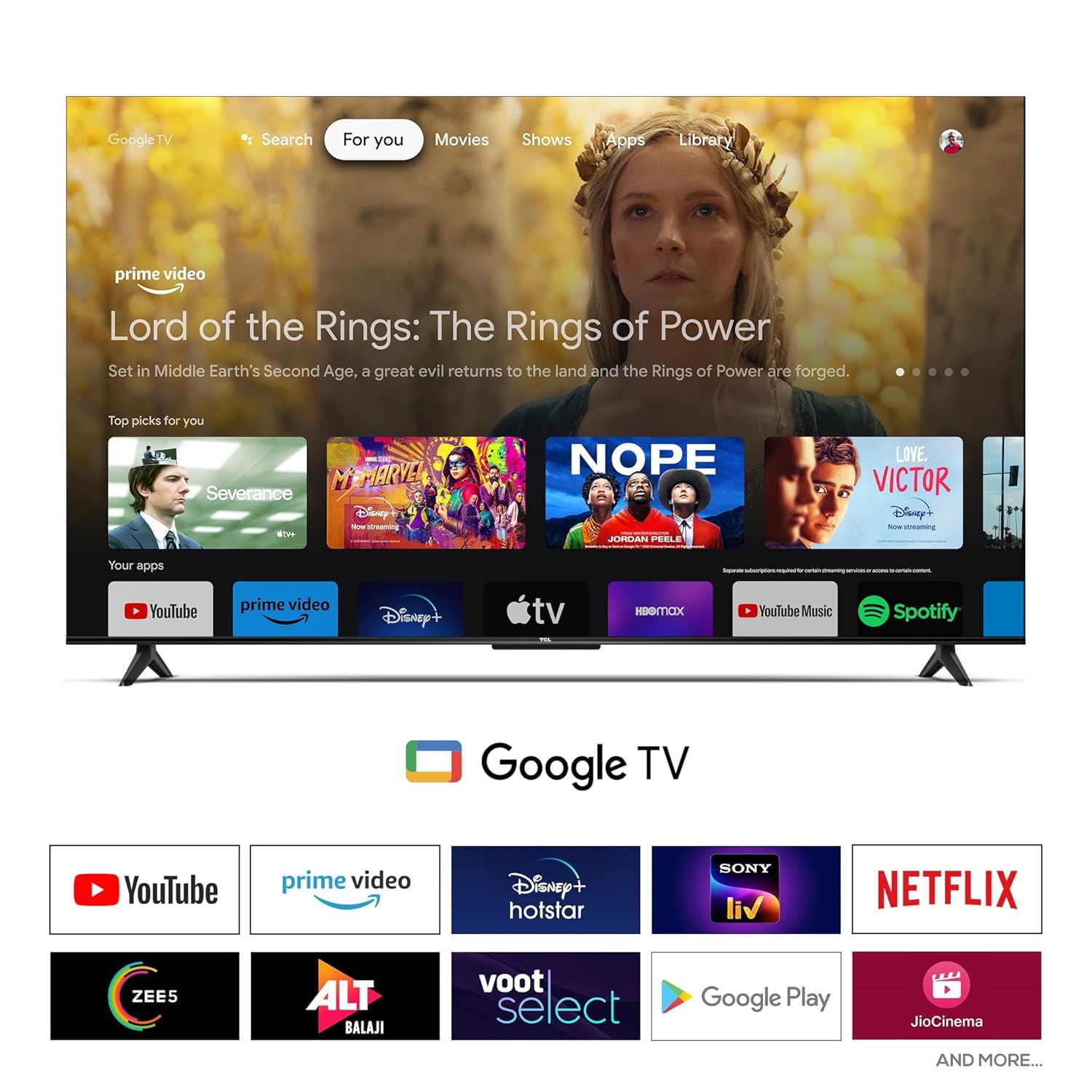
Figure 4.2: Google TV user interface. This screenshot displays the home screen of Google TV, featuring recommended content and a selection of pre-installed and downloadable applications such as YouTube, Prime Video, Disney+ Hotstar, Netflix, and more.
- Personalized Recommendations: Content suggestions based on your viewing history across various streaming services.
- App Access: Download and stream from a wide range of applications available on Google Play Store (e.g., YouTube, Prime Video, Netflix, Disney+ Hotstar, Sony LIV, Zee5, JioCinema).
- Google Assistant: Use voice commands to search for movies, control smart home devices, get answers, and manage your day.
- Chromecast Built-in: Cast content directly from your compatible smartphone or tablet to the TV.
4.3 Audio and Video Settings
Access the TV's settings menu to customize picture and sound quality.
- Picture Modes: Select from various preset modes (e.g., Standard, Vivid, Movie, Game) or customize settings like brightness, contrast, color, and sharpness.
- Sound Modes: Choose audio presets (e.g., Standard, Music, Movie, Speech) or adjust equalizer settings. The TV supports Dolby Audio for enhanced sound.
- Display Type: HDR 10 is supported for enhanced dynamic range with compatible content.
5. Maintenance
5.1 Cleaning the TV
- Always unplug the TV from the power outlet before cleaning.
- Use a soft, dry, lint-free cloth to gently wipe the screen and cabinet.
- For stubborn marks, lightly dampen the cloth with water or a mild, non-abrasive screen cleaner. Never spray cleaner directly onto the screen.
- Avoid using abrasive cleaners, waxes, or solvents as they can damage the TV's finish.
5.2 Software Updates
Your TV may receive software updates to improve performance and add new features. Ensure your TV is connected to the internet to receive these updates automatically or check for them manually through the TV's settings menu.
6. Troubleshooting
If you encounter issues with your TV, refer to the following common problems and solutions. If the problem persists, contact customer support.
| Problem | Possible Solution |
|---|---|
| No Power | Ensure the power cord is securely plugged into both the TV and a working electrical outlet. Try a different outlet. |
| No Picture/Sound | Check input source (HDMI, USB). Ensure cables are securely connected. Try a different HDMI port. |
| Remote Control Not Working | Check batteries and replace if necessary. Ensure no obstructions between remote and TV. Re-pair Bluetooth remote if applicable. |
| Poor Picture Quality | Adjust picture settings (brightness, contrast, sharpness). Check source resolution. Ensure 4K content is being played for optimal 4K display. |
| No Internet Connection | Check Wi-Fi password. Restart your router. Try connecting via Ethernet cable. |
7. Specifications
| Feature | Detail |
|---|---|
| Model Name | 55D4K |
| Screen Size | 155 cm (59 inches) / 55 Inches (diagonal) |
| Resolution | 4K Ultra HD (3840 x 2160 pixels) |
| Refresh Rate | 60 Hertz |
| Display Technology | LED, HDR 10 |
| Viewing Angle | 178 Degrees |
| Audio Output | 24 Watts, Dolby Audio, Surround Sound |
| Connectivity | 3 HDMI Ports, 1 USB Port, Ethernet, Wi-Fi, Bluetooth, Headphone Output |
| Operating System | Google TV |
| Memory (RAM/Storage) | 2 GB RAM / 16 GB Storage |
| Product Dimensions (LxWxH) | 25.5 x 122.6 x 75 cm (with stand) |
| Item Weight | 9.2 kg (with stand) |
| Power Consumption | 125 Watts (On-mode) |
| Power Source | AC 240 Volts |
| Remote Control | Universal (IR, Bluetooth) |
| Mounting Type | Table Top & Wall Mount |
8. Warranty and Support
8.1 Warranty Information
This product comes with a 2 Year Warranty from the date of purchase. Please retain your purchase receipt and the warranty card for any warranty claims. The warranty covers manufacturing defects and malfunctions under normal use conditions. It does not cover damage caused by misuse, accidents, unauthorized repairs, or natural disasters.
8.2 Customer Support
For technical assistance, troubleshooting beyond this manual, or warranty claims, please contact the manufacturer's customer support. Refer to the warranty card or the manufacturer's official website for contact details.
Manufacturer: India
Model: 55D4K
Date First Available: 27 March 2024