1. Introduction
The Omons SpeedyBee F405 WING APP Flight Controller is a high-performance control unit designed for fixed-wing aircraft. It supports both Ardupilot and INAV firmware, offering versatility for various flight applications. This flight controller integrates essential features for stable and reliable flight, including CRSF Telemetry support for advanced data transmission.
This manual provides detailed instructions for the setup, operation, and maintenance of your SpeedyBee F405 WING APP Flight Controller to ensure optimal performance and longevity.
2. Setup and Installation
2.1 Physical Installation
Carefully mount the SpeedyBee F405 WING APP Flight Controller in your fixed-wing aircraft, ensuring it is securely fastened and isolated from vibrations. Observe proper orientation as per your chosen firmware's requirements (Ardupilot or INAV).
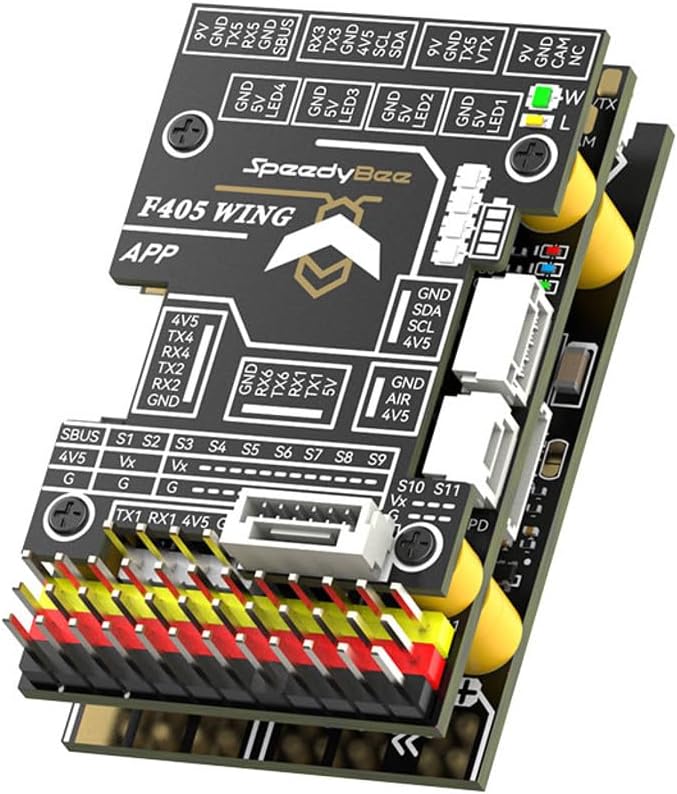
Figure 2.1: Top view of the SpeedyBee F405 WING APP Flight Controller, highlighting the various input/output pins and connectors for peripherals.
2.2 Wiring Connections
Connect power, ESCs, servos, receiver, GPS, and other peripherals according to the pinout diagrams specific to the F405 WING APP. Ensure correct polarity for all connections to prevent damage.
- Power Input: Connect your main battery (7-36V DC) to the BAT+/BAT- pads on the Power Distribution Board (PDB) section.
- ESCs/Servos: Connect ESC signal wires and servo wires to the designated S1-S11 output pins.
- Receiver: Connect your receiver (e.g., SBUS, CRSF) to the appropriate RX/TX pads. CRSF telemetry is supported.
- GPS/Compass: Connect GPS and external compass modules to the dedicated UART ports (e.g., TX/RX, SDA/SCL).
- VTX/Camera: Utilize the dedicated 9V or 5V outputs for Video Transmitter (VTX) and camera power.

Figure 2.2: Example wiring diagram showing typical connections for the SpeedyBee F405 WING APP Flight Controller.
2.3 Firmware Flashing and Configuration
The SpeedyBee F405 WING APP supports Ardupilot and INAV firmware. Download the latest stable firmware for your preferred platform from their official websites.
- Connect the flight controller to your computer via USB.
- Use the respective configurator software (Ardupilot Mission Planner or INAV Configurator) to flash the firmware.
- Perform initial setup and calibration, including accelerometer, compass, and radio calibration.
- Configure flight modes, failsafe settings, and OSD (On-Screen Display) if applicable.
3. Operating Instructions
Once the flight controller is installed and configured, follow these general operating guidelines:
- Pre-Flight Checks: Before each flight, verify all control surfaces move correctly, battery voltage is adequate, and GPS lock (if used) is acquired.
- Arming: Arm the aircraft using the configured stick command or switch. Ensure propellers are clear before arming.
- Flight Modes: Utilize the configured flight modes (e.g., Manual, Stabilize, RTH - Return To Home) as appropriate for your flight plan.
- Telemetry: Monitor flight data via CRSF Telemetry on your compatible radio system. This provides real-time information such as battery voltage, GPS coordinates, and flight mode.
- Disarming: Disarm the aircraft after landing to prevent accidental propeller spin.
4. Maintenance
Regular maintenance ensures the longevity and reliability of your flight controller:
- Inspection: Periodically inspect the board for any physical damage, loose connections, or signs of corrosion.
- Cleaning: Gently clean the board with a soft brush or compressed air to remove dust and debris. Avoid using liquids.
- Firmware Updates: Check for and apply firmware updates for Ardupilot or INAV regularly to benefit from new features, bug fixes, and performance improvements.
- Storage: Store the flight controller in a dry, anti-static environment when not in use.
5. Troubleshooting
If you encounter issues with your SpeedyBee F405 WING APP Flight Controller, consider the following:
| Problem | Possible Cause | Solution |
|---|---|---|
| No power to FC | Incorrect wiring, faulty power source, damaged board. | Verify battery connection and polarity. Check for shorts. Inspect board for visible damage. |
| No connection to configurator | Incorrect USB driver, faulty USB cable, FC not in DFU mode. | Install correct drivers. Try a different USB cable/port. Put FC into DFU mode (refer to firmware documentation). |
| Motors not arming | Safety features engaged (e.g., no GPS lock, low battery, throttle too high, pre-arm checks failed). | Check OSD messages or configurator for pre-arm warnings. Ensure all safety conditions are met. Calibrate ESCs. |
| Erratic flight behavior | Incorrect sensor calibration, vibrations, wrong PID tuning. | Recalibrate accelerometer and compass. Ensure FC is vibration-isolated. Adjust PID settings cautiously. |
For more detailed troubleshooting, refer to the official documentation for Ardupilot or INAV firmware, as many issues are firmware-specific.
6. Specifications
Key specifications for the Omons SpeedyBee F405 WING APP Flight Controller:
| Feature | Detail |
|---|---|
| Model | F405 WING APP |
| Part Number | OMS-5DE0E9097E18A6B8D86E172AECF57B38 |
| Supported Firmware | Ardupilot, INAV |
| Input Voltage | 7-36V DC (2-8S LiPo) |
| Current Sensor | Max 215A |
| BEC 9V Output | 2A for VTX, Camera, Gimbal; 1.8A (default) / 4.5A (selectable) for Servos |
| BEC 5V Output | 2A for FC & Peripherals; 5A (default) / 7.2A (selectable) for Servos |
| Telemetry Support | CRSF Telemetry |
| Material | Metal (PCB components) |
| Date First Available | July 11, 2024 |

Figure 6.1: Bottom view of the flight controller, detailing the F405-WING PDB SPEC with input voltage and BEC output specifications.
7. Warranty and Support
For warranty information and technical support, please refer to the official website of the manufacturer or contact your retailer. Ensure you retain your proof of purchase for any warranty claims.
Community forums and online resources for Ardupilot and INAV are also excellent sources for support and advanced configuration guides.


