
1. Introduction
This XUNFOX keyboard and mouse kit is designed for users seeking an efficient and ergonomic input solution for various computing tasks, including gaming and professional work. The 94-key RGB keyboard offers precise input and customizable backlighting. An integrated volume control knob allows for quick audio adjustments. The accompanying mouse features adjustable DPI sensitivity and additional buttons for enhanced control and shortcut assignments, providing a versatile and responsive user experience.

Image 1.1: XUNFOX 94-Key RGB Keyboard and Mouse Kit. This image displays the complete keyboard and mouse set, highlighting their design and compact form factor.

Image 1.2: Ergonomic Layout. This image illustrates the high and low key layout designed for comfortable typing and reduced hand fatigue during extended use.
2. Package Contents
Please verify that all items are present in the package:
- 1 x XUNFOX 94-Key RGB Keyboard
- 1 x XUNFOX Gaming Mouse
- 1 x User Manual
3. Setup
The XUNFOX Keyboard and Mouse Kit is designed for plug-and-play functionality, requiring no additional driver installation for basic operation.
- Connect the USB cable of the keyboard to an available USB port on your computer.
- Connect the USB cable of the mouse to another available USB port on your computer.
- Your operating system (Windows, Mac OS X, Linux) should automatically detect and configure the devices.
4. Operating Instructions
4.1 Keyboard Functions
- RGB Backlighting: The keyboard features full RGB backlighting. Specific key combinations, often involving the Fn key, can be used to cycle through various lighting modes, adjust brightness, or change colors. Refer to the keyboard's key legends for specific function key assignments.
- Volume Control Knob: An integrated knob allows for quick audio adjustments. Rotate the knob clockwise to increase volume and counter-clockwise to decrease volume. Press the knob to mute or unmute the audio output.

Image 4.1: Independent Volume Control. This image highlights the dedicated volume knob on the keyboard, demonstrating its functionality for adjusting and muting audio.
- Media Controls: Utilize dedicated media keys or Fn key combinations to control media playback, such as play/pause, next track, and previous track.

Image 4.2: Media Controls. This image shows the keyboard layout with an emphasis on the media control functions, indicating ease of access for multimedia management.
4.2 Mouse Functions
- DPI Control: The mouse features a dedicated DPI (Dots Per Inch) button, typically located near the scroll wheel. Press this button to cycle through different sensitivity levels, allowing you to adjust cursor speed to match your preference for various applications or games.
- Additional Buttons: The mouse is equipped with additional buttons that can enhance navigation and efficiency. These buttons may have pre-assigned functions or can be customized through compatible software, if available.
5. Maintenance
Proper maintenance ensures the longevity and optimal performance of your XUNFOX Keyboard and Mouse Kit.
- Cleaning: To clean the devices, use a soft, dry cloth. For stubborn dirt or grime, a slightly damp cloth with a mild cleaning solution can be used. Ensure no liquid enters the internal components of the keyboard or mouse. Avoid abrasive cleaners or solvents.
- Storage: Store the keyboard and mouse in a dry environment, away from direct sunlight, extreme temperatures, and excessive humidity.
6. Troubleshooting
If you encounter issues with your XUNFOX Keyboard and Mouse Kit, please refer to the following common solutions:
- Keyboard or Mouse Not Responding:
- Ensure that the USB cables for both the keyboard and mouse are securely connected to active USB ports on your computer.
- Try connecting the devices to different USB ports on your computer.
- Restart your computer to refresh the USB connections.
- RGB Lighting Not Working:
- Check if the RGB lighting has been turned off or set to minimum brightness using the keyboard's function key combinations.
- Ensure your operating system and any relevant drivers are up to date.
- DPI Adjustment Not Functioning (Mouse):
- Verify that the mouse is properly connected and recognized by your system.
- Press the DPI button firmly to cycle through settings.
7. Specifications
| Manufacturer | XUNFOX |
| Model | 94-Key RGB Keyboard and Mouse Kit |
| Connectivity | Wired USB |
| Keyboard Layout | 94-key, RGB Backlit |
| Mouse Features | Adjustable DPI, Additional Buttons, Optical Sensor |
| Compatibility | Windows XP, Vista, 7, 8, 10, 11; Mac OS X; Linux; PC; Laptop; Gaming Console; Smartphone |
| Additional Features | Ergonomic Design, Volume Control Knob |
| Color | Gray |
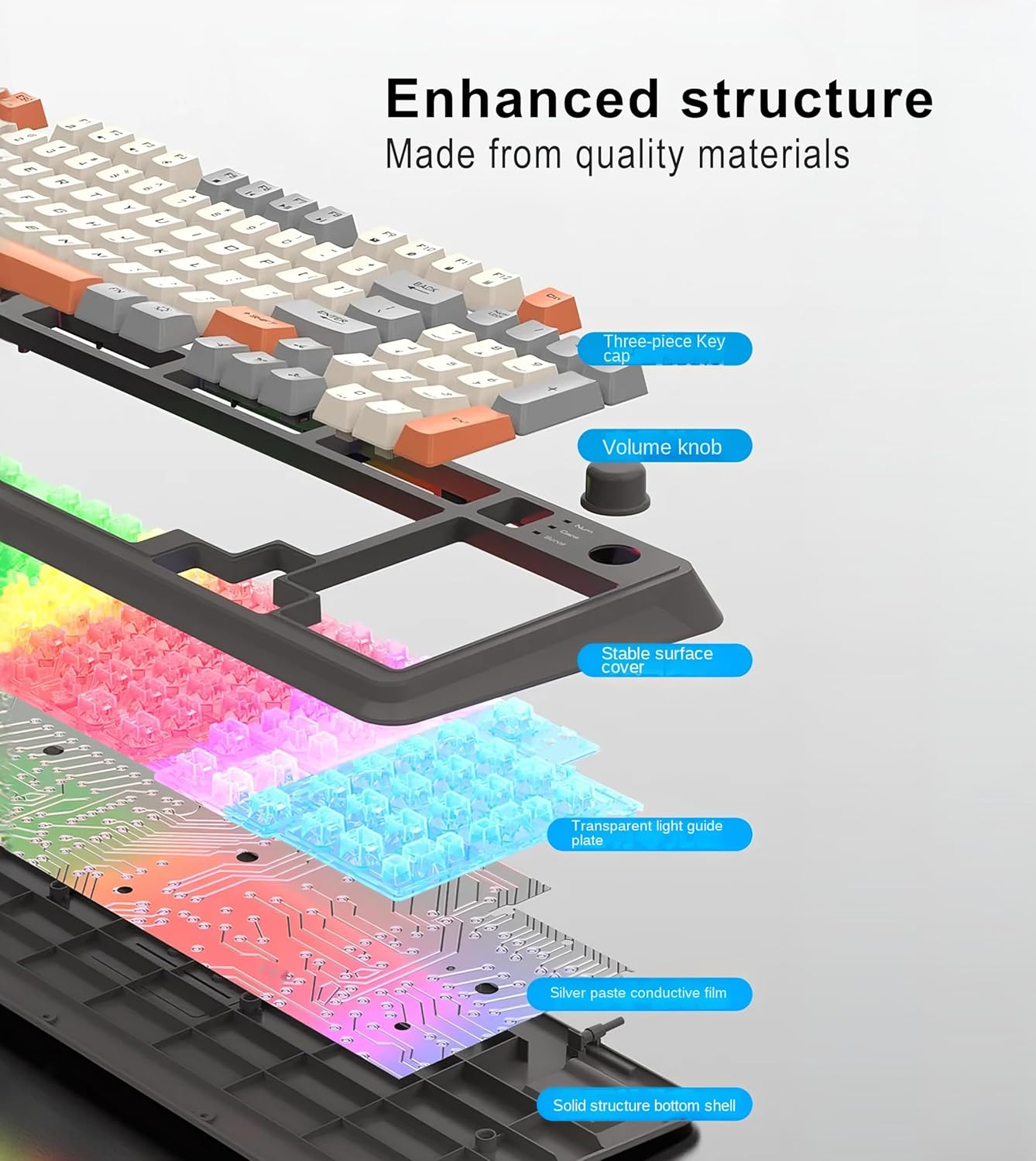
Image 7.1: Enhanced Structure. This image provides an exploded view of the keyboard, detailing its internal components such as the three-piece keycap, volume knob, stable surface cover, transparent light guide plate, silver paste conductive film, and solid structure bottom shell.
8. Warranty and Support
For detailed warranty information, technical assistance, or customer support regarding your XUNFOX 94-Key RGB Keyboard and Mouse Kit, please refer to the manufacturer's official website or contact the retailer from whom the product was purchased. Please retain your proof of purchase for warranty claims.