
AINAVITO A80
AINAVITO A80 DSP Amplifier User Manual
Car Audio Digital Signal Processor
1. Introduction
The AINAVITO A80 DSP Amplifier is a sophisticated digital signal processor designed to significantly enhance your car audio system. It offers precise control over sound parameters, allowing for a customized and immersive listening experience. This manual provides detailed instructions for installation, operation, and maintenance to ensure optimal performance and longevity of your device.
The A80 integrates a powerful amplifier and advanced signal processing algorithms to deliver high-fidelity audio. It supports multiple tuning methods, including manual, PC software, mobile app, and LCD controller, catering to both novice and professional tuners.

Figure 1.1: Benefits of integrating a Digital Signal Processor into your car audio system, highlighting improvements in sound quality and control.

Figure 1.2: Visual representation of sound timing differences before and after DSP installation, demonstrating improved sound staging and clarity.
2. Safety Information
Please read all safety instructions carefully before installing and operating the AINAVITO A80 DSP Amplifier. Failure to follow these instructions may result in injury or damage to the device or vehicle.
- Ensure the vehicle's ignition is off and the battery is disconnected before starting any installation work.
- Always use appropriate tools and wear protective eyewear during installation.
- Do not expose the device to moisture, water, or extreme temperatures.
- Avoid placing the device in areas where it may obstruct vehicle operation or safety features.
- Properly secure all wiring to prevent short circuits and interference.
- Consult a professional car audio installer if you are unsure about any part of the installation process.
3. What's in the Box
Verify that all items are present in the package before proceeding with installation.
- AINAVITO A80 DSP Amplifier
- Power Cable (Note: Requires manual connection to original car line, not plug and play)
- USB Cable (for PC tuning)
- User Manual
- (Optional) Wired Controller

Figure 3.1: Included components with the AINAVITO A80 DSP Amplifier, showing the main unit, power cable, USB cable, and user manual.
Video 3.1: Unboxing and physical overview of the AINAVITO A80 DSP Amplifier, showcasing its appearance and various ports.
4. Product Overview
The AINAVITO A80 is a compact yet powerful DSP amplifier designed for optimal car audio performance. It features a robust red brushed aluminum casing with black accents.
4.1 Front Panel Features
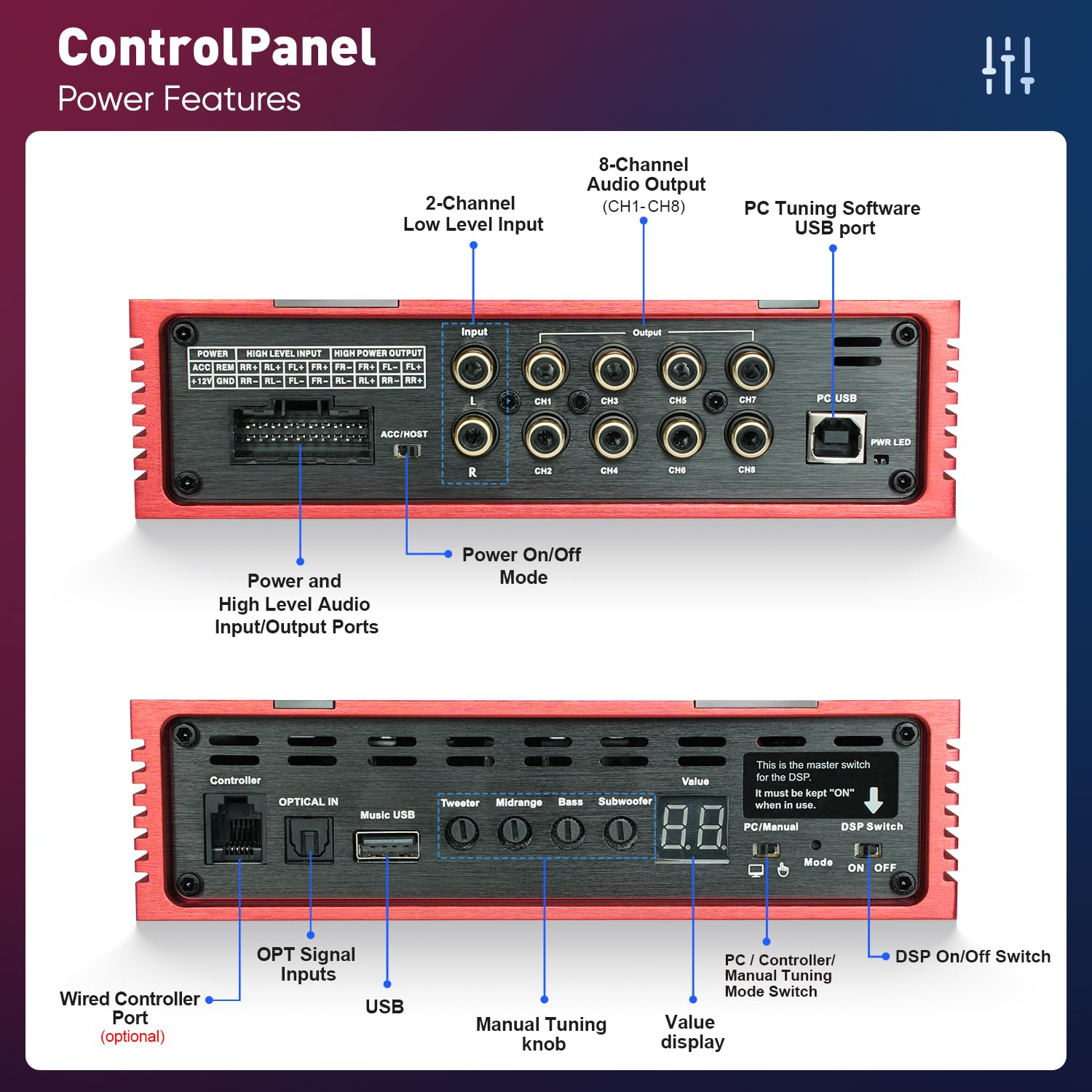
Figure 4.1: Detailed view of the A80's front panel, showing power and high-level audio input/output ports, 2-channel low-level input (AUX), 8-channel audio output (CH1-CH8), PC tuning software USB port, and power on/off mode switch.
4.2 Rear Panel Features

Figure 4.2: Detailed view of the A80's rear panel, including the wired controller port, optical input, music USB port, manual tuning knobs for tweeter, midrange, bass, and subwoofer, value display, DSP switch (PC/Manual mode), and 6 sound effects mode switch.
4.3 Key Features
- Built-in Amplifier: Utilizes the TDA7850 amplifier chip, providing a peak power of 50 watts per channel and a total of 200 watts.
- Digital Signal Processor: Advanced algorithms reduce noise and clutter, improving sound quality.
- Input/Output Flexibility: Supports 4-channel high-level audio output + 4-channel audio input, and 8-channel low-level output + 2-channel low-level (AUX) input.
- Multiple Tuning Methods: Manual, PC software, Phone APP, and LCD Controller modes available.
- 31-Band EQ Control: Audiophile-grade fine adjustment from 20Hz to 20000Hz, with 6 preset EQ data modes.
- USB Port: Supports USB devices for lossless music playback.
- Bluetooth 5.0: Built-in wireless Bluetooth for direct smartphone music streaming.

Figure 4.3: Overview of the A80's digital signal processing, showing various adjustment sliders and preset options.
5. Setup and Installation
The AINAVITO A80 DSP Amplifier is designed for plug-and-play installation with Android car radios (non-OEM/original car radios). Follow these steps for proper setup.
5.1 Wiring and Connection
For detailed wiring instructions, refer to the installation video provided. Ensure all connections are secure to prevent damage and ensure optimal performance.
- Connect the DSP wiring harness to the power cord interface of your Android car radio.
- Insert the other adapter port into the Android machine port.
- Route the DSP power cord (white wire) through the host cable slot, hiding it as much as possible, and connect it to the A80 DSP.
- Connect speakers and subwoofers to the appropriate output channels on the DSP.
- If using external power amplifiers, connect them to the DSP's low-level outputs.
Video 5.1: Step-by-step guide on connecting the DSP wires and performing the installation for the AINAVITO A80.

Figure 5.1: Suggested placement positions for the A80 DSP Amplifier, such as in the passenger storage box or under the passenger seat, for discreet installation.
5.2 Initial Power-Up
Once all connections are made, turn on your car radio. The DSP should power on automatically. You can then proceed with sound tuning.
6. Operating Instructions
The AINAVITO A80 offers four primary methods for sound tuning and control:
6.1 Manual Tuning (Knobs on Device)
For quick adjustments, you can use the physical knobs on the DSP unit. Ensure the DSP switch is set to "Manual" mode. Use a small screwdriver to adjust the tweeter, midrange, bass, and subwoofer levels.
Video 6.1: Demonstrates how to manually tune the sound directly on the A80 DSP device using the physical knobs.
6.2 LCD Controller Tuning
Connect the optional LCD controller to the DSP. This allows for convenient control and tuning from your driving position. The controller supports both Bluetooth audio input and U-disk playback.
- Bluetooth Control: Switch the LCD Controller to "BT Audio input" mode. Open your phone's Bluetooth settings and connect to "DSP-Play". You can then stream music and control basic settings.
- U-Disk Playback: Insert a USB flash drive into the DSP's Music USB port. Switch the LCD Controller to "Player input" mode to browse and play music directly from the U-disk.
Video 6.2: Comprehensive guide on how to use the LCD controller for various tuning features of the DSP, including Bluetooth and U-disk playback.
6.3 PC Software Tuning
For advanced and precise tuning, connect the DSP to a computer using the provided USB cable. Ensure the DSP switch is set to "PC" mode. Download and install the DSP-480 software (refer to the user manual for download instructions).
- Open the DSP-480 software.
- Adjust the 31-band equalizer, crossover settings, and time alignment for each channel.
- Save custom sound effects to the computer or directly to the DSP's memory.
Video 6.3: Illustrates how to tune the sound using the PC software, providing a visual guide to the interface and adjustment process.
6.4 Mobile App Tuning
Download the DSP-480 APP on your smartphone (available for iOS and Android). Ensure the DSP switch is set to "PC" mode for app control.
- Open the APP and connect via Bluetooth to the "DSP-Play" device.
- Adjust high, mid, and sub levels, and select from preset EQ modes.

Figure 6.1: Overview of the mobile app interface for tuning the A80 DSP, showing various adjustment sliders and preset options.
7. Maintenance
To ensure the longevity and optimal performance of your AINAVITO A80 DSP Amplifier, follow these maintenance guidelines:
- Keep the device clean and free from dust and debris. Use a soft, dry cloth for cleaning.
- Ensure adequate ventilation around the unit to prevent overheating.
- Regularly check all wiring connections for looseness or damage.
- Avoid exposing the device to direct sunlight or extreme temperatures for prolonged periods.
7.1 Resetting to Factory Settings / Firmware Update
If you encounter persistent issues or wish to revert all settings, you can reset the DSP to factory settings. Firmware updates can also be performed to improve performance or add new features.
Video 7.1: Instructions on how to reset the A80 DSP to factory settings and perform firmware updates.
8. Troubleshooting
If you experience issues with your AINAVITO A80 DSP Amplifier, refer to the following common problems and solutions:
- No Power:
- Check all power connections, including the main power cable and ACC wire.
- Verify the vehicle's fuse for the car radio and amplifier circuit.
- Ensure the DSP switch is in the "ON" position.
- No Sound Output:
- Confirm that the input source is correctly selected (e.g., Bluetooth, USB, AUX).
- Check speaker connections and ensure they are properly wired to the DSP outputs.
- Verify that the volume levels on the DSP, car radio, and connected devices are not muted or too low.
- Ensure the DSP is not in "PC" mode if you are trying to play audio.
- Distorted Sound:
- Adjust the gain settings on the DSP and any connected amplifiers to prevent clipping.
- Check speaker impedance compatibility with the DSP's output.
- Review EQ settings; excessive boosting of certain frequencies can cause distortion.
- Loud Popping Noise on Power On/Off:
- This can sometimes occur due to power sequencing. Ensure the car radio and DSP power on/off in the correct order. It may be beneficial to wire the amplifier's REM (remote) wire to the DSP's REM out.
- Unable to Connect via PC Software/App:
- Ensure the DSP switch is set to "PC" mode.
- Verify the USB cable connection to the computer and DSP.
- For app connection, ensure Bluetooth is enabled on your phone and the DSP is discoverable.
- Restart the DSP and the computer/app.
9. Specifications
| Feature | Specification |
|---|---|
| Product Dimensions | 6.5 x 5.1 x 1.7 inches; 3.62 Pounds |
| Item Model Number | A80 |
| Manufacturer | AINAVITO |
| Voltage | 12 Volts |
| Maximum Supply Voltage | 14 Volts |
| Minimum Supply Voltage | 12 Volts |
| Amplifier Chip | TDA7850 |
| Peak Power | 50 watts per channel (200 watts total) |
| Signal-to-Noise Ratio | > 90dB |
| Distortion Rate | ≤0.01% |
| Digital Audio Processing | 48KHz/24bit |
| EQ Bands | 31-band (20Hz to 20000Hz) |
| Bluetooth Version | 5.0 |
10. Warranty and Support
AINAVITO provides a one-year warranty service for this product. If there are any quality problems within 3 months of purchase, the product can be directly replaced with a new one.
For professional after-sales support, please contact AINAVITO customer service. We are committed to replying to every customer message within 12-24 hours.
For further assistance or to download the latest software/firmware, please visit the official AINAVITO website or contact your retailer.
Ask a question about this manual
Ask about setup, troubleshooting, compatibility, parts, safety, or missing instructions. Manuals+ will review the question and use this page’s manual context to help answer it.