
Wifi
Generic 4K Ultra HD WiFi Car Dash Camera
User Manual
Model: Wifi (V21)
1. Introduction
This manual provides detailed instructions for the installation, operation, and maintenance of your Generic 4K Ultra HD WiFi Car Dash Camera. Designed to capture every moment of your journey with crystal clarity, this dual front and rear recording dash cam offers integrated GPS functionality and cellular phone connectivity for easy access and sharing of footage. It is an essential accessory for any driver prioritizing safety and reliable incident recording.
Key features include:
- Ultra HD 4K Recording: Captures crystal-clear 4K video with a dual-lens system, ensuring no detail is missed.
- GPS Tracking: Built-in GPS logger tracks driving route, location, speed, and other detailed records.
- Dual-Lens Design: Front and rear cameras provide comprehensive coverage from multiple angles.
- Enhanced Night Vision: Superior night vision capabilities ensure clear video recording even in low-light conditions.
- Wi-Fi Connectivity: Seamlessly connect to your smartphone via Wi-Fi for easy video management and sharing.
2. Product Overview
The Generic 4K Ultra HD WiFi Car Dash Camera is a compact and reliable device designed for comprehensive vehicle surveillance. It features a main front camera unit and a rear camera for dual recording. The device integrates advanced technologies such as G-Sensor, loop recording, motion detection, and enhanced night vision to provide a secure driving experience.

Figure 2.1: Front view of the Generic 4K Ultra HD WiFi Car Dash Camera.

Figure 2.2: Overview of key features including Night Version, G-Sensor, 4K+1080P recording, and APP control.

Figure 2.3: Compact design with icons illustrating features like 4K Dual Camera, WiFi, GPS, 170° Wide Angle, Loop Recording, 256GB Support, G-Sensor, and Parking Monitor.
3. Package Contents
Please check the package contents upon unboxing to ensure all items are present and in good condition:
- V21 Dash Camera (Front Unit)
- Rear View Camera
- Power Cable
- Extended Lines (for rear camera)
- Installation Guide
- Anti-slip Mat
- User Manual (this document)
4. Setup
4.1. Preparing for Installation
- Ensure your vehicle's windshield is clean and dry before mounting.
- Select a location on the windshield that does not obstruct your view or interfere with airbags. Typically, near the rearview mirror is ideal.
- Insert a high-speed Micro SD card (Class 10 or higher, up to 256GB) into the dash camera's slot. Format the card before first use.
4.2. Installing the Front Dash Camera
- Attach the anti-slip mat or adhesive mount to the dash camera bracket.
- Peel off the protective film from the adhesive and firmly press the dash camera onto the chosen spot on your windshield. Hold for 30 seconds to ensure strong adhesion.
- Adjust the camera lens angle to ensure it captures the road ahead clearly.
4.3. Installing the Rear Camera
- Mount the rear camera on the rear windshield, ensuring it has a clear view.
- Route the rear camera cable to the front dash camera. Most vehicles allow routing along the headliner and A-pillar trim.
- Connect the rear camera cable to the designated port on the main dash camera unit.
4.4. Power Connection
- Connect the power cable to the dash camera.
- Plug the other end of the power cable into your vehicle's cigarette lighter socket or a suitable USB power source.
- Route the power cable neatly to avoid obstructing your driving or interfering with vehicle controls.
5. Operating Instructions
5.1. Basic Operation
- Power On/Off: The dash camera will automatically power on and begin recording when your vehicle starts and power is supplied. It will power off automatically when the vehicle is turned off.
- Recording: Continuous loop recording is enabled by default. When the memory card is full, the oldest unlocked files will be overwritten.
- G-Sensor: In case of a sudden impact or collision, the built-in G-Sensor will automatically lock the current video footage to prevent it from being overwritten.
- Parking Monitor: If enabled, the dash camera can detect impacts while parked and automatically record a short video. (Requires continuous power supply, e.g., hardwire kit, not included).
5.2. Wi-Fi Connectivity and App Control
The dash camera features integrated Wi-Fi for seamless connection to your smartphone via a dedicated app (e.g., "Viidure" as suggested by images). This allows for live view, video playback, download, and settings adjustment.
- Download the recommended app from your smartphone's app store (App Store for iOS, Google Play Store for Android).
- Turn on Wi-Fi on your dash camera (refer to on-screen menu or specific button if available).
- On your smartphone, go to Wi-Fi settings and connect to the dash camera's Wi-Fi network (SSID and password usually displayed on the camera screen or in the manual).
- Open the app. You should now be able to view live footage, access recorded videos, and modify settings.

Figure 5.1: Example of 4K 3840*2160P recording quality and Super Night Vision capabilities.

Figure 5.2: Visual comparison demonstrating the superior clarity of 4K Ultra HD recording over 1080P.
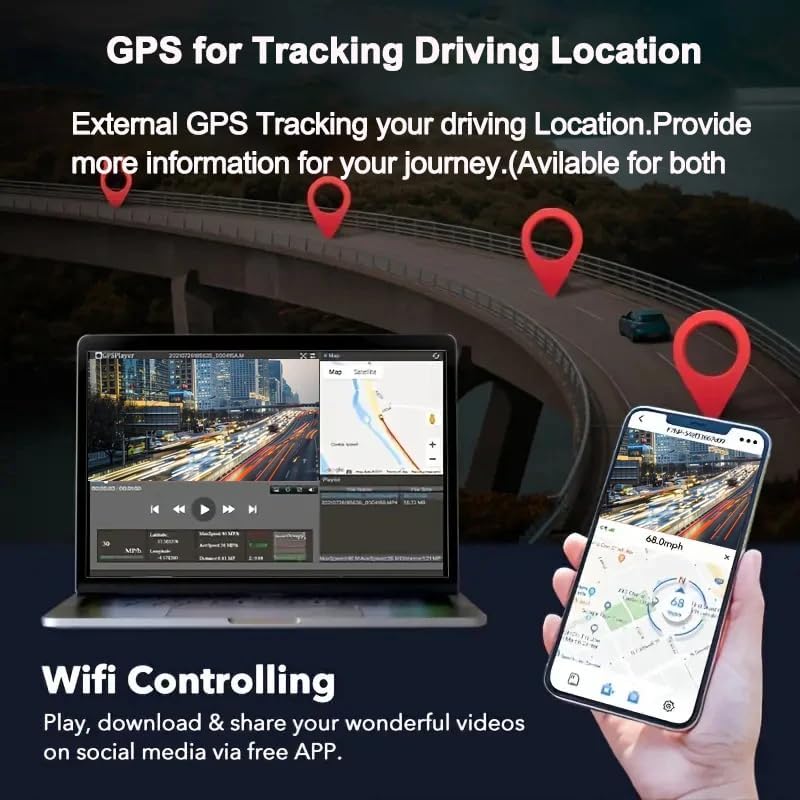
Figure 5.3: Illustration of GPS tracking functionality, showing route and location data on a map interface.

Figure 5.4: Wi-Fi control via the Viidure app, available for download on App Store and Android.
6. Maintenance
- Memory Card Formatting: It is recommended to format the Micro SD card regularly (e.g., once a month) to ensure optimal performance and prevent data corruption. Back up any important videos before formatting.
- Lens Cleaning: Gently clean the camera lenses with a soft, lint-free cloth to ensure clear video quality. Avoid abrasive materials or harsh chemicals.
- Firmware Updates: Check the manufacturer's website or app periodically for firmware updates. Keeping your dash camera's firmware up-to-date can improve performance and add new features.
- Temperature: Avoid exposing the dash camera to extreme temperatures for prolonged periods, as this can affect battery life and component longevity.
7. Troubleshooting
| Problem | Possible Cause / Solution |
|---|---|
| Camera does not power on. |
|
| Recording stops or freezes. |
|
| Video footage is blurry or unclear. |
|
| Wi-Fi connection issues. |
|
| GPS signal not found. |
|
8. Specifications
| Feature | Detail |
|---|---|
| Model Name | V21 |
| Model Number | Wifi |
| Brand | Generic |
| Video Resolution | Front: 4K UHD (3840*2160P), Rear: 1080P (1920*1080) |
| Display Screen Size | 1.47 Inches (visible diagonal 2" / 4 cm) |
| Special Features | Integrated Screen, G-Sensor + Loop Recording, Automatic Incident Detection, Built-in WiFi and App Control, Enhanced Night Vision, WDR |
| Connectivity Technology | Wi-Fi, HDMI |
| Mounting Type | Windshield Mount |
| Supported Memory Card | Up to 256GB (Micro SD, Class 10/U3 recommended) |
| Dimensions | 3.3 x 9.53 x 4.98 cm |
| Power Source | Vehicle Power (No internal battery included) |

Figure 8.1: Physical dimensions of the dash camera.
9. Warranty and Support
For any product-related inquiries, technical support, or warranty claims, please contact the seller or manufacturer directly. Refer to your purchase documentation for specific warranty terms and contact information.
As per product information, an electronic manual in English is available. Please contact the seller for the file if you require further detailed instructions.
Ask a question about this manual
Ask about setup, troubleshooting, compatibility, parts, safety, or missing instructions. Manuals+ will review the question and use this page’s manual context to help answer it.