
Introduction
This user manual provides essential information for setting up, operating, maintaining, and troubleshooting your HONGSAMDE 2-in-1 10.1 Inch Windows Tablet. Please read this manual thoroughly to ensure proper use and to maximize the lifespan of your device.
The HONGSAMDE 2-in-1 tablet combines the portability of a tablet with the functionality of a laptop, running on Windows 11 Pro. It features a 10.1-inch Full HD IPS display, an Intel Celeron J4125 processor, 12GB RAM, and 128GB internal storage, expandable via a memory card.

Image: The HONGSAMDE 2-in-1 Windows Tablet with its detachable keyboard, showcasing its versatility.
Product Overview
Your HONGSAMDE tablet is designed for versatile use, offering both tablet and laptop modes. Key features include:
- 10.1-Inch Full HD IPS Display: A 1280x800 resolution screen with vibrant colors and dual 8Ω/0.8W speakers for enhanced multimedia.
- 12GB RAM & 128GB ROM: Ample memory for multitasking and storage, expandable up to 128GB via memory card (not included).
- Celeron Quad-Core Processor: Intel Celeron J4125 with speeds up to 2.7GHz for reliable performance.
- Detachable Keyboard & Stand: Transforms into a laptop with an English keyboard, and the protective cover doubles as a stand.
- Multiple Ports: Includes memory card port, USB 3.0, USB Type-C, 3.5mm headphone jack, DC power port, and Mini HDMI.
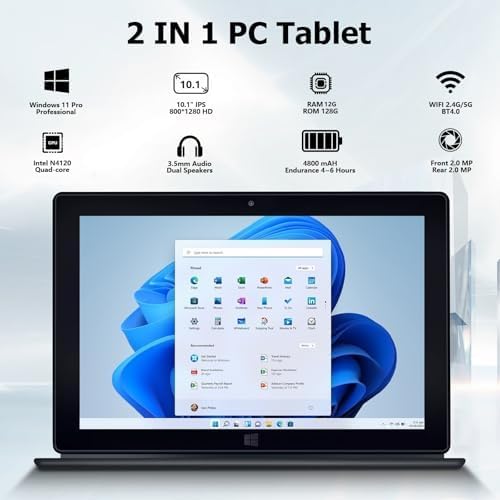
Image: Visual representation of the tablet's key features, including Windows 11 Pro, 10.1-inch IPS HD display, RAM/ROM, Wi-Fi, Bluetooth, battery, and dual cameras.

Image: The 10.1-inch display highlighting its vividness and touchscreen capabilities.
Setup
Initial Power-On and Charging
Before the first startup, please connect the power supply. The power button provides both power on and screen on/off functions. After turning off the screen, it is recommended to wait for about 5 seconds before turning it back on.
The 10.1-inch Windows 11 Pro tablet uses a DC 12V/2A power supply for charging, equipped with a dedicated AC to DC charger. It CANNOT be charged using a USB power supply or a power bank.
Connecting the Detachable Keyboard
The tablet features a magnetic connection point at the bottom edge to attach the included English keyboard. Simply align the tablet with the keyboard's connector and it will snap into place. The protective cover of the keyboard also functions as a stand for comfortable viewing and typing.

Image: Demonstrates the various configurations of the 2-in-1 tablet, including its use as a keyboard, holder, and case.
Port Identification
Familiarize yourself with the various ports on your tablet for connecting external devices:
- Power ON/OFF Button
- VOL + / VOL - Buttons
- 3.5mm Audio Jack
- Mini HDMI Port
- Type-C Port
- TF Slot (Memory Card Slot)
- USB Port
- DC 12V Power Port
- Keyboard Connect Port

Image: Detailed diagram illustrating the location and type of all ports and physical dimensions of the tablet.
Windows 11 Pro Activation
Your tablet's Windows 11 Pro system has been activated and does not require reactivation. Please note that the Windows system key and Microsoft Office key are different, and we do NOT provide product keys for Microsoft Office.
Operating Instructions
Navigation and Input
The tablet supports both keyboard/touchpad input and direct touchscreen interaction. You can switch between these modes seamlessly based on your task. For precise control, especially in desktop applications, the touchpad or an external mouse is recommended. For quick interactions and media consumption, the touchscreen is ideal.
Connecting to Wi-Fi
To access the internet, connect your tablet to a Wi-Fi network. This allows you to browse web pages, chat online, stream video and music, and shop. The tablet supports 2.4G/5G Wi-Fi.
Video: This video demonstrates the process of attaching the keyboard, navigating the Windows interface, and connecting to a Wi-Fi network for browsing and online activities. It also highlights the option to use the touchscreen directly.
Using the Dual Cameras
The tablet is equipped with both front and rear cameras, suitable for video chatting, video meetings, and capturing photos. The front camera is 30W and the rear camera is 200W.

Image: Illustrates the use of the tablet's front and rear cameras for video conferencing and other applications.
Maintenance
Battery Care
The tablet has a large capacity battery, providing 4-6 hours of internet access. To ensure optimal battery life and prevent issues:
- During heavy use, such as watching videos, the temperature on the back of the tablet may rise to about 106 °F (41 °C) in the battery area and about 88 °F (31 °C) in other areas. This is normal.
- If the battery is at 0% or the tablet shuts down automatically due to low power, ensure it is charged for at least 1 hour before attempting to turn it back on.
- Always use the dedicated DC 12V/2A power adapter provided for charging. Do not use USB chargers or power banks.

Image: Highlights the tablet's 4800mAh large capacity battery, suitable for extended use.
Software Updates
Regularly check for and install Windows updates to ensure your system is secure and performs optimally. Updates often include bug fixes, performance improvements, and new features.
Cleaning
To clean your tablet, use a soft, lint-free cloth. For the screen, a microfiber cloth is recommended. Avoid using harsh chemicals or abrasive materials that could damage the screen or casing.
Troubleshooting
This section addresses common issues you might encounter with your tablet.
General Advice from Manufacturer
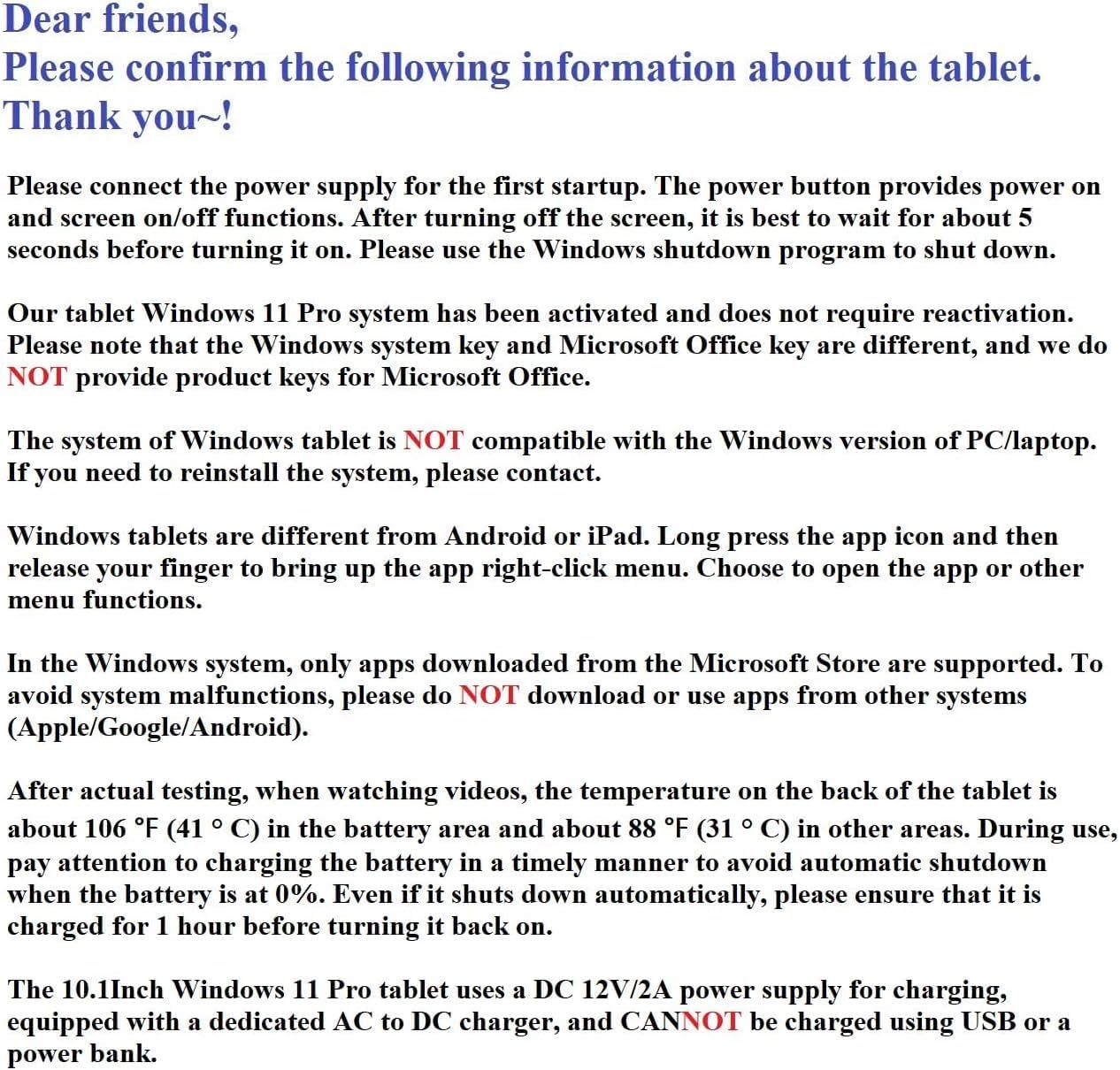
Image: Important notes from the manufacturer regarding initial power-on, Windows activation, app compatibility, temperature, and charging.
- Tablet Not Turning On/Charging: Ensure the dedicated DC 12V/2A power adapter is correctly connected. If the battery was completely drained, charge for at least 1 hour before attempting to power on.
- System Freezing/Unresponsive: If the tablet freezes, try pressing and holding the power button for several seconds until it shuts down. Then, restart the device. Always use the Windows shutdown program to properly turn off the tablet.
- App Compatibility: The Windows tablet system is NOT compatible with the Windows version of PC/laptop. Only apps downloaded from the Microsoft Store are supported. To avoid system malfunctions, do NOT download or use apps from other systems (Apple/Google/Android). If you need to reinstall the system, please contact support.
- Keyboard Layout Issues: If the keyboard layout is incorrect (e.g., '@' and ''' symbols swapped), this is a Windows setting issue. You can adjust the keyboard language and layout settings within Windows to match your preference.
Windows Tablet vs. iPad/Android Tablets
Windows tablets are different from Android or iPad devices. To bring up the app right-click menu, long-press the app icon and then release your finger. This allows you to choose to open the app or other menu functions.
Specifications
| Feature | Specification |
|---|---|
| Brand | HONGSAMDE |
| Model Name | HSD1000 |
| Standing Screen Display Size | 10.1 Inches |
| Screen Resolution | 1280 x 800 pixels (FHD IPS) |
| Processor | Intel Celeron J4125 (up to 2.7GHz) |
| RAM | 12GB |
| Flash Memory Size (ROM) | 128GB |
| Expandable Storage | Up to 128GB via memory card (TF Card, not included) |
| Operating System | Windows 11 Professional |
| Wireless Type | 802.11ac (2.4G/5G Wi-Fi) |
| Bluetooth | Yes |
| Rear Webcam Resolution | 2 MP |
| Front Webcam Resolution | 2 MP |
| Average Battery Life | 5 Hours (up to 4-6 hours internet access) |
| Item Weight | 3.5 pounds |
| Product Dimensions | 9.72 x 0.37 x 6.54 inches |
| Color | Black |
| Included Accessories | Power Adapter |
Warranty and Support
Warranty Information
For detailed warranty information regarding your HONGSAMDE tablet, please refer to the documentation included with your purchase or contact the manufacturer directly. Protection plans may be available for extended coverage.
Customer Support
If you encounter any issues not covered in this manual or require further assistance, please contact HONGSAMDE customer support through their official website or the contact information provided with your product packaging. Ensure you have your model number (HSD1000) and purchase details ready when contacting support.