
1. Introduction
This manual provides essential information for the safe and efficient operation of your Qukenk Android 14 Tablet D106. Please read this manual thoroughly before using your device to ensure proper setup and functionality. Keep this manual for future reference.
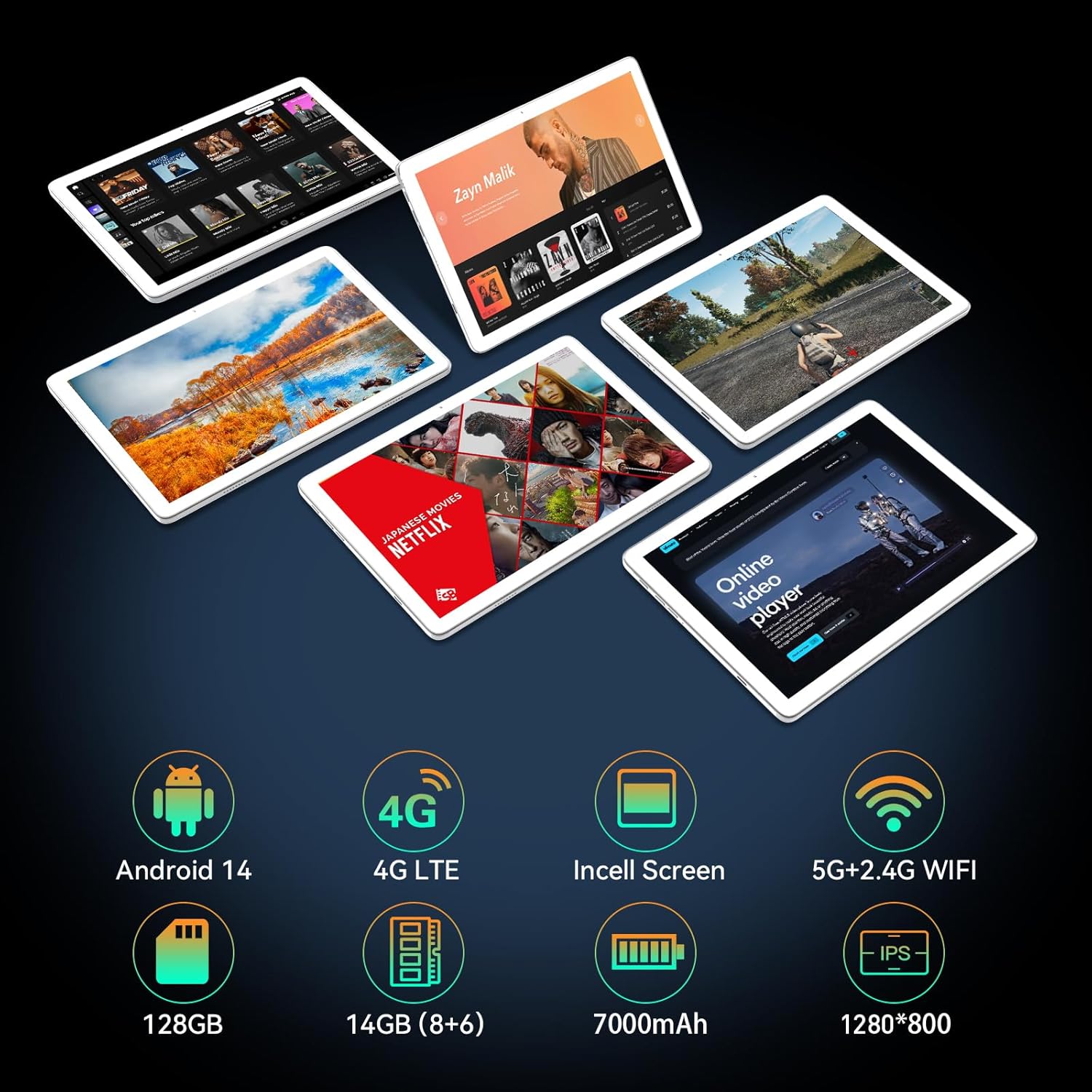
Image: Qukenk Android 14 Tablet D106 with key features highlighted.
2. Package Contents
Verify that all items are present in your product package:
- Qukenk Tablet
- Keyboard & Case
- Mouse & OTG Adapter
- Charger & Charging Cable (Type-C)
- Stylus
- Ejection Pin
- User Manual

Image: Device overview and included accessories.
3. Device Layout
Familiarize yourself with the physical components of your tablet:
- SD Card Slot: For expandable storage.
- 3.5mm Headphone Jack: For audio output.
- 8MP Front Camera: For video calls and selfies.
- 13MP Rear Camera: For capturing photos and videos.
- Speaker: Audio output.
- Volume Buttons: Adjust audio levels.
- Reset Button: For system reset (use only when necessary).
- Type-C Port: For charging and data transfer.
Image: Detailed diagram of tablet ports and buttons.
4. Initial Setup
4.1 Powering On/Off
- To Power On: Press and hold the Power button until the Qukenk logo appears.
- To Power Off: Press and hold the Power button, then select 'Power off' from the options.
- To Restart: Press and hold the Power button, then select 'Restart' from the options.
4.2 First-Time Use
Upon first power-on, the tablet will guide you through the initial setup process. This includes selecting your language, connecting to a Wi-Fi network, setting up your Google account, and configuring basic security settings.
5. Operating Instructions
5.1 Basic Navigation
- Tap: Select an item or activate a function.
- Tap and Hold: Access contextual menus or move icons.
- Swipe: Navigate through screens, scroll lists, or dismiss notifications.
- Pinch-to-Zoom: Enlarge or reduce content on the screen.
5.2 Keyboard and Mouse Usage
The included keyboard and mouse connect via Bluetooth. To pair them:
- Ensure the keyboard/mouse are charged and in pairing mode.
- On your tablet, go to Settings > Connected devices > Bluetooth.
- Turn on Bluetooth and scan for available devices.
- Select the keyboard/mouse from the list and follow on-screen prompts to complete pairing.
6. Connectivity
6.1 Wi-Fi Connection
The tablet supports 5G and 2.4G dual-band Wi-Fi for fast internet access.
- Go to Settings > Network & internet > Wi-Fi.
- Turn on Wi-Fi.
- Select your desired network from the list.
- Enter the password if prompted and tap 'Connect'.

Image: Tablet demonstrating fast Wi-Fi performance.
6.2 4G LTE Cellular
The tablet supports 4G cellular connectivity for calls and mobile data. A SIM card is required (not included).
- Locate the SIM card tray on the side of the tablet.
- Use the provided ejection pin to open the SIM tray.
- Carefully place your Nano-SIM card into the tray, ensuring correct orientation.
- Insert the tray back into the tablet.
- Go to Settings > Network & internet > Mobile network to configure cellular settings.
Note: If cellular features do not work after SIM insertion, verify the SIM card's activation status and balance with your service provider.
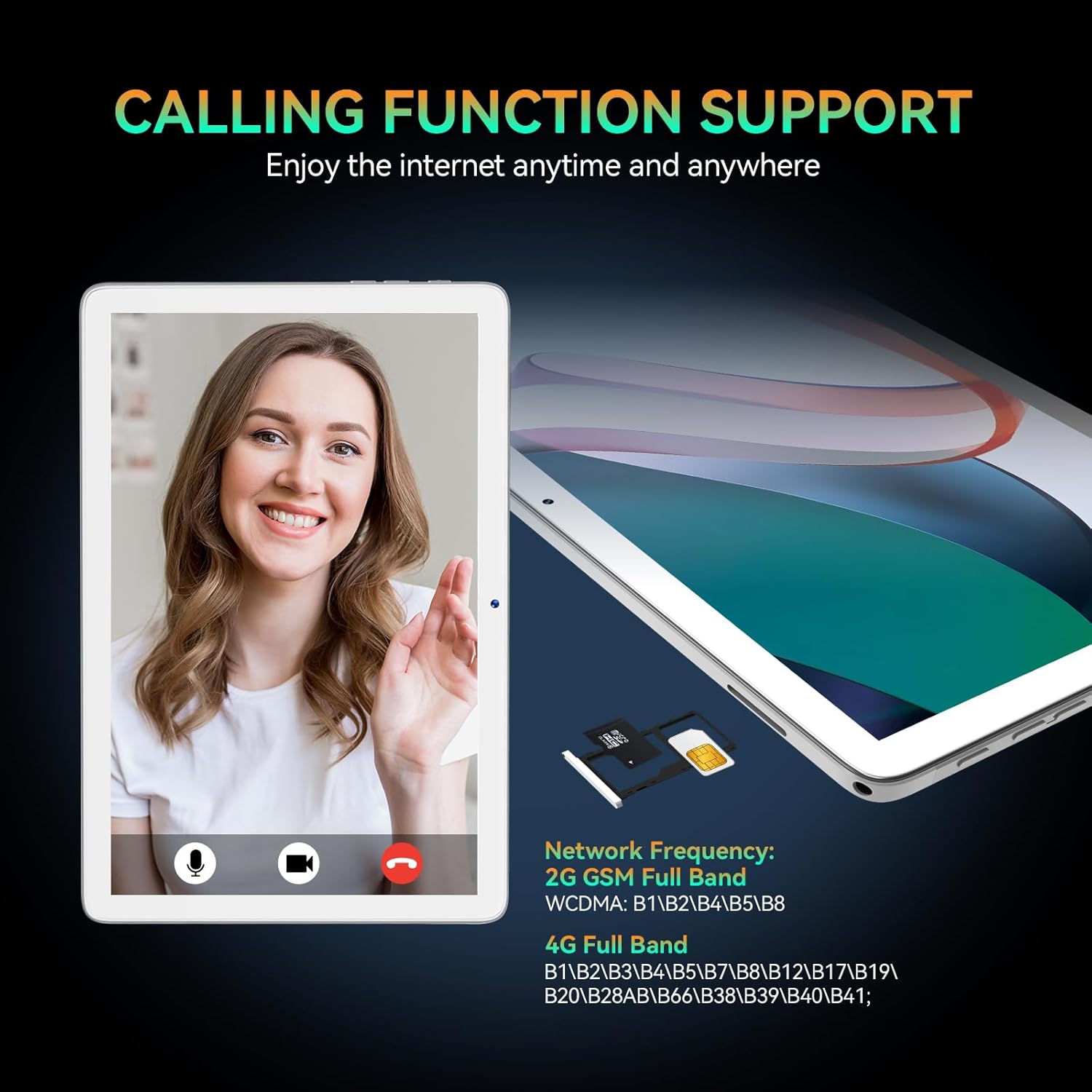
Image: Tablet demonstrating calling function and SIM card slot.
6.3 Bluetooth Pairing
Connect wireless accessories like headphones or speakers.
- Go to Settings > Connected devices > Bluetooth.
- Turn on Bluetooth.
- Put your Bluetooth device into pairing mode.
- Select the device from the 'Available devices' list to pair.
7. Storage Management
Your tablet comes with 128GB of internal storage, expandable up to 1TB using a microSD card.
- To insert a microSD card: Open the SIM/SD card tray using the ejection pin and carefully place the microSD card into its designated slot.
- To check storage: Go to Settings > Storage to view internal and external storage usage.

Image: Tablet illustrating ample storage capacity for apps and media.
8. Display and Multimedia
The 10.1-inch in-cell screen with 1280x800 resolution provides a clear viewing experience.
- Screen Settings: Adjust brightness, font size, and display mode in Settings > Display.
- Media Playback: Use pre-installed apps or download others from the Google Play Store for videos, music, and photos.

Image: Comparison of Incell screen quality.
9. Camera Features
Capture moments with the tablet's 8MP front camera and 13MP rear camera.
- Open Camera App: Tap the Camera icon on your home screen or app drawer.
- Switch Cameras: Tap the camera switch icon to toggle between front and rear cameras.
- Take Photo/Record Video: Tap the shutter button to take a photo or the record button to start/stop video recording.

Image: Examples of photos taken with the tablet's cameras.
10. Battery Management
The tablet is equipped with a 7000mAh battery, providing up to 10 hours of usage depending on activity.
- Charging: Use the provided Type-C cable and power adapter to charge the tablet. The battery icon in the status bar indicates charging status.
- Battery Optimization: To extend battery life, reduce screen brightness, disable unused connectivity features (Wi-Fi, Bluetooth, GPS), and close background applications.
- Battery Usage: Monitor battery consumption in Settings > Battery.

Image: Tablet highlighting its 7000mAh battery capacity.
11. Maintenance and Care
- Cleaning: Use a soft, lint-free cloth to clean the screen and body. Avoid abrasive materials or harsh chemicals.
- Software Updates: Regularly check for system updates in Settings > System > System update to ensure optimal performance and security.
- Storage: Keep the tablet in a cool, dry place away from direct sunlight and extreme temperatures.
- Protection: Use the provided protective case to guard against scratches and minor impacts.
12. Troubleshooting
12.1 Tablet Does Not Turn On
- Ensure the battery is charged. Connect the tablet to the charger for at least 30 minutes.
- Press and hold the Power button for 10-15 seconds to force a restart.
12.2 Wi-Fi Connectivity Issues
- Restart your Wi-Fi router and the tablet.
- Forget the network in tablet settings and reconnect.
- Ensure you are within range of the Wi-Fi signal.
12.3 Slow Performance
- Close unused applications running in the background.
- Clear cache data for apps in Settings > Apps > [App Name] > Storage & cache.
- Ensure sufficient free storage space.
- Restart the tablet periodically.
12.4 Cellular Network Not Working
- Verify the SIM card is correctly inserted and activated.
- Check mobile network settings in Settings > Network & internet > Mobile network.
- Ensure you have an active data plan and sufficient balance with your service provider.
13. Technical Specifications
| Feature | Specification |
|---|---|
| Model | D106 |
| Operating System | Android 14 |
| Processor | UNISOC T606 Octa-Core, 1.8 GHz |
| RAM | 14GB (8GB + 6GB Virtual) |
| Internal Storage | 128GB |
| Expandable Storage | Up to 1TB via microSD card |
| Screen Size | 10.1 Inches |
| Screen Resolution | 1280 x 800 Pixels |
| Rear Camera | 13 MP |
| Front Camera | 8 MP |
| Battery Capacity | 7000mAh |
| Average Battery Life | 8-10 Hours (usage dependent) |
| Connectivity | 4G LTE (Full Band), 5G/2.4G Dual-band Wi-Fi, Bluetooth |
| Dimensions (LxWxH) | 9.5 x 6.3 x 0.3 inches |
| Item Weight | 2 pounds |

Image: UNISOC T606 Processor.
14. Warranty and Customer Support
Qukenk is committed to providing quality products and customer satisfaction. For any issues or inquiries regarding your tablet, please contact our customer service team.
- Customer Service: Refer to the contact information provided with your purchase or visit the official Qukenk website for support options.
- Warranty Information: Specific warranty details are typically included with your product packaging. Please retain your proof of purchase for warranty claims.