
foshjay 6B14
foshjay 2-In-1 USB WiFi Bluetooth Adapter User Manual
Model: 6B14
1. Introduction
Thank you for choosing the foshjay 2-In-1 USB WiFi Bluetooth Adapter. This device provides high-speed dual-band Wi-Fi (2.4GHz/5GHz) and Bluetooth 5.3 connectivity for your PC, laptop, or desktop. Designed for ease of use, it offers a driver-free experience for Windows 10/11, enhancing your wireless networking and peripheral connections.
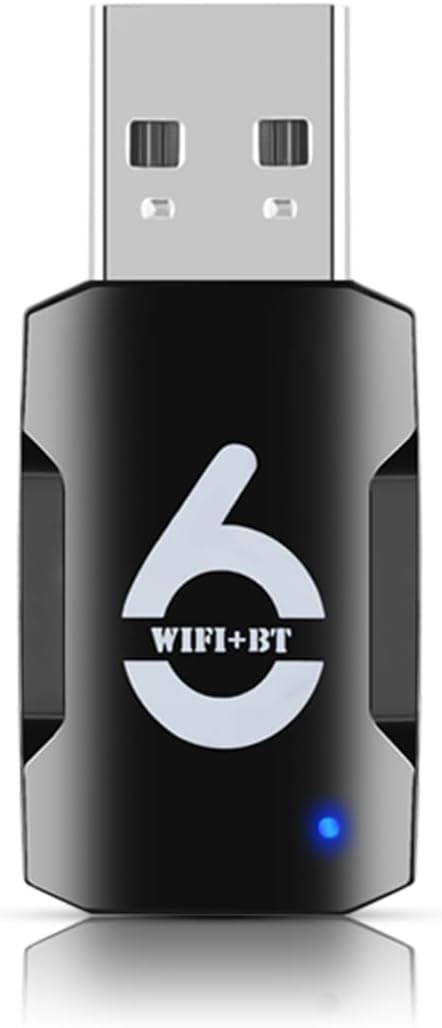
Image: The foshjay 2-In-1 USB WiFi Bluetooth Adapter, a compact black dongle with a USB-A connector and a blue indicator light.
2. Product Features
- 2-In-1 Functionality: Combines Wi-Fi and Bluetooth capabilities in a single USB adapter.
- High-Speed Dual-Band Wi-Fi: Supports IEEE 802.11a/b/g/n/ax protocols with speeds up to 900Mbps (286Mbps on 2.4GHz, 600Mbps on 5GHz).
- Bluetooth 5.3: Complies with Bluetooth 5.3 standard, backward compatible with older Bluetooth versions.
- Driver-Free Installation: Plug-and-play for Windows 10/11 systems (Windows 7 may require simple operation).
- MU-MIMO + OFDMA Technology: Optimizes data transmission efficiency for multiple devices simultaneously, increasing network throughput.
- WPA3 Security: Utilizes advanced WPA3 technology for enhanced network security.
- Soft AP Mode: Supports Wi-Fi conversion, allowing your PC to act as a Wi-Fi hotspot.

Image: Visual representation highlighting the adapter's upgraded WiFi 6 and Bluetooth capabilities, supporting dual-band 900Mbps speeds with 600Mbps on 5GHz and 286Mbps on 2.4GHz.

Image: Infographic detailing key technologies: Bluetooth 5.3, WiFi 6 (AX900), Driver Free, Windows 10/11 compatibility, WPA3 Network Security, OFDMA technology, and MU-MIMO technology.
3. Package Contents
Please check the package for the following items:
- 1 x foshjay 2-In-1 USB WiFi Bluetooth Adapter
4. Installation & Setup
The foshjay 2-In-1 USB WiFi Bluetooth Adapter is designed for easy, driver-free installation on Windows 10 and Windows 11. Follow these steps:
- Disable Existing Drivers (Important): Before plugging in the new adapter, it is crucial to disable any pre-existing Wi-Fi or Bluetooth drivers on your device to prevent conflicts. You can do this through Device Manager.
- Plug In the Adapter: Insert the USB WiFi Bluetooth Adapter into an available USB port on your PC, laptop, or desktop.
- Automatic Driver Installation: For Windows 10/11, the system should automatically detect the adapter and install the necessary drivers from its built-in memory. This process may take a few moments.
- Verify Installation: Once installed, you should see new Wi-Fi and Bluetooth devices listed in your Device Manager. The blue indicator light on the adapter will illuminate.
- For Windows 7 Users: While primarily driver-free for Win 10/11, Windows 7 users may need to perform a simple operation to install. Navigate to 'This PC' or 'My Computer', locate the new drive (often labeled as a CD Drive or similar, e.g., D: or E:), and double-click it to run the installer.
Note: If you encounter issues, ensure no other Wi-Fi or Bluetooth adapters are active and their drivers are disabled. Rebooting your system after installation can also resolve some issues.

Image: Illustrates the driver-free installation process, showing the adapter and compatible Windows 10 and Windows 11 operating systems.
5. Operating the Adapter
5.1. Wi-Fi Connection
- Ensure the adapter is properly installed.
- Click on the Wi-Fi icon in your system tray (usually bottom-right corner of the screen).
- Select your desired Wi-Fi network from the list.
- Enter the network password if prompted and click 'Connect'.
5.2. Bluetooth Connection
- Ensure the adapter is properly installed.
- Go to Settings > Devices > Bluetooth & other devices (Windows 10/11).
- Turn on Bluetooth.
- Click 'Add Bluetooth or other device' and select 'Bluetooth'.
- Put your Bluetooth device (e.g., headphones, keyboard, mouse) into pairing mode.
- Select your device from the list and follow the on-screen prompts to complete pairing.
5.3. Soft AP Mode (Wi-Fi Hotspot)
The adapter supports Soft AP mode, allowing your computer to share its internet connection as a Wi-Fi hotspot. Refer to your operating system's documentation for specific steps on enabling Mobile Hotspot or Soft AP functionality.
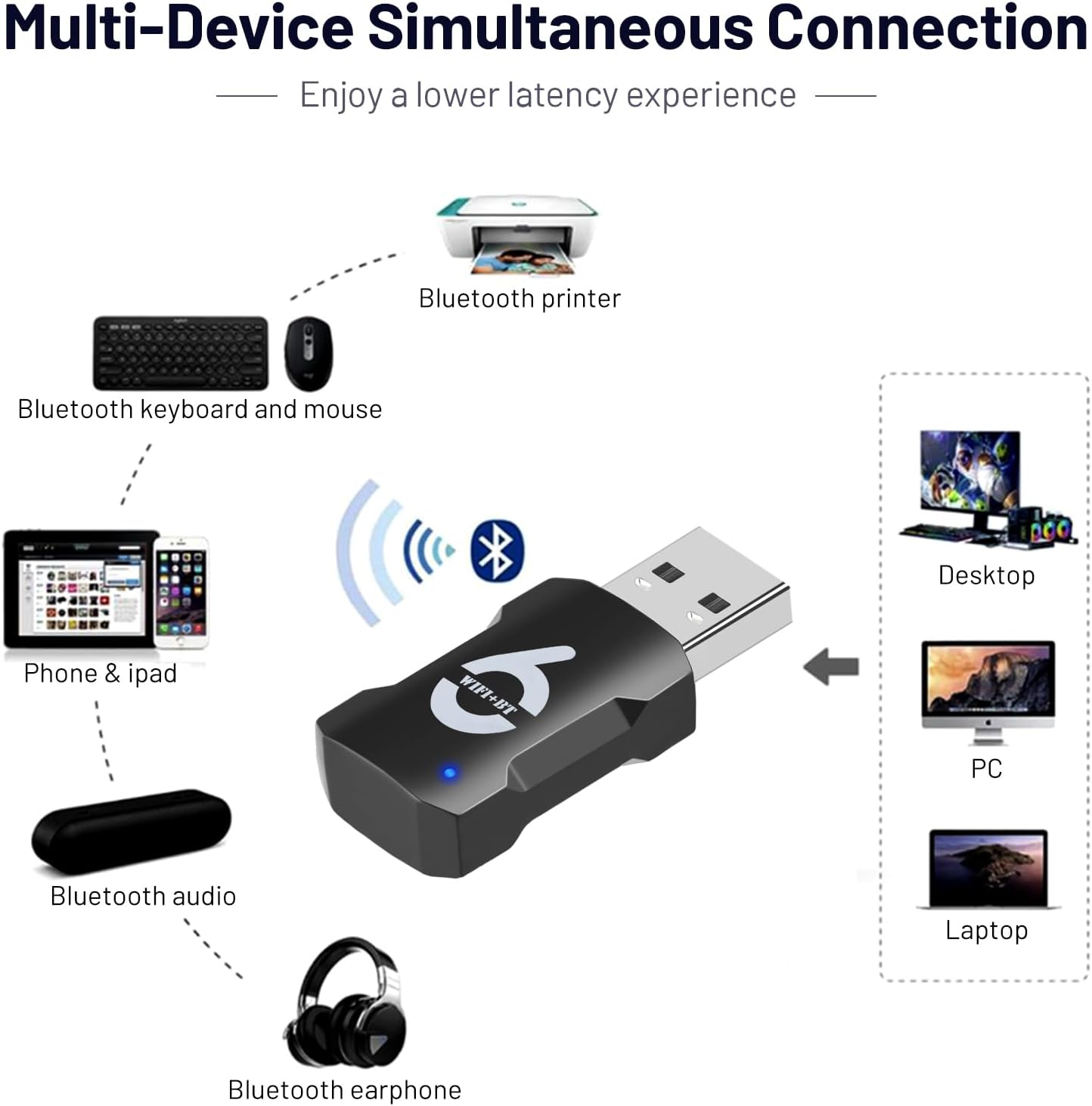
Image: Diagram showing the adapter connecting to a desktop, PC, and laptop, while also illustrating Bluetooth connections to a printer, keyboard, mouse, phone/iPad, Bluetooth audio device, and Bluetooth earphones.

Image: Two panels showing the adapter in use: one with a laptop demonstrating wireless internet access, and another with a desktop PC highlighting the Bluetooth 5.3 upgrade for unrestricted device connections.
6. System Compatibility
The foshjay 2-In-1 USB WiFi Bluetooth Adapter is compatible with the following operating systems:
- Windows 10
- Windows 11
While it may function on other operating systems, optimal performance and driver-free installation are guaranteed for Windows 10 and 11.

Image: A visual indicating system requirements, showing the adapter alongside a laptop and desktop monitor, with logos for Windows 10 and Windows 11.
7. Troubleshooting Common Issues
- No Wi-Fi or Bluetooth Connectivity:
- Ensure all previous Wi-Fi and Bluetooth drivers are disabled or uninstalled from your system. Conflicts with existing drivers are a common cause.
- Try plugging the adapter into a different USB port.
- Reboot your computer after installation.
- Bluetooth Not Detecting Devices or Not Working:
- Open Services (search for 'services.msc' in Windows search).
- Scroll down to Bluetooth Support Service and BluetoothUserService.
- Ensure both services are set to 'Automatic' and are 'Running'. If not, right-click, select 'Properties', set 'Startup type' to 'Automatic', then click 'Start'.
- Reboot your computer after making changes to services.
- Slow Wi-Fi Speed:
- Ensure you are connected to a 5GHz network if available, as it offers higher speeds.
- Check for interference from other electronic devices.
- Ensure your router is functioning correctly and is within optimal range.
- Adapter Not Recognized:
- For Windows 7, manually navigate to 'This PC' or 'My Computer', find the new drive (e.g., D: or E:), and double-click to initiate driver installation.
- Try a different USB port.
- Ensure your USB port is functional.
8. Technical Specifications
| Feature | Specification |
|---|---|
| Model Number | 6B14 |
| Brand | foshjay |
| Hardware Interface | USB 3.0 |
| Wi-Fi Protocol | IEEE 802.11a/b/g/n/ax (Wi-Fi 6) |
| Wi-Fi Speed (Max) | 900 Mbps (2.4GHz: 286Mbps, 5GHz: 600Mbps) |
| Bluetooth Version | 5.3 |
| Compatible OS | Windows 10, Windows 11 |
| Color | Black |
| Item Weight | 0.634 ounces |
| Package Dimensions | 5.16 x 3.54 x 0.67 inches |
| UPC | 720118178896 |
9. Care and Maintenance
- Keep the adapter clean and free from dust. Use a soft, dry cloth for cleaning.
- Avoid exposing the adapter to extreme temperatures, humidity, or direct sunlight.
- Do not attempt to disassemble or repair the adapter yourself. This will void any potential warranty.
- Store the adapter in a safe place when not in use to prevent physical damage.
10. Warranty and Support
For warranty information and technical support, please refer to the documentation provided with your purchase or contact the seller directly through the platform where you purchased the product. Keep your proof of purchase for any warranty claims.
Ask a question about this manual
Ask about setup, troubleshooting, compatibility, parts, safety, or missing instructions. Manuals+ will review the question and use this page’s manual context to help answer it.