
Introduction
Thank you for choosing the YUER Loop Pedal & Drum Machine. This 2-in-1 stereo guitar looper pedal combines high-quality audio looping with a versatile drum machine, offering a powerful tool for practice, performance, and creative expression. This manual provides detailed instructions for setup, operation, maintenance, and troubleshooting to help you get the most out of your device.
Safety Information
- Power Supply: Use only a DC 9V, 300mA (center negative) power adapter. Using an incorrect power supply may damage the unit and void the warranty. The power adapter is not included.
- Environment: Do not expose the unit to extreme temperatures, humidity, water, or direct sunlight.
- Cleaning: Clean only with a soft, dry cloth. Do not use liquid cleaners.
- Servicing: Do not attempt to service the unit yourself. Refer all servicing to qualified personnel.
- Placement: Place the unit on a stable, flat surface to prevent accidental falls.
Package Contents
Please check that all items are present in the package:
- YUER Loop Pedal & Drum Machine
- USB Cable (for data transfer)
- User Manual (this document)
Note: Power adapter is sold separately.
Product Overview
Controls and Indicators (Top Panel)
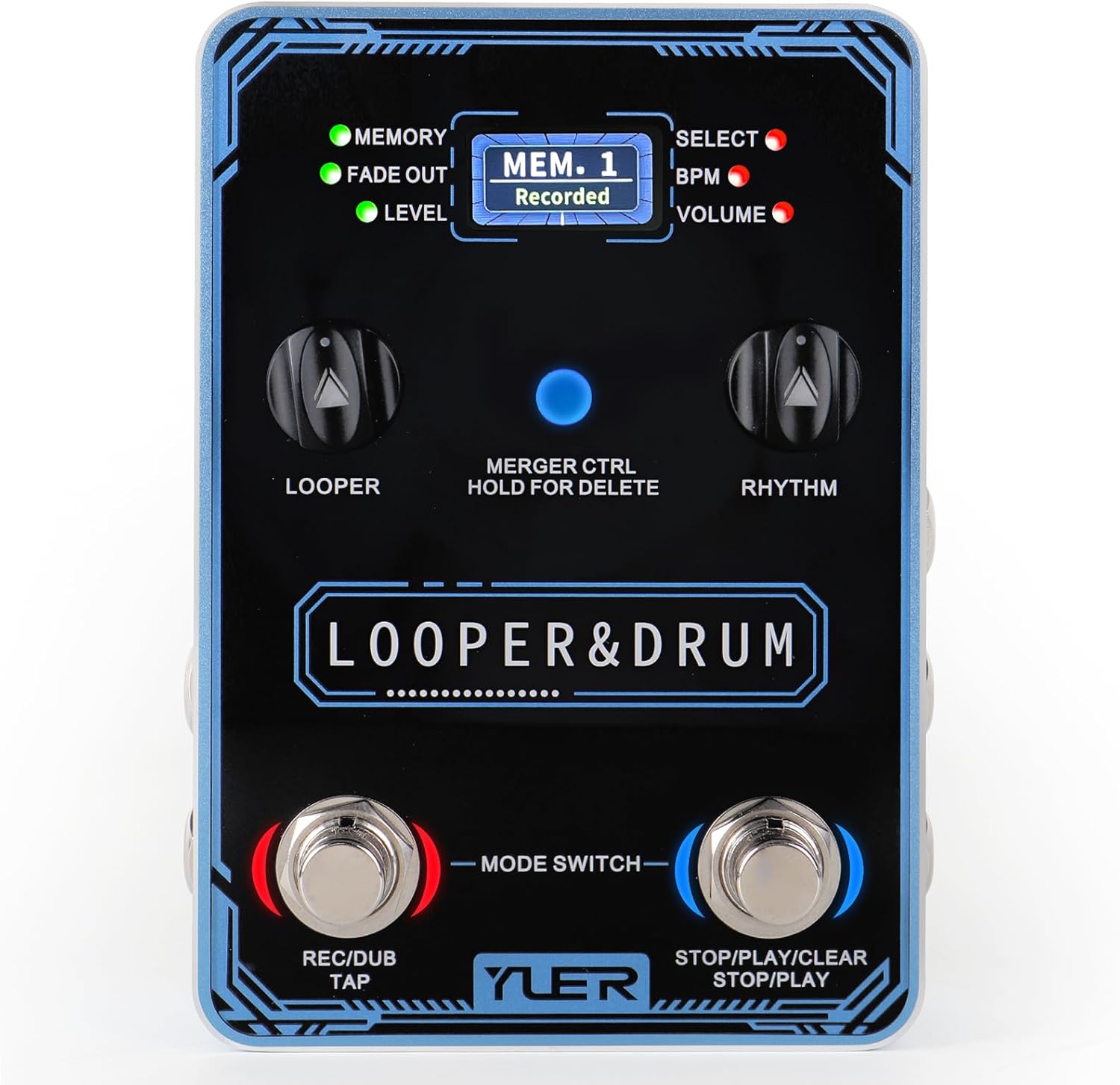
Image: Top view of the YUER Loop Pedal & Drum Machine. This image highlights the main control surface, including the color screen, footswitches, and rotary knobs for Looper, Rhythm, Select, and Volume.
- Color Screen: Displays current loop mode, recording time progress, and accurate timing.
- MEMORY LED: Indicates memory status.
- FADE OUT LED: Indicates fade out function status.
- LEVEL LED: Indicates input/output level.
- LOOPER Knob: Adjusts the volume of the looped audio.
- RHYTHM Knob: Adjusts the volume of the drum machine.
- SELECT Knob: Navigates through drum grooves and memory slots.
- VOLUME Knob: Adjusts the overall output volume.
- BPM LED: Indicates the current tempo.
- MERGER CTRL Button: Used for various control functions, including holding to delete.
- REC/DUB/TAP Footswitch: Initiates recording, overdubbing, or tap tempo.
- STOP/PLAY/CLEAR Footswitch: Controls playback, stops loops, or clears memory.
- MODE SWITCH: Toggles between different operational modes.
Input/Output Connections (Side Panels)

Image: Side view of the pedal showing the Input-R, Input-L (Mono), and EXT CTRL jacks.
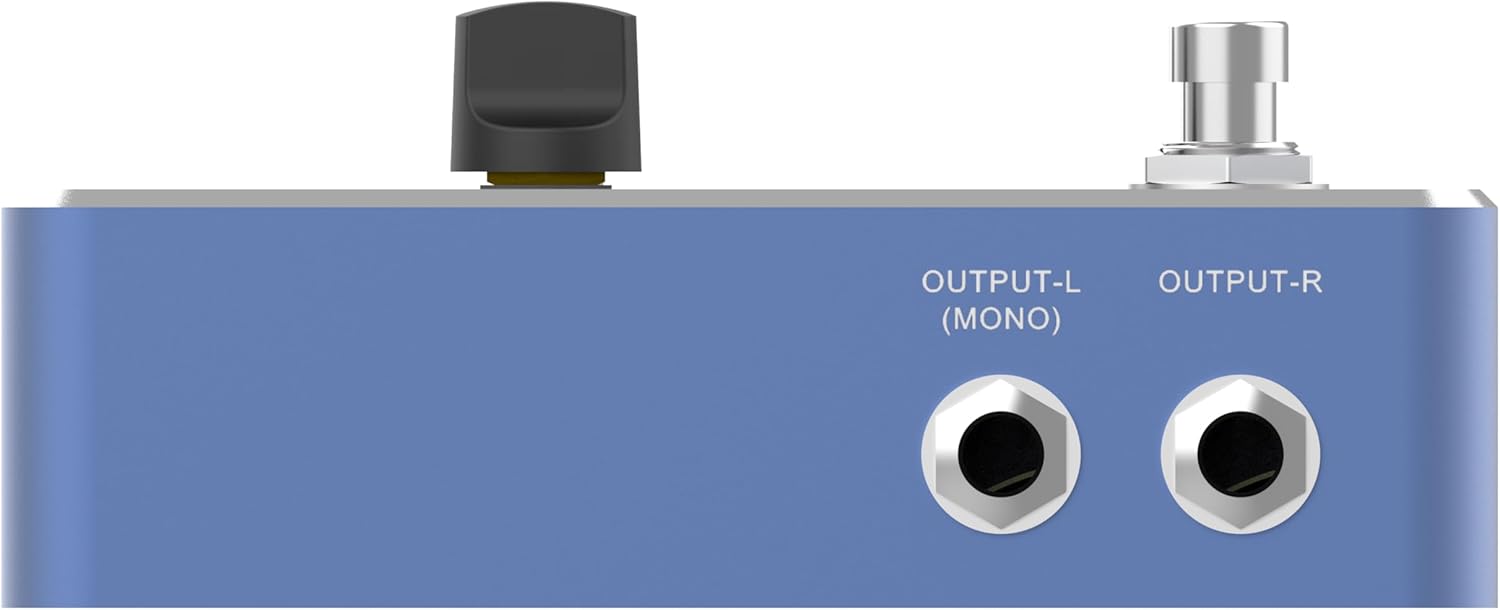
Image: Opposite side view of the pedal showing the Output-L (Mono) and Output-R jacks.
- INPUT-L (MONO) Jack: Connect your instrument (e.g., guitar) here. Use this for mono input.
- INPUT-R Jack: Use this in conjunction with INPUT-L for stereo input.
- EXT CTRL Jack: Connect an optional external footswitch for extended control.
- OUTPUT-L (MONO) Jack: Connect to your amplifier or audio interface. Use this for mono output.
- OUTPUT-R Jack: Use this in conjunction with OUTPUT-L for stereo output.
Power and USB Connections (Rear Panel)

Image: Rear view of the pedal showing the DC 9V power input and the USB Type-C port.
- DC 9V Jack: Connect a DC 9V, 300mA (center negative) power adapter here.
- USB Type-C Port: Connect to a computer for firmware updates and import/export of recorded loops using the editor software.
Setup
1. Power Connection
- Ensure the unit is turned off or disconnected from other audio equipment before connecting power.
- Connect a DC 9V, 300mA (center negative) power adapter (not included) to the DC 9V jack on the rear panel.
- Plug the power adapter into a suitable power outlet.
2. Audio Connections
- Connect your instrument (e.g., guitar, bass) to the INPUT-L (MONO) jack using a standard 1/4-inch instrument cable. For stereo input, also connect to the INPUT-R jack.
- Connect the OUTPUT-L (MONO) jack to your amplifier, mixer, or audio interface. For stereo output, also connect the OUTPUT-R jack.
3. External Footswitch (Optional)
If you have an external footswitch (sold separately) that supports the EXT CTRL function, connect it to the EXT CTRL jack for additional control options.
Operating Instructions
Looper Function
The YUER Loop Pedal offers 44.1kHz / 24bit high-quality looping with 40 memory slots, each capable of storing up to 4 minutes of audio, totaling 160 minutes of recording capacity.
- Recording: Press the REC/DUB/TAP footswitch once to start recording. The screen will show recording progress.
- Playback: Press the REC/DUB/TAP footswitch again to stop recording and immediately play back the loop.
- Overdubbing: While a loop is playing, press the REC/DUB/TAP footswitch once to enter overdub mode. Any new audio played will be added to the existing loop. Press again to stop overdubbing.
- Undo/Redo: While playing, press and hold the REC/DUB/TAP footswitch for 2 seconds to undo the last overdub. Repeat to redo.
- Stopping Playback: Press the STOP/PLAY/CLEAR footswitch once to stop the loop playback.
- Clearing Loops: While the loop is stopped, press and hold the STOP/PLAY/CLEAR footswitch for 2 seconds to clear the current loop.
- Saving Loops: Loops are automatically saved to the current memory slot when the unit is powered off or a new slot is selected.
Drum Machine Function
The pedal includes 100 styles of drum grooves to accompany your loops.
- Selecting Grooves: Use the SELECT knob to browse through the available drum grooves. The screen will display the selected groove number.
- Adjusting Tempo (BPM): The BPM LED indicates the current tempo. You can adjust the tempo by using the TAP function (press REC/DUB/TAP footswitch multiple times) or through the editor software.
- Drum Volume: Use the RHYTHM knob to adjust the volume of the drum machine independently.
Combined Looper and Drum Machine Use
You can use the looper and drum machine simultaneously. Start a drum groove, then record your loop over it. The looper will automatically sync to the drum machine's tempo.
Memory Management
The pedal has 40 memory slots for storing your loops.
- Navigating Slots: Use the SELECT knob to move between memory slots. The screen will display the current slot number (e.g., "MEM. 1").
- Deleting Saved Loops: To delete a loop from a specific memory slot, navigate to that slot, ensure the loop is stopped, then press and hold the MERGER CTRL button for 2 seconds. Confirm deletion if prompted.
Software Integration (Import/Export)
The YUER Loop Pedal supports import and export of recording files via USB using dedicated editor software.
- Download the latest editor software from the official Kmise website (refer to product packaging or online resources for the specific URL).
- Connect the pedal to your computer using the provided USB Type-C cable.
- Launch the editor software. The software will detect the pedal.
- Follow the software's instructions to import audio files to specific memory slots or export recorded loops from the pedal to your computer. The software also allows for managing drum grooves and other settings.
Maintenance
- Cleaning: Use a soft, dry, lint-free cloth to clean the pedal's surface. Avoid abrasive cleaners, solvents, or waxes, as they may damage the finish.
- Storage: When not in use for extended periods, disconnect the power adapter and store the pedal in a cool, dry place away from direct sunlight and extreme temperatures.
- Firmware Updates: Periodically check the Kmise website for any available firmware updates for your pedal. Updates can improve performance and add new features.
Troubleshooting
| Problem | Possible Cause | Solution |
|---|---|---|
| No power/Unit does not turn on. | Incorrect power adapter; loose connection; faulty outlet. | Ensure you are using a DC 9V, 300mA (center negative) adapter. Check all connections. Try a different power outlet. |
| No sound output. | Incorrect audio connections; volume knobs turned down; faulty cables; amplifier issues. | Verify instrument and output cables are correctly connected. Check LOOPER, RHYTHM, and VOLUME knobs. Test cables. Ensure amplifier is on and working. |
| Loop recording is too quiet/loud. | Input level not optimized; LOOPER knob setting. | Adjust your instrument's output volume. Adjust the LOOPER knob. |
| Drum machine not audible. | RHYTHM knob turned down; no groove selected. | Increase the RHYTHM knob. Use the SELECT knob to choose a drum groove. |
| Cannot connect to editor software. | USB cable issue; software not installed; driver issues. | Ensure USB cable is securely connected. Install the correct editor software and any necessary drivers from the Kmise website. Try a different USB port or cable. |
Specifications
| Model Number | MI7604 |
| Audio Quality | 44.1kHz / 24bit |
| Looper Storage | 40 memory slots, 4 minutes per slot (160 minutes total) |
| Drum Grooves | 100 styles |
| Power Requirement | DC 9V, 300mA (center negative) |
| Hardware Interface | USB Type-C |
| Product Dimensions | 4.9 x 3.4 x 1.3 inches (12.4 x 8.6 x 3.3 cm) |
| Item Weight | 1.21 pounds (0.55 kg) |
Warranty and Support
Kmise products are designed and manufactured to the highest quality standards. This product is covered by a limited warranty against defects in materials and workmanship from the date of purchase. Please retain your proof of purchase for warranty claims.
For technical support, warranty service, or general inquiries, please visit the official Kmise website or contact their customer service department. Contact information can typically be found on the product packaging or the brand's official online presence.
Note: Specific warranty terms and conditions may vary by region. Please refer to the official Kmise website for the most up-to-date warranty information.
Official Product Videos
No official product videos from the seller were available for embedding at this time. Please check the product's official Amazon listing or the manufacturer's website for any available video demonstrations or tutorials.
