
1. Introduction
Thank you for choosing the HELLO GANSS 75% Retro Green Wired Mechanical Keyboard. This keyboard features an 81-key layout, a unique gasket mount structure for enhanced typing feel, and a multi-layer cotton padding design for noise reduction. It includes a polished metal knob for convenient control, programmable RGB backlighting with adjustable side lights, and hot-swappable sockets compatible with 3-pin or 5-pin mechanical switches. The Cherry-profile PBT keycaps offer durability and ergonomic comfort. This manual provides detailed instructions for setup, operation, maintenance, and troubleshooting to ensure optimal performance and longevity of your keyboard.

Image 1.1: Overview of the HELLO GANSS 75% Retro Green Wired Mechanical Keyboard.
2. Package Contents
Please verify that all items listed below are included in your package:
- HELLO GANSS 75% Retro Green Wired Mechanical Keyboard
- USB-C to USB-A Cable
- Keycap Puller / Switch Puller Tool
- Spare KTT Brown Switches (typically 3 pieces)
- User Manual
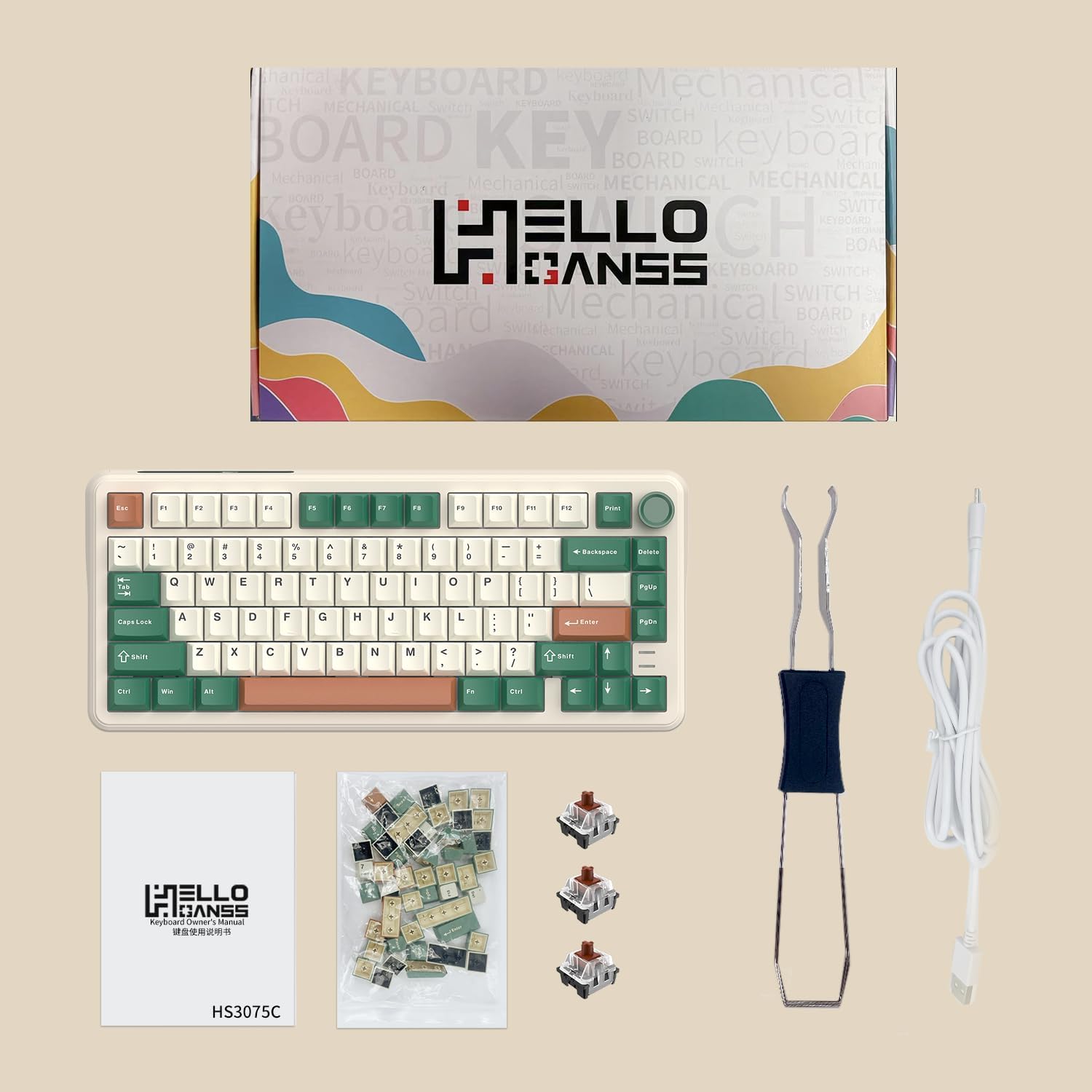
Image 2.1: Contents included in the keyboard package.
3. Setup
3.1 Connecting the Keyboard
- Locate the USB-C port on the back or side of the keyboard.
- Insert the smaller USB-C end of the provided cable into the keyboard's port.
- Insert the larger USB-A end of the cable into an available USB port on your computer (PC or Laptop).
- The keyboard is plug-and-play and should be recognized automatically by your operating system.
3.2 Adjusting Keyboard Angle
The keyboard is equipped with 2-stage adjustable feet on the underside. Flip out the feet to achieve your preferred typing angle for ergonomic comfort.

Image 3.1: Details showing the Type-C cable connection port and adjustable feet.
4. Operating Instructions
4.1 Basic Functions
The keyboard functions as a standard QWERTY layout keyboard. All keys are pre-programmed for their standard functions. Refer to the keycaps for specific character and function assignments.
4.2 Metal Knob Functionality
The metal knob located on the top right of the keyboard is primarily used for volume control:
- Rotate Clockwise: Increase volume.
- Rotate Counter-clockwise: Decrease volume.
- Press Down: Mute/Unmute audio.

Image 4.1: The multi-function metal knob for volume control.
4.3 RGB Lighting Control
The keyboard features extensive RGB backlighting and adjustable side light strips. You can customize the lighting effects without software:
- FN + 0: Cycle through various RGB lighting modes for the keycaps. Over 16.8 million colors are available.
- FN + ]}: Adjust the lighting effects of the side light strips.
For advanced customization, including per-key lighting and macro programming, please download the official driver software from the HELLO GANSS website.

Image 4.2: The keyboard displaying its immersive RGB lighting effects.
4.4 Hot-Swappable Switches
This keyboard supports hot-swapping of 3-pin or 5-pin mechanical switches, allowing for easy customization without soldering.
- To Remove a Switch: Use the provided switch puller tool. Gently grip the switch from the top and bottom, then pull upwards with even pressure until the switch detaches from the PCB.
- To Install a Switch: Align the pins of the new switch with the holes on the PCB. Ensure the pins are straight to avoid bending. Gently press the switch down until it clicks into place. Do not force the switch if it doesn't go in smoothly; re-align the pins.

Image 4.3: KTT Tactile Switches and the hot-swappable sockets supporting 3/5-pin mechanical switches.
5. Maintenance
5.1 Cleaning the Keyboard
- General Cleaning: Use a soft, lint-free cloth slightly dampened with water or a mild cleaning solution to wipe down the keycaps and chassis. Avoid excessive moisture.
- Dust Removal: Use compressed air to blow away dust and debris from between the keycaps and switches.
- Deep Cleaning (Keycaps): For thorough cleaning, remove the keycaps using the provided keycap puller. Wash them gently with warm, soapy water, rinse thoroughly, and ensure they are completely dry before reattaching.
5.2 Keycap and Switch Care
- Avoid exposing the keyboard to extreme temperatures, direct sunlight, or high humidity.
- Do not spill liquids on the keyboard. If a spill occurs, immediately disconnect the keyboard and allow it to dry completely before reconnecting.
- When removing or installing switches, apply even pressure to avoid bending the pins.
6. Troubleshooting
If you encounter issues with your keyboard, please refer to the following common problems and solutions:
- Keyboard Not Responding:
- Ensure the USB-C cable is securely connected to both the keyboard and the computer.
- Try connecting the keyboard to a different USB port on your computer.
- Test the keyboard on another computer to rule out a computer-specific issue.
- Restart your computer.
- RGB Lighting Not Working/Incorrect:
- Ensure the keyboard is properly connected and powered.
- Cycle through lighting modes using FN + 0.
- If using custom settings, ensure the driver software is running and correctly configured.
- Specific Keys Not Registering:
- Carefully remove the keycap and then the switch for the problematic key.
- Inspect the switch pins for any bends or damage. Straighten bent pins gently with tweezers if possible.
- Reinsert the switch firmly, ensuring both pins are correctly aligned with the PCB sockets.
- Try swapping the problematic switch with a known working switch from another key to determine if the issue is with the switch or the PCB socket.
- Metal Knob Not Functioning:
- Ensure the knob is clean and free of debris.
- Verify that no software or system settings are overriding the volume control.
If the issue persists after attempting these troubleshooting steps, please contact HELLO GANSS customer support for further assistance.
7. Specifications
| Feature | Description |
|---|---|
| Product Dimensions | 12.6 x 5.5 x 1.2 inches (32.0 x 14.0 x 3.0 cm) |
| Item Weight | 2.59 pounds (1.17 kg) |
| Manufacturer | HELLO GANSS |
| Item Model Number | 84159d23-2217-4752-ad97-818da481dd21 |
| Connectivity Technology | USB-C Wired |
| Keyboard Description | Mechanical, 75% Layout (81 keys) |
| Recommended Uses | Everyday Use, Gaming |
| Special Features | Backlit (RGB), Ergonomic, Hot-Swappable, Hotkeys and Media Keys, Metal Knob |
| Color | Wired Retro Green |
| Number of Keys | 81 |
| Keyboard Backlighting | RGB |
| Switch Type | KTT Brown (Tactile) |
| Keycap Material | PBT (Cherry-Profile) |
8. Warranty and Support
HELLO GANSS products are manufactured to high quality standards. This product comes with a standard manufacturer's warranty against defects in materials and workmanship from the date of purchase. Please refer to the warranty card included in your package or visit the official HELLO GANSS website for specific warranty terms and conditions.
For technical support, warranty claims, or any product-related inquiries, please contact HELLO GANSS customer service through their official website or the contact information provided in your product documentation. When contacting support, please have your product model number and purchase details ready.
Extended protection plans may be available for purchase separately to provide additional coverage beyond the standard manufacturer's warranty. Please check with your retailer for details on available protection plans.