
1. Introduction
Welcome to the user manual for your Losuudy L-C1W Single Wired CarPlay Monitor. This document provides essential information for the proper installation, operation, and maintenance of your device. Please read this manual thoroughly before using the product to ensure optimal performance and safety.
2. Safety Information
To prevent damage to the product or injury to yourself and others, please observe the following safety precautions:
- Do not attempt to disassemble or modify the device. Unauthorized modifications can lead to malfunction and void the warranty.
- Ensure all wiring connections are secure and correctly installed to prevent electrical shorts or fire hazards.
- Avoid installing the monitor in locations that obstruct the driver's view or interfere with vehicle safety features.
- Operate the device only when it is safe to do so. Distracted driving can lead to accidents.
- Keep the monitor away from extreme temperatures, direct sunlight for prolonged periods, and excessive moisture.
- Use only the power cables and accessories provided or approved by Losuudy.
3. Package Contents
Please check the package for the following items:
- Losuudy L-C1W CarPlay Monitor
- Mounting Bracket
- Power Cable
- USB Cable (for CarPlay connection)
- User Manual (this document)
4. Setup
4.1 Mounting the Monitor
The Losuudy L-C1W monitor is designed for surface mount installation. Choose a stable, flat surface in your vehicle that does not obstruct your view or interfere with airbags or other safety equipment.
- Identify a suitable mounting location on your dashboard or console.
- Attach the mounting bracket to the chosen surface using appropriate fasteners (not included, depending on surface material). Ensure it is securely fixed.
- Slide the monitor onto the mounting bracket until it clicks into place. Adjust the viewing angle as needed.
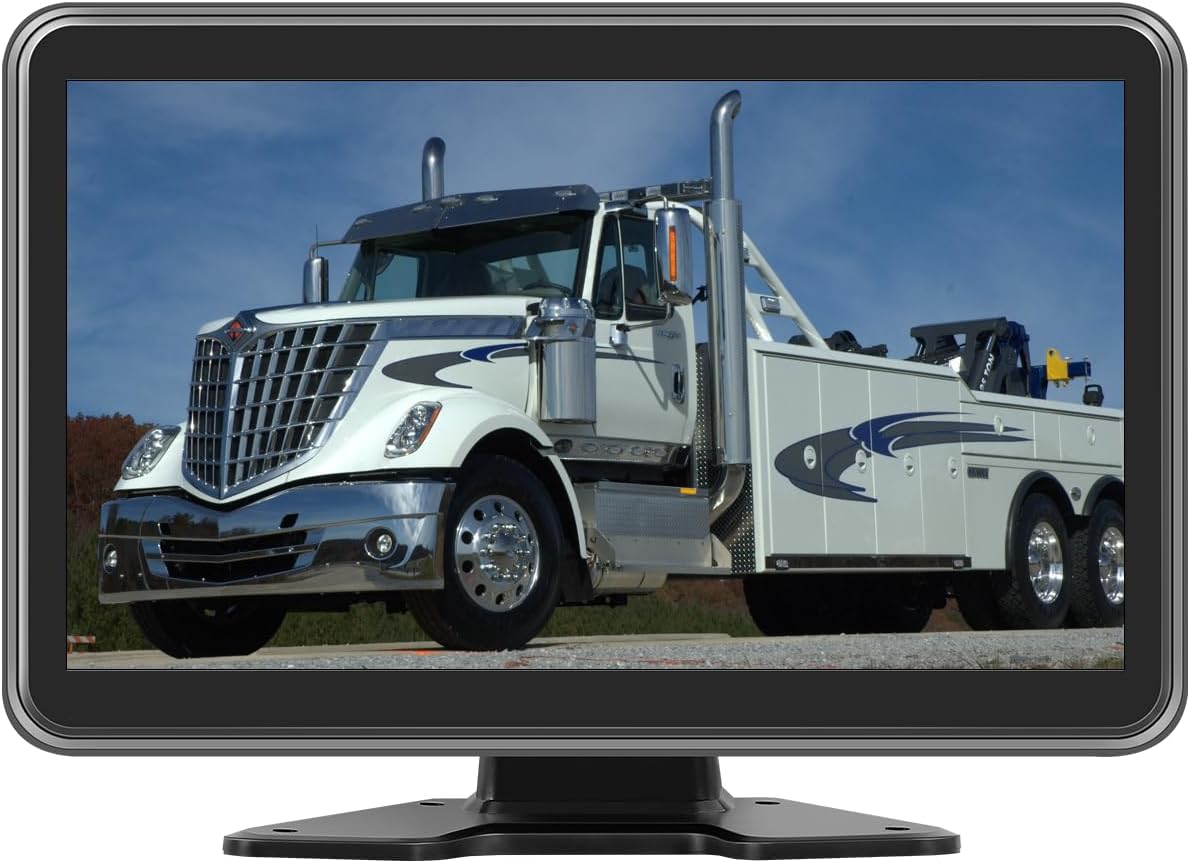
Image 1: Losuudy L-C1W CarPlay Monitor mounted on its stand. The screen displays a large white tow truck, illustrating its display capabilities.
4.2 Wiring Connections
Carefully connect the monitor to your vehicle's power supply and your smartphone for CarPlay functionality.
- Power Connection: Connect the provided power cable to the monitor's power input port. Route the other end of the power cable to a suitable 12V power source in your vehicle (e.g., cigarette lighter adapter or direct wiring to the fuse box, if you have automotive electrical experience). Ensure the connection is secure.
- CarPlay Connection: Use the provided USB cable to connect your iPhone to the monitor's USB port. This connection enables wired CarPlay functionality.
5. Operating
5.1 Powering On/Off
- Power On: Once connected to a power source, the monitor should automatically power on when the vehicle's ignition is turned on, or manually via a power button if available (refer to device specific controls).
- Power Off: The monitor will typically power off when the vehicle's ignition is turned off. If a power button is present, it can be used for manual shutdown.
5.2 CarPlay Connection
To use Apple CarPlay:
- Ensure your iPhone is unlocked and running a compatible iOS version.
- Connect your iPhone to the monitor's USB port using the USB cable.
- The monitor should automatically detect your iPhone and launch the CarPlay interface. If not, navigate to the CarPlay option on the monitor's main menu.
5.3 Basic Functions
Once CarPlay is active, you can access various functions:
- Navigation: Use Apple Maps or other compatible navigation apps for directions.
- Music/Media: Play music, podcasts, and audiobooks from your iPhone.
- Phone Calls: Make and receive calls hands-free.
- Messages: Send and receive messages using Siri.
- Siri Voice Control: Activate Siri by pressing the voice control button on the monitor (if available) or by saying "Hey Siri" (if enabled on your iPhone).
6. Maintenance
6.1 Care and Cleaning
To maintain the appearance and functionality of your monitor:
- Gently wipe the screen and exterior with a soft, dry, lint-free cloth.
- For stubborn marks, slightly dampen the cloth with water or a mild, non-abrasive screen cleaner.
- Avoid using harsh chemicals, solvents, or abrasive materials, as these can damage the screen or finish.
- Ensure the device is powered off before cleaning.
7. Troubleshooting
If you encounter issues with your Losuudy L-C1W monitor, refer to the following table for common problems and solutions:
| Problem | Possible Cause | Solution |
|---|---|---|
| Monitor does not power on. | No power supply or loose connection. | Check power cable connection to both the monitor and the vehicle's power source. Ensure the vehicle's ignition is on. |
| CarPlay does not activate. | Incorrect USB cable, loose connection, or iPhone issue. | Ensure you are using the provided USB cable. Check that the cable is securely connected to both the monitor and your iPhone. Restart your iPhone. Verify CarPlay is enabled in your iPhone settings. |
| No audio from CarPlay. | Volume settings or audio output issue. | Adjust the volume on both the monitor and your iPhone. Ensure the monitor's audio output is correctly routed to your vehicle's audio system (if applicable). |
| Screen is blank or frozen. | Software glitch or temporary error. | Try restarting the monitor by disconnecting and reconnecting the power. If the issue persists, contact customer support. |
8. Specifications
Key technical details for the Losuudy L-C1W CarPlay Monitor:
- Brand: Losuudy
- Model: L-C1W-M1
- Screen Size: 10 Inches
- Product Dimensions: 27.2L x 20.3W x 9.9H Centimetres
- Installation Type: Surface Mount
- Compatible Devices: iPhone with Apple CarPlay
- Power Source: 12V DC (Vehicle Power)
9. Warranty and Support
Losuudy products are designed for reliability and performance. For information regarding product warranty, please refer to the warranty card included with your purchase or visit the official Losuudy website.
If you require technical assistance, troubleshooting beyond this manual, or have questions about your product, please contact Losuudy customer support through the contact information provided on our website or your purchase documentation. Our support team is available to help you.