
Introduction
The Treedix DAP-Link V1 Debugger Programmer is a versatile tool designed for debugging and programming ARM Cortex-M series microcontrollers, including GD32 and STM32. It supports both JTAG and SWD modes and features a built-in USB virtual serial port for enhanced connectivity. This manual provides essential information for setting up, operating, and maintaining your device.

Image: The Treedix DAP-Link V1 Debugger Programmer, a compact black circuit board with connectors and components, encased in clear acrylic for protection.
Package Contents
Verify that all items listed below are included in your package:
- 1x DAP-Link V1 Downloader
- 1x Set of Acrylic and copper pillar screws and nuts (not pre-installed)
- 1x 20cm 2.54mm pitch to 2.0mm pitch adapter cable
- 1x 15cm 2.54mm pitch standard DuPont cable set (4 wires, 2 sets)
- 1x 50cm angled Type-C USB data cable
- 1x 20cm 2.54mm pitch 20-pin standard JTAG FC gray ribbon cable

Image: All components included in the package, neatly laid out. This includes the DAP-Link V1 board, various cables (Type-C USB, adapter, DuPont, JTAG ribbon), and mounting hardware.
Product Overview and Features
The DAP-Link V1 is designed for efficient development and debugging of ARM Cortex-M microcontrollers. Key features include:
- Wide Compatibility: Supports ARM Cortex-M series core chips, including GD32 and STM32.
- Dual Debugging Modes: Standard 20PIN JTAG/SWD interface for flexible debugging and programming.
- Driver-Free Operation: JTAG/SWD functionality typically works without requiring driver installation.
- MDK Support: Compatible with MDK (Keil uVision) for compilation and download.
- Virtual Serial Port: Integrated USB virtual serial port for communication.
- Small System Board Connectivity: Dedicated SWD port and adapter cable for direct connection to compact system boards.

Image: Detailed views of the DAP-Link V1 board, highlighting the front side with the Type-C USB port, SWD emulation debug port, and 20-pin JTAG/SWD interface, and the UART virtual serial port. The back side shows the circuit board layout.
Setup Instructions
- Assemble Acrylic Casing (Optional): If desired, use the provided screws and nuts to attach the acrylic plates to protect the debugger board.
- Connect to Host PC: Use the 50cm angled Type-C USB data cable to connect the DAP-Link V1 to your computer's USB port. The device should be recognized automatically.
- Connect to Target Board:
- For JTAG/SWD debugging: Use the 20cm 2.54mm pitch 20-pin standard JTAG FC gray ribbon cable to connect the 20-pin interface on the DAP-Link V1 to your target microcontroller board's JTAG/SWD header.
- For SWD on small system boards: Use the 20cm 2.54mm pitch to 2.0mm pitch adapter cable to connect the dedicated SWD port on the DAP-Link V1 to your small system board.
- Virtual Serial Port: The USB virtual serial port will typically enumerate as a COM port on your operating system, allowing for serial communication with the target device.
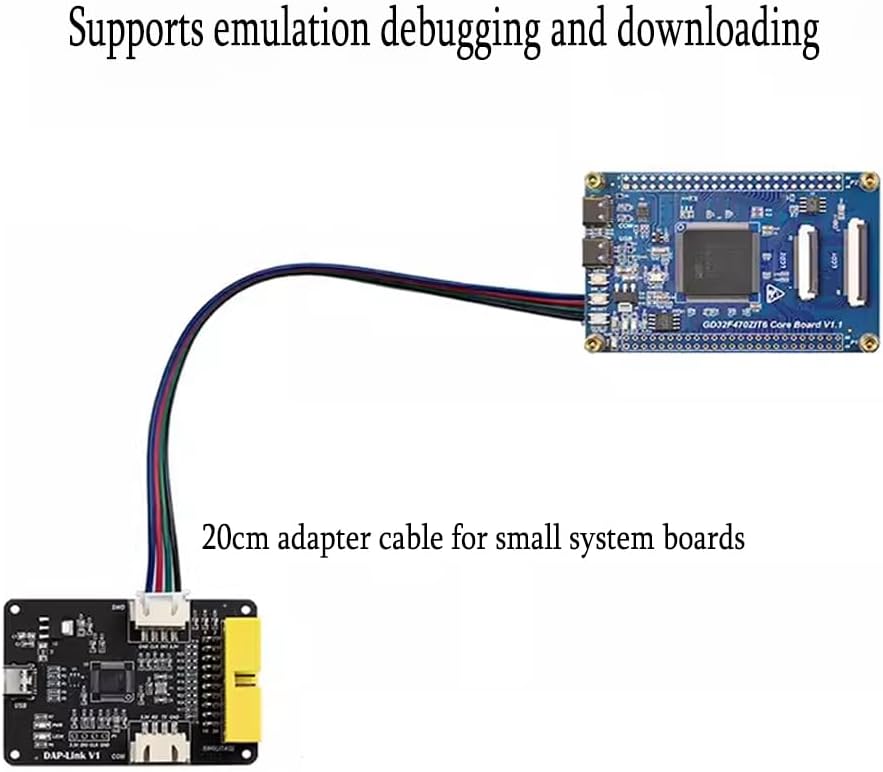
Image: The DAP-Link V1 debugger connected via an adapter cable to a blue system board, demonstrating a typical setup for emulation debugging and downloading.
Operating Instructions
Once connected, the DAP-Link V1 can be used with various development environments for debugging and programming.
Using with MDK (Keil uVision)
- Open your project in Keil uVision.
- Navigate to Project -> Options for Target -> Debug tab.
- Select "CMSIS-DAP Debugger" as the debugger.
- Click on "Settings" to configure the JTAG/SWD interface.
- Choose either JTAG or SWD mode based on your target board's configuration.
- Ensure the correct device chain is detected.
- You can now compile, download, and debug your code on the target microcontroller.

Image: Screenshots of the MDK Keil uVision debugger setup window, showing options for configuring JTAG and SWD modes, including device chain detection and debug settings.
Virtual Serial Port Usage
The integrated virtual serial port allows for communication with your target device. After connecting the DAP-Link V1 to your PC, identify the assigned COM port in your operating system's device manager. You can then use any standard serial terminal program (e.g., PuTTY, Tera Term, Arduino Serial Monitor) to send and receive data from your microcontroller via this COM port.
Maintenance
- Cleaning: Keep the device clean and free from dust. Use a soft, dry cloth for cleaning. Avoid liquid cleaners.
- Storage: Store the debugger in a dry, cool environment away from direct sunlight and extreme temperatures.
- Handling: Handle the device with care to prevent damage to the connectors or internal components. Avoid excessive force when connecting cables.
- Firmware Updates: Periodically check the official Treedix website or relevant community forums for any available firmware updates for the DAP-Link V1 to ensure optimal performance and compatibility.
Troubleshooting
| Problem | Possible Cause | Solution |
|---|---|---|
| Device not recognized by PC. | Faulty USB cable, incorrect USB port, or driver issue. | Try a different USB cable or USB port. Check Device Manager for unrecognized devices. While typically driver-free, ensure your operating system is up-to-date. |
| Cannot connect to target microcontroller. | Incorrect wiring, wrong debugging mode selected, or target board power issue. | Verify all connections are correct according to your target board's pinout. Ensure the target board is powered. Confirm JTAG/SWD mode selection in your IDE matches the target. |
| Virtual serial port not appearing. | USB connection issue, or operating system not enumerating the COM port. | Reconnect the USB cable. Check Device Manager under "Ports (COM & LPT)" for the virtual serial port. Restart your PC if necessary. |
Specifications
| Feature | Detail |
|---|---|
| Power Voltage | 5V (via USB) |
| Power Current | 20-30mA |
| Dimensions | 45mm x 65mm |
| CPU Model | ARMv7 |
| Connectivity | USB (Type-C), JTAG, SWD |
| Operating System Compatibility | Linux (and typically Windows/macOS without specific drivers) |
| Compatible Devices | GD32/STM32 development boards, ARM Cortex-M series single-board computers |
| Total USB Ports | 1 (Type-C) |
| Model Number | TRX5-0741 |
| UPC | 644197777088 |
Warranty and Support
This Treedix product is covered by a return policy allowing returns for refund or replacement within 30 days of purchase. For technical support, product inquiries, or warranty claims, please contact Treedix directly through their official channels or the retailer where the product was purchased.
Manufacturer: Treedix
For more information, visit the Treedix Store on Amazon.