1. Setup
Before first use, please ensure the camera is fully charged and a compatible memory card is inserted.
1.1 Charging the Battery
The camera is equipped with a robust 2500mAh battery. To charge, locate the USB-C charging port, typically found under a sealed cover. Connect the camera to a power source using the provided USB-C cable. Ensure the port cover is securely closed after charging, especially before any exposure to water.
1.2 Inserting the Memory Card

This camera comes with a 32GB Micro SD card. Locate the Micro SD card slot, usually next to the charging port, under a sealed cover. Gently insert the Micro SD card until it clicks into place. Close the cover firmly to maintain the camera's waterproof integrity. The camera supports Micro SD cards up to 64GB.
2. Operating Instructions
2.1 Power On/Off
Press and hold the power button (usually marked with a power symbol) for a few seconds to turn the camera on or off.
2.2 Video Recording

To initiate video recording, press the dedicated video button. The camera supports high-resolution 8K video recording, capturing moments in breathtaking detail.
2.3 Photo Capture
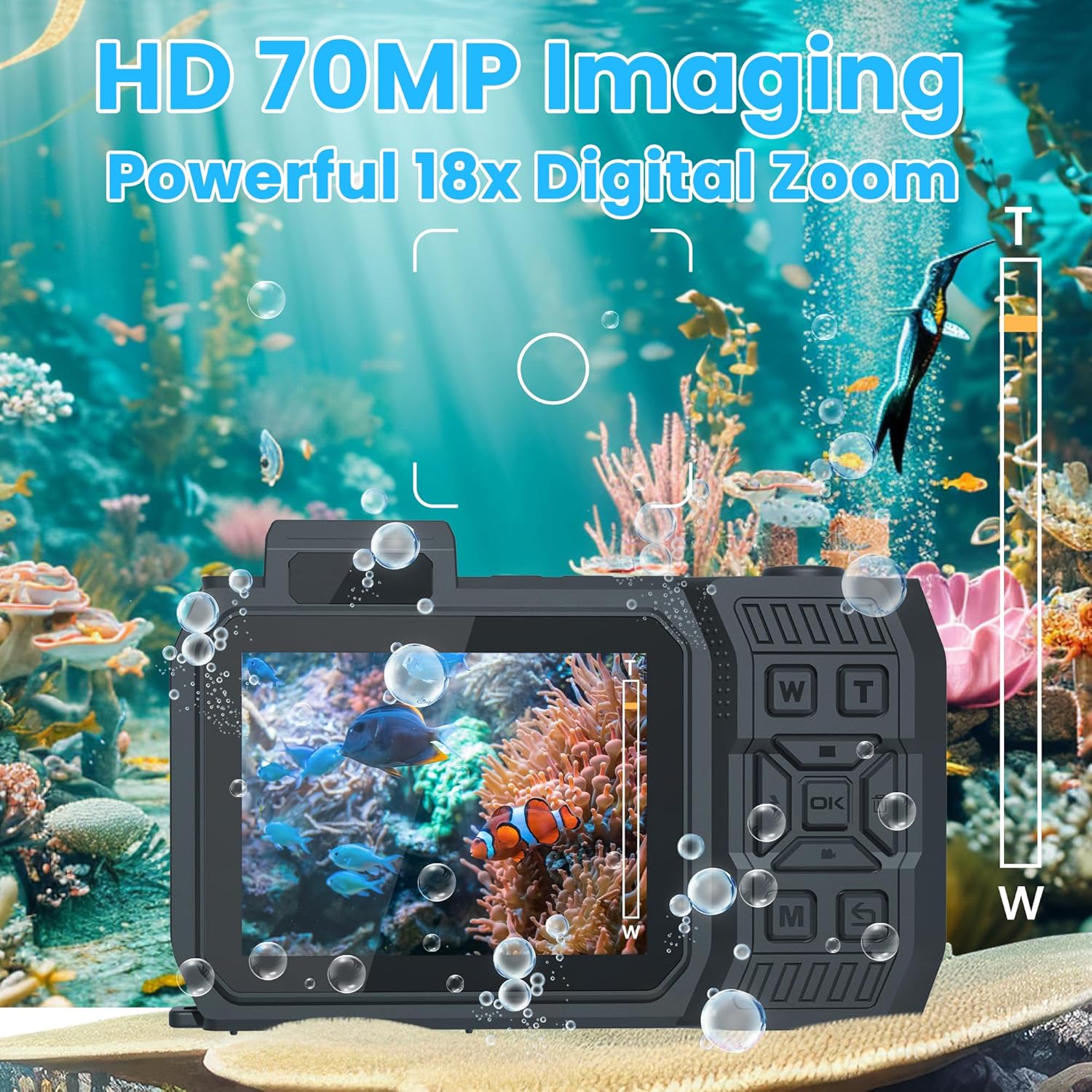
To take a still photograph, press the shutter button. The camera captures stunning 70MP photos, ensuring high-quality images.
2.4 Dual Screen & Selfie Mode

The camera features dual screens: a sizable 2.8-inch rear screen and a convenient 1.44-inch front screen. To switch to selfie mode and utilize the front screen for framing, press the 'S' button. This allows for effortless composition of self-portraits.
2.5 Flash Functionality

The camera includes a built-in flash to enhance visibility in low-light conditions, both above and below water. Activate the flash as needed using the designated button.
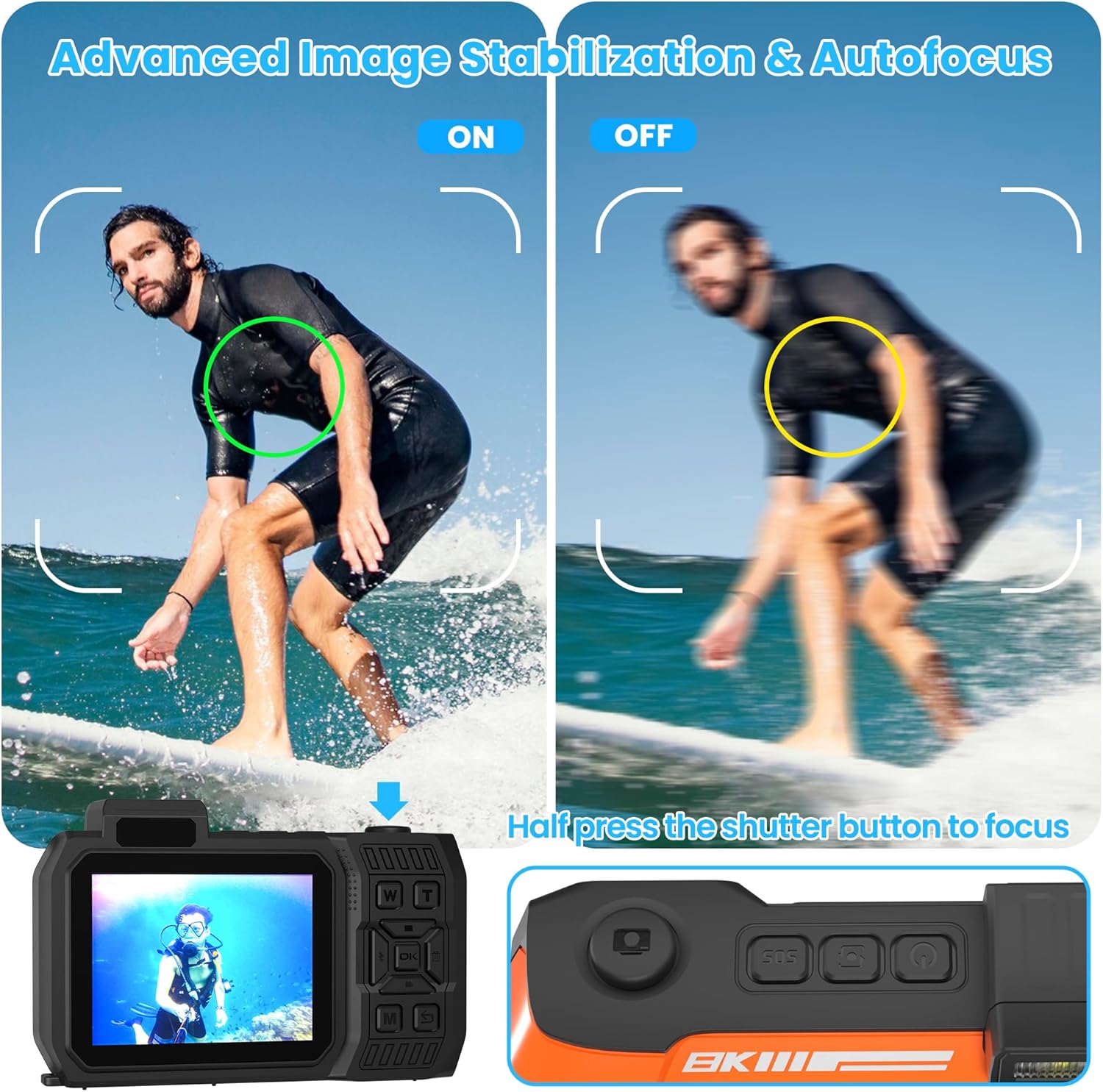
2.6 Digital Zoom, Image Stabilization & Autofocus

The camera offers 18x digital zoom. Please note that digital zoom works by cropping and enlarging the image, which may result in a reduction of overall image quality. For optimal clarity, minimize the use of digital zoom. The camera also features built-in stabilization and intelligent autofocus to help ensure your shots remain crisp and clear.
2.7 Creative Shooting Modes
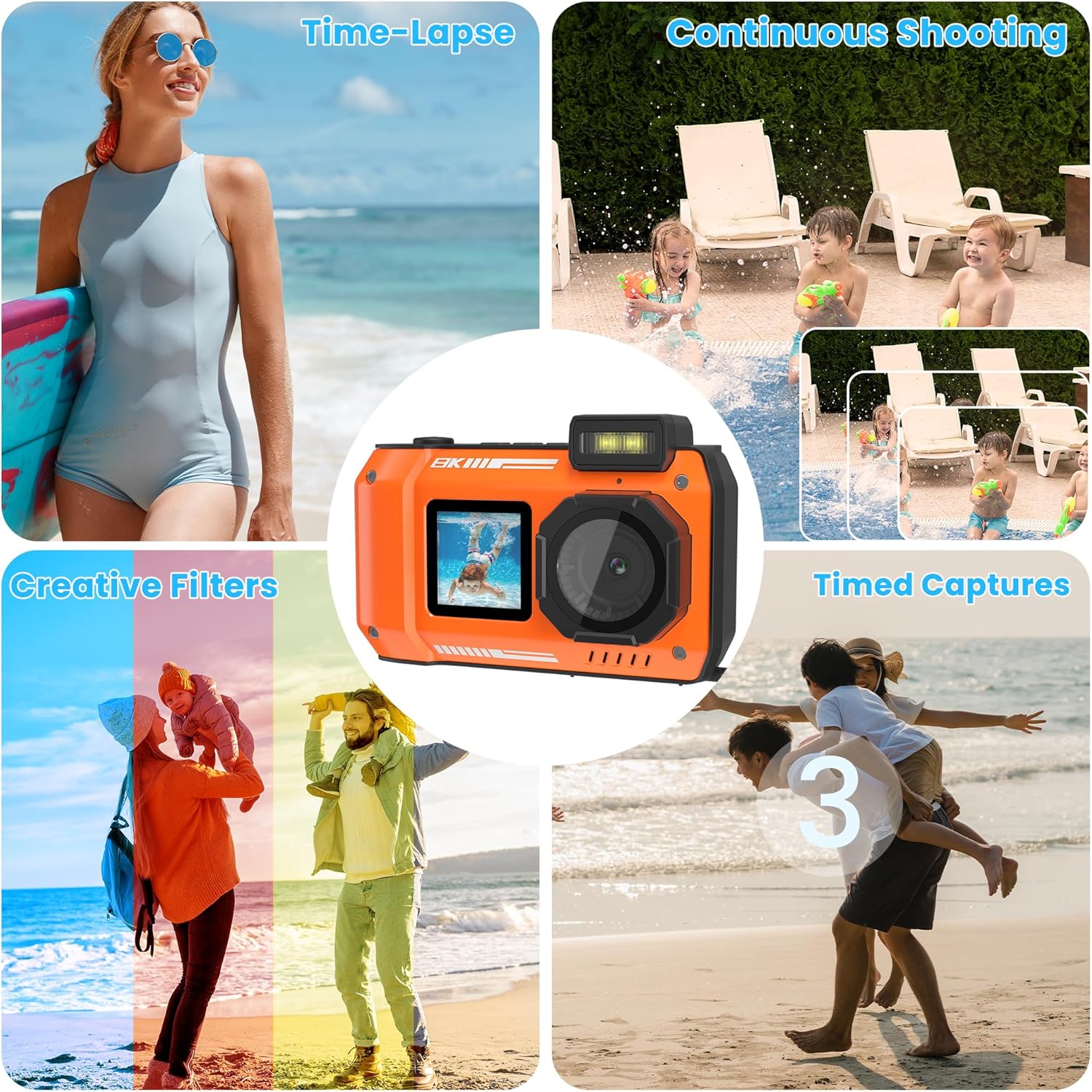
Unleash your creativity with various built-in features, including continuous shooting for rapid-fire sequences, timed captures for perfectly timed shots, time-lapse photography for dynamic sequences, and dynamic filters to add unique effects to your images.
3. Maintenance
3.1 Waterproof Seal Care

After each use in water, it is crucial to inspect all waterproof seals and covers for any debris, sand, or damage. Gently clean the seals with a soft, damp cloth and ensure they are completely dry before closing. Always double-check that all ports and compartments are securely sealed before submerging the camera again.
3.2 Cleaning the Camera
Wipe the camera body with a soft, dry, lint-free cloth. For the lens, use a specialized lens cleaning cloth to avoid scratches. Do not use abrasive materials, solvents, or harsh chemicals, as these can damage the camera's finish or internal components.
3.3 Storage
Store the camera in a cool, dry place away from direct sunlight, high humidity, and extreme temperatures. If storing for an extended period, ensure the battery is partially charged (around 50%) to prolong its lifespan.
4. Troubleshooting
4.1 Camera Not Powering On
- Ensure the battery is fully charged.
- Verify that the power button is pressed and held for the required duration.
- If the issue persists, try connecting the camera to a power source to see if it powers on while connected.
4.2 Water Leakage
- Immediately remove the camera from water.
- Open all compartments (battery, SD card, charging port) and allow the camera to dry completely in a well-ventilated area.
- Inspect all seals and O-rings for any signs of damage, cracks, or debris. If seals are compromised, do not use the camera in water again.
4.3 Poor Image Quality
- Ensure the lens is clean and free of smudges or water droplets.
- Check lighting conditions; optimal lighting is crucial for high-quality images.
- Note that excessive use of digital zoom (18x) can lead to pixelation and reduced clarity. For best results, try to get closer to your subject rather than relying heavily on digital zoom.
4.4 SD Card Not Recognized
- Ensure the Micro SD card is inserted correctly and fully seated in its slot.
- Try removing and reinserting the card.
- If the issue persists, try formatting the card through the camera's settings menu (note: this will erase all data on the card).
- Test with a different compatible Micro SD card to rule out a faulty card.
5. Specifications
| Feature | Detail |
|---|---|
| Brand | fohoa |
| Model Number | D50 Pro |
| Video Resolution | 8K |
| Photo Resolution | 70MP |
| Waterproof Depth | Up to 33FT (10 meters) |
| Digital Zoom | 18x |
| Rear Screen Size | 2.8 inches |
| Front Screen Size | 1.44 inches |
| Battery Capacity | 2500mAh Lithium Ion (included) |
| Image Stabilization | Yes |
| Autofocus | Yes |
| Supported File Format | AVI |
| Item Weight | 2.26 ounces |
| Package Dimensions | 5.59 x 4.09 x 2.76 inches |
6. Warranty and Support
For detailed warranty information, product registration, and customer support, please refer to the official fohoa website or contact their customer service directly. Keep your purchase receipt as proof of purchase for any warranty claims.