
1. Introduction
This manual provides detailed instructions for the installation, operation, and maintenance of the NANU SHOP SIGMA-FE04 Digital Smart Electronic Lock. This lock offers multiple access methods including fingerprint, numeric password, proximity card, and mechanical key, designed to enhance security for homes, apartments, businesses, and shops.
2. Safety Information
- Read all instructions carefully before installation and use.
- Do not expose the lock to extreme temperatures or direct moisture.
- Use only the specified 4 AA batteries. Do not mix old and new batteries or different battery types.
- Keep mechanical keys in a safe location outside the property to be used in case of emergency.
- Avoid using abrasive cleaners on the lock's surface.
- Ensure proper installation to prevent damage or malfunction. If unsure, consult a professional.
3. Package Contents
Verify that all the following items are included in your package:
- 1x Outdoor Unit
- 1x Indoor Unit
- 1x Lock Body
- 2x Proximity Cards
- 2x Mechanical Unlock Keys
- 1x Installation Kit (screws, mounting hardware)
- 1x User Manual (this document)
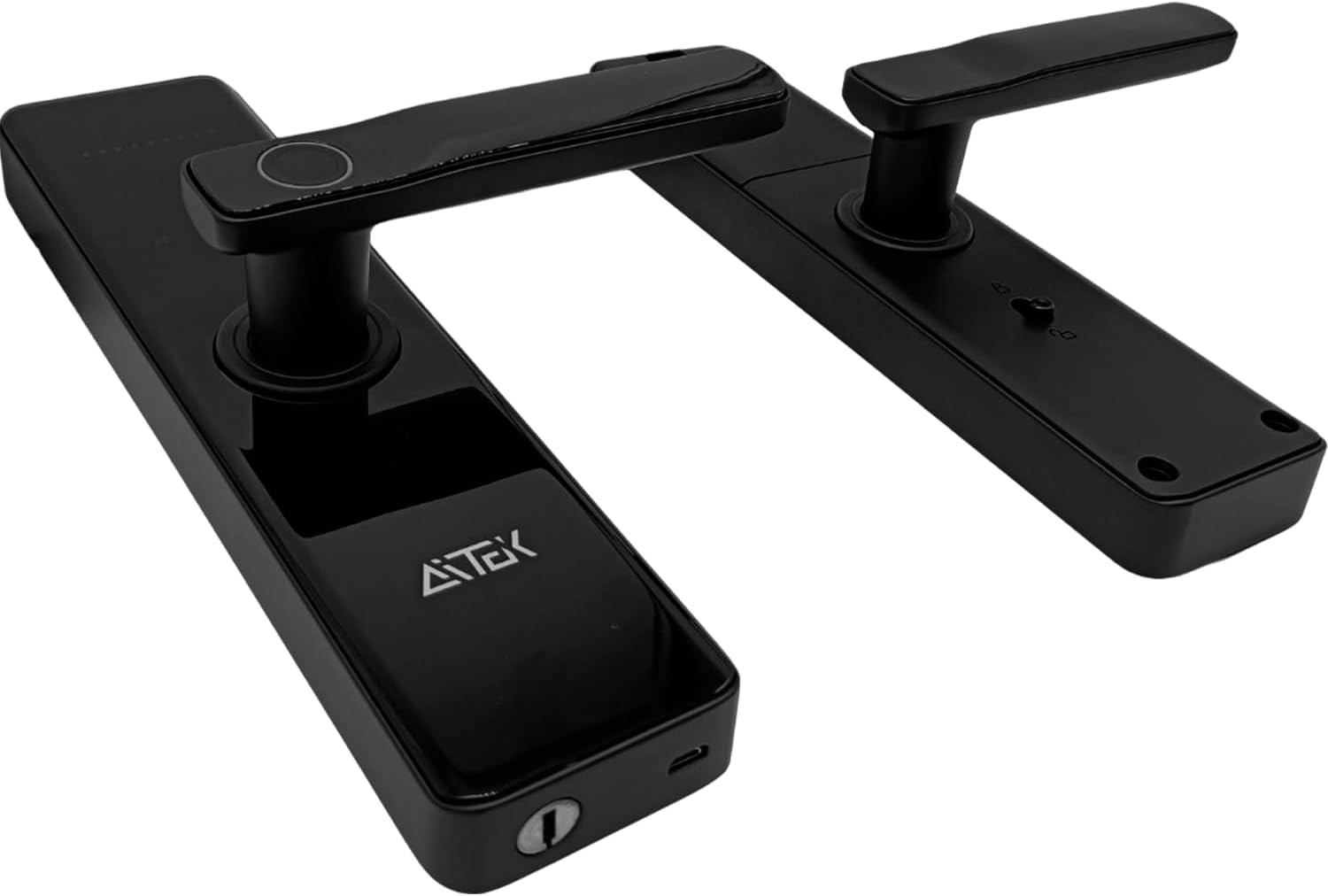
Figure 3.1: Outdoor and Indoor Units

Figure 3.2: Lock Body

Figure 3.3: Proximity Cards
4. Setup and Installation
4.1 Battery Installation
- Locate the battery compartment on the indoor unit.
- Open the battery cover.
- Insert 4 AA batteries, ensuring correct polarity (+/-).
- Close the battery cover securely.
4.2 Lock Installation
The installation process typically involves:
- Preparing the door by drilling necessary holes according to the provided template (if applicable).
- Installing the lock body into the door edge.
- Mounting the outdoor unit, ensuring the spindle and wires pass through the door.
- Connecting the wires to the indoor unit.
- Mounting the indoor unit and securing it with screws from the installation kit.
- Testing the lock's functionality with the mechanical key and initial setup.

Figure 4.1: Front View of the Lock

Figure 4.2: Outdoor and Indoor Units Side View

Figure 4.3: Emergency Keyhole and USB Port
5. Operating Instructions
5.1 Initial Setup and Admin Registration
Upon first power-up, the lock will prompt you to register an administrator. Follow the on-screen or voice prompts to register the first fingerprint, password, or proximity card. The first registered user automatically becomes the administrator.
5.2 Unlocking Methods
- Fingerprint: Place a registered finger on the biometric reader. The lock will unlock if the fingerprint is recognized.
- Numeric Password: Enter your registered 6-8 digit password on the keypad, then press the '#' key.
- Proximity Card: Present a registered proximity card to the card reader area. The lock will unlock upon recognition.
- Mechanical Key: In emergencies or when batteries are depleted, insert the mechanical key into the keyhole at the bottom of the outdoor unit and turn to unlock.
5.3 User Management
The lock supports up to 100 fingerprints and 300 passwords/access codes (9 administrators + 291 common users).
- Adding Users: Access the admin menu (usually by pressing '*' then '#' and verifying admin credentials) to add new fingerprints, passwords, or proximity cards. Follow the prompts for registration.
- Deleting Users: From the admin menu, select the option to delete users. You can typically delete individual users or all non-admin users.
- Temporary Passwords: The system allows for the creation of temporary passwords, which are ideal for guests or short-term access. Consult the lock's specific menu options for setting validity periods.
5.4 Emergency Power Source
If the batteries are completely drained and mechanical keys are not accessible, the lock can be temporarily powered via a USB 5V power bank connected to the emergency USB port located at the bottom of the outdoor unit. This allows you to use a registered access method to unlock the door and replace the batteries.
6. Maintenance
6.1 Battery Replacement
The lock provides a low battery sound warning when the battery voltage drops to 4.8V ± 0.2V. Replace all 4 AA batteries promptly when this warning occurs to ensure continuous operation. Refer to Section 4.1 for battery installation steps.
6.2 Cleaning
Wipe the lock's surface with a soft, dry cloth. Do not use harsh chemicals, abrasive cleaners, or excessive moisture, as these can damage the finish or electronic components.
7. Troubleshooting
7.1 Frequently Asked Questions (FAQ)
- Q: What happens if the battery runs out?
A: The lock has two mechanical keys for manual opening in emergency cases. Additionally, an emergency USB 5V power source can be used to temporarily power the lock for access. - Q: Can I create temporary passwords?
A: Yes, the lock supports the creation of temporary passwords, which are useful for visitors or short-term access needs. - Q: How many fingerprints and passwords can be stored?
A: The lock can store up to 100 fingerprints and 300 passwords/access codes (including 9 administrators and 291 common users).
7.2 Common Issues and Solutions
- Lock does not respond: Check battery levels and replace if necessary. Ensure the lock is properly installed and all connections are secure.
- Fingerprint not recognized: Ensure your finger is clean and dry. Try re-registering your fingerprint if the issue persists.
- Password not accepted: Verify the password entered is correct. Ensure the keypad is clean and responsive.
- Lock makes unusual noises: This could indicate a mechanical issue. Discontinue use and contact customer support.
8. Technical Specifications
| Feature | Specification |
|---|---|
| Model | SIGMA-FE04 |
| Brand | NANU SHOP |
| Lock Type | Biometric, Combination Lock, Keypad |
| Structure Dimensions (LxW) | 26 x 3 cm |
| Knob Length | 13 cm |
| Material | Zinc Alloy, Metallic & Electronic Components |
| Master Chip | Semicon (ST) G030 |
| User Capacity | 300 records (9 admins + 291 common users) |
| Unlock Methods | Fingerprint, Numeric Password, Proximity Card |
| Biometric Reader | Semiconductor |
| Digital Comparison Time | <1 second |
| Fingerprint Rejection Rate | <0.1% |
| Password Length | 6-8 digits |
| Card Type | M1 |
| Siren | 8Hz |
| Low Battery Warning | 4.8 ± 0.2V |
| Operating Temperature | -25 to 70°C |
| Operating Relative Humidity | 0-93%RH |
| Static Current | <60mA |
| Dynamic Current | <180mA |
| Power Source | 4 AA batteries (not included) |
| Emergency Power | USB 5V |
9. Warranty and Support
For warranty information and customer support, please refer to the documentation provided at the time of purchase or contact your retailer. Keep your proof of purchase for warranty claims.