
BAKEN TAB 10
BAKEN TAB 10 Android 14 Tablet PC User Manual
Model: TAB 10 | Brand: BAKEN
Introduction
This manual provides essential instructions for setting up, operating, and maintaining your BAKEN TAB 10 Android 14 Tablet PC. Please read this guide thoroughly to ensure proper usage and to maximize your device's capabilities. The BAKEN TAB 10 is a versatile 10-inch tablet featuring the Android 14 operating system, an Octa-Core processor, 8GB RAM, 128GB internal storage expandable up to 1TB, and an 8000mAh battery. It comes with a keyboard, mouse, pen, and case for enhanced productivity and entertainment.
What's in the Box
Upon unboxing your BAKEN TAB 10, verify that all the following items are included:
- BAKEN TAB 10 Android 14 Tablet PC
- Protective Case
- Wireless Bluetooth Keyboard
- Wireless Bluetooth Mouse
- Stylus Pen
- USB-C Charging Cable
- Power Adapter (5V at 2A)
- User Manual (this document)

Image: BAKEN TAB 10 Tablet PC with all included accessories.
Product Overview
Familiarize yourself with the physical components of your BAKEN TAB 10 tablet.
Front View
- 10-inch IPS Display: Main screen for interaction.
- Front Camera (5MP): Located at the top center when held horizontally, used for video calls and selfies.
Rear View
- Rear Camera (8MP with Autofocus and Flash): Located on the back, used for capturing photos and videos.
Side Views (Ports and Buttons)
- Power Button: Turns the tablet on/off or puts it to sleep/wakes it up.
- Volume Buttons: Adjusts the audio volume.
- USB-C Port: For charging and data transfer.
- 3.5mm Headphone Jack: For connecting headphones or external speakers.
- MicroSD Card Slot: For expanding storage up to 1TB.
- Speakers: Provides audio output.

Image: Overview of BAKEN TAB 10 features and included accessories.
Setup
1. Charging the Tablet
Before initial use, fully charge your tablet. Connect the USB-C charging cable to the tablet's USB-C port and the power adapter. Plug the adapter into a wall outlet. The battery indicator on the screen will show charging status.
2. Powering On/Off
- To Power On: Press and hold the Power button until the BAKEN logo appears.
- To Power Off: Press and hold the Power button until the power options appear on the screen, then select "Power off."
- To Sleep/Wake: Briefly press the Power button.
3. Initial Setup
Follow the on-screen prompts to complete the initial setup:
- Select Language: Choose your preferred language.
- Connect to Wi-Fi: Select your Wi-Fi network and enter the password.
- Google Account: Sign in with your Google account or create a new one. This is necessary for accessing the Google Play Store and other Google services.
- Date & Time: Set the correct date and time.
- Security: Set up a screen lock (PIN, pattern, or password).
4. Connecting Accessories
The BAKEN TAB 10 comes with a wireless Bluetooth keyboard, mouse, and pen. Follow these steps to connect them:
- Enable Bluetooth: Go to Settings > Connected devices > Bluetooth and turn Bluetooth on.
- Pairing the Keyboard:
- Turn on the Bluetooth keyboard.
- Press the "Connect" button on the keyboard (or a specific pairing key as indicated on the keyboard). The indicator light will flash.
- On your tablet, select the keyboard from the list of available devices and follow any on-screen prompts to complete pairing.
- Pairing the Mouse:
- Turn on the Bluetooth mouse.
- On your tablet, select the mouse from the list of available devices and follow any on-screen prompts to complete pairing.
- Using the Stylus Pen: The stylus pen is generally passive and does not require Bluetooth pairing. Simply use it directly on the screen for navigation or writing.
Video: Demonstrates the BAKEN tablet with keyboard and mouse accessories, showing how they can be used together for productivity.
Operating Instructions
1. Navigating Android 14
The BAKEN TAB 10 runs on Android 14, offering an intuitive user interface. Swipe up from the bottom of the screen to access the app drawer, swipe down from the top for quick settings and notifications, and use the navigation gestures or buttons at the bottom of the screen (Back, Home, Recent Apps) to move between applications.
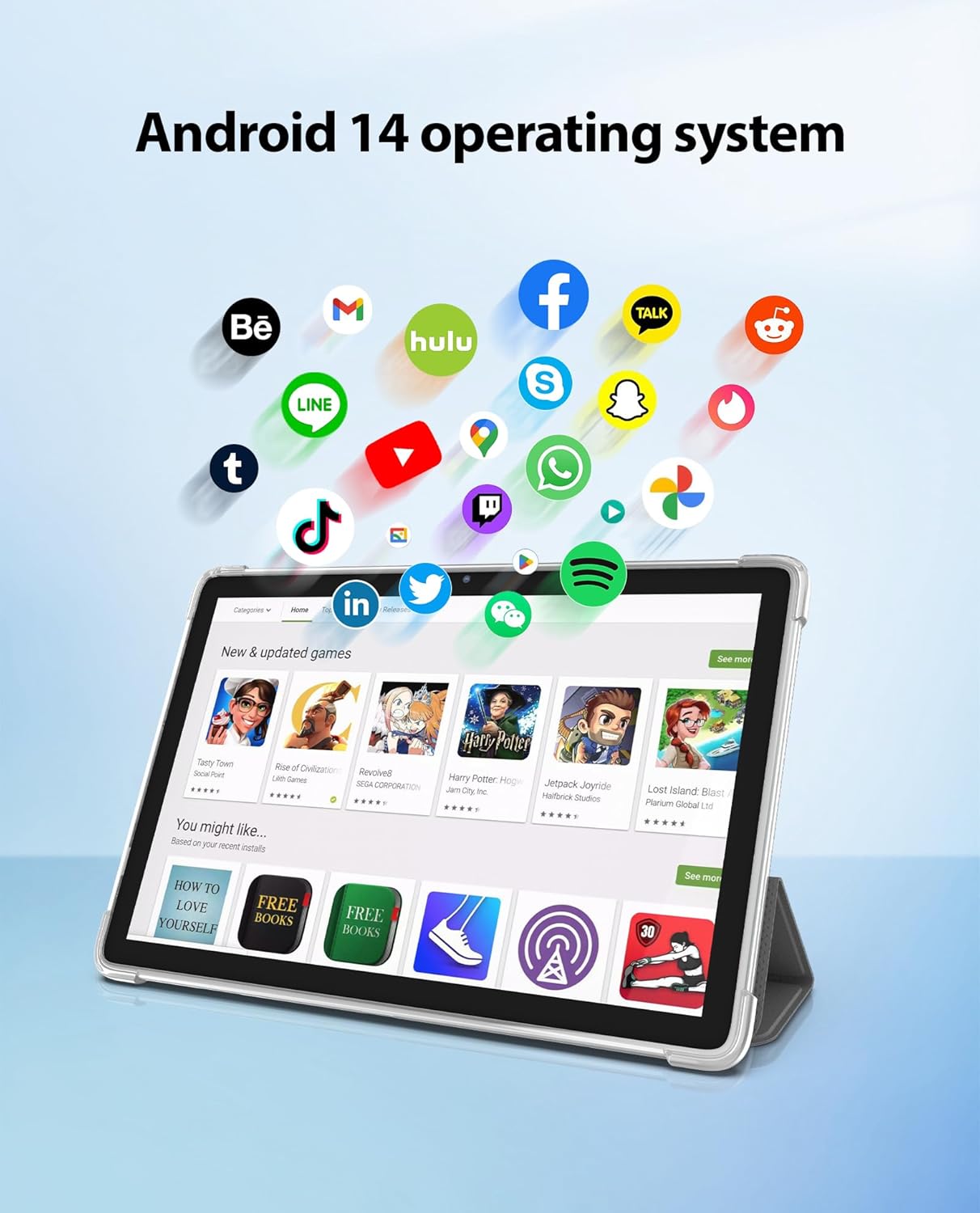
Image: Android 14 operating system interface on the BAKEN TAB 10.
2. Using the Touchscreen
- Tap: Select an item or open an app.
- Touch & Hold: Activates contextual menus or allows dragging items.
- Swipe: Navigates through screens or lists.
- Pinch-to-Zoom: Enlarges or reduces content.
3. Camera Functions
Open the Camera app to capture photos and videos. The 8MP rear camera includes autofocus and flash for clear images, while the 5MP front camera is ideal for video calls.

Image: Dual camera setup (8MP rear, 5MP front) of the BAKEN TAB 10.
4. Storage Management
Your tablet has 128GB of internal storage. To expand storage, insert a MicroSD card (up to 1TB) into the dedicated slot. Manage your files and check storage usage via Settings > Storage.
5. Battery Management
The 8000mAh battery provides extended usage. To optimize battery life, adjust screen brightness, close unused apps, and enable battery saver mode in Settings > Battery.

Image: 8000mAh long-life battery performance for various activities.
6. Connectivity
- Wi-Fi: Connect to 5G WiFi6 networks for high-speed internet access via Settings > Network & internet > Wi-Fi.
- Bluetooth: Connect to other Bluetooth devices like headphones or speakers via Settings > Connected devices > Bluetooth.
Maintenance
1. Cleaning
Use a soft, lint-free cloth to clean the screen and body of the tablet. Avoid abrasive materials or harsh chemicals. For stubborn smudges, slightly dampen the cloth with water or a screen-cleaning solution.
2. Software Updates
Regularly check for system updates to ensure optimal performance and security. Go to Settings > System > System update to check for and install available updates.
3. Storage Optimization
To maintain performance, periodically clear cache data from apps, uninstall unused applications, and transfer large files to external storage or cloud services.
Troubleshooting
- Tablet not turning on: Ensure the battery is charged. Connect the tablet to the charger for at least 30 minutes, then try powering it on again.
- Screen is unresponsive: Perform a forced restart by pressing and holding the Power button for about 10-15 seconds until the tablet restarts.
- Wi-Fi connection issues: Check if Wi-Fi is enabled in settings. Restart your router and the tablet. Forget the network and reconnect.
- Bluetooth accessory not pairing: Ensure the accessory is in pairing mode and within range. Turn Bluetooth off and on again on both devices.
- Slow performance: Close unused apps, clear app caches, and check for system updates. Consider uninstalling large or unnecessary applications.
- Apps crashing: Ensure the app is updated to its latest version. Clear the app's cache and data (Settings > Apps > [App Name] > Storage & cache). If the issue persists, uninstall and reinstall the app.
Specifications
| Feature | Detail |
|---|---|
| Model Name | TAB 10 |
| Operating System | Android 14 |
| Screen Size | 10 Inches |
| Screen Resolution | 1280 x 800 Pixels (IPS Display) |
| Processor | Octa-Core (Allwinner chipset) |
| RAM | 8GB (4GB physical + 4GB virtual) |
| Internal Storage (ROM) | 128GB |
| Expandable Storage | Up to 1TB (MicroSD) |
| Rear Camera | 8MP (with Autofocus and Flash) |
| Front Camera | 5MP |
| Battery Capacity | 8000mAh (up to 8 hours usage) |
| Wireless Connectivity | 5G WiFi6 (802.11ax), Bluetooth 5.0 |
| Dimensions (LxWxH) | 9.6 x 6.29 x 0.27 inches |
| Item Weight | 1.98 pounds |
| Color | Gray |
| GMS Certified | Yes |
Warranty and Support
For warranty information and technical support, please refer to the documentation included with your purchase or visit the official BAKEN website. Keep your proof of purchase for any warranty claims.
Ask a question about this manual
Ask about setup, troubleshooting, compatibility, parts, safety, or missing instructions. Manuals+ will review the question and use this page’s manual context to help answer it.