
YAXRO xiaolianbaihuoshangahang
YAXRO Smart Door Lock User Manual
Model: xiaolianbaihuoshangahang
1. Introduction
This manual provides comprehensive instructions for the installation, operation, and maintenance of your YAXRO Smart Door Lock. Please read this manual carefully before installation and use to ensure proper function and safety.

Figure 1: YAXRO Smart Door Lock (Front and Back)
This image displays the sleek black design of the YAXRO Smart Door Lock, showing both the exterior panel with keypad and fingerprint sensor, and the interior panel with the manual turn knob.
2. Product Features
- Multiple Unlocking Methods: Supports fingerprint, password, IC card, mechanical key, and APP (Tuya/TT Lock) unlocking.
- Automatic Deadbolt: Customizable auto-lock time via the TTlock app for enhanced security.
- Remote Access & Monitoring: Generate and share temporary passwords. Check visitor records (time, method, personnel) via Tuya APP/TT Lock. Remote unlocking available when paired with a gateway (sold separately).
- Smart Home Integration: TT Lock version can integrate with Smart Alexa or Google Home via G2 gateway (sold separately).
- Emergency Power & Key Access: Mechanical keys and Type-C emergency power supply available for use when batteries are depleted.
- Long Battery Life: Powered by 4 AA batteries (not included), providing approximately 5000 openings (up to 6 months).
- Enhanced Security: Features upgraded anti-touch functionality and abnormal state security alarms.
- Adjustable Latch: The adjustable deadbolt accommodates sizes between 60mm to 70mm.
- Door Thickness Compatibility: Suitable for doors with a thickness of 38-55mm.

Figure 2: Multiple Unlocking Methods
This image illustrates the various ways to unlock the YAXRO Smart Door Lock, including Bluetooth, Tuya/TT Lock APP, Fingerprint, Password, IC Card, and Mechanical Keys.
3. Specifications
| Parameter | Value |
|---|---|
| Brand | YAXRO |
| Model Name | xiaolianbaihuoshangahang |
| Lock Type | Deadbolt |
| Special Feature | Fingerprint |
| Color | Black TTlock |
| Panel Material | Aluminum Alloy |
| Lock Body Material | Aluminum Alloy |
| Lock Cylinder Material | Copper |
| Applicable Door Thickness | 35-50mm |
| Adjustable Deadbolt Size | 60mm to 70mm |
| Power Source | 4 * AA batteries (Not included) |
| Emergency Power | Type-C USB |
| Item Weight | Approx. 1.2KG (Product description) / 1.76 ounces (Specifications) - Note: Discrepancy in weight, using 1.2KG from description as it seems more plausible for a lock. |
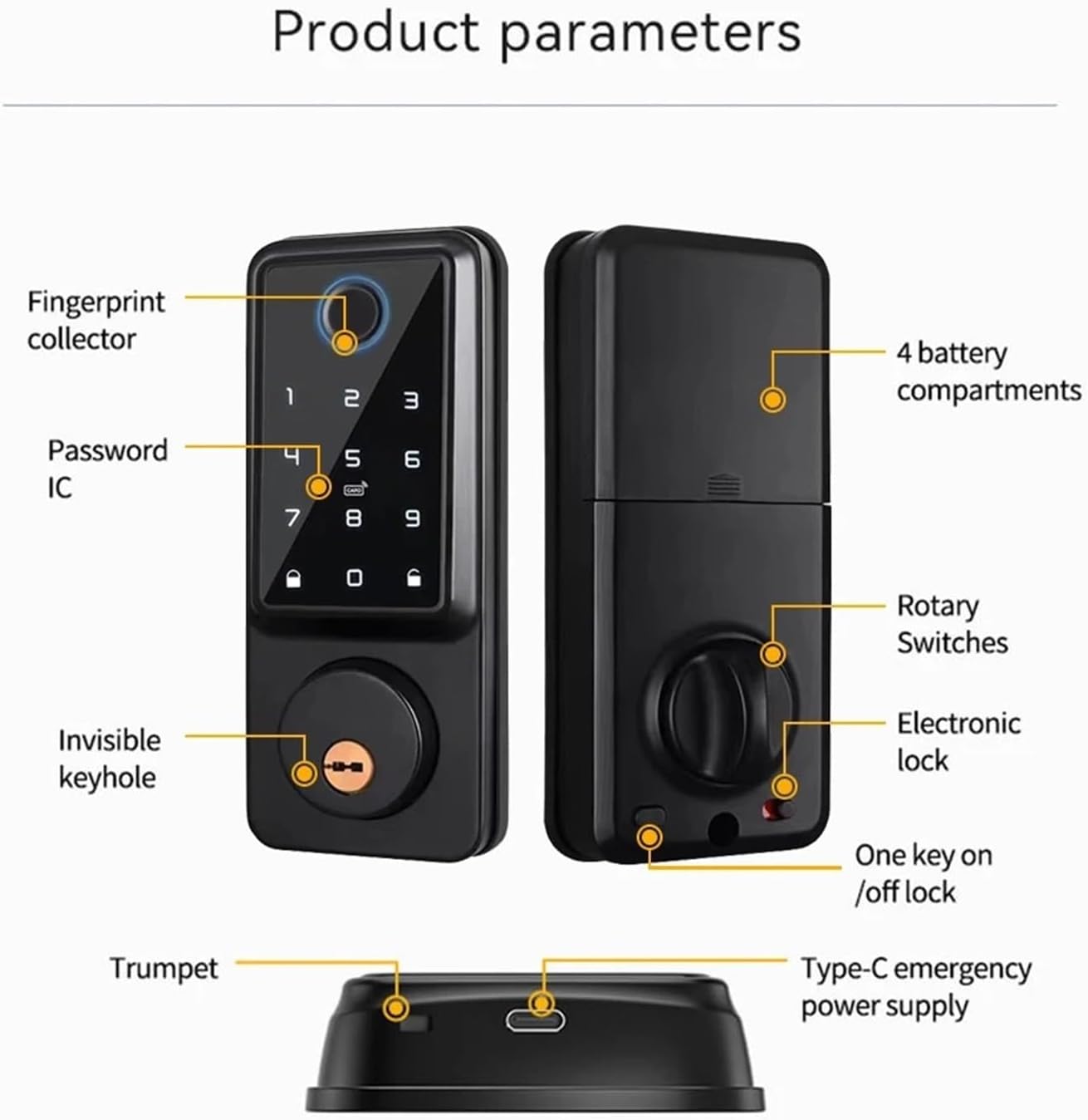
Figure 3: Product Components Overview
This image labels key components of the smart lock, including the fingerprint collector, password IC, invisible keyhole, 4 battery compartments, rotary switches, electronic lock, one key on/off lock, trumpet, and Type-C emergency power supply.
4. Setup and Installation
4.1 Pre-installation Checklist
- Ensure your door thickness is between 35-50mm.
- Verify the adjustable deadbolt size is compatible with your door (60mm to 70mm).
- Prepare 4 AA batteries (not included).
- Gather necessary tools (e.g., screwdriver, measuring tape).
4.2 Installation Steps
- Prepare the Door: Ensure existing holes are compatible or drill new ones according to the provided template (if applicable, not detailed in source).
- Install the Latch: Insert the adjustable deadbolt latch into the door edge. Adjust its size if necessary (60mm or 70mm backset).
- Install the Exterior Panel: Route the cable through the door and secure the exterior panel.
- Install the Interior Panel: Connect the cable from the exterior panel to the interior panel. Secure the interior panel to the door.
- Install Batteries: Open the battery compartment on the interior panel and insert 4 AA batteries, ensuring correct polarity.
- Install Door Sensor (Optional/Included): If your model includes a door sensor, install it according to the instructions provided with the sensor. This enables the auto-lock feature.
- Test Functionality: After installation, test all unlocking methods (mechanical key, keypad, etc.) to ensure proper operation before closing the door.

Figure 4: Installation Components (Latch and Door Sensor)
This image illustrates the adjustable single latch (60mm/70mm) and the door sensor, which are key components for the installation and auto-lock functionality of the smart door lock.
5. Operating Instructions
5.1 Initial Setup and App Pairing
- Download the Tuya Smart or TT Lock app from your mobile app store.
- Create an account and log in.
- Follow the in-app instructions to add your YAXRO Smart Door Lock. This typically involves activating Bluetooth on your phone and following pairing prompts.
- Set up administrator fingerprint, password, and IC card as prompted by the app.
5.2 Unlocking Methods
- Fingerprint Unlock: Place your registered finger on the fingerprint collector. The lock will unlock upon successful recognition.
- Password Unlock: Enter your registered password on the keypad, followed by the '#' key. The lock supports anti-peep functionality; you can enter random numbers before or after your actual password.
- IC Card Unlock: Present your registered IC card to the card reader area on the lock.
- Mechanical Key Unlock: Insert the mechanical key into the invisible keyhole and turn to unlock. This is primarily for emergency use.
- APP Unlock: Open the Tuya Smart or TT Lock app, select your lock, and tap the unlock button. For remote unlocking, a G2 gateway (sold separately) is required.
5.3 Locking Methods
- Automatic Lock: The lock will automatically engage the deadbolt after a set period (customizable via the app) once the door is closed.
- Manual Lock: Press the '#' key on the keypad or use the manual turn knob on the interior panel to lock the door.
5.4 App Features (Tuya/TT Lock)
- User Management: Add, modify, or delete fingerprints, passwords, and IC cards for various users.
- Temporary Passwords: Generate one-time or time-limited passwords for guests or service personnel.
- Access Records: View a detailed log of who unlocked the door, when, and by what method.
- Auto-Lock Settings: Adjust the auto-lock delay time.
- Alarm Notifications: Receive alerts for abnormal states or low battery.
- Remote Control (with Gateway): Lock/unlock remotely, check lock status, and integrate with smart home systems like Alexa or Google Home (TT Lock version with G2 gateway).
6. Maintenance
6.1 Battery Replacement
- The lock is powered by 4 AA batteries. A low battery warning will be issued when power is low.
- To replace, open the battery compartment on the interior panel and replace all 4 batteries with new ones, ensuring correct polarity.
- Expected battery life is approximately 6 months or 5000 openings.

Figure 5: Battery Life and Emergency Power
This image highlights the long battery life of up to 180 days (half a year) and indicates the location of the 4 AA batteries. It also shows the Type-C port for emergency power supply.
6.2 Emergency Power Supply
- If the batteries are completely depleted, you can power the lock temporarily using a Type-C USB cable connected to an external power source (e.g., power bank).
- The Type-C port is located at the bottom of the exterior panel.
6.3 Cleaning
- Clean the lock surface with a soft, dry cloth.
- Do not use abrasive cleaners, solvents, or harsh chemicals, as these can damage the finish and electronic components.
- Keep the fingerprint sensor and keypad clean for optimal performance.
7. Troubleshooting
- Lock Not Responding:
- Check battery level. Replace batteries if low.
- Use the Type-C emergency power supply to temporarily power the lock.
- Try unlocking with the mechanical key.
- Fingerprint Not Recognized:
- Ensure your finger is clean and dry.
- Try different angles or re-register your fingerprint if issues persist.
- Clean the fingerprint sensor surface.
- Password Not Working:
- Ensure you are entering the correct password followed by '#'.
- Check if the password has expired (for temporary passwords).
- Verify the password in the app.
- App Connectivity Issues:
- Ensure Bluetooth is enabled on your phone and you are within range of the lock.
- Restart the app and/or your phone.
- If using a gateway, ensure it is powered on and connected to the internet.
- Abnormal State Security Alarm:
- This alarm indicates tampering or an unusual event. Check the lock for physical damage or forced entry attempts.
- Review the access records in the app for suspicious activity.
8. Warranty and Support
For warranty information, please refer to the specific terms provided at the time of purchase or contact your retailer. If you encounter any issues not covered in this manual or require further assistance, please contact YAXRO customer support or the seller directly.
You may also consider purchasing extended protection plans for your product, which may be available from your retailer.