
1. Product Overview
This manual provides detailed instructions for the installation, operation, and maintenance of your Rimoody 8Core 6G+128G Android 13 Car Radio, designed specifically for Toyota Camry models from 2000 to 2006. This advanced car stereo features wireless Carplay and Android Auto, Mirror Link, DSP audio processing, a 9-inch HD touchscreen, GPS navigation, WiFi, Bluetooth, FM/RDS radio, Steering Wheel Control (SWC), and support for a backup camera.

Figure 1.1: Rimoody Car Radio with main unit, backup camera, microphone, and wireless Carplay/Android Auto phone display.
2. Key Features
- High Performance: Equipped with an 8-Core CPU, 6GB RAM, and 128GB ROM for powerful and stable operation.
- 9-inch IPS Touch Screen: Large, clear, and responsive display for easy navigation and control.
- Wireless Connectivity: Supports Wireless Carplay and Wireless Android Auto for seamless smartphone integration.
- Mirror Link: Mirror your phone's screen (iOS/Android) via USB cable or WiFi.
- GPS Navigation: Built-in GPS module with support for online and offline maps, voice guidance, and real-time traffic information.
- Built-in WiFi: Connect to the internet via WiFi hotspot or tethering for web browsing and app downloads.
- Bluetooth Functionality: Hands-free calling, music playback, and automatic phone book loading.
- FM/RDS Radio: 30 preset stations with FM/RDS function for clear channel search and low noise.
- DSP Audio: Car DSP tuning software with 32-band equalization for customized audio settings.
- Steering Wheel Control (SWC): Conveniently control essential functions directly from your steering wheel.
- Split Screen: Use two applications simultaneously with customizable size and position.
- Rear View Camera Support: Connect an optional reversing camera for safe parking and obstacle avoidance.
- Customizable UI: Choose from 59 UI Desktop Themes and customize your home page app display.
3. Setup and Installation
3.1. What's in the Box
Before beginning installation, please verify that all components are present in the package:
- Main Head Unit (9-inch Android Car Radio)
- Backup Camera
- Microphone
- GPS Antenna
- RCA Cable
- Reverse Line
- USB Cable
- Installation Tool
- Power Cable
- User Manual (this document)
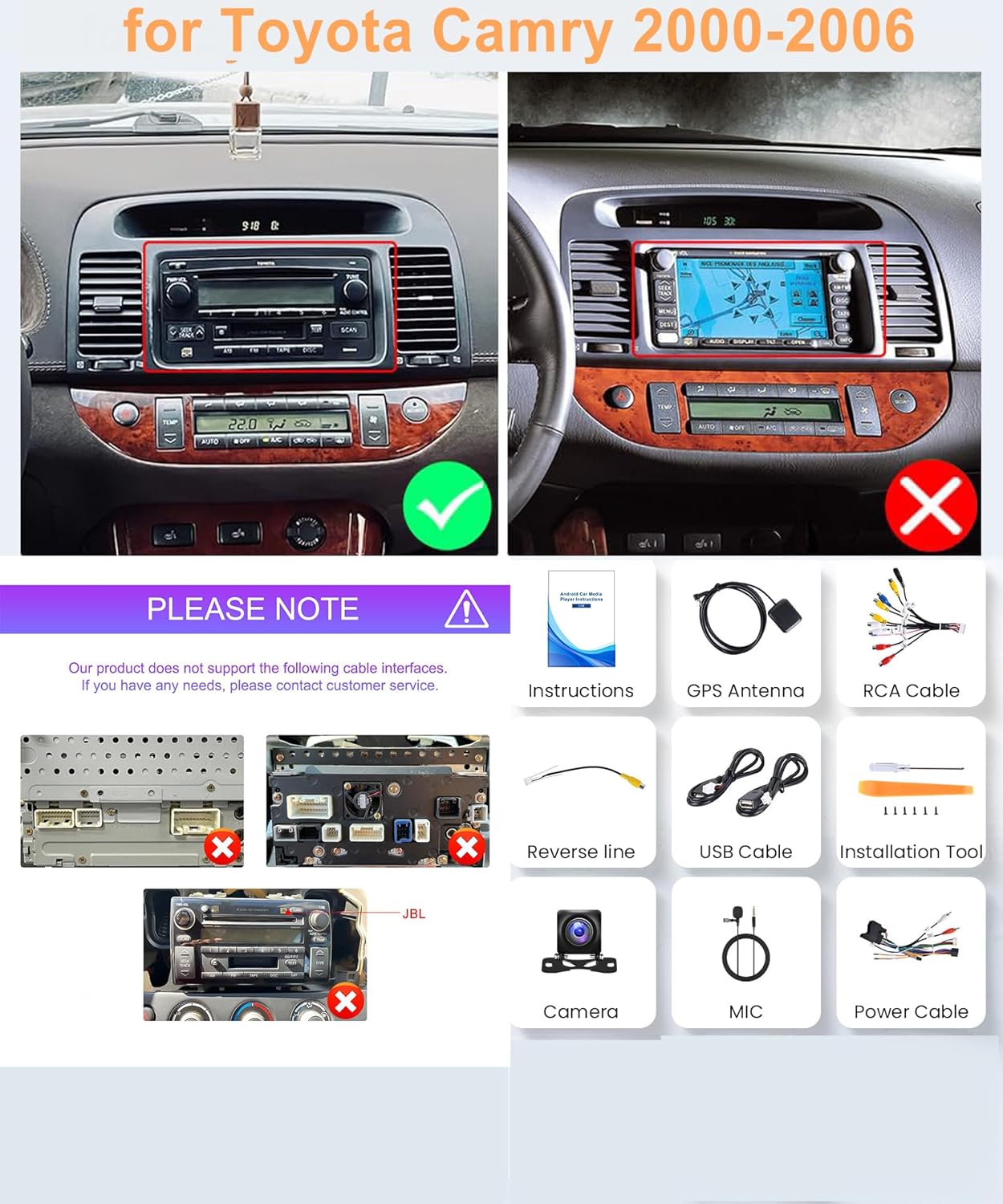
Figure 3.1: Package contents for the Rimoody Car Radio.
3.2. Compatibility and Pre-Installation Notes
This car radio is designed for Toyota Camry models manufactured between 2000 and 2006. Please ensure your vehicle falls within this range. It is important to note that some vehicle configurations, particularly those with specific factory radio connections (e.g., JBL systems), may require additional modifications or a different wiring harness not included with this unit. Verify your vehicle's existing radio connection type before proceeding with installation.

Figure 3.2: Visual guide for compatible and incompatible factory radio connections for Toyota Camry 2000-2006.
3.3. Installation Steps
- Disconnect Battery: Before starting, disconnect the negative terminal of your car's battery to prevent electrical shorts.
- Remove Factory Radio: Carefully remove the existing factory radio from your dashboard. This may involve removing trim panels and unscrewing mounting brackets. Refer to your vehicle's specific service manual for detailed instructions on dashboard disassembly.
- Connect Wiring Harness: Connect the provided power cable and RCA cables to the corresponding ports on the new head unit. Then, connect the vehicle-specific wiring harness to your car's wiring. Ensure all connections are secure.
- Install GPS Antenna: Mount the GPS antenna in a location with a clear view of the sky, typically on the dashboard or under the windshield, ensuring it is not obstructed by metal.
- Install Microphone: Connect the external microphone and route it to a suitable location, such as near the rearview mirror or on the A-pillar, for optimal voice pickup during calls.
- Connect Backup Camera (Optional): If installing the backup camera, route the camera cable from the rear of the vehicle to the head unit. Connect the camera's video output to the "CAM IN" or "REVERSE" video input on the head unit and the power wire to the vehicle's reverse light circuit.
- Test Connections: Before fully reassembling the dashboard, reconnect the car battery and power on the unit. Test basic functions such as power, audio, touch screen responsiveness, and any connected accessories like the backup camera.
- Secure Head Unit: Once tested, carefully slide the head unit into the dashboard opening and secure it with the appropriate mounting brackets and screws.
- Reassemble Dashboard: Reattach all trim panels and components removed during the initial disassembly.
Note: Professional installation is recommended if you are unfamiliar with car audio wiring or dashboard disassembly.
4. Operating Instructions
4.1. Wireless Carplay & Android Auto & Mirror Link
The unit supports wireless Carplay and Android Auto for seamless smartphone integration, as well as Mirror Link for displaying your phone's screen.
- Wireless Carplay Connection:
- Turn on the "CPLink" app on the car radio.
- Connect your iPhone to the car radio via WiFi/Bluetooth or USB Cable.
- Wireless Android Auto Connection:
- Install the "Android Auto" app on your Android phone first.
- Turn on the "CPLink" app on the car radio.
- Connect your Android phone to the car radio via WiFi/Bluetooth or USB Cable.
- Mirror Link (iOS/Android):
- Connect your phone to the car radio using a USB cable or via WiFi.
- Follow the on-screen prompts to enable screen mirroring.

Figure 4.1: Wireless Carplay, Android Auto, and Mirror Link interface.
4.2. GPS Navigation & WiFi
The unit features a built-in GPS module and WiFi connectivity for navigation and internet access.
- GPS Navigation: Access pre-installed maps or download additional maps for offline use. Connect to WiFi for real-time traffic updates and online map services.
- WiFi Connection: Go to "Settings" > "Network & Internet" > "Wi-Fi" to connect to a local WiFi hotspot or your phone's tethering.

Figure 4.2: GPS Navigation and WiFi connectivity features.
4.3. Bluetooth, FM/RDS Radio, and DSP Audio
Manage calls, play music, and enjoy high-quality audio with these integrated features.
- Bluetooth: Pair your phone via Bluetooth for hands-free calling and audio streaming. Access your phone book directly from the unit.
- FM/RDS Radio: Tune into FM radio stations. The RDS function provides station information and enhanced reception.
- DSP Audio: Use the built-in Digital Signal Processor (DSP) to fine-tune your audio experience. Adjust equalization (32-band), sound field, and other audio parameters for optimal sound quality.

Figure 4.3: Bluetooth, FM/RDS Radio, and DSP Audio controls.
4.4. Rear View Camera and Steering Wheel Control (SWC)
Enhance safety and convenience with the rear view camera input and steering wheel control compatibility.
- Rear View Camera: When connected, the display automatically switches to the rear view when the vehicle is put into reverse gear, aiding in safe parking.
- Steering Wheel Control (SWC): Configure your steering wheel buttons to control various functions of the head unit, such as volume, track skipping, and mode selection. Access SWC settings in the system menu to program the buttons.

Figure 4.4: Rear View Camera display and Steering Wheel Control setup.
4.5. Split Screen Functionality
The split screen feature allows you to run two applications simultaneously on the 9-inch display.
- Activating Split Screen: From the home screen or an open app, swipe up from the bottom or long-press the recent apps button (depending on UI version) to enter split-screen mode. Select the second app you wish to use.
- Adjusting Window Size: Drag the divider bar between the two apps to adjust their respective display sizes.
Figure 4.5: Split Screen functionality displaying multiple apps.
5. Maintenance
Proper maintenance ensures the longevity and optimal performance of your Rimoody car radio.
- Screen Cleaning: Use a soft, lint-free cloth slightly dampened with water or a screen cleaner specifically designed for electronic displays. Avoid abrasive materials or harsh chemicals.
- General Cleaning: Wipe down the unit's frame and buttons with a soft, dry cloth. Do not use excessive moisture or spray cleaners directly onto the unit.
- Software Updates: Periodically check for software updates from the manufacturer (if available) to ensure the system runs efficiently and has the latest features and bug fixes.
- Avoid Extreme Temperatures: Do not expose the unit to extreme heat or cold for prolonged periods, as this can affect electronic components.
6. Troubleshooting
This section addresses common issues you might encounter with your car radio.
| Problem | Possible Cause | Solution |
|---|---|---|
| Unit does not power on. | Loose power connection, blown fuse, vehicle battery issue. | Check power cable connections. Inspect vehicle's fuse box for blown fuses. Ensure car battery is charged. |
| No sound from speakers. | Incorrect speaker wiring, volume too low, mute activated, incompatible harness. | Verify speaker wire connections. Increase volume. Check if mute is active. Ensure wiring harness is fully compatible with your vehicle's audio system. |
| Bluetooth keeps disconnecting. | Weak signal, interference, software glitch, rear view input cable not connected. | Ensure your phone is close to the unit. Restart both the phone and the car radio. Some users have reported that connecting the rear view input cable can boost WiFi and Bluetooth signal, reducing disconnections. |
| GPS signal is weak or inaccurate. | GPS antenna obstructed or improperly installed. | Ensure GPS antenna has a clear view of the sky and is securely connected. Relocate if necessary. |
| Touchscreen is unresponsive. | System freeze, dirt on screen. | Restart the unit. Clean the screen thoroughly. If issue persists, contact support. |
| Unit requires significant modification to fit. | Vehicle dashboard variations. | Some installations may require minor trimming or drilling of the dashboard bezel. This is normal for aftermarket installations in certain vehicle models. Proceed with caution or seek professional assistance. |
7. Specifications
| Feature | Detail |
|---|---|
| Model Number | DSP-36 |
| Operating System | Android 13 |
| CPU | 8 Core |
| Memory (RAM) | 6GB |
| Storage (ROM) | 128GB |
| Display Size | 9 Inches |
| Display Type | IPS Touchscreen |
| Connectivity | Bluetooth, WiFi, USB |
| Audio Features | DSP (32-band EQ), FM/RDS Radio |
| Navigation | Built-in GPS Module (Online/Offline Maps) |
| Compatibility | Toyota Camry 2000-2006 |
| Item Weight | 3.91 pounds |
| Package Dimensions | 15.35 x 9.41 x 6.57 inches |
8. Warranty and Support
Your Rimoody car radio comes with a manufacturer's warranty and dedicated support.
- Warranty: This product is covered by a 2-year manufacturer's warranty. Please retain your proof of purchase for warranty claims.
- Returns: A 90-day free return for refund or exchange policy is available.
- Technical Support: Lifetime technical support is provided by the Rimoody team. For assistance with installation, operation, or troubleshooting, please visit the official Rimoody store on Amazon or contact customer service.
- Online Resources: For additional information, FAQs, and potential installation videos, please visit the Rimoody Store on Amazon.