
1. Product Overview
The Bigvapor Z18 Bone Conduction Headphones offer an open-ear listening experience, transmitting sound through your cheekbones to your inner ear. This design allows you to remain aware of your surroundings while enjoying audio. Equipped with a dual DSP noise-cancelling microphone, these headphones are designed for clear calls in various environments.
Key features include Bluetooth 5.2 for stable multipoint pairing, a lightweight and comfortable design, and intuitive controls for seamless operation.
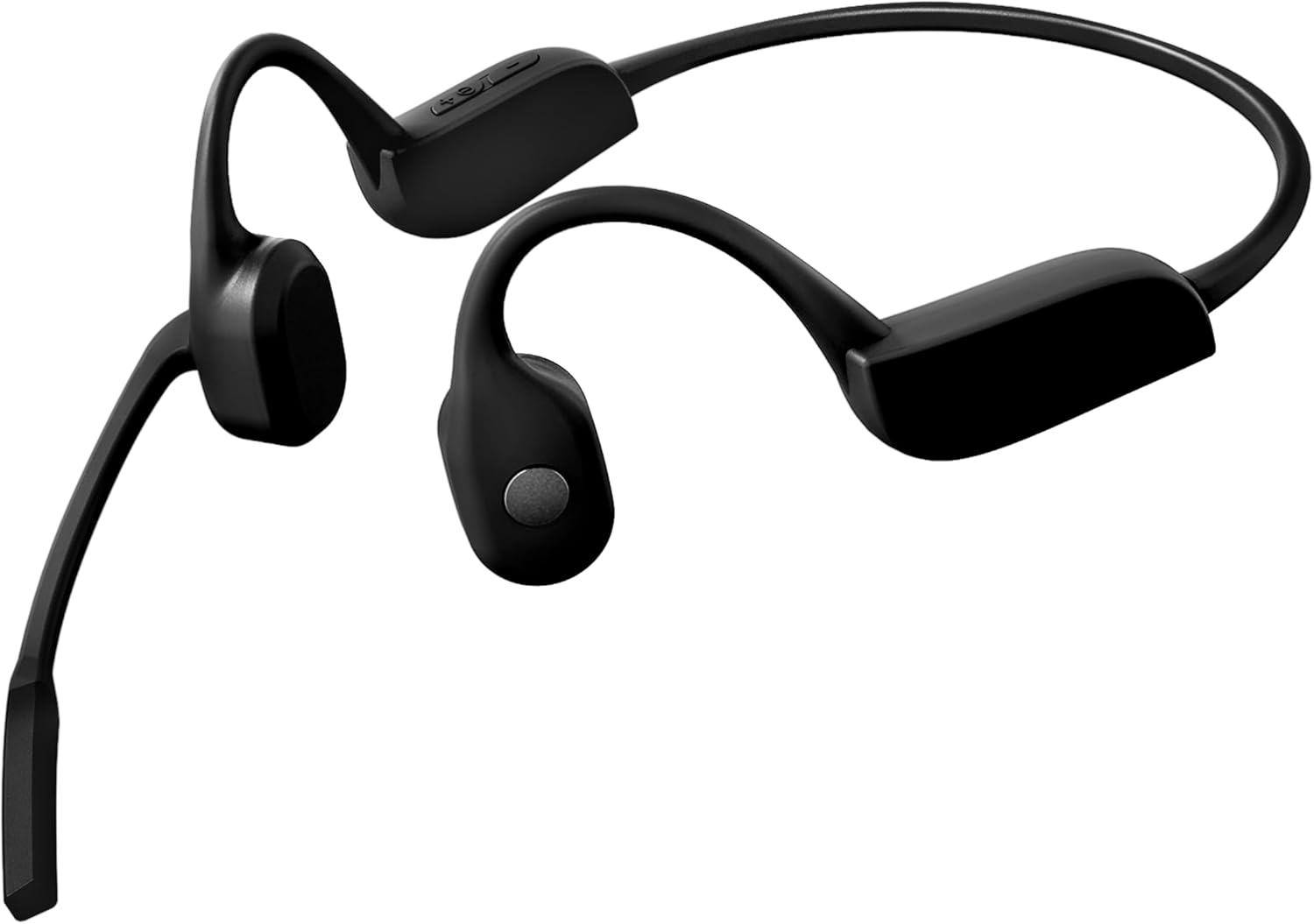
The Bigvapor Z18 Bone Conduction Headphones feature a lightweight, flexible design in black, with an integrated boom microphone for clear communication.
2. What's in the Box
- Bigvapor Z18 Bone Conduction Headphones
- USB-C Charging Cable
- User Manual
3. Setup Guide
3.1 Charging the Headphones
Before first use, fully charge the headphones. Connect the provided USB-C charging cable to the charging port on the headphones and to a compatible USB power source. The LED indicator will show a red light during charging and turn blue when charging is complete. A full charge typically takes approximately 2 hours.
3.2 Power On/Off
- Power On: Press and hold the Power button for 3 seconds until the LED indicator flashes blue.
- Power Off: Press and hold the Power button for 5 seconds until the LED indicator flashes red and then turns off.
3.3 Bluetooth Pairing
- Ensure the headphones are powered off.
- Press and hold the Power button for 5-7 seconds until the LED indicator flashes red and blue alternately, indicating pairing mode.
- On your device (smartphone, computer, tablet), enable Bluetooth and search for available devices.
- Select "Z18_Comm" from the list of devices to connect. Once connected, the LED indicator will flash blue slowly.
3.4 Multipoint Pairing
The headphones support connecting to two devices simultaneously (e.g., a phone and a computer). To use multipoint pairing:
- Pair the headphones with the first device as described in section 3.3.
- Disable Bluetooth on the first device. The headphones will re-enter pairing mode.
- Pair the headphones with the second device.
- Re-enable Bluetooth on the first device. The headphones should automatically connect to both devices.

This diagram illustrates the various controls and features of the headphones, including the Type-C charging port, power and volume buttons, the multi-function button, the LED indicator, and the adjustable noise-cancelling boom microphone.
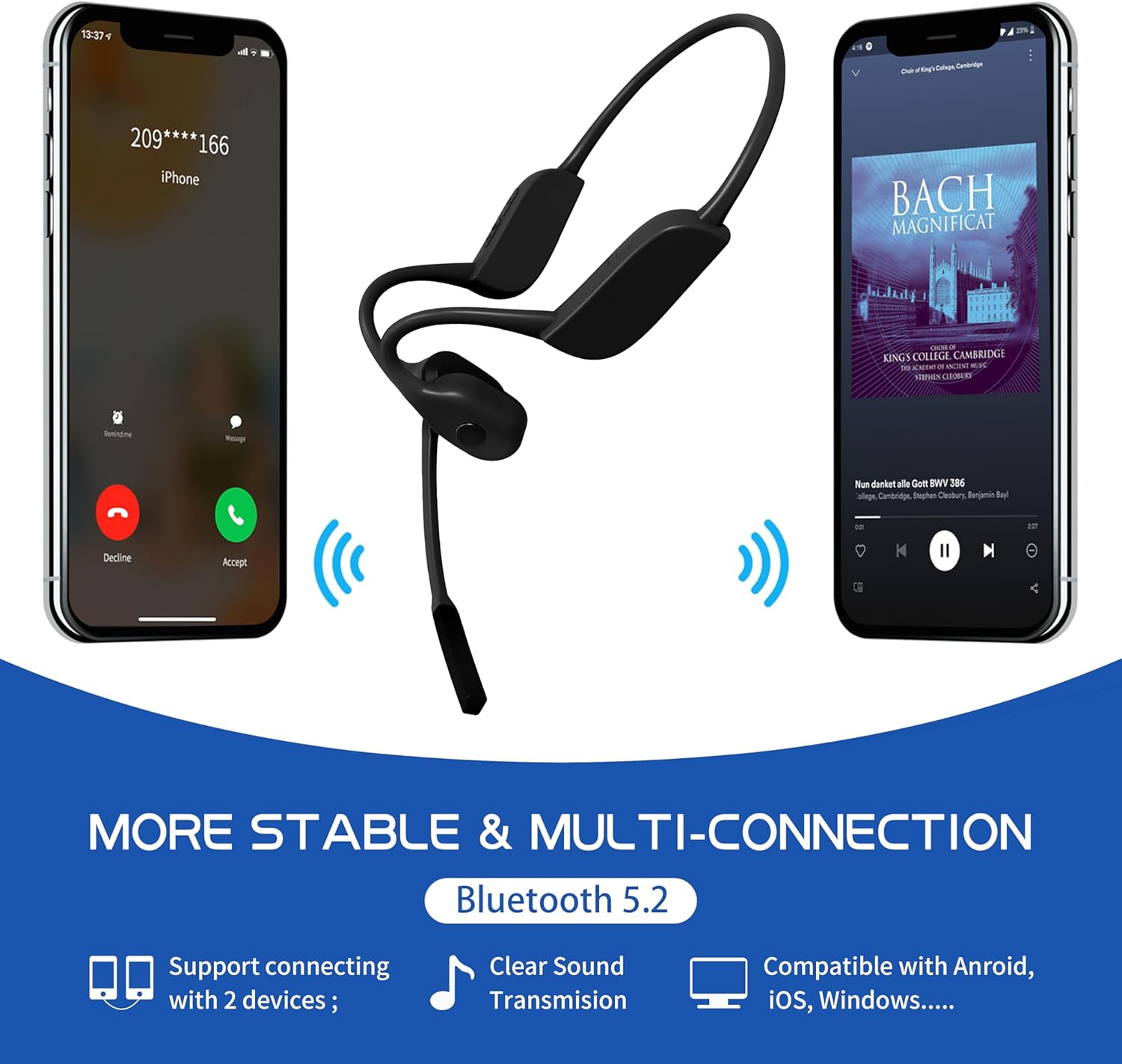
The headphones support Bluetooth 5.2 multipoint pairing, allowing simultaneous connection to two devices, such as a smartphone for calls and another device for music playback.
4. Operating Instructions
4.1 Basic Controls
- Play/Pause Music: Press the Multi-function Button once.
- Answer/End Call: Press the Multi-function Button once.
- Reject Call: Press and hold the Multi-function Button for 2 seconds.
- Next Song: Press and hold the Volume + button for 2 seconds.
- Previous Song: Press and hold the Volume - button for 2 seconds.
4.2 Volume Adjustment
- Increase Volume: Press the Volume + button.
- Decrease Volume: Press the Volume - button.
4.3 Microphone Usage
The integrated boom microphone features dual DSP noise and wind cancellation for clear voice transmission during calls. Position the microphone appropriately for optimal clarity. A mute function is available for calls, typically activated by a specific button press (refer to the diagram or quick start guide for exact button location if not explicitly labeled).
4.4 Wearing the Headphones
Place the headphones with the transducers resting on your cheekbones, just in front of your ears. The flexible neckband should rest comfortably behind your head. Adjust for a secure and comfortable fit.

These headphones are suitable for professional environments, providing clear audio for calls and meetings while allowing awareness of surroundings.

The open-ear design enhances safety by allowing users to hear ambient sounds, making them ideal for activities like driving or outdoor sports.
Video demonstrating the features and usage of the Bigvapor Z18 Bone Conduction Headphones with ENC microphone.
5. Maintenance
5.1 Cleaning
Wipe the headphones with a soft, damp cloth. Avoid using harsh chemicals or abrasive materials. Ensure the charging port is dry before charging.
5.2 Storage
Store the headphones in a cool, dry place away from direct sunlight and extreme temperatures. Avoid bending or twisting the neckband excessively to prevent damage.
5.3 Water Resistance
The headphones are water resistant. This means they can withstand sweat and light splashes, making them suitable for workouts and outdoor activities. However, they are not designed for submersion in water.
6. Troubleshooting
6.1 Cannot Power On
- Ensure the headphones are fully charged.
- Press and hold the Power button for 3 seconds.
6.2 Pairing Issues
- Make sure the headphones are in pairing mode (LED flashing red and blue alternately).
- Ensure Bluetooth is enabled on your device and it is within range (typically 10 meters).
- Forget/remove the headphones from your device's Bluetooth list and try pairing again.
6.3 No Sound or Low Volume
- Check the volume levels on both the headphones and your connected device.
- Ensure the headphones are properly connected to your device.
- Verify that the audio source is playing.
6.4 Poor Call Quality
- Ensure the microphone is positioned correctly.
- Move closer to your connected device to improve signal strength.
- Avoid environments with excessive background noise if possible.
7. Specifications
| Feature | Detail |
|---|---|
| Model Name | Z18 Bone Conduction Headphones |
| Connectivity Technology | Wireless (Bluetooth 5.2) |
| Audio Driver Type | Bone Conduction Driver |
| Microphone | Dual DSP Noise Cancelling Mic |
| Ear Placement | Open Ear |
| Control Type | Button Control |
| Charging Time | Approx. 2 Hours |
| Item Weight | 32g (approx. 0.07 lbs) |
| Material | Silicone |
| Water Resistance Level | Water Resistant |
| Compatible Devices | Cellphones, PCs, Tablets |
8. Warranty and Support
For warranty information and customer support, please refer to the product packaging or contact the manufacturer directly through their official website. Keep your purchase receipt for any warranty claims.