
1. Introduction
Welcome to the instruction manual for your new SUNLUX 12-Digit Electronic Calculator. This manual provides essential information on how to set up, operate, maintain, and troubleshoot your device. Please read it thoroughly to ensure optimal performance and longevity of your calculator.
2. Package Contents
Please check the package for the following items:
- SUNLUX 12-Digit Electronic Calculator
- Instruction Manual (this document)
3. Product Overview
The SUNLUX 12-Digit Electronic Calculator is designed for ease of use and reliability, featuring a clear display and responsive keys. It operates on a dual power system, utilizing both solar energy and a backup battery.
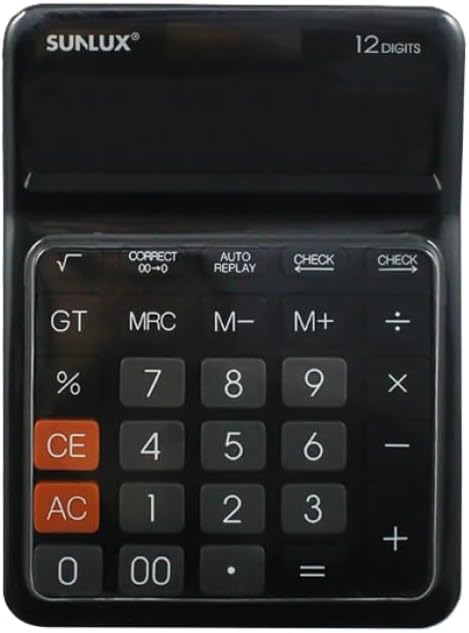
This image shows the front of the SUNLUX 12-digit electronic calculator, highlighting its display, numeric keypad, and function buttons. The calculator features a black casing with clearly labeled keys for various operations.
Key Functions
- 0-9, 00: Numeric input keys.
- +: Addition.
- -: Subtraction.
- *: Multiplication.
- /: Division.
- =: Equals key, displays the result of a calculation.
- %: Percentage calculation.
- √: Square root function.
- GT (Grand Total): Recalls the grand total of all calculations.
- MRC (Memory Recall/Clear): Recalls memory content (first press), clears memory (second press).
- M+ (Memory Plus): Adds the displayed value to memory.
- M- (Memory Minus): Subtracts the displayed value from memory.
- CE (Clear Entry): Clears the last entered number or calculation.
- AC (All Clear): Clears all entries and memory, resetting the calculator.
- CHECK: Allows reviewing previous calculation steps.
- AUTO REPLAY: Automatically replays the calculation steps.
- CORRECT (00->0): Corrects the last digit entered.
4. Setup
Power Supply
Your SUNLUX calculator features a dual power system: solar power and battery power. Under sufficient light, the calculator will operate using solar power. In low light conditions, it will automatically switch to battery power.
Battery Installation
While the calculator primarily uses solar power, a battery ensures operation in all lighting conditions. If the display is dim or unresponsive in low light, the battery may need replacement.
- Locate the battery compartment cover on the back of the calculator.
- Carefully remove the cover.
- Insert a new battery (type typically AG10 or LR1130, check compartment for specific type if indicated) with the correct polarity (+/-).
- Replace the battery compartment cover securely.
5. Operating Instructions
Basic Calculations
- Addition: Enter first number, press +, enter second number, press =.
- Subtraction: Enter first number, press -, enter second number, press =.
- Multiplication: Enter first number, press *, enter second number, press =.
- Division: Enter first number, press /, enter second number, press =.
Memory Functions
- M+: Adds the currently displayed number to the memory.
- M-: Subtracts the currently displayed number from the memory.
- MRC: Press once to recall the value stored in memory. Press twice to clear the memory.
- GT: Displays the grand total of all results obtained since the last AC press.
Special Functions
- Percentage (%): For example, to calculate 10% of 200: Enter 200, press *, enter 10, press %.
- Square Root (√): Enter a number, then press √.
- CHECK: After a series of calculations, press CHECK to review the entered operations step-by-step.
- AUTO REPLAY: Press AUTO REPLAY to automatically cycle through the calculation steps.
- CORRECT (00->0): If you enter a wrong digit, press CORRECT to delete the last digit without clearing the entire entry.
6. Maintenance
Cleaning
To clean your calculator, use a soft, dry cloth. Do not use liquid cleaners, abrasive pads, or chemical solvents, as these can damage the display or casing.
Storage
Store the calculator in a cool, dry place away from direct sunlight and extreme temperatures. Avoid placing heavy objects on top of the calculator to prevent damage to the display or keys.
7. Troubleshooting
- Display is blank or dim:
Ensure the calculator is in a well-lit area for solar power. If the issue persists, the battery may need replacement. Refer to the "Battery Installation" section. - Incorrect calculation results:
Press AC to clear all previous entries and memory. Re-enter your calculation carefully. Check if any memory functions (M+, M-, MRC) are active. - Keys are unresponsive:
Ensure the calculator is clean and free from debris around the keys. If the problem persists, try replacing the battery.
8. Specifications
Technical Details
- Brand: SUNLUX
- Model: 7886116
- Number of Digits: 12
- Dimensions: 17.5 cm x 12.5 cm (approximately)
- Power Source: Dual Power (Solar and Battery)
- Material: Plastic and Metal
- Item Weight: 300 grams
- Country of Origin: China
9. Warranty and Support
Warranty Information
This product is covered by the standard manufacturer's warranty. Please refer to your purchase documentation or contact your retailer for specific warranty terms and conditions.
Customer Support
For any questions, technical assistance, or support regarding your SUNLUX calculator, please contact the retailer from whom you purchased the product. They will be able to provide the most accurate and timely assistance.