1. Product Overview
The LG MyView Smart Monitor 25SR50F-W is a versatile 24.5-inch Full HD (1920x1080) IPS display designed for both productivity and entertainment. It integrates the functionality of a monitor with the smart features of a TV, powered by webOS 23. This allows direct access to various streaming services and applications without needing a separate PC connection.
The monitor features a slim, 3-side frameless design, making it suitable for various environments. It includes built-in 5W+5W speakers, supports AirPlay 2 and Miracast for wireless screen sharing, and offers multiple connectivity options including HDMI and USB Type-A ports.

Front view of the LG MyView Smart Monitor 25SR50F-W, showcasing its sleek design and the included remote control.

Key features of the LG MyView Smart Monitor, including Full HD, IPS Panel, webOS, 5W+5W Speaker, Bluetooth, AirPlay 2, Miracast, Flicker Safe, Remote Control, and Wireless PC Connection.
2. Setup and Connections
2.1. Unpacking and Stand Assembly
Carefully remove all components from the packaging. Attach the stand base to the stand neck, then secure the assembled stand to the monitor using the provided screws. Ensure all connections are firm before proceeding.
2.2. Power Connection
Connect the AC-DC adapter to the monitor's power input port, then plug the power cord into a wall outlet. The monitor will power on or enter standby mode.
2.3. Connecting External Devices
The monitor offers various ports for connecting external devices:
- HDMI Input (x2): Connect PCs, gaming consoles, or other HDMI-enabled devices. One HDMI port supports eARC for enhanced audio return channel functionality.
- USB Type-A Input (x2): Connect USB storage devices for media playback or peripherals like keyboards and mice.
- Headphone Output: Connect headphones or external speakers.
Rear view of the monitor displaying the HDMI, USB Type-A, and headphone output ports.

Detailed diagram illustrating the various input ports and how to connect a soundbar via the eARC HDMI port.
3. Operating the Monitor
3.1. Initial Setup and webOS
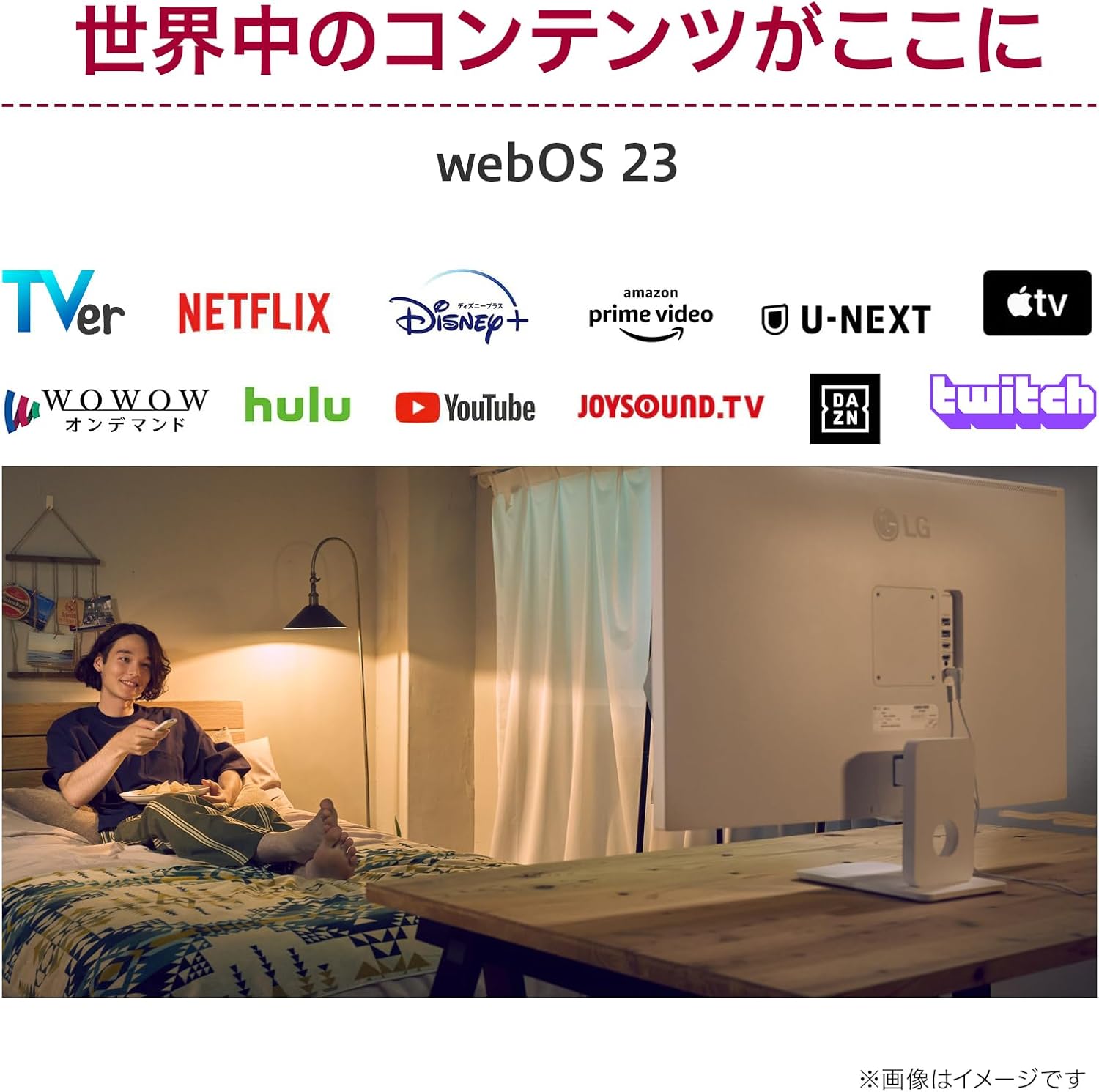
Upon first power-on, the monitor will guide you through the initial setup process, including network connection and basic settings. The integrated webOS 23 platform provides access to over 600 content applications, allowing you to enjoy movies, dramas, sports, and games directly on the monitor without a PC.

The webOS interface on the LG Smart Monitor, showing a selection of popular streaming applications.

Logos of various content providers available through webOS 23, including Netflix, Disney+, Prime Video, and YouTube.
3.2. Remote Control and LG ThinQ App
The included remote control allows for easy operation, including power ON/OFF and navigating the webOS interface. For enhanced control, download the LG ThinQ app on your smartphone. The app offers basic operations, pointer control, text input, and even voice control (with a Magic Remote, if applicable), expanding your control options.

The compact remote control for the LG Smart Monitor.

A hand demonstrating the use of the remote control to interact with the monitor's interface.
3.3. Screen Sharing (AirPlay 2 & Miracast)
Wirelessly share content from your compatible devices using AirPlay 2 for Apple devices or Miracast for Android and Windows devices. This allows you to display photos, videos, and presentations from your smartphone, tablet, or laptop directly on the monitor's large screen.

A user wirelessly sharing content from a tablet to the LG Smart Monitor using AirPlay 2.

Logos indicating compatibility with Apple AirPlay 2 and Miracast for wireless screen mirroring.
3.4. Audio Features
The monitor is equipped with powerful 5W+5W built-in speakers, providing clear and immersive audio. It also supports Bluetooth connectivity, allowing you to stream audio from your smartphone or other Bluetooth-enabled devices directly to the monitor's speakers.

The LG Smart Monitor displaying a vibrant concert scene, illustrating its audio capabilities with visual sound waves.

The Bluetooth logo with visual sound waves, indicating the monitor's wireless audio streaming capability.
3.5. Dual Monitor Setup
Enhance your productivity by using the LG MyView Smart Monitor as a dual display with your laptop. Connect your laptop via an HDMI cable to extend your workspace, allowing for more efficient multitasking and improved workflow. For Windows users, a simple shortcut (Windows key + K) can quickly enable dual display mode.

The LG Smart Monitor set up as a secondary display alongside a laptop, demonstrating an extended workspace.

A diagram showing wireless PC connection and the Windows key + K shortcut for quick dual display setup.
4. Display Features
4.1. Full HD IPS Panel
The monitor features a Full HD (1920x1080) IPS panel, offering vibrant colors and wide viewing angles (178°/178°). This ensures consistent image quality and color accuracy from almost any perspective, making it ideal for both work and media consumption.

The LG Smart Monitor displaying a high-quality image, highlighting the clarity and color reproduction of its IPS panel.
4.2. Flicker Safe
LG's Flicker Safe technology reduces screen flicker, which can cause eye strain and fatigue during prolonged use. This feature provides a more comfortable viewing experience, especially beneficial for users who spend long hours in front of the screen.

A visual comparison demonstrating the reduction of screen flicker when Flicker Safe is enabled versus when it is not.

A diagram illustrating how Flicker Safe technology works to provide a more stable and comfortable viewing experience.
4.3. HDR10 Support
The monitor supports HDR10 (High Dynamic Range), which enhances the contrast and color accuracy of compatible content. This results in a more dynamic and lifelike image with brighter whites and deeper blacks, bringing your entertainment to life.

A side-by-side comparison demonstrating the enhanced visual quality of HDR (High Dynamic Range) content versus standard SDR (Standard Dynamic Range).
5. Maintenance
To ensure the longevity and optimal performance of your LG MyView Smart Monitor, follow these maintenance guidelines:
- Cleaning the Screen: Gently wipe the screen with a soft, lint-free cloth. For stubborn smudges, slightly dampen the cloth with water or a non-abrasive, monitor-safe cleaning solution. Avoid spraying liquid directly onto the screen.
- Cleaning the Casing: Use a soft, dry cloth to wipe the monitor's casing. Do not use harsh chemicals or abrasive materials.
- Ventilation: Ensure the ventilation openings on the monitor are not blocked to prevent overheating.
- Power Off When Not in Use: Turn off the monitor when not in use for extended periods to save energy and prolong its lifespan.
6. Troubleshooting
If you encounter issues with your LG MyView Smart Monitor, refer to the following common problems and solutions:
- No Power:
- Ensure the power cord is securely connected to the monitor and the wall outlet.
- Verify the power outlet is functioning by plugging in another device.
- Check if the power indicator light on the monitor is on.
- No Signal / Blank Screen:
- Confirm that the HDMI or other input cables are securely connected to both the monitor and the source device.
- Select the correct input source on the monitor using the remote control or OSD joystick.
- Ensure the source device (PC, console) is powered on and outputting a signal.
- Slow Operation / Unresponsive Interface:
- If the webOS interface feels slow or unresponsive, try restarting the monitor by unplugging it from the power outlet for a few minutes, then plugging it back in.
- Ensure your internet connection is stable, as many smart features rely on network connectivity.
- Check for available software updates in the webOS settings and install them if prompted.
- Image Quality Issues (Blurry, Distorted):
- Check the display resolution settings on your connected device to ensure it matches the monitor's native Full HD (1920x1080) resolution.
- If using an analog connection (not applicable for this model, but general advice), ensure the cable is not too long or of poor quality.
- Adjust monitor settings like brightness, contrast, and sharpness via the OSD menu.
If the issue persists after trying these steps, please contact LG customer support for further assistance.
7. Specifications
| Feature | Specification |
|---|---|
| Brand | LG |
| Model Number | 25SR50F-W |
| Screen Size | 24.5 inches |
| Panel Type | IPS |
| Resolution | 1920 x 1080 (Full HD) |
| Aspect Ratio | 16:9 |
| Brightness (Typical) | 250 cd/m² |
| Contrast Ratio | 1,000:1 |
| Response Time (Typical) | 8ms |
| Viewing Angle (H/V) | 178°/178° |
| Surface Treatment | Anti-glare |
| Speakers | 5W + 5W |
| Connectivity | 2x HDMI (1x eARC), 2x USB Type-A, Headphone Out |
| Wireless Connectivity | Wi-Fi 5 (802.11a/b/g/n/ac), Bluetooth 5.0 |
| Smart Features | webOS 23, LG ThinQ App, AirPlay 2, Miracast, Remote Desktop |
| Special Features | HDR10, Flicker Safe, Energy Saving, Dynamic Tone Mapping, Auto Brightness Sensor |
| Dimensions with Stand (WxHxD) | 558 x 423 x 210 mm |
| Weight with Stand | 4.3 kg |
| Tilt Adjustment | -5° to 15° |
| VESA Mount Compatibility | 100 x 100 mm |
| Power Consumption (Typical) | 30W |
| Standby Power | 0.5W |

Detailed dimensions of the LG Smart Monitor with and without its stand.
8. Warranty and Support
8.1. Standard Warranty
Your LG MyView Smart Monitor comes with a 3-year warranty from the date of purchase. This warranty covers free repairs, including the LCD panel and backlight, in accordance with LG's free repair policy.
8.2. Extended Warranty
LG Electronics Japan offers an extended warranty program. By registering your product on the official LG website, you may be eligible to extend your warranty period up to a maximum of 4 years (3 years standard warranty + 1 year extended warranty). Please visit the official LG website for detailed information and registration requirements:
LG Extended Warranty Information

Information regarding LG's extended warranty program, offering up to 4 years of coverage upon product registration.
8.3. Bright Dot (Dead Pixel) Policy
If even one bright pixel (a pixel that remains lit in the same color) is found on the display during the warranty period, it will be eligible for free exchange or repair. For any suspected defects, please contact LG customer service.

Details on the 3-year warranty and LG's policy regarding bright dots (dead pixels) on the display.
8.4. Free On-Site Repair Service
LG offers a free on-site repair service for eligible monitor models (typically 27 inches and larger) in designated areas. For models not eligible for on-site repair, or for customers in remote islands (like Okinawa), shipping and repair services are available. Please check the official LG website for details on eligible areas and service terms:
LG Free On-Site Repair Service Information

Information about LG's free on-site repair service, including eligible areas and sizes, and options for remote islands.