
Introduction
This manual provides detailed instructions for the setup, operation, maintenance, and troubleshooting of your FANTECH P51SW 5-in-1 Gaming Combo. This comprehensive package includes a gaming keyboard, gaming mouse, gaming headset, headset stand, and gaming mouse pad, designed to enhance your gaming experience. Please read this manual thoroughly before using the product to ensure optimal performance and longevity.
Product Overview
The FANTECH P51SW 5-in-1 Gaming Combo includes the following components:
- FANTECH Shikari K515 Gaming Keyboard: A wired keyboard with rainbow LED backlighting, media control keys, and anti-ghosting features.
- FANTECH Crypto VX7 Gaming Mouse: An ergonomic wired mouse with adjustable DPI, programmable buttons, and 4-color breathing lighting.
- FANTECH Flash HQ53 Gaming Headset: An over-ear headset with RGB lighting, a powerful 50mm driver, and a detachable microphone.
- FANTECH Tower II AC304 Headset Stand: A stand designed to keep your headset organized.
- FANTECH Vigil MP356 Gaming Mouse Pad: A 3D textured mouse pad for smooth and precise mouse movement.

Image: All components of the FANTECH P51SW 5-in-1 Gaming Combo, including the keyboard, mouse, headset, headset stand, and mouse pad.
Setup Instructions
Follow these steps to set up your FANTECH P51SW Gaming Combo:
1. Keyboard Setup (Shikari K515)
- Locate the USB cable attached to the FANTECH Shikari K515 Gaming Keyboard.
- Plug the USB connector into an available USB port on your computer (PC or Laptop) or compatible gaming console (Xbox).
- The keyboard will automatically install necessary drivers. The rainbow LED backlighting will illuminate upon successful connection.
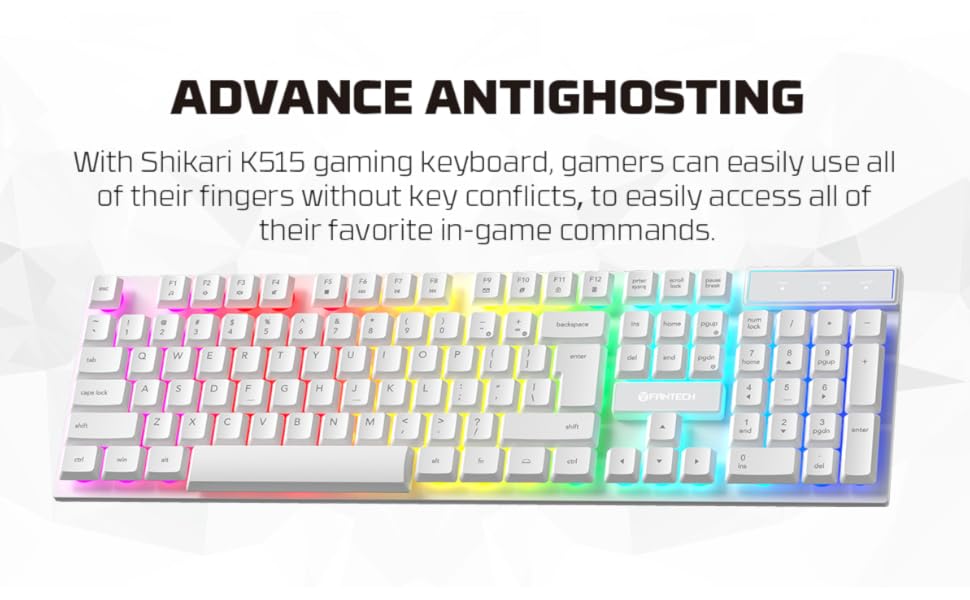
Image: The FANTECH Shikari K515 Gaming Keyboard with rainbow LED backlighting.
2. Mouse Setup (Crypto VX7)
- Locate the USB cable attached to the FANTECH Crypto VX7 Gaming Mouse.
- Plug the USB connector into an available USB port on your computer or compatible gaming console.
- The mouse will automatically install necessary drivers. The 4-color breathing lighting will activate upon successful connection.

Image: The FANTECH Crypto VX7 Gaming Mouse, showcasing its ergonomic design and lighting.
3. Headset Setup (Flash HQ53)
- Connect the 3.5mm audio cable from the FANTECH Flash HQ53 Gaming Headset into the 3.5mm audio jack on your computer, console controller, or mobile device.
- For RGB lighting, plug the headset's USB cable into an available USB port. Note that the USB connection is solely for powering the RGB lights.
- If your device has separate audio input and output jacks, use the included splitter adapter.

Image: The FANTECH Flash HQ53 Gaming Headset with its microphone and RGB lighting.
4. Headset Stand Assembly (Tower II AC304)
- Unpack the components of the FANTECH Tower II AC304 Headset Stand.
- Assemble the base and the vertical support arm according to the diagram. Ensure all parts are securely connected.
- Place your headset on the stand to keep it organized and easily accessible.

Image: Detailed view of the FANTECH Tower II AC304 Headset Stand components and assembly points.
5. Mouse Pad Placement (Vigil MP356)
- Unroll the FANTECH Vigil MP356 Gaming Mouse Pad.
- Place it on a flat, clean surface where you intend to use your mouse.

Image: The FANTECH Vigil MP356 Gaming Mouse Pad with its textured surface.
Operating Instructions
Keyboard (Shikari K515)
- Rainbow LED Backlighting: The keyboard features a static rainbow LED backlight. Specific keys or key combinations may control brightness or turn the lighting on/off. Refer to the keyboard's function keys (Fn + F-keys) for lighting controls.
- Media Control Keys: Utilize the dedicated media keys or Fn key combinations for quick access to volume control, play/pause, and track skipping.
- Anti-Ghosting: The keyboard supports advanced anti-ghosting, allowing multiple key presses to be registered simultaneously, which is beneficial for gaming.
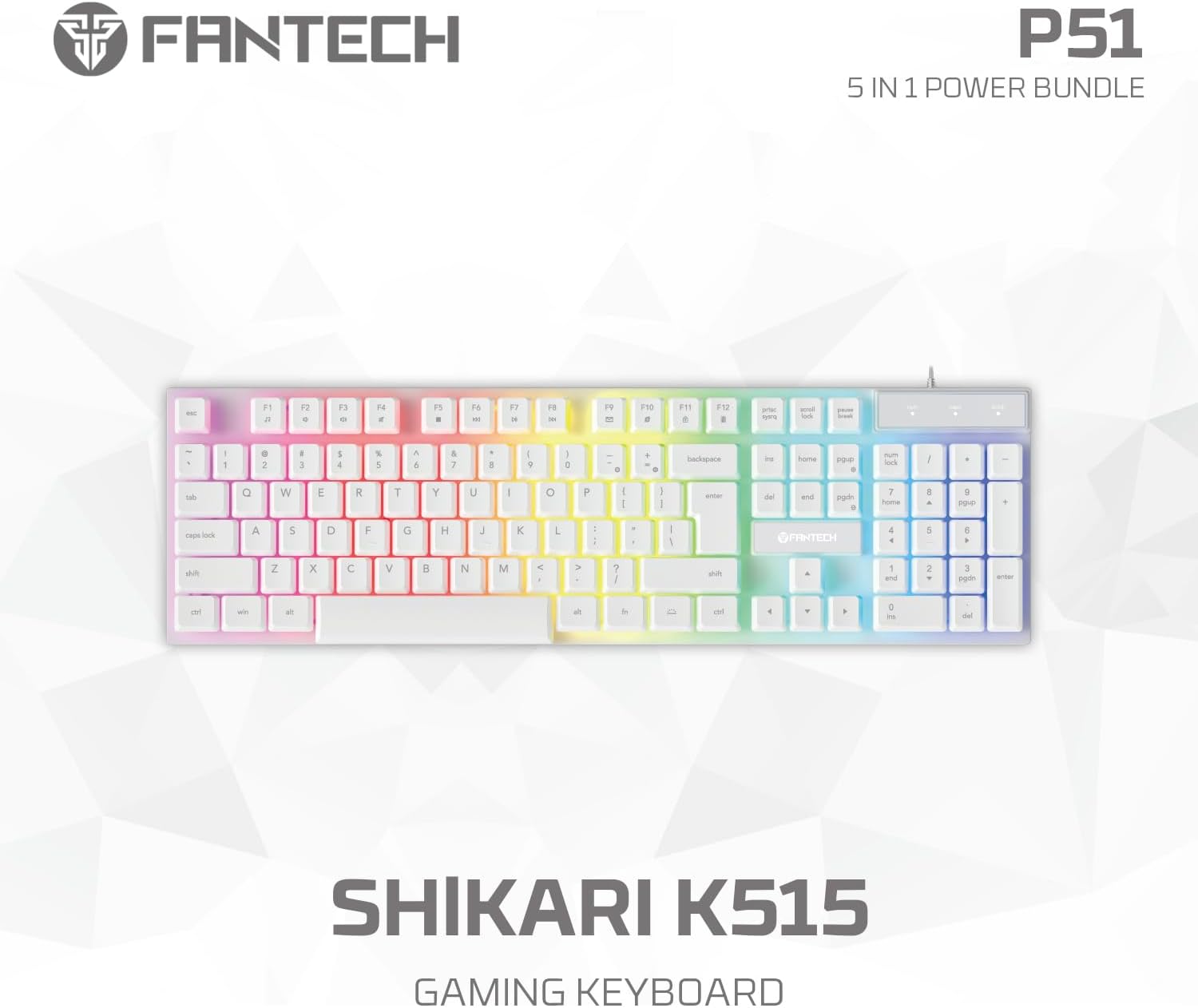
Image: The FANTECH Shikari K515 Gaming Keyboard highlighting its anti-ghosting capability for simultaneous key presses.
Mouse (Crypto VX7)
- DPI Adjustment: Use the dedicated DPI buttons on the mouse to cycle through different sensitivity levels (up to 8000 DPI) on-the-fly.
- Programmable Buttons: The mouse features 6 programmable buttons. Software is available from the FANTECH website to customize these buttons, create macros, save up to 3 profiles, and support click button scripts and delay editing.
- Lighting: The mouse features 4-color breathing lighting that can be customized via the software.

Image: The FANTECH Crypto VX7 Gaming Mouse, showing its buttons and ergonomic shape.
Headset (Flash HQ53)
- Audio: Ensure the 3.5mm audio jack is fully inserted into your device's audio port. Adjust volume using your device's controls or any inline volume control on the headset cable (if present).
- Microphone: Position the microphone close to your mouth for clear communication. Ensure your device's microphone input is correctly selected and enabled.
- RGB Lighting: The RGB lighting is powered by the USB connection. If the lights are not on, ensure the USB cable is securely connected.

Image: The FANTECH Flash HQ53 Gaming Headset, showing the earcups and adjustable microphone.
Maintenance
Proper maintenance ensures the longevity and performance of your gaming combo.
- Cleaning:
- Use a soft, dry cloth to wipe down the keyboard, mouse, headset, and headset stand.
- For stubborn dirt, slightly dampen the cloth with water or a mild cleaning solution. Avoid harsh chemicals.
- Use compressed air to remove dust and debris from between keyboard keys and mouse crevices.
- The mouse pad can be gently wiped with a damp cloth and air-dried.
- Storage: Store components in a cool, dry place away from direct sunlight and extreme temperatures. Use the headset stand to prevent damage to the headset.
- Cable Management: Avoid sharp bends or kinks in cables to prevent internal wire damage.
Troubleshooting
If you encounter issues, refer to the following common solutions:
- Device Not Detected:
- Ensure all USB and 3.5mm cables are securely connected to the correct ports.
- Try plugging the device into a different USB port or audio jack.
- Restart your computer or gaming console.
- Check your device's settings to ensure the peripheral is recognized and enabled.
- Keyboard/Mouse Not Responding:
- Verify the USB connection.
- Test the keyboard/mouse on another computer to rule out a device-specific issue.
- No Audio from Headset:
- Ensure the 3.5mm audio jack is fully inserted.
- Check your device's sound settings to ensure the headset is selected as the output device and volume is not muted.
- Adjust the volume controls on the headset cable (if applicable) and your device.
- Microphone Not Working:
- Ensure the microphone is properly positioned and not muted.
- Check your device's sound settings to ensure the headset microphone is selected as the input device and its volume is not muted.
- If using a splitter, ensure it is correctly connected.
- LED Lights Not Working:
- For the keyboard, check if lighting controls (e.g., Fn + F-keys) have turned off the backlight.
- For the headset, ensure the USB cable is connected, as it powers the RGB lighting.
- For the mouse, ensure the USB cable is connected. If using software, check lighting settings.
Specifications
Technical specifications for the FANTECH P51SW Gaming Combo:
| Feature | Detail |
|---|---|
| Product Dimensions | 17.64 x 5.71 x 7.48 inches |
| Item Weight | 3.89 pounds |
| Model Number | FA-P51 |
| Brand | FANTECH |
| Color | P51SW (White) |
| Connectivity Technology | USB (Wired) |
| Special Feature | Backlit (Keyboard & Mouse RGB, Headset RGB) |
| Compatible Devices | Personal Computer, Laptop, Xbox |
| Mouse DPI | Up to 8000 (adjustable) |
| Mouse Buttons | 6 programmable buttons |
| Headset Driver Size | 50mm |
| Headset Cable Length | 200cm (3.5mm audio cable) |
Warranty Information
FANTECH products are manufactured to high-quality standards. For specific warranty details, including coverage period and terms, please refer to the warranty card included in your product packaging or visit the official FANTECH website. Keep your proof of purchase for warranty claims.
Support
For technical assistance, product inquiries, or further support, please visit the official FANTECH website or contact their customer service department. Contact information can typically be found on the product packaging or the brand's official website.

