
1. Introduction
This user manual provides comprehensive instructions for the Generic OEM Mesh Router UTR-32. This device is designed to enhance your Starlink internet experience, offering seamless integration with both Gen 2 rectangular and Gen 3 flat dishes. Featuring WiFi 6 technology, it ensures fast, reliable, and consistent connectivity throughout your home or office by extending your WiFi coverage and eliminating dead zones.
Please read this manual carefully before operating the device to ensure proper setup and optimal performance.
2. Package Contents
Verify that all the following items are included in your package:
- Generic Gen 3 Wifi Router
- Gen 3 Power Cable
- Gen 3 Ethernet Router Cable
- RJ 45 Cover
- Power Supply

Figure 2.1: Front view of the Generic OEM Mesh Router UTR-32, showing its sleek white design and central indicator.
3. Key Features
The Generic OEM Mesh Router UTR-32 offers the following key features:
- Mesh Network: Seamlessly extends WiFi coverage, designed for Starlink Gen 3 and compatible with Gen 2 rectangular dishes.
- WiFi 6 Technology: Utilizes the latest 802.11ax wireless standard for faster speeds and improved network performance.
- Plug and Play: Enables easy setup via the Starlink app, requiring no complex configurations.
- Compact Design: Features a sleek white housing that integrates discreetly into any environment.
- Compatibility: Works with both Starlink Gen 2 rectangular and Gen 3 flat dishes, ensuring reliable internet connectivity.
- Special Features: Includes Guest Mode, LED Indicator, and Remote Access capabilities.
4. Setup Guide
Follow these steps to set up your Generic OEM Mesh Router UTR-32:
- Unpack the Router: Carefully remove the router and all included accessories from the packaging.
- Connect to Power: Connect the Gen 3 Power Cable to the router and then plug the Power Supply into a standard electrical outlet.
- Connect to Starlink Dish: Use the Gen 3 Ethernet Router Cable to connect the router to your Starlink Gen 2 rectangular or Gen 3 flat dish. Ensure both ends are securely connected.
- Power On: The router will automatically power on once connected to electricity. Wait for the LED indicator to show a stable status, indicating it is ready.
- Configure via Starlink App:
- Download the official Starlink app on your smartphone or tablet.
- Open the app and follow the on-screen instructions to detect and configure your new mesh router.
- The app will guide you through setting up your WiFi network name (SSID) and password.
- Placement: For optimal performance, place the router in a central location within your home or office, away from obstructions and other electronic devices that may cause interference.
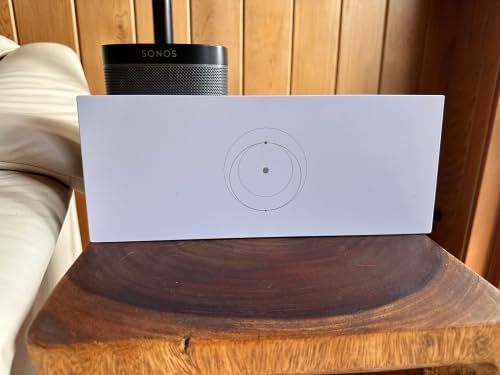
Figure 4.1: The Generic OEM Mesh Router UTR-32 positioned on a wooden surface, ready for connection.
5. Operating Instructions
Once set up, the Generic OEM Mesh Router UTR-32 operates automatically to provide seamless internet connectivity.
- Network Connection: Your devices (smartphones, tablets, computers, smart TVs, gaming consoles, security cameras) will automatically connect to the strongest WiFi signal provided by the mesh network.
- Guest Mode: Utilize the Guest Mode feature via the Starlink app to create a separate network for visitors, keeping your main network secure.
- LED Indicator: The router features an LED indicator that provides status updates. Refer to the Starlink app or online resources for specific LED patterns and their meanings.
- Remote Access: Manage your network settings and monitor connected devices remotely through the Starlink app.
6. Maintenance
To ensure the longevity and optimal performance of your router, consider the following maintenance tips:
- Cleaning: Gently wipe the exterior of the router with a soft, dry cloth. Do not use liquid cleaners or abrasive materials.
- Ventilation: Ensure the router is placed in a well-ventilated area to prevent overheating. Do not block any ventilation openings.
- Firmware Updates: Periodically check the Starlink app for available firmware updates. Keeping the firmware updated ensures the best performance and security.
- Environmental Conditions: Avoid exposing the router to extreme temperatures, humidity, or direct sunlight.
7. Troubleshooting
If you encounter issues with your router, refer to the following common troubleshooting steps:
- No Internet Connection:
- Check all cable connections (power, Ethernet to Starlink dish) to ensure they are secure.
- Restart the router by unplugging it from the power outlet for 10 seconds, then plugging it back in.
- Verify your Starlink dish is online and functioning correctly via the Starlink app.
- Weak WiFi Signal or Dead Zones:
- Relocate the router to a more central position in your home.
- Ensure there are no major physical obstructions (thick walls, large metal objects) between the router and your devices.
- Minimize interference from other electronic devices (cordless phones, microwaves).
- Devices Cannot Connect to WiFi:
- Double-check the WiFi network name (SSID) and password.
- Ensure the router's LED indicator shows a normal operating status.
- Restart the device attempting to connect.
For further assistance, consult the Starlink app's help section or visit the official Starlink support website.
8. Specifications
| Feature | Detail |
|---|---|
| Model Name | UTR-32 |
| Item Model Number | GEN 3 MESH ROUTER |
| Brand | Generic |
| Connectivity Technology | Wi-Fi |
| Wireless Communication Standard | 802.11ax (WiFi 6) |
| Frequency Band Class | Tri-Band |
| Frequency | 2.4 GHz (and other bands for Tri-Band) |
| Compatible Devices | Gaming Console, Personal Computer, Security Camera, Smart Television, Smartphone |
| Special Features | Guest Mode, LED Indicator, Remote Access |
| Item Weight | 3.05 pounds |
| Package Dimensions | 13.74 x 6.22 x 4.02 inches |
| Recommended Uses | Home |
9. Warranty and Support
Specific warranty information for the Generic OEM Mesh Router UTR-32 is not provided in this manual. For details regarding warranty coverage, returns, or technical support, please refer to the documentation included with your purchase or contact the retailer/manufacturer directly.
For general inquiries related to Starlink connectivity and app usage, please visit the official Starlink support website or use the help section within the Starlink application.