
1. Introduction
This manual provides comprehensive instructions for the Sunweyer Wireless CarPlay & Android Auto Dongle (Type-C Port). This device converts your vehicle's existing wired CarPlay or Android Auto system into a wireless connection, enhancing your driving experience by eliminating cable clutter and enabling seamless integration of your smartphone's features with your car's infotainment system.

Image: Banner displaying the '2 in 1 Wireless Car Adapter' with the Sunweyer dongle and car interior.
2. Product Overview
The Sunweyer Wireless CarPlay & Android Auto Dongle is a compact adapter designed to provide wireless connectivity for both Apple CarPlay and Android Auto. It features a Type-C port for direct connection to compatible vehicle ports and includes a Type-C to USB adapter for broader compatibility. The device utilizes 5.8 GHz WiFi for fast data transmission, ensuring a responsive and stable connection for navigation, music, calls, and messaging.

Image: The Sunweyer Wireless CarPlay & Android Auto Dongle with a Type-C connector, shown alongside a Type-C to USB adapter and a smartphone displaying CarPlay/Android Auto icons.

Image: A visual comparison demonstrating the convenience of wireless CarPlay and Android Auto using the Sunweyer Dongle versus a wired connection.
3. Safety Information
- Avoid placing the adapter near other wireless devices to prevent interference.
- Keep the adapter away from extreme temperatures and humidity.
- Do not dispose of the adapter in fire or water.
- Always follow local regulations for electronic waste disposal.
4. Package Contents
The product package includes the following items:
- Sunweyer Wireless CarPlay & Android Auto Dongle (Type-C Port)
- Type-C to USB Adapter
- User Manual

Image: Diagram showing the product back, USB-C to USB adapter, packaging box, and user manual.
5. Setup Instructions
5.1. Compatibility Check
This wireless adapter is compatible only with vehicles that have a factory-installed wired CarPlay or wired Android Auto system. It is generally suitable for 2016+ models but is not compatible with BMW vehicles or aftermarket head units. Ensure your vehicle and smartphone meet the following requirements:
- Vehicle: Must have built-in wired CarPlay or Android Auto.
- iPhone: iOS 12 and above.
- Android Phone: Android 11 and above.

Image: Visual guide for car and phone compatibility, including QR codes to check specific car models for CarPlay and Android Auto support.
5.2. Connection Steps (Plug & Play)
Follow these three simple steps to set up your Sunweyer dongle:
- Plug In: Insert the Sunweyer dongle into your car's USB data port. If your car has a USB-A port, use the included Type-C to USB adapter.
- Bluetooth Pair: On your smartphone, enable Bluetooth and Wi-Fi. Search for the dongle's Bluetooth name (e.g., "Sunweyer Dongle") and pair with it. Confirm any pairing prompts on your phone and car screen.
- Use CarPlay / Android Auto: Once paired, your car's infotainment system will automatically launch wireless CarPlay or Android Auto.

Image: A visual representation of the three-step connection process: Plug in, Bluetooth Pair, and Use CarPlay/Android Auto.
6. Operating Instructions
6.1. Automatic Connection
After the initial setup and Bluetooth pairing, the adapter will automatically connect to your smartphone and activate wireless CarPlay or Android Auto every time you start your car. This process typically takes 5-10 seconds.

Image: A car interior showing the infotainment screen displaying CarPlay/Android Auto, with a smartphone and the Sunweyer dongle indicating automatic connection.
6.2. Maintaining Original Car Controls
The Sunweyer dongle allows you to retain full functionality of your car's original control methods, including:
- Touch Screen Control: Interact directly with the car's display.
- OEM Knob Control: Use your vehicle's factory-installed rotary knob or joystick.
- Steering Wheel Control: Manage audio, calls, and navigation directly from your steering wheel buttons.
- Voice Assistant: Utilize Siri or Google Assistant for hands-free commands.

Image: A driver using voice commands, with separate images illustrating touch screen control, OEM knob control, and steering wheel control.
7. Maintenance
To ensure optimal performance and longevity of your Sunweyer Wireless CarPlay & Android Auto Dongle, follow these maintenance guidelines:
- Keep the device clean and free from dust and debris. Use a soft, dry cloth for cleaning.
- Avoid exposing the dongle to direct sunlight for extended periods or to extreme temperatures (hot or cold).
- Do not expose the device to water or excessive humidity.
- Handle the dongle with care to prevent physical damage.
8. Troubleshooting
If you encounter issues with your Sunweyer dongle, please refer to the following common solutions and video guides:
8.1. Common Issues & Solutions
- No Connection/Intermittent Connection:
- Ensure your car has factory-installed wired CarPlay/Android Auto.
- Verify Bluetooth and Wi-Fi are enabled on your phone.
- Try unplugging the dongle and plugging it back in.
- Restart your car's infotainment system.
- Clear Bluetooth and Wi-Fi history on your phone (see video guide below).
- Lag or Delay:
- Ensure your phone's operating system is up to date.
- Check for firmware updates for the dongle (see video guides below).
- Minimize background applications on your phone.
- Navigation App Crashes:
- This can sometimes occur if a route is canceled while actively navigating. Unplugging and replugging the adapter usually resolves this.
- Ensure navigation apps are updated to their latest versions.
- Firmware Update Issues:
- If updating firmware directly from the car via mobile is difficult, try connecting the dongle to a PC with Wi-Fi. Connect the PC's Wi-Fi to the dongle's access point, and use the PC's wired internet connection to download the firmware update.
8.2. Video Guides for Troubleshooting
Upgrade with an Android Phone
Video: Instructions on how to perform a firmware upgrade using an Android phone.
Upgrade with an iPhone
Video: Instructions on how to perform a firmware upgrade using an iPhone.
Enable Wireless Android Auto Permission
Video: Guide on how to enable necessary permissions for wireless Android Auto on your phone.
How to Change Wi-Fi Frequency Band
Video: Instructions on how to adjust the Wi-Fi frequency band for improved connection stability.
Clear Bluetooth and Wi-Fi History on Your Phone
For optimal performance and to resolve connection issues, it is sometimes beneficial to clear your phone's Bluetooth and Wi-Fi connection history. Refer to your phone's operating system manual for specific steps on how to do this.
9. Specifications
| Feature | Detail |
|---|---|
| Product Dimensions | 1.46 x 0.98 x 0.51 inches (approx. 1.57"L x 0.94"W x 0.47"H) |
| Item Weight | 1.06 ounces |
| Connectivity Technology | Bluetooth, Wi-Fi (5.8 GHz) |
| Power Source | Corded Electric (via car's USB port) |
| Special Feature | Built-In Bluetooth, Built-In Wi-Fi |
| Model Number | Type-C Port |
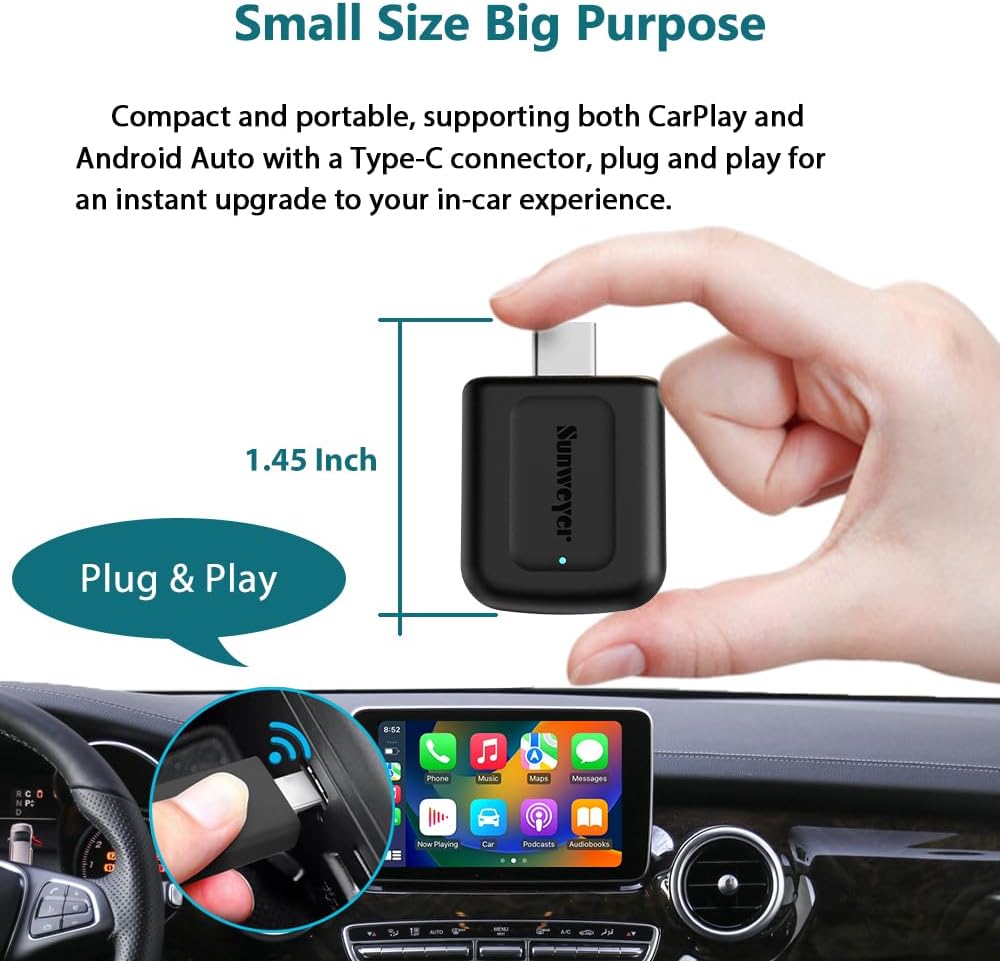
Image: A hand holding the compact Sunweyer dongle, illustrating its small size (1.45 inches).
10. Warranty and Support
Sunweyer is committed to providing high-quality products and customer satisfaction. We offer 365x24x7 full-time service for every customer.
For any questions, technical assistance, or warranty claims, please contact Sunweyer customer support through the platform where you purchased the product or refer to the contact information provided in your product packaging.