
FancyDay A6H
FancyDay Android Tablet A6H User Manual
Model: A6H
1. Product Overview
The FancyDay Android Tablet A6H is a high-performance device designed for versatile use, from entertainment to productivity. It features the latest Android 14 operating system, a powerful octa-core processor, and a vibrant 11-inch HD IPS display. With ample storage and long battery life, it's built to provide a seamless user experience.
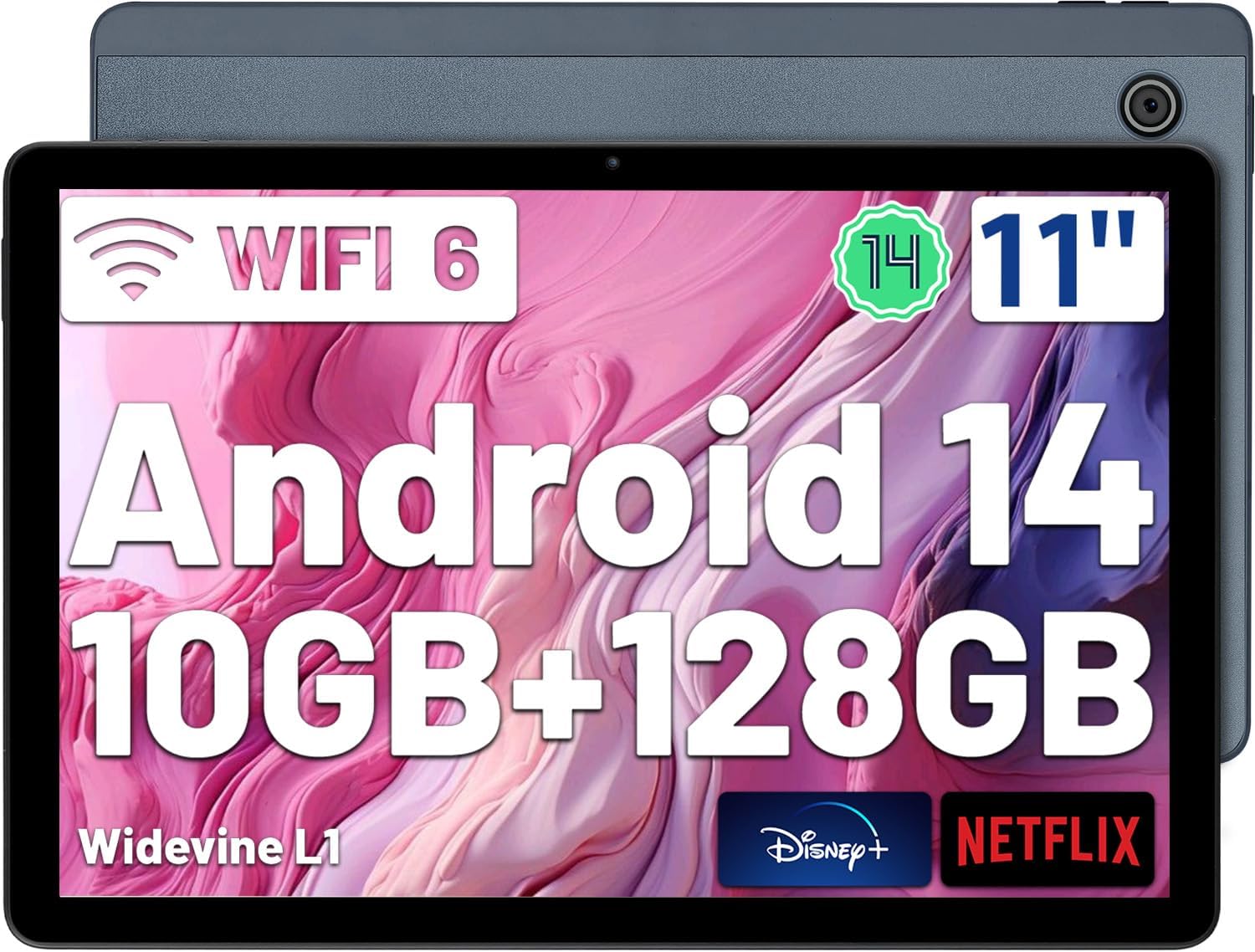
Figure 1.1: Front and back view of the FancyDay Android Tablet A6H, highlighting its 11-inch display, Android 14, 10GB RAM, 128GB storage, Wi-Fi 6, and Widevine L1 support.
2. What's in the Box
Upon opening your FancyDay Android Tablet A6H package, you should find the following items:
- FancyDay Android Tablet A6H
- USB-C Charging Cable
- Power Adapter
- Quick Start Guide (not included in this manual)
3. Device Layout and Components
Familiarize yourself with the various ports, buttons, and features of your tablet.

Figure 3.1: Key features of the tablet including the 10.95-inch narrow bezel display, 1280x800 resolution, facial unlock, 8MP rear camera, 5MP front camera, and Night-Time Low Blue Light Mode.
- Display: 11-inch (10.95-inch actual) 1280x800 HD IPS display with T-Color 2.0 optimization.
- Front Camera: 5MP for video calls and selfies.
- Rear Camera: 8MP with auto-focus for capturing photos and videos.
- USB-C Port: For charging and data transfer.
- Power Button: To turn the tablet on/off or put it to sleep.
- Volume Buttons: To adjust audio levels.
- Micro SD/TF Card Slot: For storage expansion up to 1TB (card not included).
- Speakers: Quad stereo speakers with Digital Ampler Chip for enhanced audio.
4. Setup Guide
4.1 Initial Charging
Before first use, fully charge your tablet. Connect the USB-C cable to the tablet's port and the other end to the power adapter. Plug the adapter into a wall outlet. The battery indicator on the screen will show charging progress.

Figure 4.1: The tablet connected to a charger, illustrating its 6800mAh large capacity battery and Type-C charging port.
4.2 Powering On/Off
- To Power On: Press and hold the Power button until the FancyDay logo appears.
- To Power Off: Press and hold the Power button until the power options menu appears, then select "Power off".
- To Sleep/Wake: Briefly press the Power button.
4.3 Initial Setup Wizard
Follow the on-screen prompts to complete the initial setup, which includes:
- Selecting your language.
- Connecting to a Wi-Fi network (supports Wi-Fi 6).
- Setting up your Google account.
- Configuring date and time.
- Setting up screen lock (PIN, pattern, password, or Face ID).
5. Operating Your Tablet
5.1 Android 14 Operating System
Your tablet runs on Android 14, offering enhanced privacy, security, and a user-friendly interface. Explore new features and customization options.

Figure 5.1: Overview of the new Android 14 features, including system version upgrade, interface improvement, new features added, and performance optimization.
5.2 Connectivity
- Wi-Fi: Connect to wireless networks using the built-in Wi-Fi 6 (802.11ax) dual-band chip (2.4G/6G).
- Bluetooth: Pair with Bluetooth 5.3 devices such as headphones, keyboards, and mice.
- GPS: Utilize GPS Assisted Positioning and 4-Mode Satellite Positioning for navigation and location services.

Figure 5.2: The tablet demonstrating GPS assisted positioning and gaming with gyroscope and gravity sensor for dynamic interaction.
5.3 Storage Management
Your tablet comes with 128GB of internal storage and 10GB of RAM (4GB physical + 6GB virtual). You can expand storage up to 1TB using a Micro SD/TF card (sold separately).

Figure 5.3: Visual representation of the tablet's 10GB RAM, 128GB ROM, and 1TB expansion capability via Micro SD card slot.
5.4 Display Features
The 11-inch HD IPS display provides vivid and realistic colors. It supports split-screen functionality for multitasking and features a Night-Time Low Blue Light Mode to reduce eye strain.

Figure 5.4: Details of the Incell IPS Display, including 10.95-inch narrow bezels, 1280x800 high resolution, and 16:10 aspect ratio.
6. Maintenance and Care
- Cleaning: Use a soft, lint-free cloth to clean the screen and body. Avoid abrasive cleaners or solvents.
- Temperature: Operate the tablet within recommended temperature ranges. Avoid extreme heat or cold.
- Water Exposure: This tablet is not waterproof. Avoid exposure to liquids.
- Battery Care: To prolong battery life, avoid fully discharging the battery frequently. Store the tablet with a partial charge if not used for extended periods.
- Software Updates: Regularly check for and install system updates to ensure optimal performance and security.
7. Troubleshooting
| Problem | Possible Solution |
|---|---|
| Tablet does not turn on. | Ensure the battery is charged. Connect to the charger for at least 30 minutes before attempting to power on again. |
| Screen is unresponsive. | Perform a forced restart by holding the Power button for 10-15 seconds. If the issue persists, contact support. |
| Wi-Fi connection issues. | Restart the tablet and your Wi-Fi router. Forget the network and reconnect. Ensure you are within range. |
| Apps are crashing or freezing. | Clear the app's cache and data in Settings > Apps. Update the app to the latest version. If necessary, uninstall and reinstall the app. |
| Slow performance. | Close unnecessary background apps. Clear cache regularly. Consider freeing up storage space. |
8. Specifications
| Feature | Detail |
|---|---|
| Model | A6H |
| Operating System | Android 14 |
| Processor | Octa-Core (2.0GHz A55 architecture, MediaTek MT8183) |
| RAM | 10GB (4GB physical + 6GB virtual) |
| Internal Storage | 128GB ROM |
| Expandable Storage | Up to 1TB via Micro SD/TF card (not included) |
| Display Size | 11 inches (10.95 inches standing screen display size) |
| Display Resolution | 1280x800 HD IPS |
| Battery Capacity | 6800mAh |
| Charging Port | USB-C (20W Fast Charging) |
| Wi-Fi | Wi-Fi 6 (802.11ax), Dual-band (2.4G/6G) |
| Bluetooth | Bluetooth 5.3 |
| Front Camera | 5MP |
| Rear Camera | 8MP |
| Dimensions (LxWxH) | 10.23 x 6.69 x 0.39 inches |
| Item Weight | 1.92 pounds |
9. Warranty and Support
FancyDay offers a 30-day money-back guarantee and a 12-month warranty for quality issues with your tablet.
If you encounter any questions or quality-related issues, please contact the FancyDay customer support team. We are committed to providing a satisfactory and professional solution within 24 hours.
For support, please refer to the contact information provided with your product packaging or visit the official FancyDay website.
Ask a question about this manual
Ask about setup, troubleshooting, compatibility, parts, safety, or missing instructions. Manuals+ will review the question and use this page’s manual context to help answer it.