1. Introduction
Thank you for choosing the CAMECHO 5-inch Waterproof Portable Wireless Apple CarPlay and Android Auto Motorcycle Screen. This device is designed to enhance your riding experience by providing seamless integration with your smartphone, offering navigation, music, communication, and more, all from a durable, waterproof display mounted on your motorcycle handlebars. This manual provides detailed instructions for installation, operation, maintenance, and troubleshooting to ensure optimal performance and longevity of your device.

Figure 1.1: CAMECHO Motorcycle CarPlay Screen and its wireless capabilities.
2. Key Features
- Universal Compatibility: Designed to fit all motorcycles, scooters, tricycles, golf carts, side-by-sides/UTVs, and other vehicles with handlebars.
- Wireless Apple CarPlay & Android Auto: Seamlessly connect your mobile phone via Bluetooth for navigation, music, calls, and voice control (Siri/Google Assistant).
- Built-in Bluetooth Hands-Free: Pair your phone to the screen and connect your Bluetooth helmet/earphone for convenient volume adjustment, song switching, and hands-free calls.
- IP67 Waterproof Touch Screen: Ensures normal operation even in rainy conditions, providing durability against various weather conditions.
- Mirror Link Function: Supports wireless Airplay and mirror link to sync your smartphone screen, allowing you to view maps, videos, and other content.
- Adjustable EQ: Customize your audio experience with adjustable equalizer settings.
- Interchangeable Wallpapers: Personalize your screen's appearance.
- Brightness Adjustment: Optimize screen visibility for different lighting conditions.
- Optional Tire Pressure Monitoring: Supports tire pressure detection with additional accessories (sold separately) for enhanced safety.
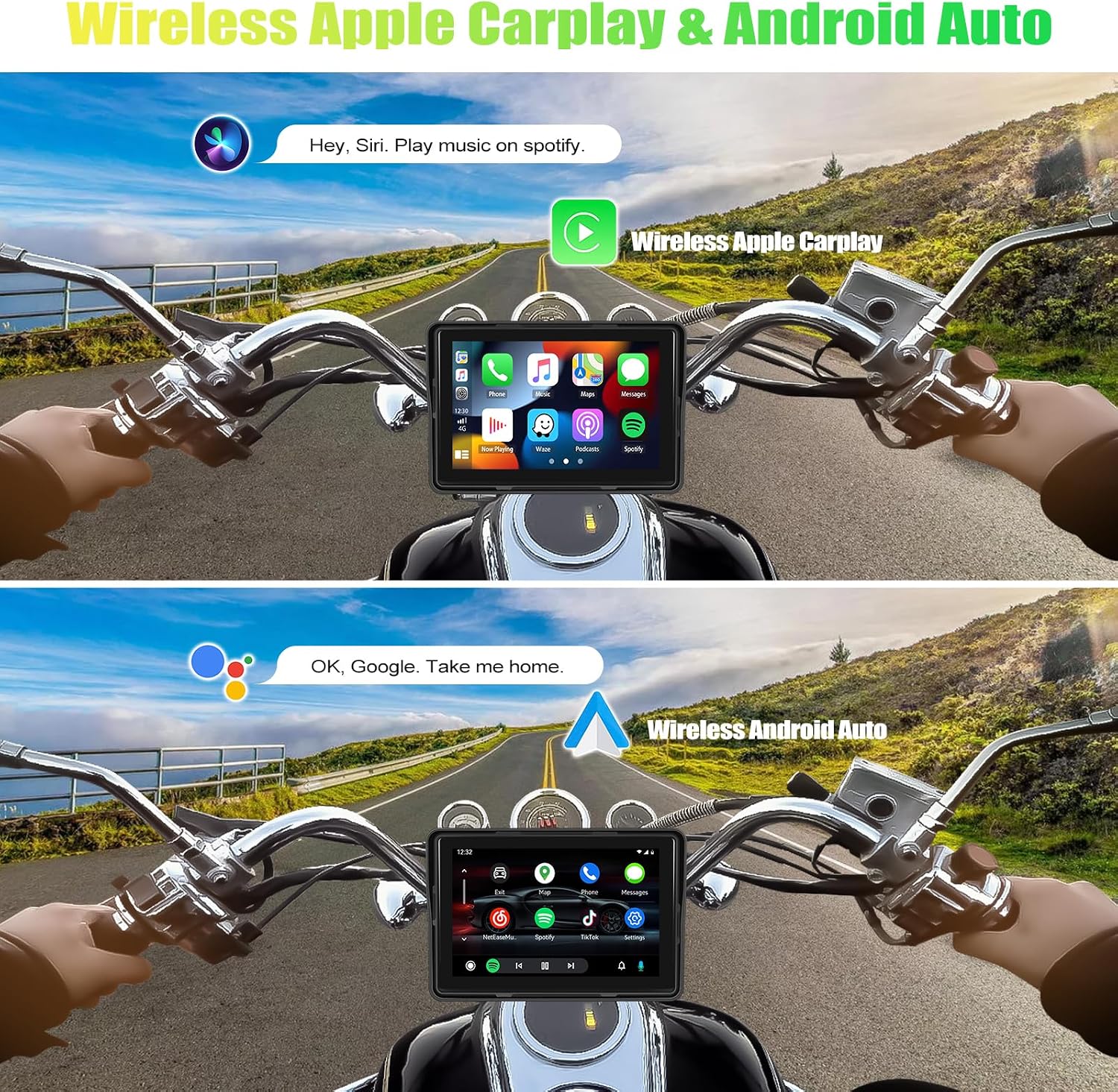
Figure 2.1: Wireless Apple CarPlay and Android Auto in action on the screen.

Figure 2.2: The screen is IP67 waterproof and dustproof, suitable for various outdoor conditions.
3. Setup and Installation
3.1 Package Contents
Before installation, please verify that all components are present in the package:
- 1 x 5-inch CarPlay Screen
- 1 x Power Cable
- 1 x Set of Mounting Accessories (bracket, tools)
- 8 x 150mm Rolling Strips
- 1 x User Manual (this document)

Figure 3.1: Contents of the product package.
3.2 Mounting the Device
The device comes with a bracket and tools for mounting it securely on your motorcycle's handlebars. Follow these steps:
- Select a suitable position on your motorcycle handlebars that does not obstruct your view or control.
- Attach the mounting bracket to the handlebars using the provided tools. Ensure it is tightened securely to prevent movement during riding.
- Slide the CarPlay screen onto the bracket until it clicks into place.
- Adjust the viewing angle of the screen for optimal visibility.

Figure 3.2: Examples of handlebar mounting.
3.3 Power Connection
Connect the provided power cable to the CarPlay screen and to your motorcycle's power source. Ensure the connection is secure and protected from the elements.
3.4 Initial Setup and Pairing
After powering on the device, you will need to pair it with your smartphone for Apple CarPlay or Android Auto functionality.
3.4.1 Wireless Apple CarPlay Connection
- On your iPhone, open "Settings".
- Turn on "Bluetooth".
- Select the Bluetooth device name of the CarPlay screen (e.g., "T86-180530").
- Wait for approximately 20-30 seconds, then select "Use CarPlay" on your iPhone.
- The screen will automatically enter CarPlay mode.

Figure 3.3: Steps for Wireless Apple CarPlay connection.
3.4.2 Wireless Android Auto Connection
- On your Android phone, open "Settings".
- Turn on "Bluetooth".
- Find the monitor's Bluetooth name connection (e.g., "T86-180530").
- Allow contacts to make calls and select pairing.
- The screen will automatically enter Android Auto mode.
Note: Install the Android Auto application from Google Play Store on your phone if not already present.

Figure 3.4: Steps for Wireless Android Auto connection.
3.4.3 Bluetooth Audio Connection (for Helmet/Earphone)
To route audio through your Bluetooth helmet or earphones:
- Ensure your helmet or earphone is turned on and in pairing mode.
- On the CarPlay screen, navigate to the Bluetooth settings and search for available devices.
- Select your Bluetooth helmet/earphone from the list to pair.
Note: Do not connect your mobile phone directly to the Bluetooth helmet or earphone, as this may interfere with the pairing process with the CarPlay screen.

Figure 3.5: Bluetooth audio transmission diagram.
4. Operation
4.1 Using Apple CarPlay / Android Auto
Once connected, the screen will display the familiar CarPlay or Android Auto interface. You can interact with it via the touch screen or voice commands.
- Navigation: Access your preferred navigation apps (e.g., Apple Maps, Google Maps, Waze) for turn-by-turn directions.
- Music & Media: Play music from streaming services (e.g., Spotify, Apple Music, Pandora) or local files.
- Calls & Messages: Make and receive calls, and send/receive messages hands-free.
- Voice Control: Activate Siri (for Apple CarPlay) or Google Assistant (for Android Auto) by saying "Hey Siri" or "OK Google" to control functions without taking your hands off the handlebars.
4.2 Bluetooth Functions
Beyond CarPlay/Android Auto, the device supports direct Bluetooth functions:
- Bluetooth Hands-Free Calls: Make and receive calls directly from the screen interface.
- Bluetooth Music Playback: Stream music directly from your phone to the screen, then to your paired Bluetooth helmet/earphone.
- Phonebook Access: Automatically loads your phone's contacts for easy dialing.

Figure 4.1: Bluetooth interface showing call and music options.
4.3 Audio Equalizer (EQ)
Adjust the sound output to your preference using the built-in equalizer. You can select from preset modes (Jazz, Classic, Rock, Pop, Flat) or customize your own user profile.

Figure 4.2: Audio Equalizer settings.
4.4 Mirror Link (Airplay / Android Cast)
The Mirror Link function allows you to wirelessly cast your smartphone's screen directly onto the CarPlay display. This is useful for viewing content not natively supported by CarPlay/Android Auto, such as certain video apps or custom interfaces.

Figure 4.3: Mirror Link functionality.
5. Maintenance
Proper maintenance ensures the longevity and optimal performance of your CAMECHO Motorcycle CarPlay Screen.
- Cleaning: Use a soft, damp cloth to clean the screen and exterior. Avoid abrasive cleaners or solvents that could damage the surface.
- Waterproof Care: While the device is IP67 waterproof, avoid prolonged submersion. Ensure all ports and covers are securely closed before exposure to water.
- Storage: If storing the motorcycle for an extended period, consider detaching the screen and storing it in a dry, temperate environment.
- Cable Inspection: Periodically check the power cable and connections for any signs of wear or damage.
6. Troubleshooting
If you encounter issues with your device, refer to the following common problems and solutions:
| Problem | Possible Cause | Solution |
|---|---|---|
| Device does not power on. | No power supply; loose connection. | Check power cable connection to the device and motorcycle. Ensure motorcycle power is on. |
| Cannot connect to Apple CarPlay/Android Auto wirelessly. | Bluetooth not enabled; incorrect pairing steps; phone not compatible. | Ensure Bluetooth is on for both devices. Follow pairing steps in Section 3.4. Verify phone compatibility. Restart both devices. |
| No audio from helmet/earphone. | Helmet/earphone not paired; volume too low; incorrect audio output setting. | Ensure helmet/earphone is paired to the CarPlay screen (not directly to phone). Check volume levels on both devices. |
| Touch screen is unresponsive. | Temporary software glitch; screen dirty. | Restart the device. Clean the screen surface. If problem persists, contact support. |
| Screen freezes or lags. | Software issue; too many background processes. | Restart the device. Ensure your phone's operating system is up to date. |
7. Specifications
| Feature | Specification |
|---|---|
| Display Size | 5 Inches |
| Resolution | 1280 x 720 |
| Connectivity Technology | Bluetooth |
| Special Features | Android Auto, Waterproof (IP67), Built-in Bluetooth, Apple CarPlay, Mirror Link, EQ |
| Mounting Type | Handlebar Mount |
| Item Weight | 1.4 pounds |
| Product Dimensions | 6.5 x 3.2 x 3.2 inches |
| Country of Origin | China |
| Vehicle Service Type | Motorcycle |
| Included Components | 1*5 Inches Car Play Screen, 1*Power cable, 1*Accessories, 8*150mm Rolling strip, 1*User Manual |
8. Warranty and Support
8.1 Warranty Information
This CAMECHO product comes with a 1-Year Warranty from the date of purchase, covering manufacturing defects. Please retain your proof of purchase for warranty claims. The warranty does not cover damage caused by misuse, accidents, unauthorized modifications, or normal wear and tear.
8.2 Customer Support
For any questions, technical assistance, or support regarding your CAMECHO Motorcycle CarPlay Screen, please contact our customer support team:
- Email: yanningqiu2021@163.com
We offer online help and user manual assistance. Please provide your product model and a detailed description of your issue when contacting support for faster resolution.

Figure 8.1: Customer support is available to assist you.