
1. Introduction
The Aimery Netboost Pro WiFi Extender Z04 is designed to expand your existing wireless network coverage, eliminate Wi-Fi dead zones, and provide reliable high-speed internet access throughout your home or office. This dual-band extender supports speeds up to 1200Mbps (867Mbps on 5GHz and 300Mbps on 2.4GHz) and features four external antennas for enhanced signal penetration and stability.
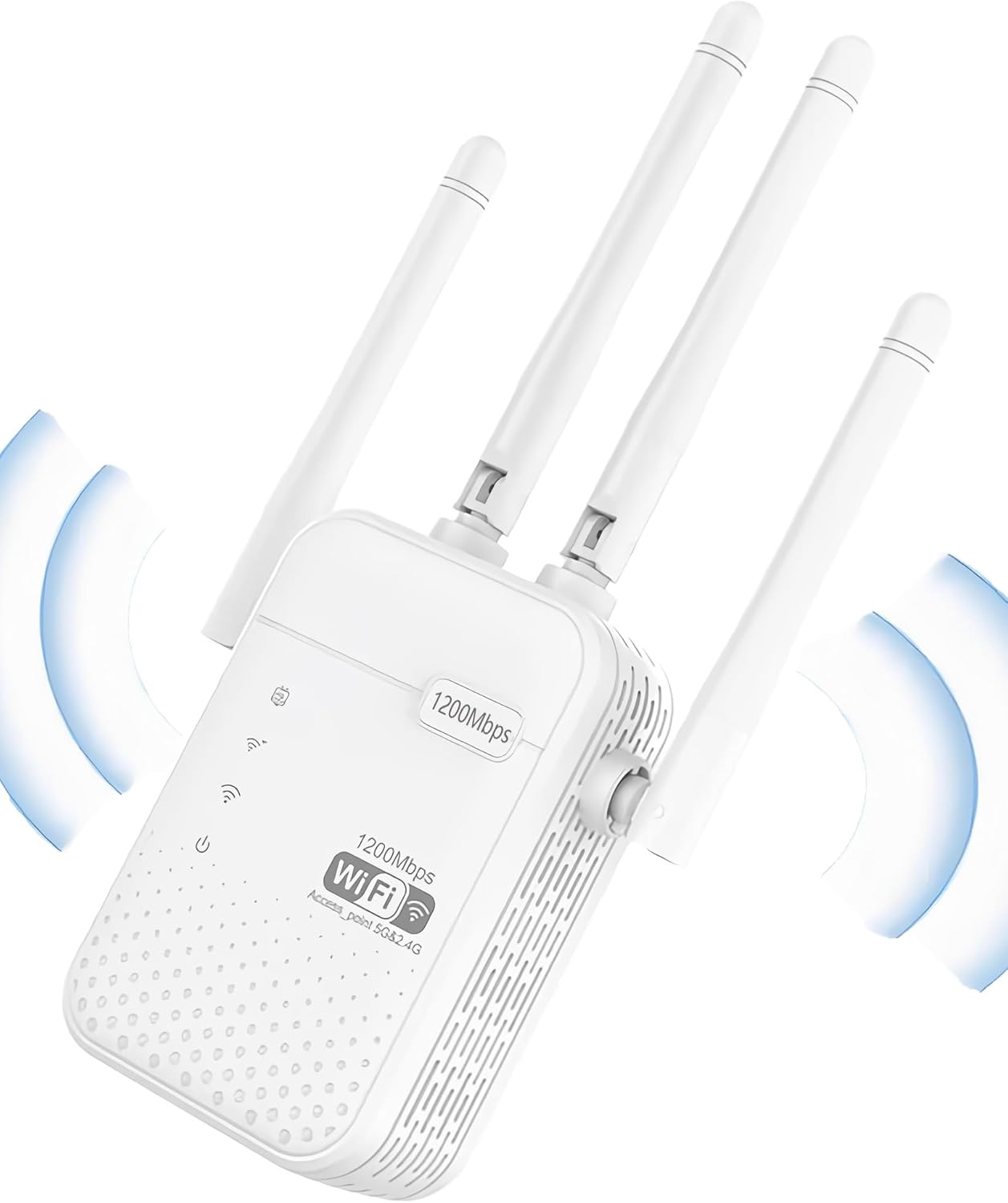
The Aimery Netboost Pro WiFi Extender Z04, a white rectangular device with four adjustable external antennas, designed to boost wireless signal.
2. Package Contents
Verify that all items are present in your package:
- Aimery Netboost Pro WiFi Extender Z04
- Quick Installation Guide
Video demonstrating the unboxing of the Aimery Netboost Pro WiFi Extender Z04, showing the contents of the package including the extender unit and quick installation guide.
3. Features
- High-Speed Dual-Band Wi-Fi: Delivers up to 1200Mbps (867Mbps on 5GHz + 300Mbps on 2.4GHz) for smooth streaming and gaming.
- Extensive Coverage: Extends Wi-Fi signal up to 8999 square feet, supporting connections for up to 40 devices.
- Four High-Gain Antennas: Equipped with four external antennas for strong signal penetration and reliable connectivity, even through walls.
- Universal Compatibility: Works with any standard 802.11a/b/g/n/ac wireless internet router or gateway.
- Multiple Operating Modes: Supports Repeater Mode, AP Mode, and Router Mode to meet various networking needs.
- Dual Ethernet Ports: Provides two Ethernet ports for stable wired connections to devices like smart TVs, gaming consoles, or PCs.
- WPS Functionality: Features a WPS button for quick and easy setup with compatible routers.
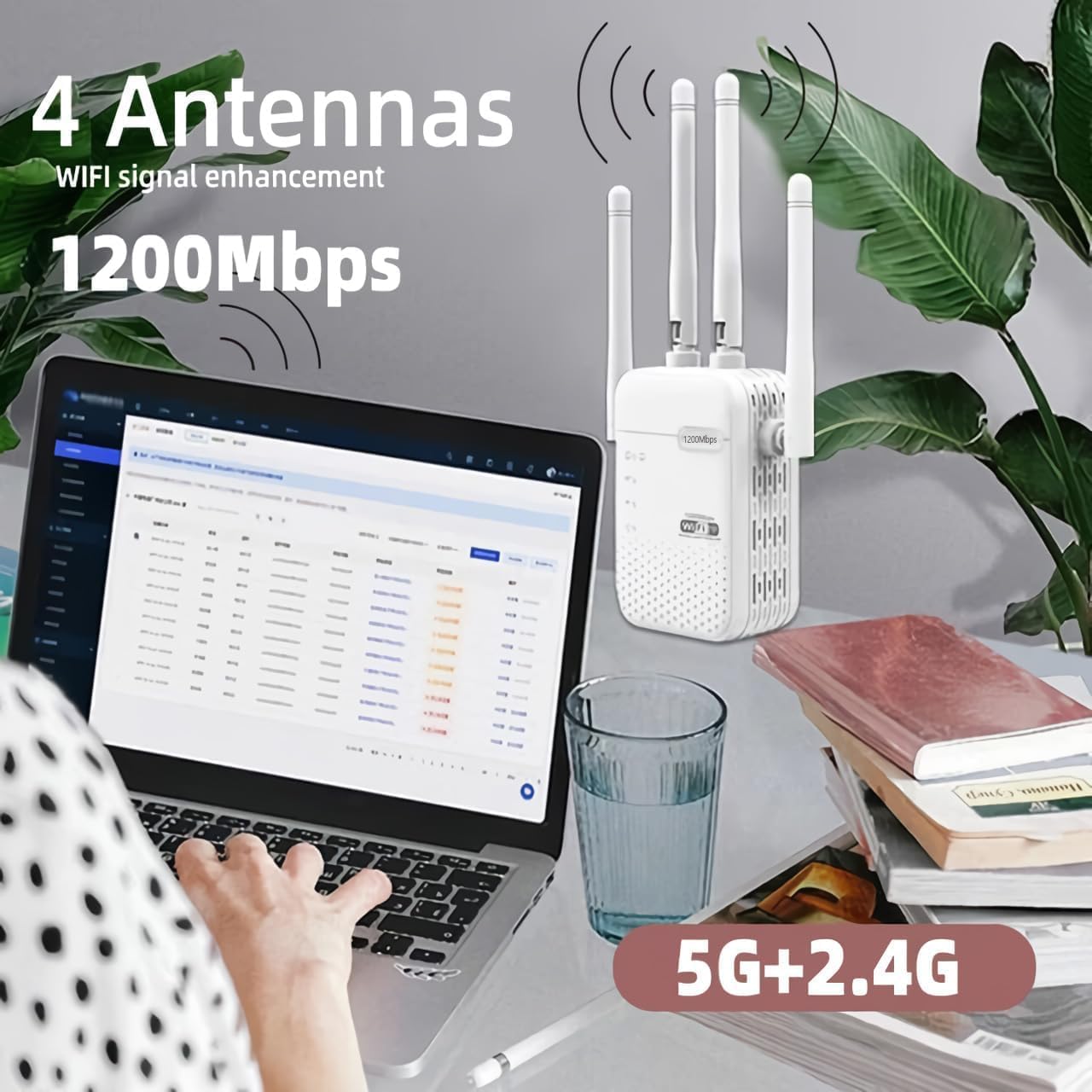
An image showing the Aimery Netboost Pro WiFi Extender Z04 next to a laptop, illustrating its role in enhancing dual-band (2.4GHz and 5GHz) Wi-Fi signals up to 1200Mbps with its four antennas.
4. Setup
There are two primary methods to set up your Aimery Netboost Pro WiFi Extender Z04: using the WPS button or via a web browser.
4.1. WPS (Wi-Fi Protected Setup) Method
- Plug the extender into an electrical outlet near your main router. Wait for the power LED to turn solid.
- Press the WPS button on your main router.
- Within two minutes, press the WPS button on the Aimery Netboost Pro WiFi Extender Z04.
- The Wi-Fi signal LED on the extender should turn solid, indicating a successful connection.
- Relocate the extender to a suitable location between your router and the Wi-Fi dead zone. Ensure the signal LED remains solid for optimal performance.

Close-up view of the Aimery Netboost Pro WiFi Extender Z04 highlighting the WPS button for easy setup and two Ethernet ports for wired connections.
4.2. Web Browser Method
- Plug the extender into an electrical outlet near your main router. Wait for the power LED to turn solid.
- Connect your computer or mobile device to the extender's default Wi-Fi network (e.g., "WiFi Repeater_XXXX"). The default SSID and password can usually be found on a label on the extender.
- Open a web browser and enter the default IP address (e.g.,
192.168.11.1) into the address bar. - Follow the on-screen instructions to log in (default username/password is often "admin"/"admin" or similar, check the Quick Installation Guide).
- Select your desired operating mode (Repeater, AP, or Router).
- If in Repeater mode, select your main Wi-Fi network from the list and enter its password.
- Configure the extender's Wi-Fi network name (SSID) and password.
- Complete the setup. The extender will restart.
- Relocate the extender to a suitable location between your router and the Wi-Fi dead zone. Ensure the signal LED remains solid for optimal performance.
5. Operating Modes
The Aimery Netboost Pro WiFi Extender Z04 supports three operating modes:
- Repeater Mode: Extends the coverage of an existing wireless network. This is ideal for eliminating Wi-Fi dead zones and boosting signal strength in areas with weak coverage.
- Access Point (AP) Mode: Transforms a wired internet connection into a wireless network. Connect an Ethernet cable from your router to the extender, and the extender will broadcast a new Wi-Fi signal.
- Router Mode: Functions as a basic wireless router, creating a private network from a DSL or cable modem connection.
6. Maintenance
- Placement: Place the extender in an open area, away from obstructions, large metal objects, and sources of interference (e.g., microwaves, cordless phones).
- Ventilation: Ensure the device is in a well-ventilated area to prevent overheating. Do not cover the ventilation holes.
- Cleaning: Clean the device with a soft, dry cloth. Do not use liquid or aerosol cleaners.
- Firmware Updates: Periodically check the manufacturer's website for firmware updates to ensure optimal performance and security.
- Environmental Conditions: Avoid exposing the device to extreme temperatures, humidity, or direct sunlight.
7. Troubleshooting
- No Internet Access After Setup:
- Ensure the extender is successfully connected to your main router (check signal LED).
- Verify that your main router has internet access.
- Try restarting both your router and the extender.
- If using Repeater mode, ensure you entered the correct password for your main Wi-Fi network during setup. - Weak Signal from Extender:
- Relocate the extender closer to your main router, ensuring it is still within a good signal range of the router.
- Adjust the antennas on the extender for better reception.
- Avoid placing the extender near large electronic devices or metal objects that can cause interference. - Cannot Access Web Management Page:
- Ensure your device is connected to the extender's Wi-Fi network.
- Verify that you are using the correct IP address (e.g.,192.168.11.1).
- Try clearing your browser's cache or using a different browser.
- If the extender was previously configured, it might have a different IP address. You may need to reset the extender to factory defaults. - Resetting to Factory Defaults:
- With the extender powered on, use a paperclip or pin to press and hold the reset button (usually a small hole) for about 5-10 seconds until the LEDs flash. The extender will restart with factory default settings.

Diagram illustrating the Aimery Netboost Pro WiFi Extender Z04's signal coverage, showing how its four antennas can penetrate walls to extend Wi-Fi throughout a multi-room environment.
8. Specifications
| Feature | Specification |
|---|---|
| Model Number | Z04 |
| Wireless Communication Standard | 802.11a, 802.11ac, 802.11b, 802.11g, 802.11n |
| Data Transfer Rate | 1200 Megabits Per Second |
| Frequency Band Class | Dual-Band (2.4GHz & 5GHz) |
| Antennas | 4 External High-Gain Antennas |
| Operating Modes | Repeater, AP, Router |
| Ethernet Ports | 2 |
| Item Weight | 5.6 ounces |
| Package Dimensions | 7 x 3 x 3 inches |
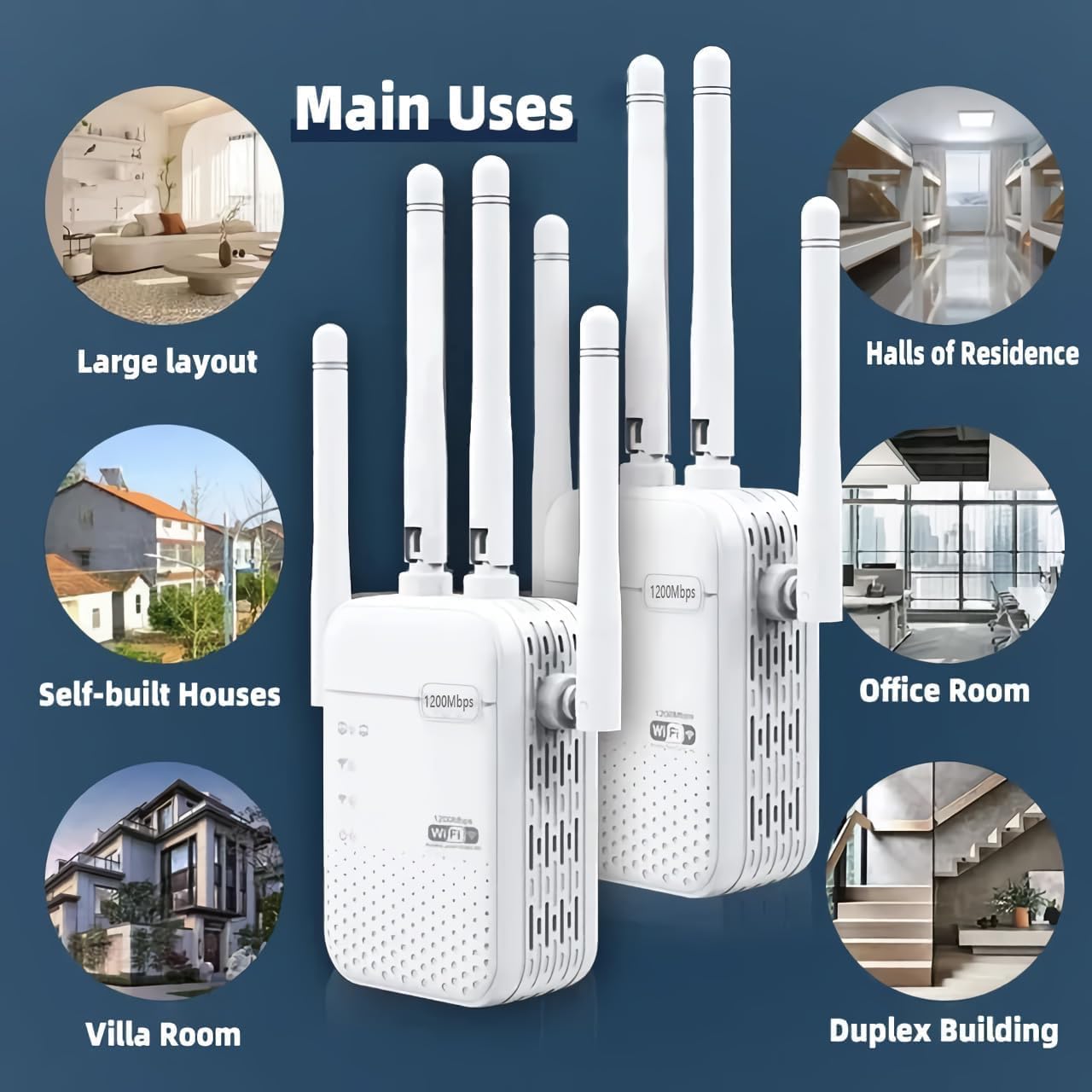
Collage of various environments where the Aimery Netboost Pro WiFi Extender Z04 can be effectively used, such as large homes, offices, villas, duplex buildings, and halls of residence.
9. Warranty and Support
The Aimery Netboost Pro WiFi Extender Z04 comes with a manufacturer's warranty. Please refer to the warranty card included in your package or contact Aimery customer support for detailed information regarding warranty terms and conditions. For technical assistance or further inquiries, please visit the official Aimery website or contact their customer service department.


