
1. Introduction
This manual provides detailed instructions for the installation, operation, and maintenance of your Incifum 10.1" QLED Touch Screen Stereo. This advanced multimedia system is designed to upgrade your vehicle's entertainment and navigation capabilities.
Compatibility: This unit is compatible with Chevrolet Silverado Sierra 1500 (2014-2018) and Chevrolet Silverado Sierra 2500, 3500, 4500 (2015-2019) models. Important: This product is not suitable for vehicles equipped with the Bose audio system.
2. Safety Information
- Always ensure the vehicle is turned off and the battery is disconnected before performing any installation or wiring.
- Improper installation can lead to vehicle damage or personal injury. If you are unsure about any step, seek professional assistance.
- Do not operate the device in a way that distracts you from driving. Always prioritize road safety.
- Avoid exposing the unit to extreme temperatures, direct sunlight for prolonged periods, or excessive moisture.
3. Package Contents
Please verify that all items listed below are included in your package:
- Incifum Android Car Radio (Main Unit)
- Dashboard Frame
- Wiring Harness with Canbus Box
- Installation Instructions / User Manual
- Lever Tool
- GPS Module
- Antenna Adapter
- USB Ports (cables)
- Microphone
- Camera Adapter
- RCA Cables
- Rear View Camera Cable
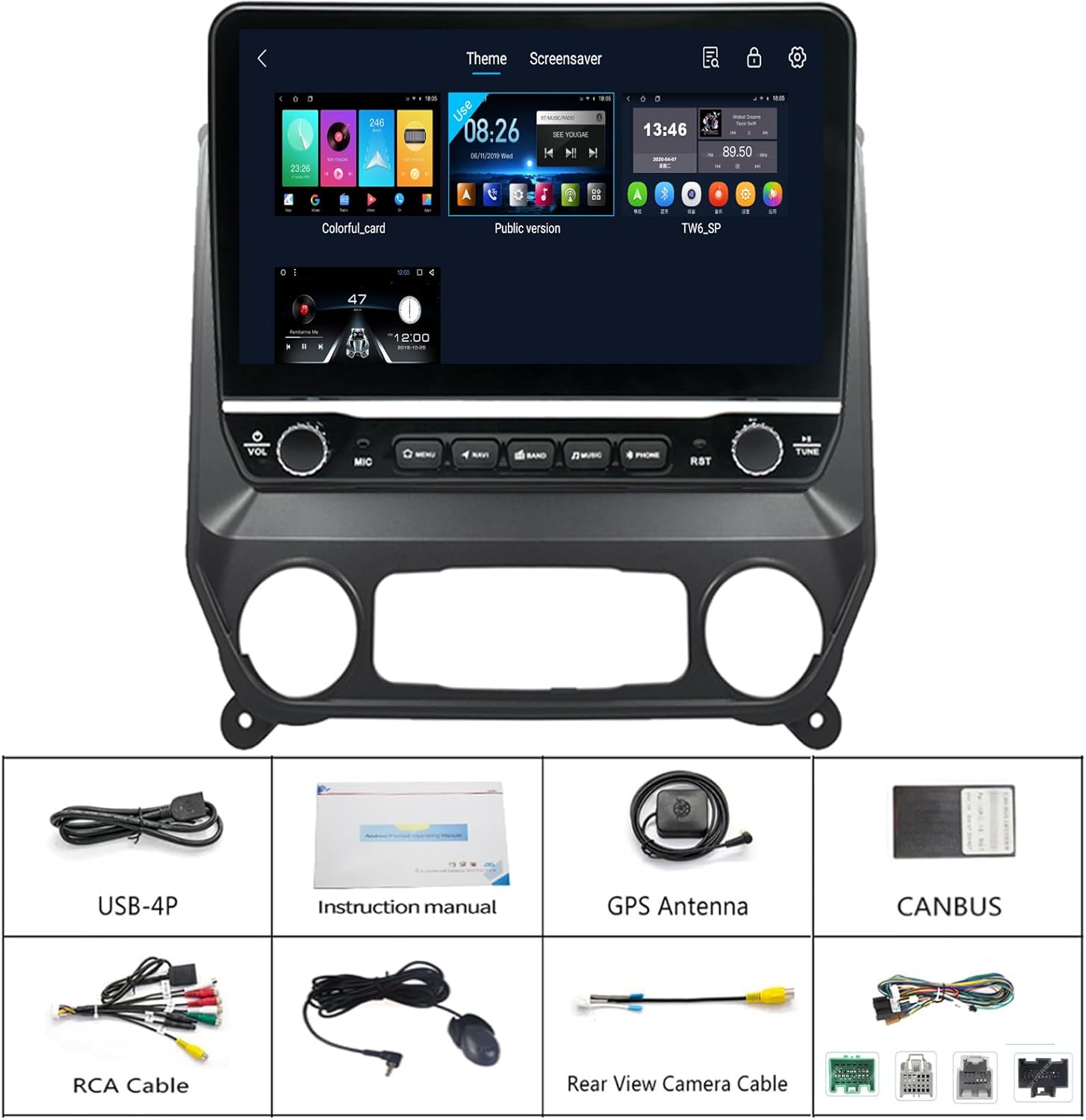
Figure 3.1: Package Contents. This image displays all the components included in the Incifum stereo package. It shows the main head unit, various USB cables, the instruction manual, GPS antenna, CANBUS box, RCA cables, an external microphone, and the rear view camera cable, providing a visual checklist for users.

Figure 3.2: Wiring Diagram. This image provides a comprehensive overview of the wiring connections for the Incifum stereo. It labels various cables and ports, including USB, RCA, power, reversing camera input, Canbus box connection, and GPS antenna, crucial for proper installation.
4. Setup and Installation
The Incifum QLED Touch Screen Stereo features a plug-and-play design for a hassle-free installation process. It is crucial to follow the provided installation instructions carefully.
4.1 Pre-Installation Checks
- Confirm your vehicle model and year are within the compatible range (Chevrolet Silverado Sierra 2014-2019).
- Verify that your vehicle does not have a Bose audio system.
- Ensure all components listed in Section 3 are present.
4.2 Installation Steps
- Disconnect Battery: Before starting, disconnect the negative terminal of your vehicle's battery to prevent electrical shorts.
- Remove Factory Radio: Carefully remove the existing factory radio and dashboard trim using the provided lever tool. Refer to your vehicle's service manual for specific trim removal procedures.
- Connect Wiring Harness: Connect the Incifum wiring harness to the vehicle's factory harness. Ensure the Canbus box is properly connected as it manages communication between the stereo and vehicle systems (e.g., steering wheel controls).
- Connect Peripherals: Attach the GPS module, USB cables, microphone, and camera adapter as needed.
- Mount New Unit: Secure the Incifum stereo with the new dashboard frame into the vehicle's dash opening.
- Reconnect Battery: Reconnect the vehicle's battery and test the unit's functionality.

Figure 4.1: Before and After Installation. This image illustrates the transformation of the vehicle's dashboard. The 'Before' section shows the original factory radio, while the 'After' section displays the Incifum 10.1-inch QLED Touch Screen Stereo installed, demonstrating a proper fit for vehicles without the Bose audio system.

Figure 4.2: Installed Unit. This image shows the Incifum 10.1-inch QLED Touch Screen Stereo seamlessly integrated into the dashboard of a compatible Chevrolet Silverado or Sierra vehicle. The large display is active, showcasing the user interface.
5. Operating Instructions
Your Incifum stereo runs on an Android operating system, offering a wide range of features and customization options.
5.1 Basic Operation
- Power On/Off: The unit typically powers on with the vehicle's ignition. Press and hold the power button (if available) for manual control.
- Touch Screen: Navigate the interface by tapping, swiping, and pinching on the 10.1" QLED capacitive touch screen.
- Volume Control: Adjust volume using the physical knobs/buttons on the unit or your vehicle's steering wheel controls.
5.2 Key Features
- Wireless CarPlay & Android Auto: Connect your compatible smartphone wirelessly for seamless access to navigation, music, messages, and more. Follow the on-screen prompts to pair your device.

Figure 5.1: Wireless CarPlay. This image highlights the wireless Apple CarPlay feature of the Incifum stereo. The screen displays the familiar CarPlay interface with icons for essential applications such as Phone, Music, Maps, and Messages, demonstrating seamless smartphone integration.
- Bluetooth Connectivity: Pair your phone for hands-free calling and audio streaming. Access Bluetooth settings from the main menu.
- Wi-Fi: Connect to a Wi-Fi hotspot (e.g., from your phone or a dedicated device) to access online features, download apps, and browse the internet.
- Navigation: Utilize pre-installed navigation apps or download your preferred ones from the app store (if available). The GPS module ensures accurate positioning.
- Multimedia Playback: Play audio and video files from USB drives, internal storage, or streaming services.
- Steering Wheel Controls: The unit retains your vehicle's factory steering wheel controls for convenient operation of audio and call functions.
- Rear View Camera Support: The system supports your vehicle's OEM rear view camera, providing a clear display with parking guidelines when reversing.

Figure 5.2: OEM Camera Support. This image shows the Incifum stereo screen actively displaying the feed from a vehicle's rear-view camera. Parking guidelines are overlaid on the image, indicating the system's compatibility with and enhancement of existing OEM camera functionalities.
6. Maintenance
- Screen Cleaning: Use a soft, lint-free cloth slightly dampened with water or a screen cleaner specifically designed for electronic displays. Avoid harsh chemicals or abrasive materials.
- Software Updates: Periodically check for available software updates to ensure optimal performance and access to the latest features. Refer to the system settings for update options.
- General Care: Keep the unit free from dust and debris. Avoid placing heavy objects on the screen or applying excessive pressure.
7. Troubleshooting
If you encounter issues with your Incifum stereo, refer to the following common problems and solutions:
| Problem | Possible Cause | Solution |
|---|---|---|
| Unit does not power on | Loose power connection, blown fuse, vehicle battery issue. | Check wiring connections, inspect vehicle fuses, ensure vehicle battery is charged. |
| No sound or distorted audio | Incorrect wiring, volume too low, speaker issues, software glitch. | Verify speaker wiring, adjust volume, restart the unit, check audio settings. |
| CarPlay/Android Auto not connecting | Bluetooth/Wi-Fi off, phone compatibility, software issue, incorrect pairing. | Ensure phone's Bluetooth/Wi-Fi is on, forget and re-pair device, update phone OS, restart unit. |
| Touch screen unresponsive or lagging | Temporary software glitch, excessive background apps, system overload. | Restart the unit, close unnecessary applications, perform a factory reset if persistent (backup data first). |
| Poor radio reception | Antenna not connected properly, weak signal area, antenna adapter issue. | Check antenna connection, ensure antenna adapter is correctly installed. |
| Unit randomly shuts off or restarts | Loose power connection, electrical interference, overheating, software bug. | Verify power connections, ensure proper ventilation, check for software updates. |
If the problem persists after attempting these solutions, please contact Incifum customer support.
8. Specifications
- Brand:
- Incifum
- Vehicle Service Type:
- Chevrolet Silverado Sierra 1500, 2500, 3500, 4500 (2014-2019, excluding Bose audio systems)
- Screen Size:
- 10.1 Inches
- Special Features:
- Lane Departure Warning (if supported by vehicle), Bluetooth, Touch Screen
- Connectivity Technology:
- Android Auto, Bluetooth, CarPlay, USB, Wi-Fi
- Map Type:
- Global
- Audio Output Mode:
- Stereo
- Mounting Type:
- Dashboard Mount
- Operating System:
- Android
- Processor:
- 8-core
- RAM:
- 2 GB
- ROM (Internal Storage):
- 32 GB
9. Warranty and Support
Incifum provides professional 24/7 online after-sales support to assist with any questions or issues you may encounter. Please refer to the contact information provided with your product or on the official Incifum website for support.
Specific warranty details are typically included with your purchase documentation. Please retain your proof of purchase for warranty claims.