1. Introduction
This manual provides detailed instructions for the Fardriver Programmable Bluetooth Adapter, designed for debugging and parameter modification of FARDRIVER, ND, and NANJING controllers. This adapter is essential for proper binding and saving of controller parameters. It is not compatible with other brands of controllers.
Important Compatibility Note: Controller Bluetooth updates occurred from 2022. Before ordering or using, please carefully check your controller label to ensure compatibility with the correct adapter version.
- New Version: Compatible with controllers labeled "B10/A20/H10".
- Old Version: Compatible with controllers labeled "XY" or similar older designations.
Using a genuine programming module is crucial. Attempting to debug with an incompatible or non-genuine module may prevent proper binding and parameter saving.
2. What's in the Box
The package contains the following items:
- Fardriver Programmable Bluetooth Adapter
3. Setup
3.1. App Installation
To use the Fardriver Programmable Bluetooth Adapter, you must first download and install the official 'FarDriver Controller' application on your smartphone.
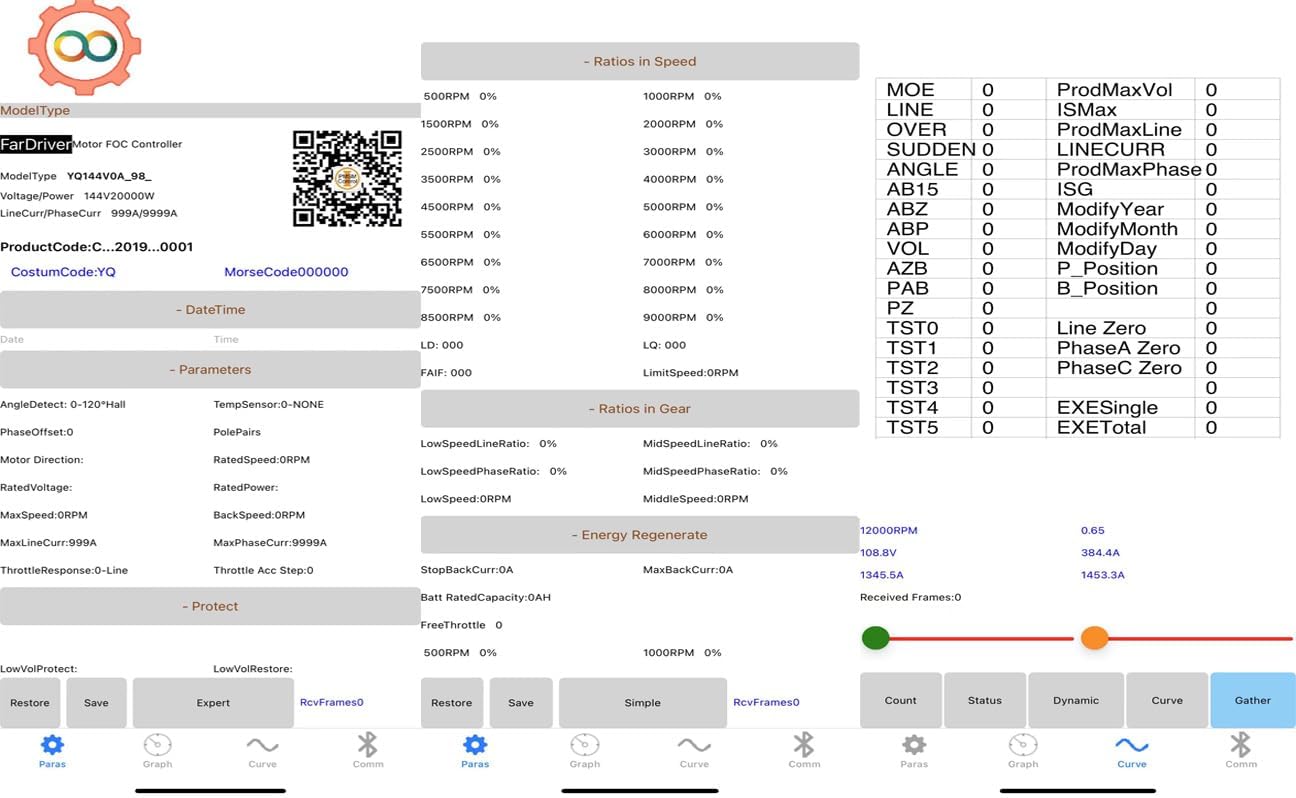
Image 3.1.1: Screenshot of a mobile app store showing the search for 'fardriver' and the 'FarDriver Controller' app icon.
Search for "FarDriver Controller" in your device's app store (e.g., Apple App Store or Google Play Store) and install the application with the distinctive gear-like logo. You may also scan the QR code provided on the adapter or in the app for direct download. An example QR code link is: http://weixin.qq.com/r/az8gOPXE7aiSrbFb92p5
3.2. Physical Connection
Connect the Fardriver Programmable Bluetooth Adapter to your FARDRIVER, ND, or NANJING controller's designated programming port. Ensure the connection is secure.

Image 3.2.1: The Fardriver Bluetooth Adapter connected to a controller, with a smartphone displaying the control application.
3.3. Controller Binding Process
Before attempting to bind your controller, it is critical to release any previous customer bindings on the controller. Failure to do so will prevent new binding and parameter saving.
- Ensure your controller is powered on and the Bluetooth adapter is connected.
- Open the 'FarDriver Controller' app on your smartphone.
- Navigate to the binding section within the app. The app will scan for available controllers.
- Select your controller from the list. The app will prompt you to confirm the binding.
- Confirm the binding. If successful, the app will indicate that the controller is bound and ready for parameter modification.
For a visual guide on the binding process, please refer to the official tutorial video below:
Video 3.3.1: Official tutorial demonstrating the binding process for the FARDRIVER ND Controller Programming Module. This video shows how to connect the adapter, use the mobile app to find and bind the controller, and confirm the connection.
4. Operating the Fardriver Controller App
4.1. App Interface Overview
The 'FarDriver Controller' app provides a comprehensive interface for monitoring and adjusting your controller's parameters. Key sections include a real-time dashboard, parameter settings, and data graphing.
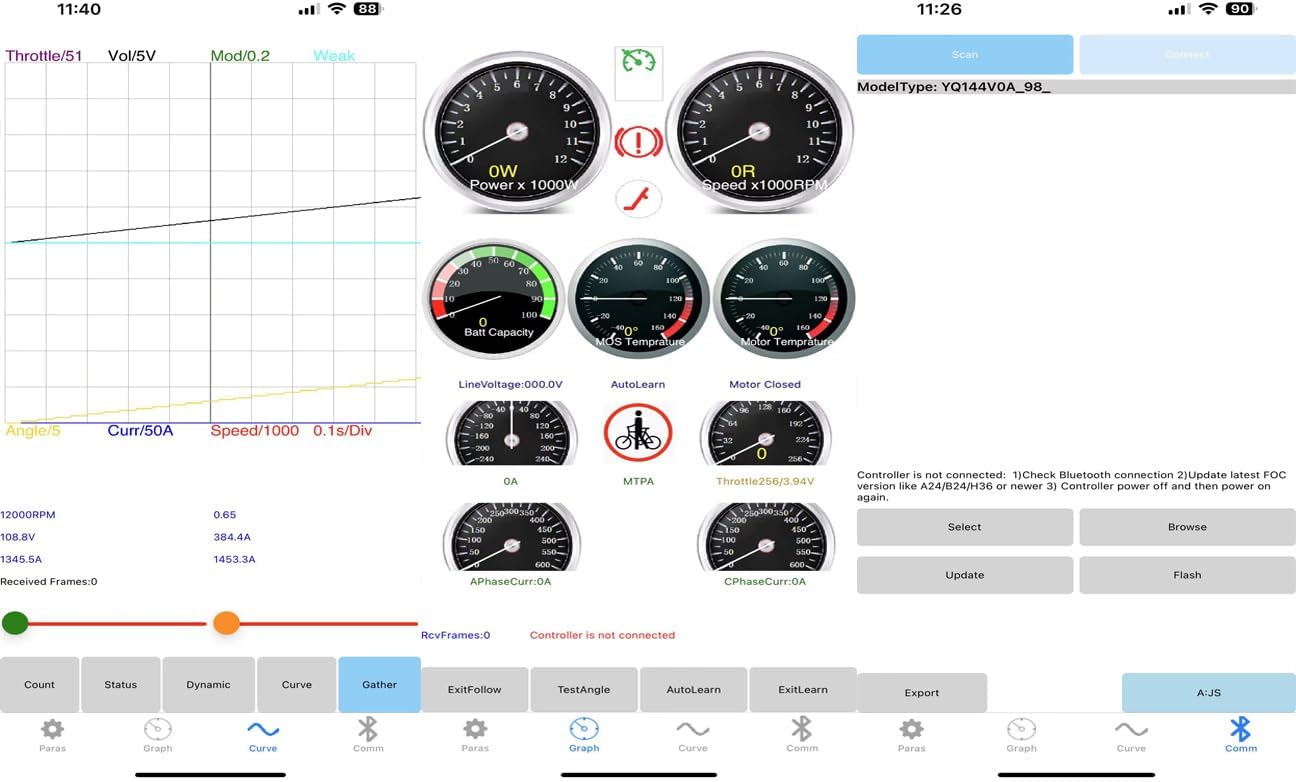
Image 4.1.1: The main dashboard of the FarDriver Controller app, displaying real-time data such as power, speed, battery capacity, and temperature.

Image 4.1.2: The parameter settings screen within the FarDriver Controller app, allowing users to view and modify various operational settings of the controller.
4.2. Parameter Modification and Saving
Once connected, you can access and modify various parameters of your controller. Always exercise caution when changing settings, as incorrect values can affect performance or damage the controller.
- Navigate to the 'Parameters' section of the app.
- Adjust the desired values. The app typically provides input fields or sliders for modification.
- After making changes, ensure you tap the 'Save' button within the app to apply and store the new parameters on the controller. Without saving, changes will not be retained.
4.3. Real-time Monitoring and Diagnostics
The app allows for real-time monitoring of controller performance. This includes motor speed, current draw, voltage, temperature, and other critical data points. Use the dashboard and graphing features to observe how changes in parameters affect the controller's operation.

Image 4.3.1: The data graphing and monitoring interface of the FarDriver Controller app, providing visual representation of controller performance over time.
5. Maintenance
- Keep the Bluetooth adapter clean and dry. Avoid exposure to moisture or extreme temperatures.
- Store the adapter in a safe place when not in use to prevent physical damage.
- Regularly check for app updates to ensure optimal performance and access to the latest features and bug fixes.
6. Troubleshooting
- Cannot Bind Controller:
Ensure you have released any previous customer bindings on the controller before attempting a new binding. The controller can only be bound to one programming module at a time. Refer to Section 3.3 for detailed binding instructions.
- Parameters Not Saving:
Verify that the controller is properly bound to the adapter. Parameters cannot be saved if the binding is unsuccessful or if an incompatible module is used. Always tap 'Save' after making changes.
- Adapter Not Connecting to App:
Check that the adapter is securely connected to the controller and the controller is powered on. Ensure Bluetooth is enabled on your smartphone and the 'FarDriver Controller' app has the necessary permissions. Restart both the app and the controller if issues persist.
- Incorrect Controller Version Detected:
Confirm that your adapter version matches your controller's label (e.g., "B10/A20/H10" for New Version, "XY" for Old Version). An incompatible adapter may lead to detection issues or incorrect functionality.
7. Specifications
| Feature | Detail |
|---|---|
| Brand | Generic (Compatible with FARDRIVER, ND, NANJING controllers) |
| Hardware Interface | Bluetooth |
| Color | Black |
| Compatible Devices | Nanjing FarDriver Controller (Specific versions: B10/A20/H10, XY) |
| Package Dimensions | 5.91 x 5.12 x 3.94 inches |
| Item Weight | 2.2 pounds |
| Manufacturer | FARDRIVER |
| First Available | July 2, 2024 |
8. Warranty and Support
This product is sold by Generic. For specific warranty information, please refer to the retailer's policy at the time of purchase. Standard return policies typically allow for returns or replacements within 30 days of purchase.
For technical support, troubleshooting assistance, or inquiries regarding your Fardriver Programmable Bluetooth Adapter, please contact the seller, QSFardriver Ebikes, directly through the platform where the product was purchased. They can provide specialized guidance for controller tuning and firmware updates.


