
1. Introduction
This manual provides detailed instructions for the installation, operation, and maintenance of your incifum 12.1-inch QLED Touch Screen Stereo for Ford F-150 models (2015-2018). This intelligent car navigation system features an Android operating system, wireless CarPlay, Android Auto compatibility, and integrates with your vehicle's existing features like steering wheel controls and OEM camera. Please read this manual thoroughly before installation and use to ensure proper functionality and safety.
2. Safety Information
- Always ensure the vehicle is turned off and the battery is disconnected before performing any installation or wiring.
- Improper installation can lead to electrical damage, fire, or injury. If you are unsure about any step, seek professional assistance.
- Do not operate the device in a manner that distracts you from driving. Always prioritize road safety.
- Avoid exposing the unit to extreme temperatures, direct sunlight for prolonged periods, or excessive moisture.
- Use only the provided accessories and wiring harnesses to prevent damage to the unit or vehicle.
3. Package Contents
Verify that all items listed below are included in your package:
- Android Car Radio (12.1-inch QLED Touch Screen Stereo)
- Wiring harness with CANBUS box
- Dash-kit Frame (supports Manual AC and Auto AC)
- GPS module
- Antenna adapter
- USB ports
- Microphone
- Camera adapter
- Instruction of installation
- User manual

Figure 3.1: Detailed view of the wiring harness and connectors included with the incifum 12.1-inch QLED Touch Screen Stereo. Key components labeled include RCA ports, 4-pin USB, CAN box, GPS antenna, radio antenna adapter, 8-inch reverse adapter, power port, and amplifier control port, essential for proper installation and functionality.
4. Product Overview
4.1 Key Features
- Vehicle Compatibility: Designed for Ford F-150 models from 2015 to 2018.
- Display: 12.1-inch QLED capacitive touch screen with HD resolution, offering vivid colors and sharp visuals.
- Performance: Equipped with an 8-core CPU, 2GB RAM, and 32GB ROM for smooth operation.
- Operating System: Android OS, providing access to a wide range of applications.
- Connectivity: Built-in wireless CarPlay and Android Auto, Wi-Fi, and Bluetooth for seamless device integration.
- OEM Integration: Retains factory steering wheel controls and supports the original equipment manufacturer (OEM) camera for a vivid rearview display.
- Multimedia: Supports navigation, audio playback, hands-free calling, rearview camera input, and access to thousands of apps.
4.2 Visual Overview

Figure 4.1: This image illustrates the visual transformation of the Ford F-150 dashboard before and after the installation of the incifum 12.1-inch QLED Touch Screen Stereo. The 'Before' section shows the original factory radio, while the 'After' section displays the new, larger touchscreen unit seamlessly integrated into the vehicle's interior.
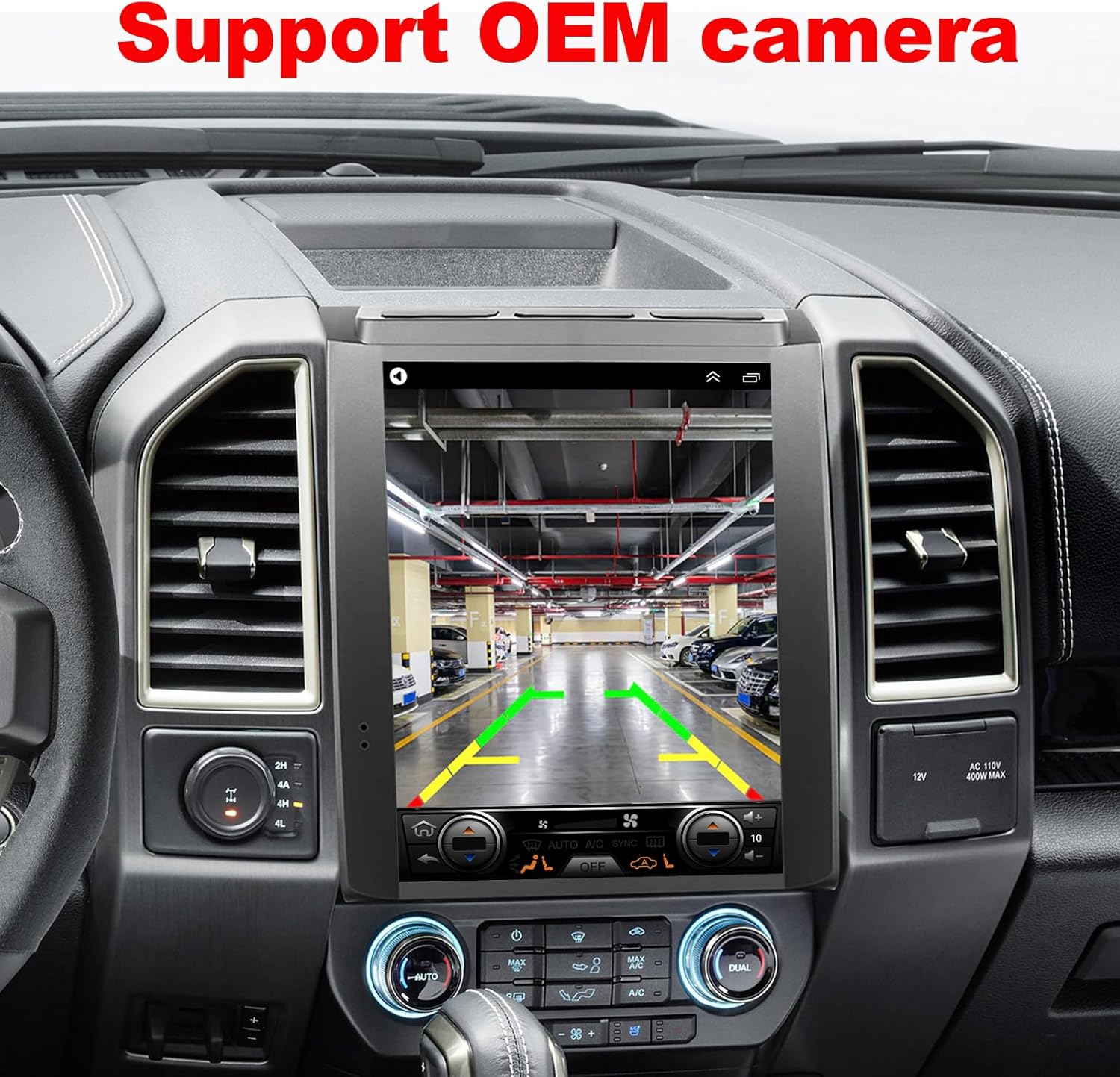
Figure 4.2: The image shows the rearview camera feed displayed on the 12.1-inch QLED screen, demonstrating the system's compatibility with the vehicle's original equipment manufacturer (OEM) camera. Green and yellow guidelines are visible, assisting with parking and reversing maneuvers.

Figure 4.3: This image highlights the wireless Apple CarPlay functionality, showing a smartphone connected to the head unit. The screen displays various CarPlay applications such as Phone, Maps, Messages, and Spotify, indicating seamless integration for navigation, communication, and entertainment.

Figure 4.4: The image demonstrates the superior visual quality of the QLED display, featuring a vibrant, full-color gamut and high-definition resolution. A scenic landscape with mountains and a colorful parrot is shown, emphasizing the screen's ability to render rich and detailed imagery.
Figure 4.5: This image illustrates the advanced digital sound processing (DSP) capabilities, showing an equalizer interface with 48-band adjustments. This feature allows users to fine-tune audio output for a personalized listening experience, enhancing bass, treble, and other sound characteristics.
5. Installation Guide
The incifum 12.1-inch QLED Touch Screen Stereo is designed for plug-and-play installation, minimizing the need for complex wiring modifications. However, careful attention to detail is required. It is recommended to watch the provided installation video for a visual guide.
5.1 Pre-Installation Steps
- Park your vehicle on a level surface and engage the parking brake.
- Turn off the vehicle's ignition and disconnect the negative terminal of the car battery to prevent electrical shorts.
- Carefully remove the existing factory radio and dashboard trim. Refer to your vehicle's service manual or online resources for specific instructions on removing the Ford F-150 dashboard components.
- Unpack all components and verify against the 'Package Contents' list.
5.2 Wiring Connections
Connect the provided wiring harness to the new head unit and the vehicle's existing wiring. The system is designed to integrate with original car ports.
Figure 5.1: A hand is shown connecting a wiring harness to an original car port, highlighting the 'plug and play' design for easy installation. This demonstrates how the new stereo integrates with the vehicle's existing electrical system.
- Connect the main power harness to the corresponding ports on the head unit and the vehicle.
- Attach the CANBUS box to the wiring harness as indicated. The CANBUS system ensures communication between the new stereo and your vehicle's onboard computer, allowing features like steering wheel controls to function.
- Connect the GPS module and antenna adapter. Position the GPS antenna in a location with a clear view of the sky for optimal signal reception.
- Connect the camera adapter to integrate your OEM rearview camera.
- Connect any additional USB ports or RCA cables as needed for external devices or amplifiers.
5.3 Unit Assembly and Mounting
- Carefully attach the new dash-kit frame to the 12.1-inch QLED screen unit. Ensure all clips and mounting points align correctly.
- Once all wiring is securely connected, carefully slide the assembled head unit into the dashboard opening. Ensure no wires are pinched.
- Secure the unit using the original mounting screws or clips.
- Reattach any removed dashboard trim pieces.
5.4 Post-Installation Check
- Reconnect the negative terminal of the car battery.
- Turn on the vehicle's ignition and power on the stereo.
- Test all functions: touch screen responsiveness, audio playback, radio, Bluetooth, CarPlay/Android Auto, GPS navigation, steering wheel controls, and rearview camera.
5.5 Installation Video
Video 5.1: Official product video demonstrating the incifum 12.1-inch QLED Touch Screen Stereo upgrade for Ford F-150 (2015-2018). This video provides a visual overview of the unit's features and integration into a Ford F-150 dashboard. It highlights the Android operating system, wireless CarPlay and Android Auto, and the plug-and-play installation process, including the retention of steering wheel controls and the factory camera.
Figure 5.2: The image displays the steering wheel controls, confirming that the incifum head unit supports the vehicle's original steering wheel functions. This allows users to manage audio volume, track selection, and other features without taking their hands off the wheel.
Figure 5.3: This image shows a USB port located within the vehicle's glove compartment, indicating that the new stereo system supports and utilizes the existing USB connectivity for media playback or device charging.
6. Setup & Initial Configuration
6.1 Android System Setup
Upon first boot, the system may guide you through an initial setup process. Follow the on-screen prompts to select your language, time zone, and other basic settings.
6.2 Wi-Fi Connectivity
- Go to Settings > Network & Internet > Wi-Fi.
- Turn on Wi-Fi and select your desired network from the list.
- Enter the password if prompted and connect.
- A stable Wi-Fi connection is required for app downloads, updates, and certain online features.
6.3 Bluetooth Pairing
- Go to Settings > Connected devices > Bluetooth.
- Ensure Bluetooth is enabled on both the head unit and your mobile device.
- Search for available devices on your mobile phone and select the head unit's name (e.g., "Car BT").
- Confirm the pairing code on both devices.
- Once paired, you can use Bluetooth for hands-free calling and audio streaming.
6.4 Wireless CarPlay / Android Auto Setup
- Ensure your phone's Wi-Fi and Bluetooth are enabled.
- On the head unit, open the CarPlay or Android Auto application.
- Follow the on-screen instructions to connect your phone. For CarPlay, you may need to pair via Bluetooth first, then confirm the Wi-Fi hotspot connection. For Android Auto, ensure the app is installed on your phone.
- Once connected, your phone's compatible apps will appear on the head unit's screen.
7. Operating Instructions
7.1 Touch Screen Navigation
The 12.1-inch QLED screen is a capacitive touch screen. Navigate through menus and applications by tapping, swiping, and pinching (for zoom) just like a smartphone or tablet.
7.2 Audio and Multimedia
- Radio: Access the built-in FM/AM radio tuner.
- Music/Video Playback: Play media from USB drives, Bluetooth-connected devices, or streaming apps.
- Equalizer: Utilize the 48-band equalizer (DSP) to customize audio output. Access this feature through the 'Settings' or 'Sound' menu.
7.3 Navigation
The unit supports various navigation applications available on the Android platform. Ensure a GPS signal is acquired for accurate positioning. You can use pre-installed maps or download your preferred navigation apps from the Play Store.
7.4 Hands-Free Calling
Once your phone is paired via Bluetooth, you can make and receive calls directly from the head unit. Use the built-in microphone for clear communication.
7.5 Steering Wheel Controls
The system automatically integrates with your vehicle's existing steering wheel controls. This allows you to adjust volume, change tracks, answer calls, and more without diverting your attention from the road.
7.6 Rearview Camera
When the vehicle is shifted into reverse, the rearview camera feed will automatically display on the 12.1-inch screen, providing a clear view of the area behind your vehicle.
8. Maintenance
- Screen Cleaning: Use a soft, lint-free cloth to gently wipe the screen. For stubborn smudges, slightly dampen the cloth with water or a screen-safe cleaner. Avoid harsh chemicals or abrasive materials.
- Software Updates: Periodically check for system software updates via Wi-Fi in the 'Settings' menu to ensure optimal performance and access to new features.
- General Care: Keep the unit free from dust and debris. Avoid placing heavy objects on the screen or exposing it to direct impacts.
9. Troubleshooting
| Issue | Possible Cause | Solution |
|---|---|---|
| Unit does not power on | Loose power connection, blown fuse, incorrect wiring. | Check all power connections. Verify vehicle fuses and the fuse on the unit's wiring harness. Ensure correct wiring according to the installation guide. |
| No sound output | Volume too low, mute activated, incorrect speaker wiring, amplifier issue. | Increase volume. Check if mute is active. Verify speaker connections. If an external amplifier is used, check its power and connections. |
| Touch screen unresponsive | System freeze, temporary software glitch. | Restart the unit (turn off vehicle, wait 30 seconds, restart). If issue persists, perform a factory reset (note: this will erase all user data). |
| CarPlay/Android Auto not connecting | Bluetooth/Wi-Fi off, phone not paired, app issues. | Ensure phone's Bluetooth and Wi-Fi are on. Re-pair phone via Bluetooth. Check if CarPlay/Android Auto app is updated on your phone. |
| Steering wheel controls not working | CANBUS not connected, incorrect CANBUS settings. | Verify CANBUS box is correctly connected. Check system settings for steering wheel control configuration. |
| Rearview camera not displaying | Camera adapter loose, camera malfunction, reverse trigger wire issue. | Check camera adapter connection. Ensure the reverse trigger wire is correctly connected. Test the camera if possible. |
10. Specifications
| Feature | Detail |
|---|---|
| Brand | incifum |
| Model | IMG_FUTE_1210028 |
| Vehicle Service Type | Ford F150 (2015-2018) |
| Screen Size | 12.1 Inches |
| Display Type | QLED, LED |
| Touch Screen Type | Capacitive |
| Operating System | Android |
| CPU | 8 Core |
| RAM | 2GB |
| Memory Storage Capacity | 32 GB |
| Connectivity Technology | Android Auto, Bluetooth, Carplay (Wireless), USB, Wi-Fi |
| Special Features | Bluetooth, Lane Assist, Touchscreen, OEM Camera Support, Steering Wheel Control Support |
| Map Type | Worldwide (via GPS) |
| Audio Output Mode | Stereo |
| Mounting Type | Dashboard Mount |
| Human-Interface Input | Buttons, Microphone, Touchscreen |
| Compatible Devices | Android phone, iPhone |
11. Warranty & Support
Your incifum 12.1-inch QLED Touch Screen Stereo comes with a 6-month warranty from the date of purchase, covering manufacturing defects.
For technical support, installation assistance, or any questions regarding your device, please contact our professional after-sales team. We offer 24/7 online support.
Customer Service Contact:
- Email: ustopdisplay@gmail.com
- Tel: 5857107939