
Introduction
Thank you for choosing the LIZRROT Ergonomic Wireless Keyboard and Mouse Combo. This product is designed to enhance your productivity and comfort with its ergonomic design, silent operation, and convenient features like a built-in phone holder. This manual provides detailed instructions for setup, operation, maintenance, and troubleshooting to ensure optimal performance and longevity of your device.
Package Contents
Please check the package contents carefully upon unboxing:
- 1 x LIZRROT Ergonomic Wireless Keyboard
- 1 x LIZRROT Wireless Mouse
- 1 x 2.4 GHz USB Receiver
- 1 x User Manual (this document)
Note: AAA batteries for the keyboard and mouse are not included and must be purchased separately.
Setup Guide
1. Installing Batteries
For the Keyboard:
- Locate the battery compartment on the underside of the keyboard.
- Open the battery compartment cover.
- Insert 1 AAA battery, ensuring correct polarity (+/-).
- Close the battery compartment cover.
For the Mouse:
- Locate the battery compartment on the underside of the mouse.
- Open the battery compartment cover.
- Insert 2 AAA batteries, ensuring correct polarity (+/-).
- Close the battery compartment cover.
2. Connecting the USB Receiver
The LIZRROT keyboard and mouse combo uses a single 2.4 GHz USB receiver for both devices.
- Locate the 2.4 GHz USB receiver, typically stored in the mouse's battery compartment or packaged separately.
- Plug the USB receiver into an available USB port on your computer (PC, laptop, Chromebook, etc.).
- Turn on the power switch on both the keyboard and the mouse. The power switch for the keyboard is usually located near the indicator lights, and for the mouse, it's on the underside.
- The devices should automatically connect to your computer within a few seconds. No additional software or drivers are required for installation.

Image: The LIZRROT Ergonomic Wireless Keyboard and Mouse Combo, showing the keyboard with a phone in its holder, the mouse, and the small USB receiver. This illustrates the components included and their general appearance.

Image: A close-up of the keyboard and mouse, highlighting the power switch on the keyboard and indicating battery requirements (1 AAA for keyboard, 2 AAA for mouse). This image helps users locate the power switch and understand battery installation.
Operating Instructions
Keyboard Usage
The keyboard features a full-size layout with a comfortable ergonomic design and a generous palm rest to reduce wrist strain.

Image: A user's hands positioned comfortably on the LIZRROT ergonomic keyboard, demonstrating the natural hand placement facilitated by the design. This image emphasizes the ergonomic benefit.
Multimedia Shortcuts
The keyboard includes 6 independent multimedia keys and 12 F-keys with integrated media functions for quick access to common tasks:
- F1-F12: Standard function keys.
- Dedicated Multimedia Keys: Play/Pause, Previous Track, Next Track, Volume Down, Volume Up, Mute.
- Other Shortcuts: Internet browser, Email, My Computer, Calculator.

Image: A close-up of the top row of the LIZRROT keyboard, highlighting the multimedia keys and their functions. This visually explains the quick access features.
Phone/Tablet Holder
The integrated 8.7-inch phone holder allows you to conveniently place your smartphone or tablet directly on the keyboard for easy viewing of messages, videos, or other content while working.
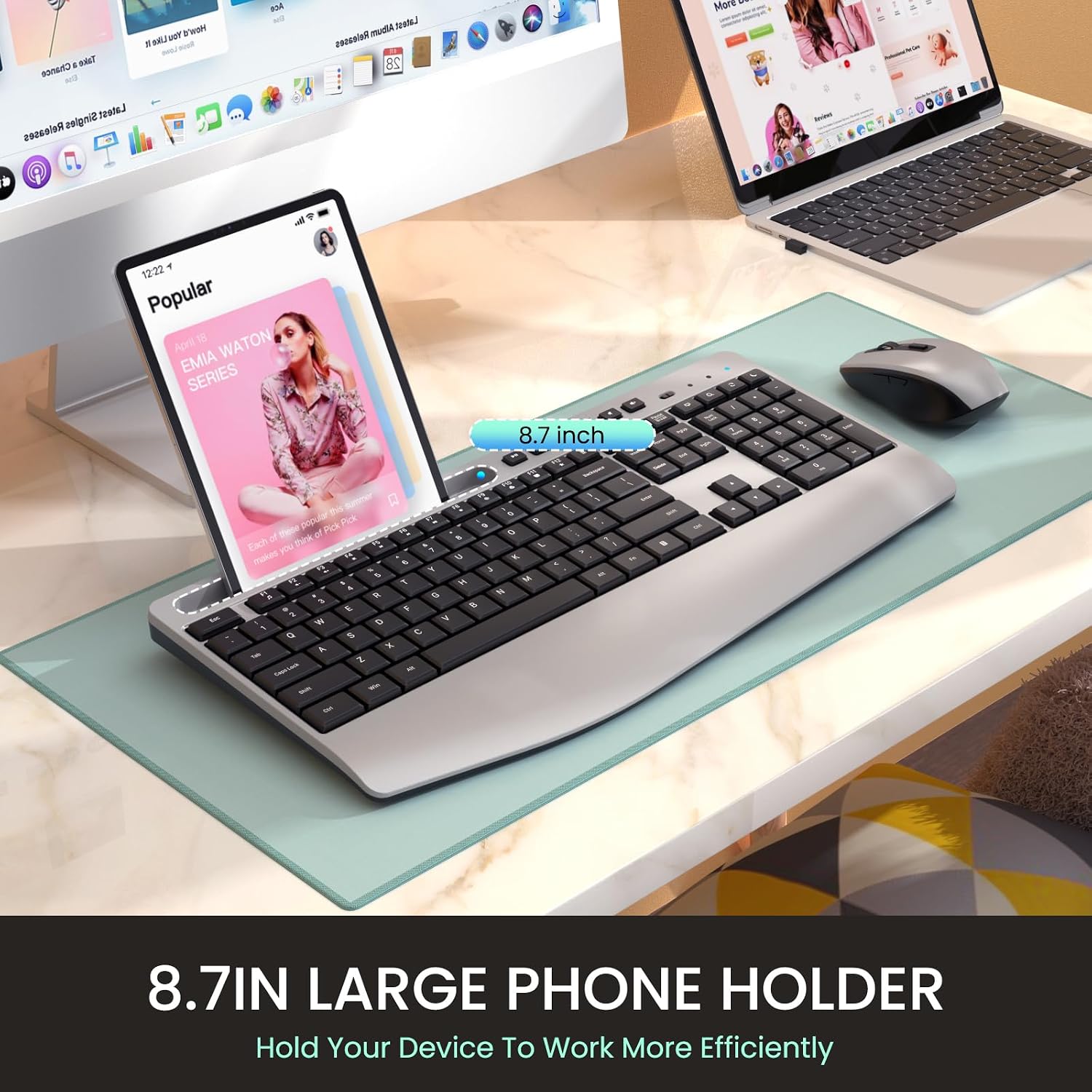
Image: The LIZRROT keyboard with a smartphone placed in its integrated holder, demonstrating the convenience of this feature. The image also indicates the 8.7-inch size of the holder.
Mouse Usage
The wireless mouse offers silent clicks and adjustable DPI settings for precise control.
DPI Adjustment
The mouse features 3 adjustable DPI levels (800/1200/1600) to customize cursor sensitivity. Press the DPI button, usually located near the scroll wheel, to cycle through the settings.
- 800 DPI: Slower cursor movement, ideal for precise tasks.
- 1200 DPI: Standard cursor movement.
- 1600 DPI: Faster cursor movement, suitable for quick navigation.

Image: A close-up of the LIZRROT wireless mouse, illustrating the DPI adjustment button and the three available DPI settings (800, 1200, 1600). This helps users understand how to change mouse sensitivity.
Power Saving Features
Both the keyboard and mouse are equipped with smart sleep modes to conserve battery life:
- Keyboard Sleep: If idle for 15 minutes, the keyboard will enter sleep mode.
- Mouse Sleep: If idle for 10 minutes, the mouse will enter sleep mode.
To wake up either device, simply press any button on the mouse or any key on the keyboard. For extended periods of non-use, it is recommended to turn off the power switches on both devices to maximize battery life.

Image: A visual representation of the LIZRROT keyboard and mouse in a sleep state, with text indicating "Smart Sleep Mode" and details like "10 Mins Auto Sleep" and "Click Keys to Active." This reinforces the power-saving functionality.
Maintenance
Cleaning
- Use a soft, dry cloth to wipe down the surfaces of the keyboard and mouse.
- For stubborn dirt, slightly dampen the cloth with water or a mild, non-abrasive cleaning solution. Ensure no liquid enters the device.
- Avoid using harsh chemicals, solvents, or abrasive materials, as these can damage the finish.
Battery Replacement
Replace batteries when performance degrades or the low battery indicator (if present) illuminates. Follow the battery installation steps outlined in the "Setup Guide" section.
Always dispose of used batteries responsibly according to local regulations.
Troubleshooting
| Problem | Possible Solution |
|---|---|
| Keyboard/Mouse not responding. |
|
| Lag or intermittent connection. |
|
| Mouse cursor erratic or not moving smoothly. |
|
| Keys are sticky or unresponsive. |
|
Specifications
| Feature | Detail |
|---|---|
| Connectivity | 2.4 GHz Wireless (USB Receiver) |
| Wireless Range | Up to 33 feet (10 meters) |
| Keyboard Layout | Full-size with Numeric Keypad |
| Keyboard Power | 1 x AAA Battery (not included) |
| Mouse Power | 2 x AAA Batteries (not included) |
| Mouse DPI Levels | 800 / 1200 / 1600 |
| Compatibility | Windows XP/Vista/7/8/10/X, PCs, Laptops, Chromebooks |
| Special Features | Ergonomic Design, Silent Keys/Clicks, Integrated Phone Holder, Multimedia Shortcuts, Smart Sleep Mode |
| Color | Silver |
| Item Weight | 1.92 pounds (approx. 0.87 kg) |
| Package Dimensions | 17.36 x 10.87 x 1.61 inches (approx. 44.09 x 27.61 x 4.09 cm) |
Warranty and Support
LIZRROT is committed to providing high-quality products and excellent customer service.
- Warranty: This product comes with a one-year unconditional return and exchange policy.
- After-Sales Service: LIZRROT offers lifetime after-sales service for this product.
If you encounter any problems or have questions regarding your LIZRROT Ergonomic Wireless Keyboard and Mouse Combo, please contact our customer service team. You can typically find contact information on the product packaging or by visiting the LIZRROT store page on Amazon and clicking "Ask a question."
Your feedback is valuable and helps us improve our products and services.