
1. Introduction
This user manual provides detailed instructions for the ABIWAZY 14-in-1 USB C Hub Docking Station. This versatile multiport adapter is designed to expand the connectivity of your USB-C enabled laptop, offering a comprehensive solution for dual or triple monitor setups, high-speed data transfer, network connectivity, and power delivery.

Figure 1: ABIWAZY 14-in-1 USB C Hub Docking Station overview.
2. Product Features
The ABIWAZY 14-in-1 USB C Hub Docking Station offers extensive connectivity options:
- Display Outputs: 2 x 4K HDMI (HDMI 1 up to 4K@60Hz, HDMI 2 up to 4K@30Hz), 1 x DisplayPort (up to 4K@30Hz).
- Network: 1 x Gigabit Ethernet (10/100/1000Mbps).
- Power Delivery: 1 x USB-C Power Delivery port (up to 87W for laptop charging).
- USB Data Ports: 2 x USB-A 3.0 (up to 5Gbps), 2 x USB-C Data Transfer (up to 5Gbps), 2 x USB 2.0 (for keyboard/mouse).
- Card Readers: SD and Micro SD card readers (up to 104Mb/s, simultaneous operation supported).
- Audio: 1 x 3.5mm Mic/Audio jack (2-in-1).

Figure 2: Detailed port layout and specifications.
3. Setup and Installation
Before connecting the docking station, ensure your laptop's USB-C port supports DisplayPort Alternate Mode (Alt Mode) and Power Delivery for full functionality. Not all USB-C ports are compatible with video output.
3.1 Compatibility Check
The hub is compatible with Thunderbolt 3, Thunderbolt 4, and USB-C ports with full function (DisplayPort, Data, Power Delivery). Ports that are "Data only," "Charge only," or "Data only" without display function are NOT compatible for video output.
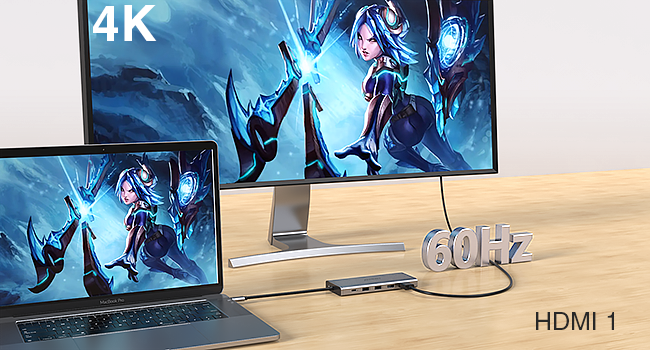
Figure 3: USB-C Port Compatibility Guide.
3.2 Connecting the Docking Station
- Connect the integrated USB-C cable from the docking station to a compatible USB-C port on your laptop.
- For power delivery, connect your laptop's original USB-C power adapter to the PD (Power Delivery) port on the docking station.
- Connect your external monitors to the HDMI and/or DisplayPort outputs on the docking station.
- Connect any USB peripherals (keyboard, mouse, external drives) to the available USB-A or USB-C data ports.
- For wired network access, connect an Ethernet cable to the Gigabit Ethernet port.
- Insert SD or Micro SD cards into the respective slots for data transfer.
- Connect headphones or a microphone to the 3.5mm audio jack.
Video 1: ABIWAZY USB C Hub Docking Station Compatibility List and Setup Guide.
4. Operating Instructions
4.1 Display Modes
The docking station supports various display configurations depending on your operating system:
- Windows: Supports Triple Display (Extended Mode or Mirror Mode).
- HDMI 1 max up to 4K@60Hz.
- DP/HDMI 2 up to 4K@30Hz (work separately while source is DP1.4).
- When connecting 2 displays, resolution max up 4K@30Hz + 1080P@60Hz (DP1.4 source).
- Display output will be 1080P when using triple displays.
- Mac OS: ONLY supports SST Mode (AAA, ABB). This means all external monitors will mirror each other or extend the primary display as one large mirrored desktop.

Figure 4: Multiple Display Modes for Windows and MacOS.
4.2 Data Transfer and Charging
Utilize the USB 3.0 and USB-C data ports for high-speed file transfers. The USB 2.0 ports are ideal for connecting low-bandwidth devices like keyboards and mice without lag. The PD port allows you to charge your laptop while using the hub.

Figure 5: High-Speed Data Transfer capabilities.

Figure 6: Powerful Pass-Through Charging functionality.
4.3 Network Connectivity
The Gigabit Ethernet port provides a stable and fast wired internet connection, eliminating concerns about Wi-Fi instability or interference.

Figure 7: Enjoy Fast Network Speeds.
5. Maintenance
To ensure the longevity and optimal performance of your ABIWAZY docking station:
- Keep the device in a dry environment and avoid exposure to extreme temperatures.
- Clean the exterior with a soft, dry cloth. Do not use liquid cleaners or aerosols.
- Avoid dropping or subjecting the device to strong impacts.
- Do not attempt to disassemble or repair the device yourself. Refer to qualified personnel for service.
6. Troubleshooting
If you encounter issues with your docking station, please refer to the following common solutions:
- No Display Output:
- Ensure your laptop's USB-C port supports DisplayPort Alternate Mode. Refer to your laptop's specifications or manufacturer's website.
- Check all cable connections (USB-C from hub to laptop, HDMI/DP from hub to monitor).
- Verify that your monitors are set to the correct input source.
- For Mac OS, remember that only SST Mode (AAA, ABB) is supported.
- Charging Not Working:
- Confirm that your laptop's original power adapter is connected to the PD port on the docking station.
- Ensure your laptop's USB-C port supports Power Delivery.
- Check the wattage requirements of your laptop. The hub supports up to 87W for safe charging.
- USB Devices Not Recognized:
- Try connecting the USB device to a different port on the hub.
- Ensure the device is properly inserted.
- If connecting an HDD/SSD, only one can be connected at a time via the hub.
- Ethernet Connection Issues:
- Verify the Ethernet cable is securely connected to both the hub and your router/modem.
- Check your network settings on your laptop.
7. Specifications
| Feature | Detail |
|---|---|
| Model | 14-in-1 Triple Display Multiport Adapter |
| Brand | ABIWAZY |
| Color | Grey |
| Package Dimensions | 6.26 x 3.19 x 0.75 inches |
| Item Weight | 5.6 ounces |
| Total USB Ports | 7 (2x USB-A 3.0, 2x USB-C Data, 2x USB 2.0, 1x USB-C PD) |
| Total HDMI Ports | 2 |
| DisplayPort | 1 |
| Ethernet | 1 (Gigabit 10/100/1000Mbps) |
| Card Readers | SD, MicroSD (simultaneous support) |
| Audio Jack | 3.5mm Mic/Audio (2-in-1) |
| Power Delivery | Up to 87W (input 100W) |
| Compatible Devices | Laptops with Full-featured USB-C port (e.g., Dell XPS, HP Elitebook, Lenovo ThinkPad, Surface, Huawei MateBook, etc.) |
8. Warranty and Support
ABIWAZY provides 12 months of product service. If you encounter any problems during use, please contact us with your concerns. Our customer support team is available to assist you.
For further assistance, please visit the official ABIWAZY store or contact customer service through your purchase platform.
Contact Information: Refer to your purchase receipt or the ABIWAZY official website for the most up-to-date contact details.


