1. Introduction and Overview
The Dhiedas P12BC Smart Padlock offers advanced security and convenience with multiple unlocking options. Designed for heavy-duty use, this waterproof and durable electronic lock is suitable for a wide range of indoor and outdoor applications, including gates, fences, sheds, lockers, and more. Its intelligent features provide flexible access management and enhanced peace of mind.

Figure 1: Dhiedas P12BC Smart Padlock and companion mobile application.
2. Product Features
- Versatile Unlocking: Offers 5 distinct methods for access: Passcode, Mobile APP, RFID Card, Physical Key, and Apple Watch compatibility.
- Long-Lasting Battery: Equipped with a 500mAh high-capacity lithium battery, providing up to 365 days of standby time or approximately 8,000 unlocks on a single charge. Features a low battery reminder with flashing red and white indicator lights.
- Robust Construction: Built with a reinforced zinc body, a 304 stainless steel locking beam, and an advanced pin cylinder for maximum protection against shearing, prying, cracking, and cutting.
- All-Weather Durability: Rustproof, waterproof, and weatherproof (IP67 rated), designed to withstand various environmental conditions including rain, sun, and snow.
- Smart Access Management: Supports dynamic passcode generation for temporary guest access, allows a single RFID card to unlock multiple compatible locks, and tracks unlock history for enhanced security monitoring.

Figure 2: The five convenient unlocking methods for the Dhiedas Smart Padlock.

Figure 3: The padlock demonstrates its robust construction against physical attacks and harsh weather.
Video 1: Official demonstration of the Dhiedas padlock's robustness and anti-cut features.
3. Package Contents
Please ensure all items are present in your package:
- 1 x Dhiedas P12BC Smart Padlock
- 2 x Backup Keys
- 1 x USB C Charging Cable
- 2 x RFID Cards
- 1 x English User Manual
4. Setup
4.1 App Installation
Download and install the "eSmartLock" app from Google Play Store (Android) or Apple App Store (iOS). Scan the QR code below for direct access:
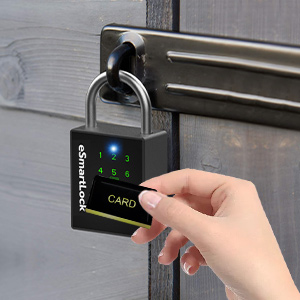
Figure 4: Scan to download the eSmartLock app.
4.2 Initial Setup and Pairing
- Wake Up Padlock: Touch any key on the padlock's keypad to wake it up. The lights will illuminate.
- Enable Bluetooth: Ensure Bluetooth is enabled on your smartphone.
- Open App: Launch the "eSmartLock" app. The app will automatically search for nearby padlocks.
- Pair Device: Select your Dhiedas P12BC padlock from the list of found devices in the app.
- Set Admin Password: Follow the in-app prompts to set your initial 6-digit administrator password. This password will be used for keypad access and managing other settings.
4.3 Adding Passcodes (Up to 20)
- In the app, navigate to "Password Management".
- Click on the "+" icon in the upper right corner.
- Fill in a "Password Name" (e.g., "Guest Passcode").
- Select "Password Type" (e.g., Normal, One-time, Timed).
- Enter the desired 6-digit password twice for confirmation.
- Click "Confirm" to save.
4.4 Adding RFID Cards (Up to 100)
- In the app, navigate to "Card Manager".
- Click on the "+" icon to start adding a new card.
- Enter a "Card Name" for identification.
- Move the RFID card close to the padlock's keypad area. The padlock will beep to confirm successful registration.
5. Operating Instructions
5.1 Unlocking with Keypad
- Touch any key on the keypad to activate it.
- Enter your 6-digit passcode.
- Press the unlock icon (usually a small padlock symbol or checkmark) to confirm. The padlock will unlock.
5.2 Unlocking with Mobile App
- Ensure Bluetooth is active on your smartphone and the padlock is within range.
- Open the "eSmartLock" app.
- Tap the large unlock icon on the main screen. The padlock will unlock automatically.
5.3 Unlocking with RFID Card
- Wake up the padlock by touching any key on the keypad.
- Place a registered RFID card directly over the keypad area. The padlock will unlock upon successful recognition.
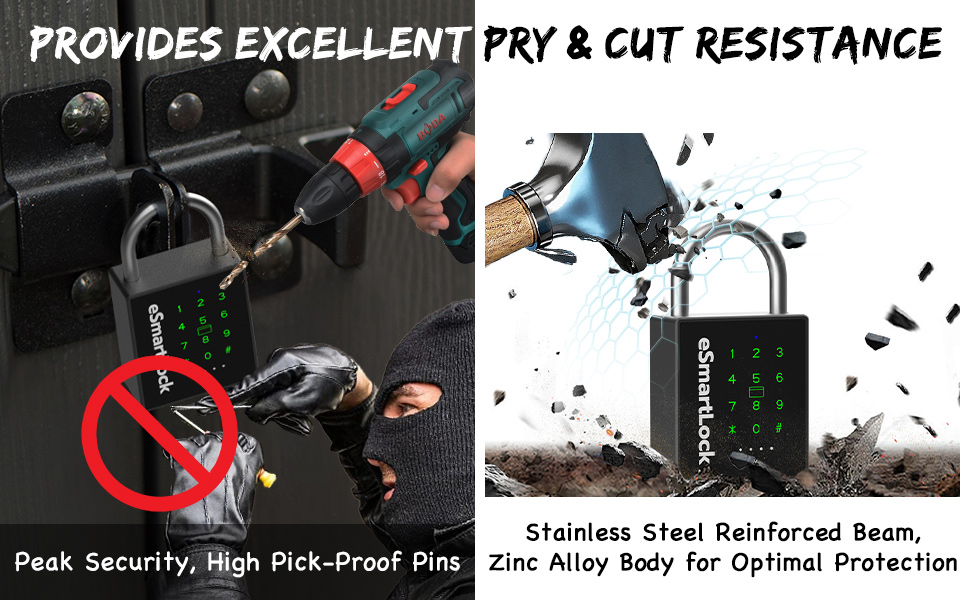
Figure 5: Unlocking the padlock using an RFID card.
5.4 Unlocking with Physical Key
- Locate the keyhole cover at the bottom of the padlock.
- Gently remove the cover.
- Insert one of the provided backup keys into the keyhole and turn to unlock.
6. Battery and Charging
The Dhiedas P12BC Smart Padlock is powered by a durable lithium battery. When the battery is low, the padlock's indicator lights will flash red and white to remind you to charge it.
Charging Instructions
- Locate the USB-C charging port at the bottom of the padlock, next to the keyhole.
- Gently remove the USB port cover.
- Connect the provided USB-C cable to the padlock and a 5V USB power supply (e.g., phone charger, computer USB port).
- The indicator lights will show charging status. Once fully charged, disconnect the cable and securely close the USB port cover to maintain waterproofing.
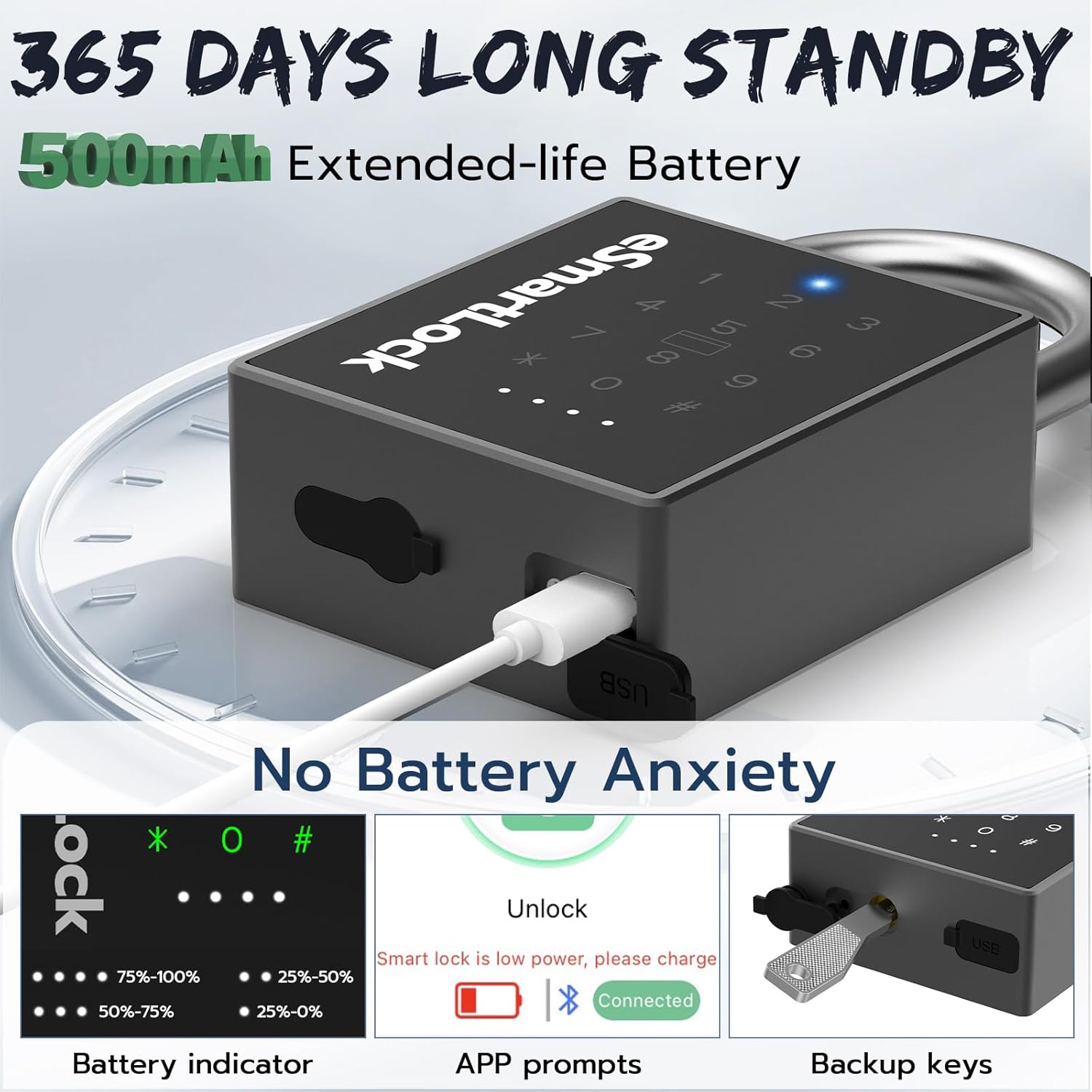
Figure 6: Battery indicator and USB-C charging port location.
7. Maintenance and Care
- Cleaning: Wipe the padlock regularly with a soft, damp cloth. Avoid using abrasive cleaners or solvents that could damage the finish or electronic components.
- Waterproofing: Always ensure the USB-C charging port cover and keyhole cover are securely closed when not in use to maintain the padlock's IP67 waterproof rating.
- Temperature: Operate the padlock within its specified working temperature range of -20°C to 45°C (-4°F to 113°F) to ensure optimal performance and battery life.
- Storage: If storing the padlock for an extended period, ensure it is fully charged and stored in a cool, dry place.
8. Troubleshooting
Common Issues and Solutions:
- Padlock Not Responding: The battery may be depleted. Connect the padlock to a 5V USB power supply using the provided cable.
- App Connection Issues: Ensure Bluetooth is enabled on your phone and the padlock is awake and within close proximity. Try restarting the app or your phone's Bluetooth.
- Forgotten Passcode: If you forget your administrator password, you may need to perform a factory reset. Refer to the "Unbind Smart Lock" option in the app's "More features" section (Section 2.9 in the physical manual) to unbind the lock and reset it. Note that this will erase all stored data.
- RFID Card Not Working: Ensure the card is properly registered in the app. Try re-registering the card if issues persist.
9. Specifications
| Feature | Description |
|---|---|
| Model | P12BC |
| Basic Function | Passcodes, App, Keys, Cards |
| Keyboard | Capacitive Touch Button |
| Code Capacity | 20 Passwords (including 1 Admin) |
| Card Capacity | 100 Cards |
| APP Name | eSmartLock |
| Power Supply Mode | Lithium Battery |
| Emergency Power Supply | 5V Micro USB Power Supply |
| Low Battery Reminder | Flashing Red Light + 4 White Battery Indicator Lights |
| Working Temperature | -20°C to 45°C (-4°F to 113°F) |
| Material | Stainless Steel, Zinc |
| Item Dimensions (L x W x H) | 2.5 x 1.1 x 4.6 inches |
| Item Weight | 1.1 Pounds |

Figure 7: Physical dimensions and key specifications of the padlock.
10. Warranty and Support
Dhiedas offers a 12-Month Product Care period for your Smart Padlock. Additionally, the brand provides Lifetime Service and Free Replacements. For any issues or support needs, please reach out to Dhiedas customer service 24/7.
For further assistance, please refer to the contact information provided in your product packaging or visit the official Dhiedas store online.
